
To compare two arrays in PowerShell, use Compare-Object. It lists the items that are only in one array: <= means only in the first (reference) array, and => only in the second:
$approved  = 'WEB01', 'WEB02', 'SQL01'
$installed = 'web02', 'SQL01', 'FILE01'

Compare-Object -ReferenceObject $approved -DifferenceObject $installed
Output:
InputObject SideIndicator
----------- -------------
FILE01      =>
WEB01       <=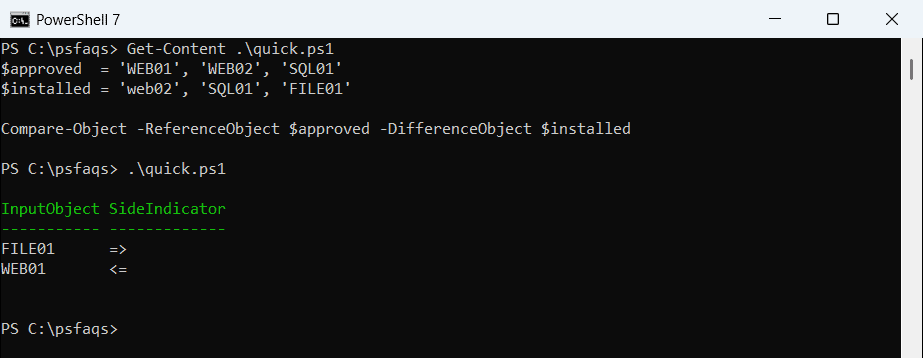
WEB02 and web02 matched, because Compare-Object ignores case and order. I ran every example in PowerShell 7.6 and Windows PowerShell 5.1, with the same results.
Find matches and missing items
Add -IncludeEqual -ExcludeDifferent to list the matches. For “what’s missing”, a -notin filter reads more clearly than side indicators:
$approved  = 'WEB01', 'WEB02', 'SQL01'
$installed = 'web02', 'SQL01', 'FILE01'

"In both:              $((Compare-Object $approved $installed -IncludeEqual -ExcludeDifferent).InputObject -join ', ')"
"Missing from install: $(($approved | Where-Object { $_ -notin $installed }) -join ', ')"
"Not approved:         $(($installed | Where-Object { $_ -notin $approved }) -join ', ')"
Output:
In both:              WEB02, SQL01
Missing from install: WEB01
Not approved:         FILE01
-in and -notin covers these operators in detail.
Case-sensitive comparison
Add -CaseSensitive when WEB02 and web02 should count as different items:
$approved  = 'WEB01', 'WEB02', 'SQL01'
$installed = 'web02', 'SQL01', 'FILE01'

"Ignoring case: $((Compare-Object $approved $installed -IncludeEqual -ExcludeDifferent).InputObject -join ', ')"
"-CaseSensitive: $((Compare-Object $approved $installed -IncludeEqual -ExcludeDifferent -CaseSensitive).InputObject -join ', ')"
Output:
Ignoring case: WEB02, SQL01
-CaseSensitive: SQL01
A $null array breaks Compare-Object
An empty array works, but $null doesn’t. That happens when a command finds nothing and you store its output:
$installed = 'WEB01', 'SQL01'
$found = Get-ChildItem -Path C:\psfaqs\NoSuchFolder -ErrorAction SilentlyContinue | ForEach-Object Name

try { Compare-Object -ReferenceObject $found -DifferenceObject $installed -ErrorAction Stop }
catch { "Failed. $($_.Exception.Message)" }

"With @(): $(@(Compare-Object -ReferenceObject @($found) -DifferenceObject $installed).Count) differences"
Output:
Failed. Cannot bind argument to parameter 'ReferenceObject' because it is null.
With @(): 2 differences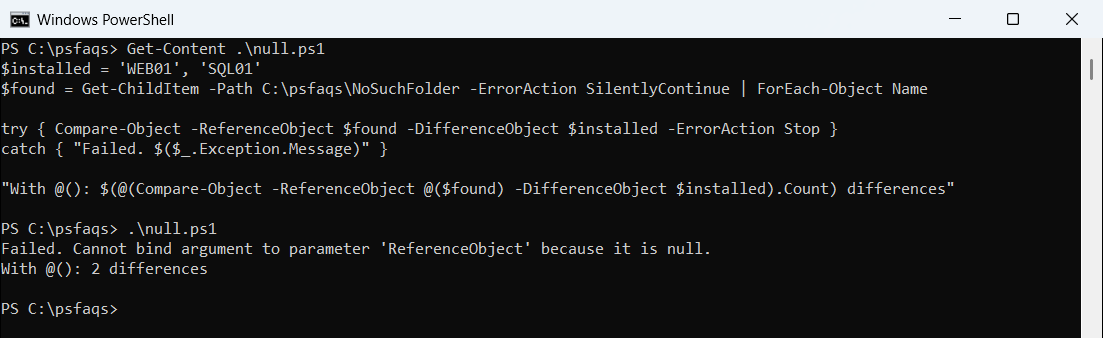
Wrap both sides in @() whenever they come from a command, so an empty result is still an array.
Check if two arrays are equal
-eq doesn’t compare two arrays. With an array on the left, it filters, and here it returned nothing. Use Compare-Object, which returns nothing when the arrays match:
$a = 1, 2, 3
$b = 1, 2, 3
$c = 3, 2, 1

"`$a -eq `$b returns: [$($a -eq $b)]"
"a and c, any order:  $(-not (Compare-Object $a $c))"
"a and c, same order: $(-not (Compare-Object $a $c -SyncWindow 0))"
"a and b, same order: $(-not (Compare-Object $a $b -SyncWindow 0))"
Output:
$a -eq $b returns: []
a and c, any order:  True
a and c, same order: False
a and b, same order: True
-SyncWindow 0 compares position by position, so it also checks the order. Comparison operators explains why -eq filters arrays.
Duplicates count
Compare-Object matches items one for one, so an extra copy shows up as a difference:
$expected = 'WEB01', 'WEB01', 'SQL01'
$actual   = 'WEB01', 'SQL01'

Compare-Object $expected $actual | ForEach-Object { "$($_.InputObject) $($_.SideIndicator)" }
Output:
WEB01 <=Remove duplicates first if you only care about which values appear. Removing duplicates shows how.
Compare arrays of objects
For objects, name the properties to compare. Here the BITS service changed state between two snapshots:
$yesterday = @(
    [pscustomobject]@{ Name = 'Spooler'; Status = 'Running' }
    [pscustomobject]@{ Name = 'BITS';    Status = 'Running' }
)
$today = @(
    [pscustomobject]@{ Name = 'Spooler'; Status = 'Running' }
    [pscustomobject]@{ Name = 'BITS';    Status = 'Stopped' }
)

Compare-Object $yesterday $today -Property Name, Status |
    ForEach-Object { '{0,-8} {1,-8} {2}' -f $_.Name, $_.Status, $_.SideIndicator }
Output:
BITS     Stopped  =>
BITS     Running  <=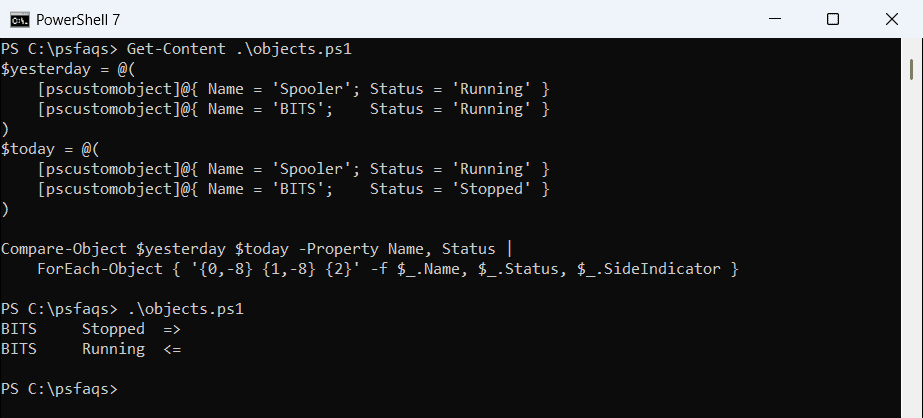
Without -Property, Compare-Object compares the objects’ text form, which rarely works. The Compare-Object documentation covers -PassThru too.
Compare large arrays quickly
Compare-Object and -notin slow down with tens of thousands of items. A HashSet removes one list from another almost instantly:
$all    = 1..20000 | ForEach-Object { "PC$_" }
$online = 1..20000 | Where-Object { $_ % 4 } | ForEach-Object { "PC$_" }

$offline = [System.Collections.Generic.HashSet[string]]::new([string[]]$all, [StringComparer]::OrdinalIgnoreCase)
$offline.ExceptWith([string[]]$online)
"Offline computers: $($offline.Count), first three: $(($offline | Select-Object -First 3) -join ', ')"
Output:
Offline computers: 5000, first three: PC4, PC8, PC12ExceptWith keeps items only in the first set, IntersectWith keeps matches. Microsoft documents them under HashSet.ExceptWith.