When working with PowerShell, you should know how to check if values aren’t equal most of the time. PowerShell’s not equal operator, written as -ne, compares two values and gives you $true when they don’t match.
The -ne operator is one of PowerShell’s most useful comparison operators because it lets you filter out unwanted data and set up conditional logic based on differences between values.
This operator works with all sorts of data types—numbers, strings, objects, you name it. Instead of using != like some languages, PowerShell sticks with -ne for consistency with its other operators like -eq (equals), -gt (greater than), and -lt (less than).
Just put -ne between the two values you want to compare. That’s it, really.
In this tutorial, I’ll explain how to use the PowerShell not equal operator effectively, along with practical examples.
Not Equal in PowerShell
PowerShell gives you several comparison operators for evaluating conditions in scripts. The not equal operator helps you check when values don’t match, which comes in handy for filtering and logic.
What Does Not Equal Mean in PowerShell
In PowerShell, “not equal” is the -ne operator. It checks if two values are different. If they don’t match, -ne returns $true. Otherwise, you get $false.
$x = 5
$y = 10
$x -ne $y # Returns $true because 5 is not equal to 10You can use the not equal operator with numbers, strings, arrays, and objects. PowerShell usually handles type conversion for you.
"Hello" -ne "World" # Returns $true
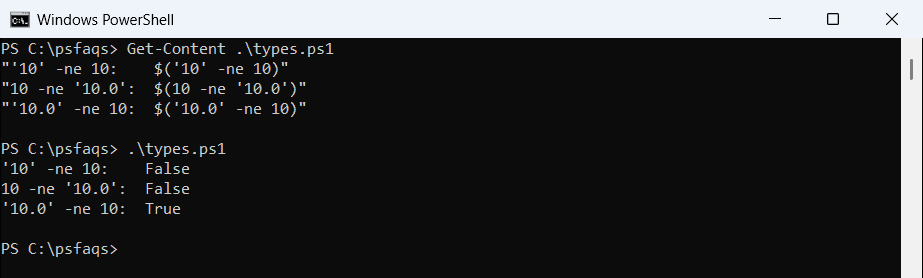
5 -ne "5" # Returns $false (string converted to number)It’s especially useful in if statements and where-object filtering.
How the -ne Operator Works in PowerShell
The -ne operator in PowerShell compares whatever’s on its left and right. It checks if they’re different, following PowerShell’s rules.
For numbers and strings, it’s pretty straightforward:
# Numeric comparison
10 -ne 20 # Returns $true
# String comparison (case-insensitive by default)
"PowerShell" -ne "powershell" # Returns $falseHere is the output in the screenshot below:

By default, -ne is case-insensitive with strings. If you need case sensitivity, just use -cne.
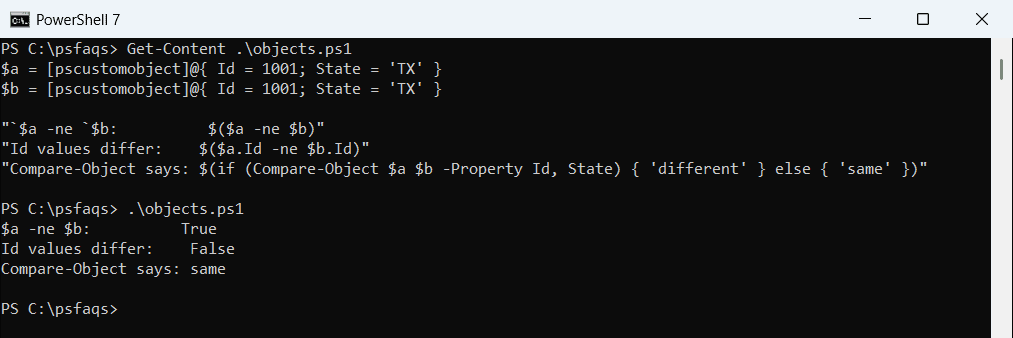
When you compare objects, PowerShell actually checks if they’re the same object—not if their properties are equal.
Role of Comparison Operators in PowerShell
The -ne operator is part of a family of comparison operators:
| Operator | Description | Example |
|---|---|---|
-eq | Equal | $x -eq $y |
-ne | Not Equal | $x -ne $y |
-gt | Greater Than | $x -gt $y |
-lt | Less Than | $x -lt $y |
-ge | Greater Than or Equal | $x -ge $y |
-le | Less Than or Equal | $x -le $y |
You can use these with the pipeline to filter collections:
Get-Process | Where-Object { $_.CPU -ne $null }There are also wildcard operators (-like, -notlike) and regex operators (-match, -notmatch) for more advanced pattern matching.
Syntax and Usage of -ne Operator
The -ne operator in PowerShell checks if two values aren’t equal. It works with strings, integers, arrays—you name it—and spits out $true if they don’t match.
Basic Syntax With Examples
Here’s the basic way to use the not equal operator:
$value1 -ne $value2You’ll get $true if the values are different, $false if they’re the same.
Simple Examples:
# Returns $true because 5 is not equal to 10
5 -ne 10
# Returns $false because both values are equal
"PowerShell" -ne "PowerShell"
# Can be used in if statements
if ($status -ne "Running") {
Write-Host "Service is not running"
}Here is the exact output in the screenshot below:

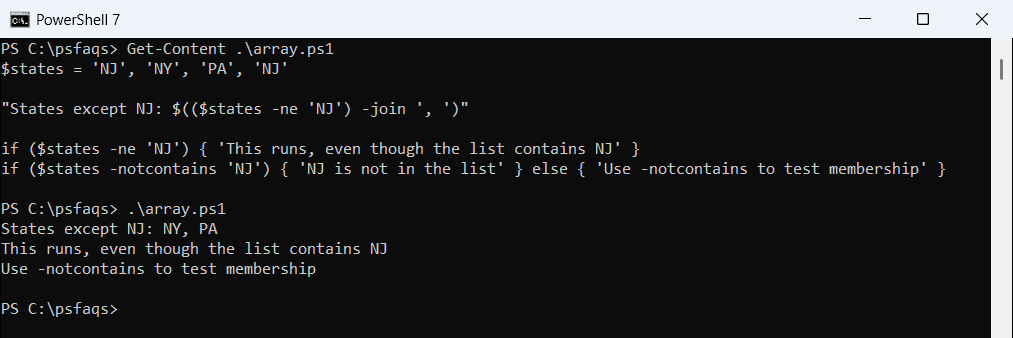
You can use -ne with arrays to filter values too:
$numbers = 1,2,3,4,5
$numbers -ne 3 # Returns 1,2,4,5Comparing Strings and Case Sensitivity
By default, string comparisons with -ne ignore case in PowerShell. So “PowerShell” and “powershell” are seen as equal.
# Returns $false because case is ignored by default
"PowerShell" -ne "powershell"If you want case to matter, use -cne:
# Returns $true because case is considered
"PowerShell" -cne "powershell"You can even use the case-sensitive operator when filtering:
$names = "John", "JOHN", "Mary"
$names -cne "John" # Returns "JOHN", "Mary"String comparisons with -ne work for variables, literal strings, and expressions that give you strings.
Compare Integers and Numeric Values
When you use -ne with numbers, PowerShell checks if the numbers are mathematically different.
# Basic integer comparison
42 -ne 7 # Returns $true
42 -ne 42 # Returns $false
# Works with decimal values too
5.5 -ne 5.0 # Returns $trueThe -ne operator can compare variables of different numeric types:
$int = 10
$double = 10.0
$int -ne $double # Returns $false (values are equal)It’s also handy for filtering numeric arrays:
$scores = 65, 70, 85, 90, 65
$uniqueScores = $scores | Where-Object { $_ -ne 65 } # Returns 70, 85, 90If you use -ne with math expressions, PowerShell evaluates the math first, then compares:
(10 * 3) -ne (5 * 5) # Returns $false because 30 equals 25Comparison with Other PowerShell Operators
PowerShell comes with a bunch of comparison operators that you can mix with -ne to write powerful conditional statements. Each one has its own quirks and best use cases.
Difference Between -ne and -eq
The -ne (not equal) and -eq (equal) operators are opposites. -eq returns true if values match, while -ne returns true if they don’t.
$a = 10
$b = 15
# Not equal example
$a -ne $b # Returns True because 10 is not equal to 15
# Equal example
$a -eq $b # Returns False because 10 is not equal to 15You can use these operators with strings, numbers, and Boolean values. If you use them with collections, -ne filters out matches and -eq keeps only the matches.
$numbers = 1,2,3,4,5
$numbers -ne 3 # Returns 1,2,4,5
$numbers -eq 3 # Returns 3When to Use -ne, -ceq, -cne, -ieq, and -ine
PowerShell gives you both case-sensitive and case-insensitive operators for comparisons:
| Operator | Description | Case Sensitivity |
|---|---|---|
-ne | Not equal | Case-insensitive |
-eq | Equal | Case-insensitive |
-cne | Case-sensitive not equal | Case-sensitive |
-ceq | Case-sensitive equal | Case-sensitive |
-ine | Case-insensitive not equal | Case-insensitive |
-ieq | Case-insensitive equal | Case-insensitive |
Use -cne if you need exact string comparison with case sensitivity:
"PowerShell" -cne "powershell" # Returns True
"PowerShell" -ne "powershell" # Returns FalseThe -ine and -ieq operators work the same as -ne and -eq by default since PowerShell comparisons ignore case. They’re nice if you want to make your intent extra clear in scripts.
Using Not Equal with Greater Than and Less Than
PowerShell gives you a handful of comparison operators for working with value relationships:
-gt(greater than)-lt(less than)-ge(greater than or equal to)-le(less than or equal to)
You can pair these with -ne in logical operations for more control:
$score = 75
# Check if score is not equal to 100 and greater than 70
if ($score -ne 100 -and $score -gt 70) {
"Good score, but not perfect"
}Negating results? You have a few options—-not or the ! symbol both work:
# These are equivalent
if (-not ($score -eq 100)) { "Not 100" }
if (!($score -eq 100)) { "Not 100" }
if ($score -ne 100) { "Not 100" }Mixing these up lets you dial in exactly the conditions you want in scripts or filters.
PowerShell Not Equal With Collections and Objects
The -ne operator acts a bit differently with collections and objects than with single values. You can use it to filter arrays, compare object properties, and do some cool stuff in pipelines.
Filtering Collections Using -ne
When you use -ne with a collection, PowerShell checks each item for you. No need to write a loop; it just works.
$numbers = 1,2,3,4,5
$numbers -ne 3
# Output: 1,2,4,5If you try this with an empty collection, you’ll always get $false. Single-element collections act as the element itself, which might trip you up if you’re not expecting it.
When the left side is a collection and the right side is a single value, PowerShell returns everything that doesn’t match that value.
$fruits = "apple","banana","cherry"
$fruits -ne "banana"
# Output: apple, cherryComparison of Objects and Property Values
Comparing objects? -ne checks if they’re different instances. If you want to compare a property, you have to access it directly.
$user1 = [PSCustomObject]@{Name="John"; Age=30}
$user2 = [PSCustomObject]@{Name="John"; Age=30}
# Objects are different instances
$user1 -ne $user2 # Returns $true
# Property comparison
$user1.Name -ne $user2.Name # Returns $falseFor more complex object comparisons, script blocks or the Where-Object cmdlet give you finer control over which properties to check.
$processes = Get-Process
$processes | Where-Object {$_.CPU -ne 0}Using Not Equal in Pipelines
The -ne operator is really at home in pipelines, especially with Where-Object and other filtering cmdlets.
Get-Service | Where-Object {$_.Status -ne "Running"}You can stack up multiple conditions for more complex filters:
Get-ChildItem | Where-Object {$_.Extension -ne ".txt" -and $_.Length -ne 0}Script blocks let you do advanced filtering—filter on calculated properties, or combine several checks at once.
Get-Process | Where-Object {$_.Company -ne $null} | Select-Object Name, CompanyPowerShell Not Equal Comparisons Examples
The -ne operator in PowerShell is your go-to for filtering and making decisions in scripts. Let’s see how it plays out with processes, automation, and pattern matching.
Filtering Processes With where-object
-ne shines when you need to filter out system processes you don’t want. You can zero in on just what matters.
# Find all processes that aren't using the explorer process
Get-Process | Where-Object {$_.Name -ne "explorer"}
# List processes not consuming more than 50MB of memory
Get-Process | Where-Object {$_.WorkingSet -ne 52428800}Need to spot processes not running as SYSTEM? Easy:
Get-Process | Where-Object {$_.Username -ne "NT AUTHORITY\SYSTEM"}Combining Get-Process with Where-Object and -ne makes system maintenance and troubleshooting a lot simpler.
Scripting Automation Scenarios
In automation, -ne helps you build logic that reacts to differences. For example, checking if a service isn’t running before starting it:
# Check if a service is not running and start it
$service = Get-Service -Name "Spooler"
if ($service.Status -ne "Running") {
Start-Service -Name "Spooler"
Write-Host "Started the Print Spooler service"
}Error handling is another good use:
$result = Invoke-Command -ComputerName "Server01" -ScriptBlock {Get-EventLog -LogName System -Newest 5}
if ($? -ne $true) {
Write-Host "Failed to connect to Server01"
}Comparing Output with Wildcards
You can combine -ne with wildcards for pattern-based exclusions.
# Find all text files that don't start with "backup"
Get-ChildItem -Path C:\Data -Filter "*.txt" | Where-Object {$_.Name -notlike "backup*"}Need more complex patterns? Regular expressions and -notmatch have your back:
# Find processes that don't contain numbers in their names
Get-Process | Where-Object {$_.Name -notmatch "\d+"}# Find services not related to Microsoft
Get-Service | Where-Object {$_.DisplayName -notlike "*Microsoft*"}Advanced Use Cases of the -ne Operator
The -ne operator isn’t just for simple checks. You can combine it with logical operators, script blocks, and pattern matching to build more flexible code.
Combine Not Equal with Logical Operators
Mix -ne with logical operators to create complex conditions. For example, filter out items that are neither “Error” nor “Warning”:
# Filter items that are neither "Error" nor "Warning"
$items | Where-Object {($_ -ne "Error") -and ($_ -ne "Warning")}With arrays, -ne tests for full inequality instead of just partial matches.
# Check if user doesn't have either admin or editor roles
if (($userRole -ne "Admin") -and ($userRole -ne "Editor")) {
Write-Output "Limited access granted"
}Utilizing Script Blocks and Functions
Script blocks and functions make -ne even more reusable. Try wrapping your logic up for repeated use:
# Function to test multiple inequality conditions
function Test-NotEqual {
param($Value, $ExcludedValues)
foreach ($item in $ExcludedValues) {
if ($Value -eq $item) { return $false }
}
return $true
}$notEqualBlock = { param($x) $x -ne $null -and $x -ne "" }
$validData = $data | Where-Object -FilterScript $notEqualBlockWorking with Regular Expressions
-ne is for exact checks, but regular expressions open the door to pattern-based inequality. -notmatch is your friend here.
# Filter out items matching a pattern
$items | Where-Object { $_ -notmatch "^Error" }Need case-sensitive checks? Use -cnotmatch:
# Case-sensitive filtering
$data | Where-Object { $_ -cnotmatch "[0-9]+" }Special Scenarios and Formatting Output
The “not equal” operator gets even more useful when you combine it with formatting or deal with special data types. These tricks help you make output readable and handle boolean results smoothly.
Formatting Results With format-table
Use PowerShell’s format-table cmdlet to turn filtered results into something you can actually read at a glance.
Get-Process | Where-Object {$_.CPU -ne 0} | Format-Table Name, CPU, ID -AutoSizeThis command shows processes where CPU usage isn’t zero, formatted in a tidy table. The -AutoSize parameter tweaks the column widths for you.
Want to add a custom column? No problem:
Get-Service | Where-Object {$_.Status -ne "Running"} |
Format-Table Name, Status, @{Name="NotRunning"; Expression={$true}} -AutoSizeThis one adds a boolean column for services that aren’t running, making it easy to spot them at a glance.
Exporting and Handling Boolean Values
The “not equal” operator (-ne) gives you boolean values—either $true or $false. You can store these results and use them however you want.
$result = (5 -ne 10) # Stores $trueYou can use these boolean values to drive conditional logic in your scripts. For example:
if ($userInput -ne $expectedValue) {
Write-Warning "Input doesn't match expected value"
}If you want to export results to files or send them to other systems, you’ll probably need to convert your boolean values to strings or integers first. Here’s one way to do it:
$results = @{
"Test1" = ($value1 -ne $value2)
"Test2" = ($name1 -ne $name2)
}
$results | ConvertTo-Csv | Out-File "comparison_results.csv"Troubleshooting and Best Practices
When you use the not equal operator in PowerShell, a few common issues can trip you up. Being aware of these issues and implementing a few best practices can save you some headaches.
Common Mistakes in Not Equal Comparisons
One thing that gets people is the operator syntax. PowerShell uses -ne for not equal, not != like some other languages. If you use the wrong one, your comparison won’t work right.
Comparing different data types is another pitfall. PowerShell tries to convert types automatically, but that doesn’t always go as planned. It’s just safer to compare the same types, or convert them yourself before comparing.
Watch out for null values. $null -ne $value and $value -ne $null might not behave the same. The first one is usually more predictable.
Case sensitivity sneaks up on people too. By default, string comparisons are case-insensitive. If you need case sensitivity, use -cne instead of -ne.
Performance Tips for Large Collections
If you’re filtering big collections, try using the pipeline with Where-Object and -ne for clarity. For example: $collection | Where-Object {$_ -ne "unwanted"}.
But if you care about speed with large datasets, the .Where() method is a lot faster: $collection.Where({$_ -ne "unwanted"}). That’s a nice trick to keep in mind.
Try to avoid nested comparisons. Instead of checking a bunch of not equal conditions one after the other, combine them with logical operators like -or.
If you pre-filter your collection before doing complex stuff, your script will run faster. Get rid of the junk up front.
And hey, if you’re working with a massive collection, PowerShell 7+ lets you use ForEach-Object -Parallel to speed up not equal comparisons across lots of items. It can make a real difference.

Conclusion
The PowerShell not equal operator (-ne) is used for building conditional logic in scripts. It lets you compare values and check if they’re different, giving you a Boolean result—either $true or $false.
The PowerShell not equal operator with different data types such as numbers, strings, arrays, and objects, etc
By default, PowerShell compares in a case-insensitive way with -ne. But if you need case sensitivity, just switch to -cne.
You can also mix the not equal operator with loops or conditional statements for more complex checks. That’s where things start to get interesting.
Do let me know if you still have any questions related to the PowerShell not equal operator.
Bijay Kumar is an esteemed author and the mind behind PowerShellFAQs.com, where he shares his extensive knowledge and expertise in PowerShell, with a particular focus on SharePoint projects. Recognized for his contributions to the tech community, Bijay has been honored with the prestigious Microsoft MVP award. With over 15 years of experience in the software industry, he has a rich professional background, having worked with industry giants such as HP and TCS. His insights and guidance have made him a respected figure in the world of software development and administration. Read more.