
To use multiple conditions with PowerShell Where-Object, put them in one script block and join them with -and or -or:
$orders | Where-Object { $_.City -eq 'Austin' -and $_.Total -gt 100 }-and needs every condition to be true, and -or needs at least one. Below I combine them with parentheses, use -in, avoid a common CSV trap and compare the simplified syntax and the .Where() method.
The sample data
Every example filters the same six orders, saved as orders.csv:
Order,City,Status,Total
ORD-5001,Austin,Shipped,250
ORD-5002,Dallas,Pending,1200
ORD-5003,Austin,Pending,90
ORD-5004,Denver,Shipped,1450
ORD-5005,Austin,Canceled,310
ORD-5006,Dallas,Shipped,75
Import-Csv reads every value as text, so I convert Total to a number while loading. The reason is shown further down:
$orders = Import-Csv -Path .\orders.csv | Select-Object Order, City, Status, @{ Name = 'Total'; Expression = { [int]$_.Total } }All conditions must match: -and
This finds Austin orders over $100:
$orders = Import-Csv -Path .\orders.csv | Select-Object Order, City, Status, @{ Name = 'Total'; Expression = { [int]$_.Total } }

$orders | Where-Object { $_.City -eq 'Austin' -and $_.Total -gt 100 }
Output:
Order    City   Status   Total
-----    ----   ------   -----
ORD-5001 Austin Shipped    250
ORD-5005 Austin Canceled   310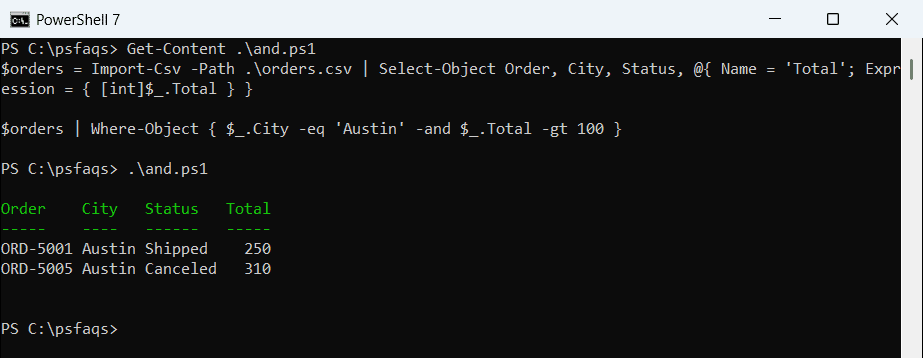
ORD-5003 is in Austin too, but its $90 total fails the second condition. Add as many -and clauses as you need.
Any condition can match: -or
This returns orders that are pending or worth more than $1,000:
$orders = Import-Csv -Path .\orders.csv | Select-Object Order, City, Status, @{ Name = 'Total'; Expression = { [int]$_.Total } }

$orders | Where-Object { $_.Status -eq 'Pending' -or $_.Total -gt 1000 }
Output:
Order    City   Status  Total
-----    ----   ------  -----
ORD-5002 Dallas Pending  1200
ORD-5003 Austin Pending    90
ORD-5004 Denver Shipped  1450
ORD-5002 matches both conditions and still appears only once. More on these operators in PowerShell logical operators.
Group conditions with parentheses
-and and -or have equal precedence in PowerShell and are evaluated from left to right. Parentheses make the order explicit, so use them whenever you mix the two:
$orders = Import-Csv -Path .\orders.csv | Select-Object Order, City, Status, @{ Name = 'Total'; Expression = { [int]$_.Total } }

$orders | Where-Object {
    ($_.City -eq 'Austin' -or $_.City -eq 'Dallas') -and $_.Status -ne 'Canceled'
}
Output:
Order    City   Status  Total
-----    ----   ------  -----
ORD-5001 Austin Shipped   250
ORD-5002 Dallas Pending  1200
ORD-5003 Austin Pending    90
ORD-5006 Dallas Shipped    75
This reads as: Austin or Dallas, and not canceled. Without the parentheses, the canceled Austin order slips through.
Match a list of values with -in and -notin
Instead of chaining -or for every city, put the values in a list:
$orders = Import-Csv -Path .\orders.csv | Select-Object Order, City, Status, @{ Name = 'Total'; Expression = { [int]$_.Total } }

$orders | Where-Object { $_.City -in 'Austin', 'Dallas' -and $_.Status -notin 'Canceled', 'Pending' }
Output:
Order    City   Status  Total
-----    ----   ------  -----
ORD-5001 Austin Shipped   250
ORD-5006 Dallas Shipped    75
-in checks whether the left value is in the list, and -notin is the opposite. For text matches, see Where-Object contains.
Watch out for numbers stored as text
Import-Csv returns strings. When the left side of -gt is a string, PowerShell compares text, not numbers:
$raw = Import-Csv -Path .\orders.csv
"As text:   $(($raw | Where-Object { $_.Total -gt 100 }).Count) orders over 100"
"As number: $(($raw | Where-Object { [int]$_.Total -gt 100 }).Count) orders over 100"
Output:
As text:   6 orders over 100
As number: 4 orders over 100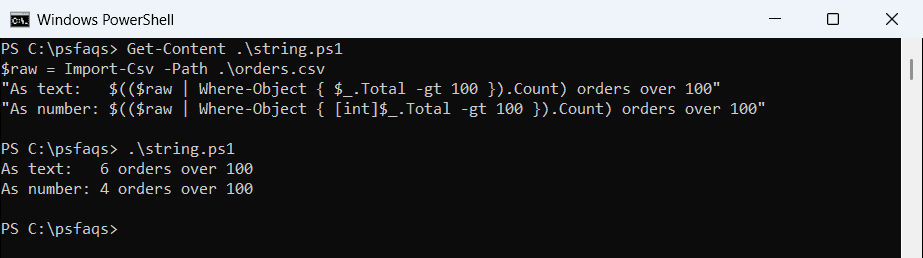
As text, every value passes: ’90’ and ’75’ beat ‘100’ because 9 and 7 come after 1. Casting with [int] gives the right answer of 4, so always convert CSV numbers and dates before you compare them.
The simplified syntax only takes one condition
Where-Object also has a short form without braces, like Where-Object City -EQ 'Austin'. It can’t combine conditions:
$orders = Import-Csv -Path .\orders.csv | Select-Object Order, City, Status, @{ Name = 'Total'; Expression = { [int]$_.Total } }

try { $orders | Where-Object City -EQ 'Austin' -and Total -GT 100 -ErrorAction Stop }
catch { "Failed. $($_.Exception.Message)" }
Output:
Failed. Parameter set cannot be resolved using the specified named parameters. One or more parameters issued cannot be used together or an insufficient number of parameters were provided.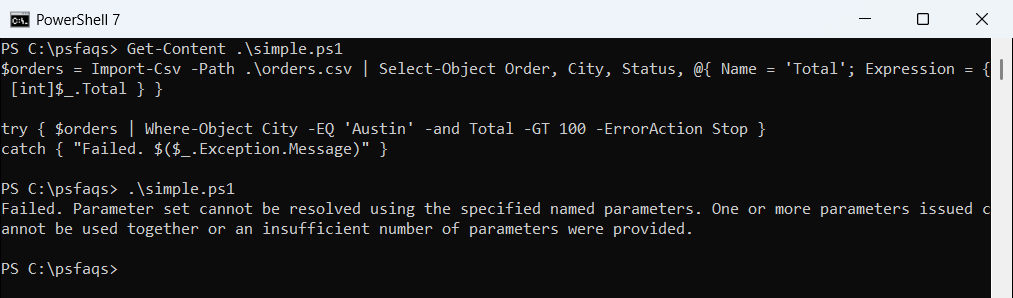
-EQ and -GT are both parameters of Where-Object, and each one belongs to a different parameter set, so PowerShell can’t pick one. Windows PowerShell 5.1 shows a shorter version of the same error.
Switch to the script block form as soon as you need a second condition. The Where-Object reference documents both forms.
Use the .Where() method
Collections have a .Where() method that takes the same script block. It’s faster on large arrays because it skips the pipeline:
$orders = Import-Csv -Path .\orders.csv | Select-Object Order, City, Status, @{ Name = 'Total'; Expression = { [int]$_.Total } }

$big = $orders.Where({ $_.Status -eq 'Shipped' -and $_.Total -ge 200 })
$big | ForEach-Object { '{0} {1,-7} {2,7:C0}' -f $_.Order, $_.City, $_.Total }
Output:
ORD-5001 Austin     $250
ORD-5004 Denver   $1,450