
PowerShell Get-Process lists the processes running on your computer. Type Get-Process for all of them, or Get-Process -Name chrome for one app by name. Each result is a Process object you can sort, filter or stop.
I’ll go through names, IDs, sorting by CPU and memory, owners, modules and remote computers. I ran each example in PowerShell 7.6 and Windows PowerShell 5.1, and a few of them behave differently.
What does Get-Process show by default?
To keep my own apps out of the screenshots, I started a hidden ping.exe as a harmless test process. You can do the same:
Start-Process -FilePath ping.exe -ArgumentList '-n','90','127.0.0.1' -WindowStyle HiddenThen ask Get-Process for it by name. Run Get-Process with no parameters and you get the same table for every process on the PC:
Get-Process -Name PINGOutput:
 NPM(K)    PM(M)      WS(M)     CPU(s)      Id  SI ProcessName
 ------    -----      -----     ------      --  -- -----------
      7     1.05       5.89       0.02   15444   1 PING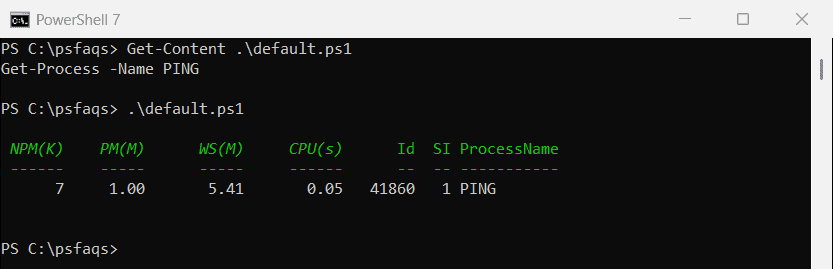
Windows PowerShell 5.1 prints a different table for the same process. It adds a Handles column and shows PM and WS in kilobytes instead of megabytes:
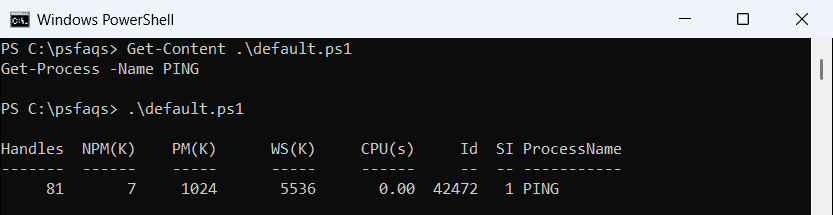
Here’s what each column means, according to Microsoft’s Get-Process reference:
| Column | Meaning |
|---|---|
| NPM(K) | Non-paged memory the process uses, in kilobytes |
| PM(M) / PM(K) | Pageable memory, in megabytes (7) or kilobytes (5.1) |
| WS(M) / WS(K) | Working set: memory pages the process used recently |
| CPU(s) | Processor time used on all processors, in seconds |
| Id | The process ID (PID) |
| SI | The session ID the process runs in |
| ProcessName | The name without the .exe extension |
CPU(s) is total time since the process started, not a live percentage like Task Manager shows. To pick your own columns, see formatting output with Format-Table.
You can also type the short aliases. Both versions define the same two on Windows:
(Get-Alias -Definition Get-Process).Name -join ', 'Output:
gps, psGet a process by name with wildcards
The -Name parameter is positional, so Get-Process PING works too. It accepts several names separated by commas, and each one can use wildcards:
Get-Process -Name pin*, lsas* | Select-Object -ExpandProperty ProcessNameOutput:
lsass
PING
ProcessName drops the .exe, so search for chrome, not chrome.exe. If all you need is a yes or no answer, checking whether a process is running covers that pattern in more depth.
Get a process by ID and find the current session
Process IDs are unique while a process runs, which makes -Id the safest way to target one instance. The automatic variable $PID holds the ID of the PowerShell process you’re typing in:
$me = Get-Process -Id $PID
"This session is $($me.ProcessName), PID $($me.Id)"
Output:
This session is pwsh, PID 41640In PowerShell 7 the host is pwsh, and in Windows PowerShell 5.1 it’s powershell. The PID changes every time you open a new window. You can pass several IDs at once, such as Get-Process -Id 4012, 7764.