
PowerShell Compare-Object takes two sets of objects and tells you which items exist on only one side. Give it a reference set and a difference set, and it returns the mismatches with an arrow showing where each one came from:
Compare-Object -ReferenceObject $before -DifferenceObject $afterI use it constantly for audits: two server lists, two folders, last month’s staff export against this month’s. Below are the parameters that matter, real output from PowerShell 7 and Windows PowerShell 5.1, and the spots where the two versions disagree.
How Compare-Object works: reference, difference and SideIndicator
Here’s a field office list compared with the offices that show up in payroll. The first array is the reference, and the second is the difference:
$fieldOffices = 'Austin', 'Denver', 'Seattle', 'Boston'
$payrollList  = 'Austin', 'Denver', 'Chicago', 'Seattle'

Compare-Object -ReferenceObject $fieldOffices -DifferenceObject $payrollList
Output:
InputObject SideIndicator
----------- -------------
Chicago     =>
Boston      <=
The output wraps each mismatch in an object with two properties. InputObject is the value, and SideIndicator says which side it lives on:
| SideIndicator | Meaning |
|---|---|
<= | Only in the reference object (first set) |
=> | Only in the difference object (second set) |
== | In both sets (shown only with -IncludeEqual) |
Items found in both lists are hidden by default. The two parameters are positional, so Compare-Object $a $b works too. On Windows you can also type the aliases compare or diff.
For more ways to match up two lists, including -contains and loops, see comparing two arrays for matches.
Show matching items with -IncludeEqual
Add -IncludeEqual when you want the full picture. The matches come back with ==, followed by the differences:
$fieldOffices = 'Austin', 'Denver', 'Seattle', 'Boston'
$payrollList  = 'Austin', 'Denver', 'Chicago', 'Seattle'

Compare-Object $fieldOffices $payrollList -IncludeEqual
Output:
InputObject SideIndicator
----------- -------------
Austin      ==
Denver      ==
Seattle     ==
Chicago     =>
Boston      <=
To check a single value instead of a whole list, the -contains operator on an array is simpler and faster.
-ExcludeDifferent: PowerShell 7 vs Windows PowerShell 5.1
-ExcludeDifferent throws away the mismatches and keeps only what’s common to both sets. This is where the two shells behave differently, so I ran the same script in each:
$fieldOffices = 'Austin', 'Denver', 'Seattle', 'Boston'
$payrollList  = 'Austin', 'Denver', 'Chicago', 'Seattle'

"PowerShell $($PSVersionTable.PSVersion.Major).$($PSVersionTable.PSVersion.Minor)"
'--- -ExcludeDifferent'
Compare-Object $fieldOffices $payrollList -ExcludeDifferent
'--- -ExcludeDifferent -IncludeEqual'
Compare-Object $fieldOffices $payrollList -ExcludeDifferent -IncludeEqual
Output:
PowerShell 7.6
--- -ExcludeDifferent

InputObject SideIndicator
----------- -------------
Austin      ==
Denver      ==
Seattle     ==
--- -ExcludeDifferent -IncludeEqual
Austin      ==
Denver      ==
Seattle     ==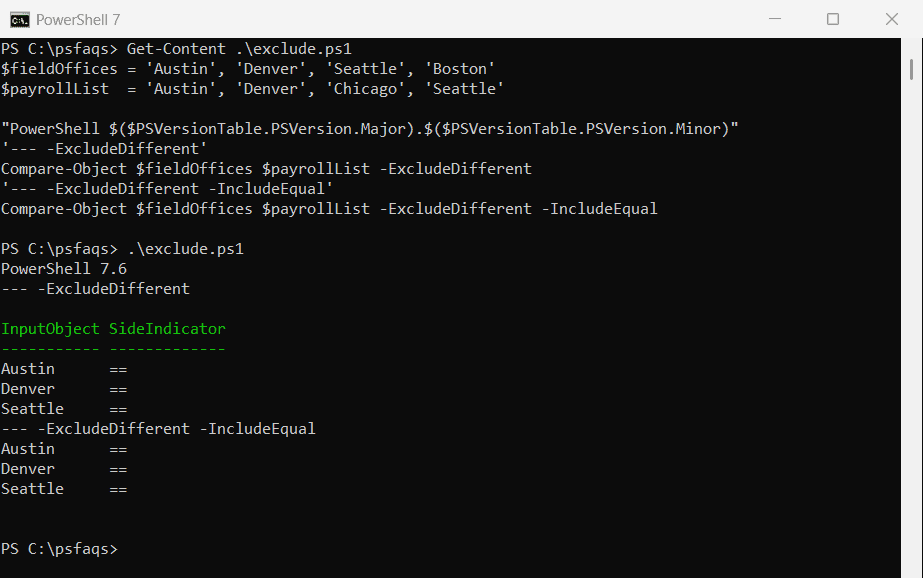
Since PowerShell 7.1, -ExcludeDifferent turns on -IncludeEqual for you, so both commands print the three shared offices. Windows PowerShell 5.1 returns nothing for the first command: