
To compare strings in PowerShell, use -eq for equal and -ne for not equal. Both ignore case, so add a c for a case-sensitive comparison, like -ceq:
$city = 'Austin'

"-eq 'AUSTIN':   $($city -eq 'AUSTIN')"
"-ceq 'AUSTIN':  $($city -ceq 'AUSTIN')"
"-ne 'Denver':   $($city -ne 'Denver')"
Output:
-eq 'AUSTIN':   True
-ceq 'AUSTIN':  False
-ne 'Denver':   True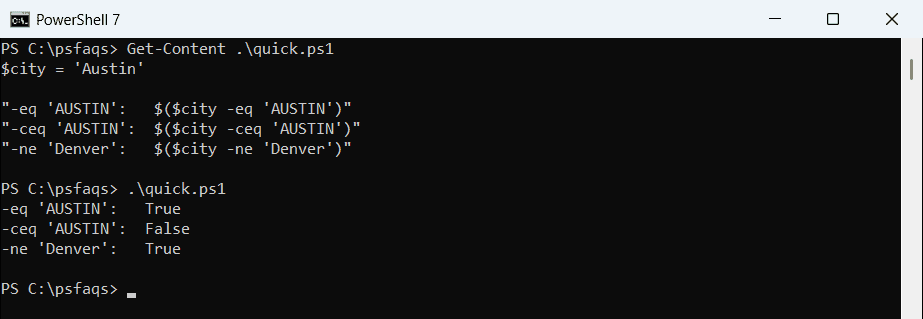
I ran every example in PowerShell 7.6 and Windows PowerShell 5.1. Everything matched except one .NET method overload, which I point out below.
Case-sensitive and case-insensitive comparison
PowerShell operators ignore case, but .NET string methods don’t. That catches people who switch between the two:
$a = 'Austin'
$b = 'AUSTIN'

".Equals():                        $($a.Equals($b))"
"[string]::Equals, ignore case:    $([string]::Equals($a, $b, [System.StringComparison]::OrdinalIgnoreCase))"
"[string]::Compare, ignore case:   $([string]::Compare($a, $b, $true))"
Output:
.Equals():                        False
[string]::Equals, ignore case:    True
[string]::Compare, ignore case: 0| To compare | Ignoring case | Matching case |
|---|---|---|
| Equal | -eq | -ceq or .Equals() |
| Wildcard | -like | -clike |
| Regex | -match | -cmatch |
| Contains text | -like '*text*' | .Contains() |
[string]::Compare() returns 0 when the strings are equal, a negative number when the first sorts earlier, and a positive number when it sorts later.
Check if a string contains text: -contains is the wrong tool
-contains checks whether a list has an item. On a single string, it only returns True for an exact match:
$product = 'PowerShell'

"-contains 'Shell':     $($product -contains 'Shell')"
"-like '*shell*':       $($product -like '*shell*')"
".Contains('Shell'):    $($product.Contains('Shell'))"
".Contains('shell'):    $($product.Contains('shell'))"
Output:
-contains 'Shell':     False
-like '*shell*':       True
.Contains('Shell'):    True
.Contains('shell'):    False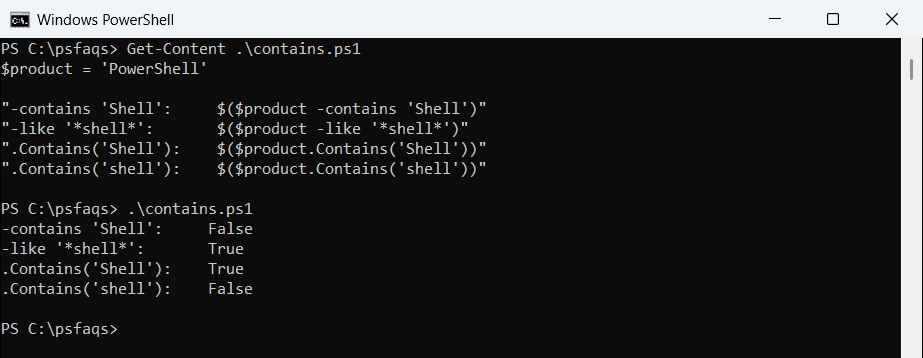
Use -like '*text*' to ignore case, or .Contains() when case matters. PowerShell 7 can also make .Contains() ignore case:
'PowerShell'.Contains('shell', [System.StringComparison]::OrdinalIgnoreCase)Output in PowerShell 7:
TrueThat version of .Contains() doesn’t exist in Windows PowerShell 5.1, which stops with a method error, so stick to -like there.
Match patterns with -like and -match
-like uses wildcards like * and ?. -match uses regular expressions:
$file = 'q3-sales-2026.xlsx'

"-like 'q3-*':        $($file -like 'q3-*')"
"-like '*.csv':       $($file -like '*.csv')"
"-match '\d{4}':      $($file -match '\d{4}')"
"-notmatch 'draft':   $($file -notmatch 'draft')"
Output:
-like 'q3-*':        True
-like '*.csv':       False
-match '\d{4}':      True
-notmatch 'draft':   True
For more pattern examples, see Where-Object with -like, -match and -in.
Alphabetical order, numbers and extra spaces
"'apple' -lt 'Banana':  $('apple' -lt 'Banana')"
"'10.0' -eq 10:         $('10.0' -eq 10)"
"10 -eq '10.0':         $(