
PowerShell filter operators are the comparison operators, like -eq, -gt, -like, -match and -in, used to keep only the items you want. Put them inside Where-Object, or apply them straight to an array:
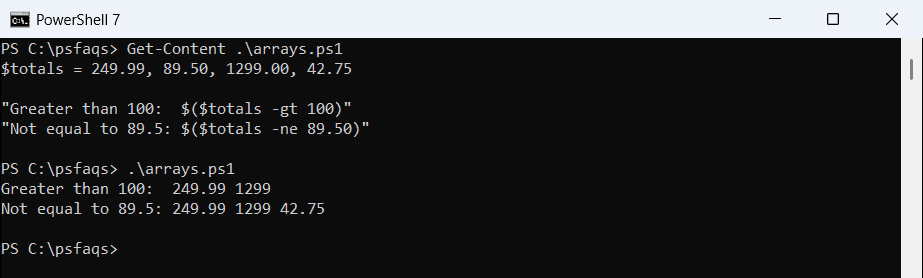
$totals = 249.99, 89.50, 1299.00, 42.75

"Greater than 100:  $($totals -gt 100)"
"Not equal to 89.5: $($totals -ne 89.50)"
Output:
Greater than 100:  249.99 1299
Not equal to 89.5: 249.99 1299 42.75
When the left side is an array, the operator returns the matching items instead of True or False. Below I cover each operator family, filtering objects, and the faster -Filter parameter. I tested every example in PowerShell 7.6 and 5.1.
Filter operators at a glance
| Operators | What they test | Example |
|---|---|---|
| -eq, -ne | Equal, not equal | $_.Status -eq ‘Shipped’ |
| -gt, -ge, -lt, -le | Greater or less than | $_.Total -gt 100 |
| -like, -notlike | Wildcard match | $_.Name -like ‘*.csv’ |
| -match, -notmatch | Regular expression | $_.Id -match ‘^ORD-‘ |
| -contains, -in | Is a value in a list | ‘Dallas’ -in $cities |
| -is, -isnot | Type check | $_ -is [string] |
All of them ignore case by default. Add c for case-sensitive versions, such as -ceq and -clike.
Most of these operators end up inside a filter, so see PowerShell Where-Object too.
Filter text with -like and -match
-like uses wildcards (* and ?), and -match uses regular expressions. On an array, both return the matching strings:
$cities = 'Austin', 'Dallas', 'Houston', 'El Paso', 'San Antonio'

"-like '*o*':        $($cities -like '*o*')"
"-match '^[A-D]':    $($cities -match '^[A-D]')"
"-notlike 'San *':   $($cities -notlike 'San *')"
Output:
-like '*o*':        Houston El Paso San Antonio
-match '^[A-D]':    Austin Dallas
-notlike 'San *':   Austin Dallas Houston El Paso
Use -like for simple patterns and -match when you need character ranges or anchors. The -like operator in depth has more patterns.
Check membership with -contains and -in
-contains and -in answer the same question from opposite sides: is this value in that list?
$shippingCities = 'Austin', 'Dallas', 'Houston'

"Contains Dallas:  $($shippingCities -contains 'Dallas')"
"'El Paso' -in:    $('El Paso' -in $shippingCities)"
"'Waco' -notin:    $('Waco' -notin $shippingCities)"
Output:
Contains Dallas:  True
'El Paso' -in:    False
'Waco' -notin:    True
They compare whole values, not substrings. ‘Dal’ -in $shippingCities is False. The -contains operator explains the difference from String.Contains().
Filter objects with Where-Object
Combine operators with -and and -or inside a Where-Object script block. Here I keep shipped orders over $100:
$orders = @(
    [pscustomobject]@{ Id = 'ORD-5810'; City = 'Austin';  Total = 249.99; Status = 'Shipped' }
    [pscustomobject]@{ Id = 'ORD-5811'; City = 'Dallas';  Total = 89.50;  Status = 'Pending' }
    [pscustomobject]@{ Id = 'ORD-5812'; City = 'Houston'; Total = 1299.00; Status = 'Shipped' }
    [pscustomobject]@{ Id = 'ORD-5813'; City = 'El Paso'; Total = 42.75;  Status = 'Cancelled' }
)

$orders |
    Where-Object { $_.Status -eq 'Shipped' -and $_.Total -gt 100 } |
    ForEach-Object { '{0}  {1,-8} ${2:N2}' -f $_.Id, $_.City, $_.Total }
Output:
ORD-5810  Austin   $249.99
ORD-5812  Houston  $1,299.00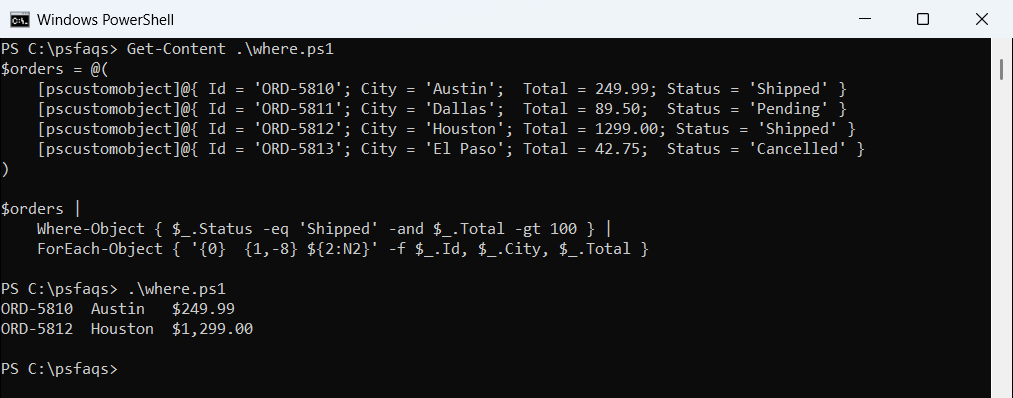
For one simple condition, the short form Where-Object Status -eq 'Shipped' works too.
Filter at the source with -Filter
Many cmdlets have a -Filter parameter that filters before results reach PowerShell, which is much faster on large sets. With 303 files, -Filter beat Where-Object:
Remove-Item C:\psfaqs\Filter -Recurse -Force -ErrorAction SilentlyContinue
New-Item C:\psfaqs\Filter -ItemType Directory -Force | Out-Null
foreach ($n in 1..300) { Set-Content -Path "C:\psfaqs\Filter\note-$n.txt" -Value 'x' }
foreach ($n in 1..3) { Set-Content -Path "C:\psfaqs\Filter\report-$n.csv