
To convert a string to a URI in PowerShell, cast it with the [uri] type accelerator. You get a System.Uri object with the scheme, host, path and query already split out:
$uri = [uri]'https://api.contoso.com/v1/orders?state=TX'
$uri.Host    # api.contoso.com
That works the same in PowerShell 7 and Windows PowerShell 5.1. The catch is in the details: the cast doesn’t really validate, and URL encoding behaves differently in the two shells. I’ll show both.
Convert a string to a URI with the [uri] cast
[uri] is short for System.Uri. Once a string is cast, you read its parts from properties instead of splitting text by hand:
$uri = [uri]'https://api.contoso.com:8443/v1/orders?state=TX&city=San Antonio#top'

"Type:      $($uri.GetType().FullName)"
"Scheme:    $($uri.Scheme)"
"Host:      $($uri.Host)"
"Port:      $($uri.Port)"
"Path:      $($uri.AbsolutePath)"
"Query:     $($uri.Query)"
"Fragment:  $($uri.Fragment)"
"Segments:  $($uri.Segments -join ' ')"
"Authority: $($uri.GetLeftPart('Authority'))"
Output:
Type:      System.Uri
Scheme:    https
Host:      api.contoso.com
Port:      8443
Path:      /v1/orders
Query:     ?state=TX&city=San%20Antonio
Fragment:  #top
Segments:  / v1/ orders
Authority: https://api.contoso.com:8443
Notice that Query already shows San%20Antonio. The Uri class escapes the space for you in AbsoluteUri and Query, while OriginalString keeps exactly what you typed.
Every web cmdlet accepts this object for its -Uri parameter, so you can pass it straight to Invoke-WebRequest in PowerShell or Invoke-RestMethod.
Why does [uri] accept a string that isn’t a URL?
This surprised me the first time. Casting ‘contoso.com/api’, with no https://, doesn’t throw. PowerShell quietly creates a relative URI instead:
$cast = [uri]'contoso.com/api'
"Cast worked, absolute: $($cast.IsAbsoluteUri)"

try { $null = [uri]::new('contoso.com/api') }
catch { "Failed. $($_.Exception.InnerException.Message)" }

foreach ($s in 'contoso.com/api', 'https://contoso.com/api') {
    $result = $null
    $ok = [uri]::TryCreate($s, [UriKind]::Absolute, [ref]$result)
    '{0,-24} valid: {1}' -f $s, $ok
}
Output:
Cast worked, absolute: False
Failed. Invalid URI: The format of the URI could not be determined.
contoso.com/api          valid: False
https://contoso.com/api valid: True![PowerShell [uri] cast vs TryCreate validating a URL string](https://powershellfaqs.com/wp-content/uploads/2026/10/powershell-uri-trycreate-validate.png)
Calling [uri]::new() with the same string does fail, with Invalid URI: The format of the URI could not be determined. For user input, [uri]::TryCreate() with UriKind Absolute is the cleanest check, because it returns True or False instead of throwing.
If you’d rather catch the exception, wrap the constructor in a try/catch block. Either way, check IsAbsoluteUri before you send a request.
URL encode a string with EscapeDataString
To put text inside a URL, such as a search term or a file name in a query string, encode just that value with [uri]::EscapeDataString(). Here’s a value full of special characters:
$value = "Tom's Diner (Austin) & Co!*"

"EscapeDataString: $([uri]::EscapeDataString($value))"
"Full URL:         $([uri]::EscapeDataString('https://contoso.com/a b'))"
Output:
EscapeDataString: Tom%27s%20Diner%20%28Austin%29%20%26%20Co%21%2A
Full URL:         https%3A%2F%2Fcontoso.com%2Fa%20b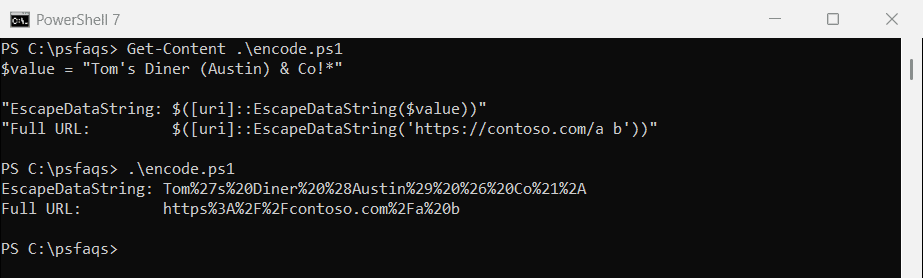
Windows PowerShell 5.1 runs on .NET Framework, and it leaves those five characters alone:
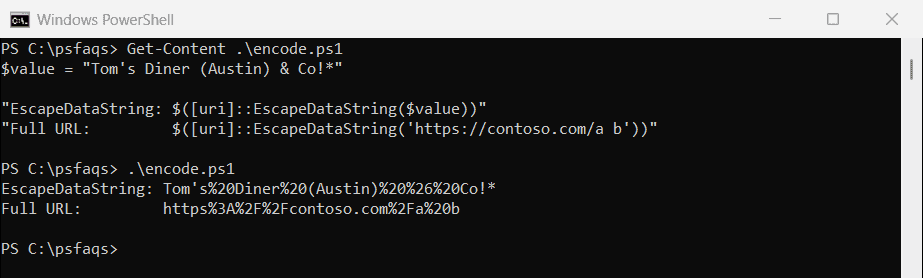
Most servers accept both forms. If you compare encoded strings or sign requests, though, the difference matters, so test in the shell your script really runs in. The second line shows why you never encode a whole URL: the colon and slashes get escaped too.
For escaping characters in PowerShell strings themselves, rather than in URLs, see how to escape special characters in variables.
EscapeDataString vs WebUtility.UrlEncode
[System.Net.WebUtility]::UrlEncode() is available in both shells without loading anything, but it encodes spaces as + (HTML form style):
$city = 'San Antonio, TX'

"EscapeDataString:    $([uri]::EscapeDataString($city))"
"WebUtility.UrlEncode: $([System.Net.WebUtility]::UrlEncode($city))"
Output:
EscapeDataString:    San%20Antonio%2C%20TX
WebUtility.UrlEncode: San+Antonio%2C+TX
Use EscapeDataString for REST APIs and paths, where %20 is the safe choice. Use UrlEncode only when the server expects form-encoded data.
Build a query string from a hashtable
When a request has several parameters, I keep them in an ordered hashtable and encode each key and value on the way out:
$params = [ordered]@{ city = 'San Antonio'; team = 'R&D'; state = 'TX' }

$pairs = foreach ($key in $params.Keys) {
    '{0}={1}' -f [uri]::EscapeDataString($key), [uri]::EscapeDataString($params[$key])
}
$url = [uri]('https://api.contoso.com/v1/stores?' + ($pairs -join '&'))
$url.AbsoluteUri
Output:
https://api.contoso.com/v1/stores?city=San%20Antonio&team=R%26D&state=TXThe & inside R&D became %26, so the server reads it as data, not as a separator. If your parameters arrive as text, converting a string to a hashtable gets them into this shape first.
You may see System.Web.HttpUtility in older scripts for this job. It’s where the two shells differ the most:
try {
    $q = [System.Web.HttpUtility]::ParseQueryString('')
    $q['city'] = 'San Antonio'
    $q['note'] = 'café'
    "Without Add-Type: $($q.ToString())"
}
catch { "Failed. $($_.Exception.Message)" }

Add-Type -AssemblyName System.Web
$q = [System.W