
PowerShell Invoke-WebRequest sends an HTTP or HTTPS request and returns the full response: status code, headers, content and links. The simplest call is a GET request to a URL:
$response = Invoke-WebRequest -Uri https://example.com -UseBasicParsing
$response.StatusCode
Below I cover GET and POST requests, custom headers, downloading files, calling a REST API and handling errors. I tested these against real sites in PowerShell 7.6 and Windows PowerShell 5.1 on Windows 11.
Always add -UseBasicParsing in Windows PowerShell 5.1
After Microsoft’s December 9, 2025 security update (CVE-2025-54100), Invoke-WebRequest in Windows PowerShell 5.1 shows a Script Execution Risk prompt unless you add -UseBasicParsing. That prompt stops unattended scripts.
PowerShell 7 always uses basic parsing, so the switch does nothing there but is harmless. I include it below so the same code works in both versions. The Windows PowerShell 5.1 Invoke-WebRequest reference explains the change.
PowerShell also has a curl alias, which behaves differently, as explained in PowerShell curl.
Send a GET request and read the response
The response object has the status, headers and page content as properties, so you can pick out what you need:
$response = Invoke-WebRequest -Uri https://example.com -UseBasicParsing

"Status:       $($response.StatusCode) $($response.StatusDescription)"
"Content type: $($response.Headers['Content-Type'])"
"Page size:    $($response.Content.Length) characters"
"Title:        $([regex]::Match($response.Content, '<title>(.*?)</title>').Groups[1].Value)"
Output:
Status:       200 OK
Content type: text/html; charset=utf-8
Page size:    713 characters
Title:        Example Domain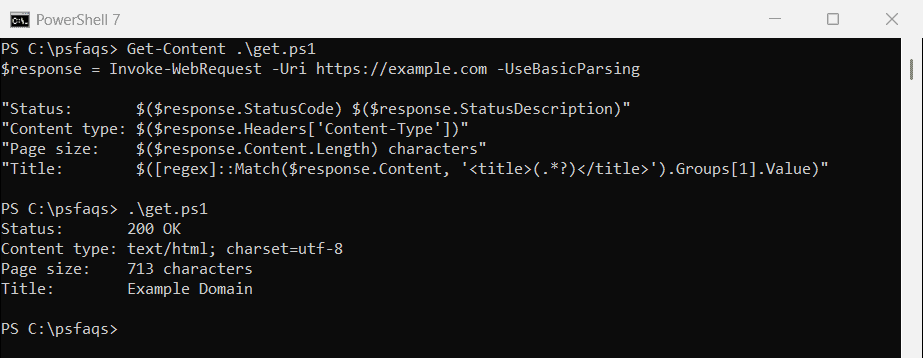
StatusCode is a number, so you can test it with -eq 200 in a script. Checking whether a port is open is the step before this when a site doesn’t answer at all.
Get all links from a web page
The Links property lists every link on the page. Read the href values to get the URLs:
$response = Invoke-WebRequest -Uri https://example.com -UseBasicParsing
$response.Links.href
Output:
https://iana.org/help/example-domainsDownload a file with -OutFile
Add -OutFile to save the response to disk instead of returning it. Here I download the PowerShell license file from GitHub:
$url = 'https://raw.githubusercontent.com/PowerShell/PowerShell/master/LICENSE.txt'
Invoke-WebRequest -Uri $url -OutFile C:\psfaqs\Web\LICENSE.txt -UseBasicParsing

$file = Get-Item -Path C:\psfaqs\Web\LICENSE.txt
"Saved $($file.Name): $($file.Length) bytes"
"First line: $(Get-Content -Path $file.FullName -TotalCount 1)"
Output:
Saved LICENSE.txt: 1074 bytes
First line: Copyright (c) Microsoft Corporation.
In PowerShell 7.4 and later, -OutFile also accepts just a folder, and the file keeps its name from the URL. Downloading files from a URL compares this with Start-BitsTransfer.
Call a REST API and parse the JSON
Many APIs return JSON. Pipe the Content property to ConvertFrom-Json to turn it into objects. This call asks GitHub for the latest PowerShell release:
$url = 'https://api.github.com/repos/PowerShell/PowerShell/releases/latest'
$response = Invoke-WebRequest -Uri $url -UseBasicParsing
$release = $response.Content | ConvertFrom-Json

"Status:         $($response.StatusCode)"
"Latest release: $($release.tag_name)"
"Assets:         $($release.assets.Count) files"
Output:
Status:         200
Latest release: v7.6.6
Assets:         33 files
If you only need the data, Invoke-RestMethod does the JSON conversion for you: (Invoke-RestMethod -Uri $url).tag_name. Use Invoke-WebRequest when you also need the status code or headers.
Send a POST request with a JSON body
Set -Method Post, pass the body as JSON and set the content type. httpbin.org echoes the request back, so we can confirm what the server received:
$body = @{ report = 'Q3 Sales'; year = 2026; region = 'West' } | ConvertTo-Json

$response = Invoke-WebRequest -Uri https://httpbin.org/post -Method Post -Body $body `
    -ContentType 'application/json' -UseBasicParsing

"Status: $($response.StatusCode)"
$echo = $response.Content | ConvertFrom-Json
"Server received: report=$($echo.json.report), year=$($echo.json.year), region=$($echo.json.region)"
Output:
Status: 200
Server received: report=Q3 Sales, year=2026, region=West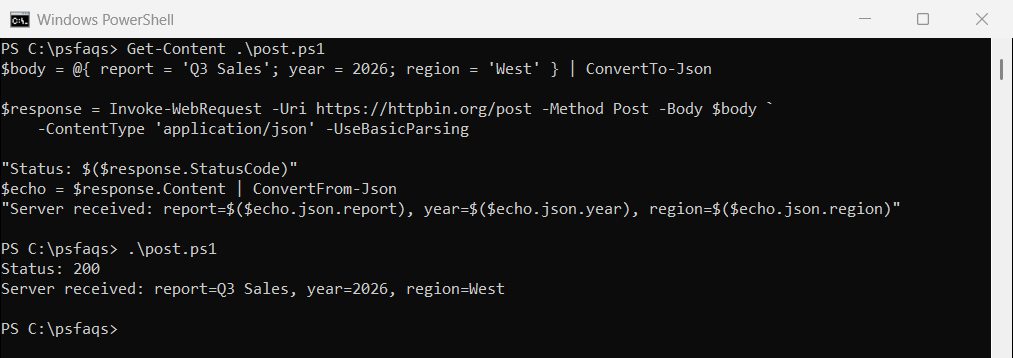
Without -ContentType, a POST body is sent as form data (application/x-www-form-urlencoded). ConvertTo-Json covers building larger JSON bodies.
Add custom headers
Pass a hashtable to -Headers. This is how you send API keys, bearer tokens or an Accept header:
$headers = @{ 'X-Report-Name' = 'Q3-Sales-2026'; Accept = 'application/json' }
$response = Invoke-WebRequest -Uri https://httpbin.org/headers -Headers $headers -UseBasicParsing

$sent = ($response.Content | ConvertFrom-Json).headers
"X-Report-Name: $($sent.'X-Report-Name')"
"Accept:        $($sent.Accept)"
Output:
X-Report-Name: Q3-Sales-2026
Accept:        application/json
For a bearer token, add Authorization = "Bearer $token" to the hashtable. Keep the token in a variable or a secret store, never hard-coded in the script.
Handle errors and get the status code
A 404 or 500 response makes Invoke-WebRequest throw a terminating error. Catch it and read the status code from the exception:
try {
    $response = Invoke-WebRequest -Uri https://example.com/missing-page -UseBasicParsing
    "Status: $($response.StatusCode)"
}
catch {
    "Request failed. Status code: $($_.Exception.Response.StatusCode.value__)"
}
Output:
Request failed. Status code: 404