
To convert a canonical name to a distinguished name in PowerShell, split the path on slashes, turn the domain into DC= parts, and add the folders in reverse order. One line handles a simple path:
$p = 'contoso.com/Sales/Maria Lopez' -split '/'
"CN=$($p[2]),OU=$($p[1]),DC=contoso,DC=com"
Real paths need more care. Below is a reusable function that handles any depth, the built-in Users container and commas in names, plus the Active Directory lookups when you need the real answer.
Canonical name vs distinguished name
Both formats point to the same object. The canonical name reads like a folder path from the domain down, while the distinguished name (DN) starts at the object and works up to the domain:
contoso.com/Sales/Austin/Maria Lopez
CN=Maria Lopez,OU=Austin,OU=Sales,DC=contoso,DC=com
Active Directory cmdlets such as Get-ADUser take a DN for -Identity, which is why you end up converting. Canonical names, on the other hand, show up in many exported reports and CSV files. Breaking it apart is plain string splitting in PowerShell.
PowerShell function to convert a canonical name
This ConvertFrom-CanonicalName function accepts pipeline input, treats the last part as a CN by default, and maps the default Users and Computers containers to CN= instead of OU=:
function ConvertTo-DNValue ([string]$Value) {
    $v = $Value -replace '([\\,+"<>;=])', '\$1'
    if ($v -match '^[ #]') { $v = '\' + $v }
    if ($v -match ' $')    { $v = $v.Substring(0, $v.Length - 1) + '\ ' }
    $v
}

function ConvertFrom-CanonicalName {
    param(
        [Parameter(Mandatory, ValueFromPipeline)][string]$CanonicalName,
        [ValidateSet('CN', 'OU')][string]$LeafType = 'CN',
        [string[]]$Container = @('Users', 'Computers')
    )
    process {
        $parts = @($CanonicalName.TrimEnd('/') -split '(?<!\\)/' |
            ForEach-Object { $_ -replace '\\/', '/' })
        $dc = ($parts[0] -split '\.' | ForEach-Object { "DC=$_" }) -join ','
        $rdns = for ($i = $parts.Count - 1; $i -ge 1; $i--) {
            $type = if ($i -eq $parts.Count - 1) { $LeafType }
                    elseif ($i -eq 1 -and $Container -contains $parts[1]) { 'CN' }
                    else { 'OU' }
            "$type=$(ConvertTo-DNValue $parts[$i])"
        }
        (@($rdns) + $dc) -join ','
    }
}

ConvertFrom-CanonicalName 'contoso.com/Sales/Austin/Maria Lopez'
ConvertFrom-CanonicalName 'contoso.com/Users/Tom Baker'
ConvertFrom-CanonicalName 'contoso.com/Sales/Austin' -LeafType OU
ConvertFrom-CanonicalName 'contoso.com/'
Output:
CN=Maria Lopez,OU=Austin,OU=Sales,DC=contoso,DC=com
CN=Tom Baker,CN=Users,DC=contoso,DC=com
OU=Austin,OU=Sales,DC=contoso,DC=com
DC=contoso,DC=com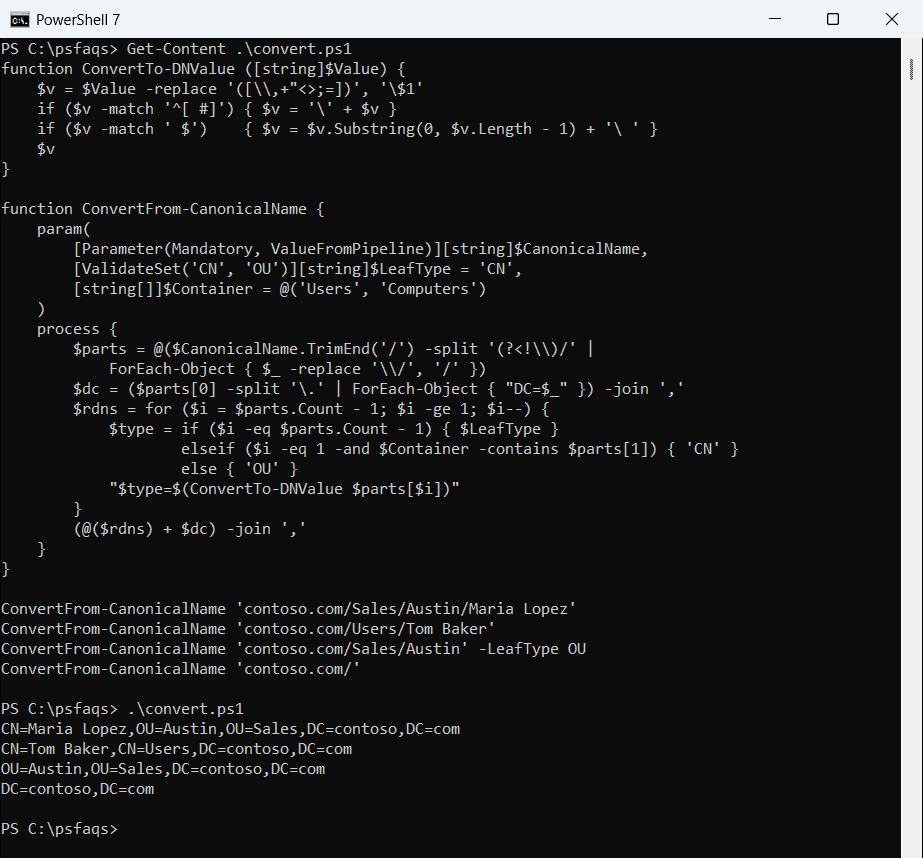
Use -LeafType OU when the path ends at an OU. A domain-only name like contoso.com/ returns just the DC= parts. My first draft returned DC=c there, because one item from -split isn’t an array, so the @() wrapper matters.
Save the function as ConvertFrom-CanonicalName.ps1 and dot-source it. If PowerShell functions are new to you, that page covers parameters and the pipeline.
How do you escape commas and special characters in a DN?
A DN uses commas to separate its parts, so a comma inside a name must be escaped with a backslash. The same goes for + ” \ < > ; and =, a leading # or space, and a trailing space:
. .\ConvertFrom-CanonicalName.ps1


'corp.contoso.com/Sales, East/Lopez, Maria',
'contoso.com/IT/AC\/DC Lab',
'contoso.com/IT/#Admins',
'contoso.com/Finance/R+D=Team' | ConvertFrom-CanonicalName
Output:
CN=Lopez\, Maria,OU=Sales\, East,DC=corp,DC=contoso,DC=com
CN=AC/DC Lab,OU=IT,DC=contoso,DC=com
CN=\#Admins,OU=IT,DC=contoso,DC=com
CN=R\+D\=Team,OU=Finance,DC=contoso,DC=com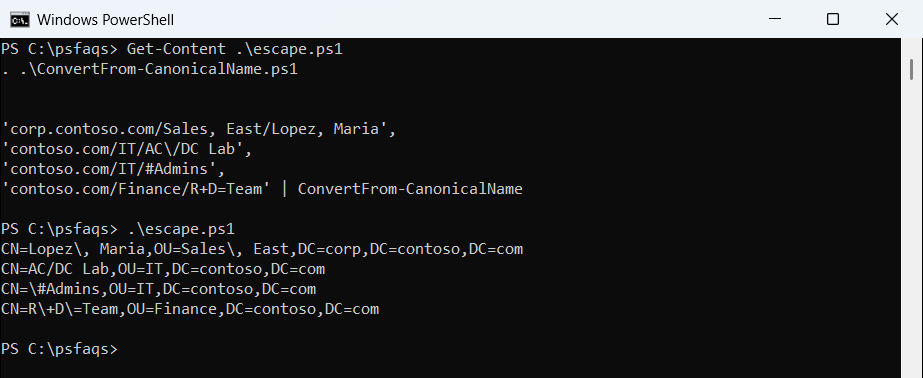
The output is identical in PowerShell 7 and Windows PowerShell 5.1. Canonical exports write a slash inside a name as \/, so the split uses a lookbehind regex to skip it. See PowerShell regex for how (?<!\\) works.
For an LDAP:// ADsPath, escape that slash as \/ too, since the ADSI provider treats it as reserved. More on backslash escaping is in escaping special characters in PowerShell.
Convert canonical names from a CSV file
Reports often hold hundreds of paths. A calculated property adds the DN next to each row:
. .\ConvertFrom-CanonicalName.ps1


$rows = @'
User,Path
Maria Lopez,contoso.com/Sales/Austin/Maria Lopez
Tom Baker,contoso.com/Users/Tom Baker
Dana Reyes,contoso.com/IT/Denver/Dana Reyes
'@ | ConvertFrom-Csv

$rows | Select-Object User, @{ Name = 'DN'; Expression = { ConvertFrom-CanonicalName $_.Path } }
Output:
User        DN
----        --
Maria Lopez CN=Maria Lopez,OU=Austin,OU=Sales,DC=contoso,DC=com
Tom Baker   CN=Tom Baker,CN=Users,DC=contoso,DC=com
Dana Reyes  CN=Dana Reyes,OU=Denver,OU=IT,DC=contoso,DC=com
Swap ConvertFrom-Csv for Import-Csv to read a real file, then loop through the CSV rows to pass each DN to Set-ADUser or Move-ADObject.
Get the real DN from Active Directory
String conversion guesses whether each folder is an OU or a container. Paths like contoso.com/Configuration/Sites break that guess. When the domain is reachable, ask Active Directory instead. The NameTranslate COM object converts canonical (type 2) to DN (type 1) without any module:
$cn = 'contoso.com/Sales/Austin/Maria Lopez'
try {
    $nt = New-Object -ComObject NameTranslate
    $nt.Init(3, '')        # 3 = ADS_NAME_INITTYPE_GC (global catalog)
    $nt.Set(2, $cn)        # 2 = ADS_NAME_TYPE_CANONICAL
    $nt.Get(1)             # 1 = ADS_NAME_TYPE_1779, the DN
}
catch {
    "Failed. $($_.Exception.Message)"
}
Output on my test PC, which isn’t joined to a domain:
Failed. The specified domain either does not exist or could not be contacted. (0x8007054B)