
To run PowerShell as a different user, start a new PowerShell process with the other account’s credentials. The quickest way is Start-Process with Get-Credential, which asks for the password in a secure prompt:
Start-Process -FilePath powershell.exe -Credential (Get-Credential) -WorkingDirectory $env:SystemRootBelow I check who you’re running as now, show every way to switch accounts, and explain how this differs from Run as administrator. I didn’t sign in as anyone else here; the checks only read my own session, with my account name masked.
Check which user PowerShell runs as
Before switching, confirm the current account and whether the window is elevated:
$identity = [Security.Principal.WindowsIdentity]::GetCurrent()
$principal = [Security.Principal.WindowsPrincipal]::new($identity)

"Running as:    $($identity.Name)"
"Elevated:      $($principal.IsInRole([Security.Principal.WindowsBuiltInRole]::Administrator))"
Output:
Running as:    DESKTOP-4T7K2QX\alice
Elevated:      False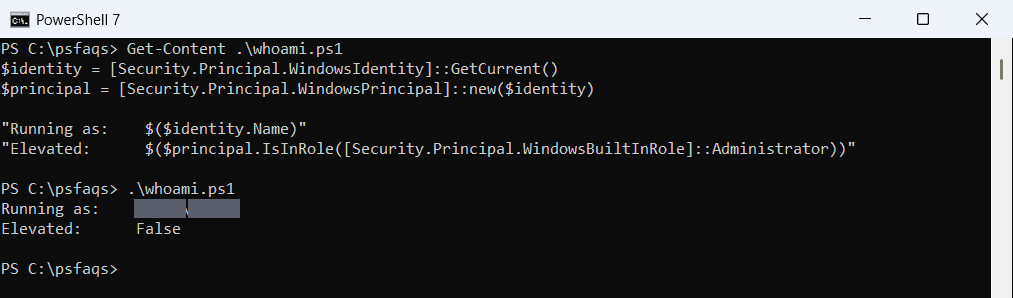
Run the same check in the new window to confirm it’s running as the other account. Showing logged-in users covers who else is signed in.
Different user vs Run as administrator
These are two different things, and Windows exposes both as verbs for powershell.exe:
$info = [System.Diagnostics.ProcessStartInfo]::new("$env:WINDIR\System32\WindowsPowerShell\v1.0\powershell.exe")
"Verbs for powershell.exe: $($info.Verbs -join ', ')"
Output:
Verbs for powershell.exe: open, runas, runasuser
runas elevates your own account through UAC. runasuser runs as another account. The integrity level shows which one you have:
$label = whoami /groups | Select-String -Pattern 'Mandatory Label'
"Integrity level: $((($label.Line -split '\s{2,}')[0]).Replace('Mandatory Label\', ''))"
Output:
Integrity level: Medium Mandatory Level
Medium means a normal window. An elevated window shows High Mandatory Level.
Method 1: Start-Process with -Credential
Get-Credential opens a secure prompt, so the password never appears in your script or history:
$cred = Get-Credential -UserName 'CONTOSO\svc-reports' -Message 'Account to run PowerShell as'
Start-Process -FilePath powershell.exe -Credential $cred -WorkingDirectory $env:SystemRoot
-WorkingDirectory matters. Without it, the new process tries to start in your current folder, which the other account often can’t open, and you get “The directory name is invalid”. Use pwsh.exe instead of powershell.exe for PowerShell 7.
You can’t elevate and switch users at once
-Credential and -Verb RunAs don’t work together. To get an elevated window for another account, start PowerShell as that user, then run Start-Process powershell.exe -Verb RunAs from it.
Method 2: The runas command
runas works from PowerShell or Command Prompt and asks for the password in the console:
runas /user:CONTOSO\svc-reports powershell.exe
runas /netonly /user:CONTOSO\svc-reports powershell.exe
/netonly keeps your own identity on this PC but uses the other account for network access, which is handy for file shares and SQL Server in another domain.
Method 3: Shift + right-click
Hold Shift and right-click a PowerShell shortcut or pinned taskbar icon, then choose Run as different user. You can do the same from PowerShell with the runasuser verb, which shows the Windows credential dialog:
Start-Process -FilePath powershell.exe -Verb RunAsUserRun one script as another user
To run a single script instead of an interactive window, pass the script to the new process:
$cred = Get-Credential
Start-Process -FilePath powershell.exe -Credential $cred -WorkingDirectory $env:SystemRoot `
    -ArgumentList '-NoProfile', '-File', 'C:\Scripts\Export-Report.ps1'
Give the other account read access to the script’s folder first. Never hard-code passwords; the Get-Credential reference shows safer options. Setting folder permissions helps with access.
Frequently Asked Questions
How do I run PowerShell as a different user?
Run Start-Process powershell.exe -Credential (Get-Credential) -WorkingDirectory $env:SystemRoot and enter the other account’s credentials.
What is the difference between Run as administrator and Run as different user?
Run as administrator elevates your own account. Run as different user starts PowerShell under another account.
Why do I get “The directory name is invalid”?
The other account can’t open your current folder. Add -WorkingDirectory $env:SystemRoot to Start-Process.