
Have you ever needed to pull dates out of log files, email subjects, filenames, or messy text data? Maybe you’re parsing server logs to find when errors occurred, or you need to extract invoice dates from a pile of documents. Finding and extracting dates from strings is one of those tasks that seems simple until you actually try to do it — then you realize dates come in so many formats!
PowerShell gives you several powerful ways to find and extract dates from strings, whether they’re formatted as “2025-12-18”, “December 18, 2025”, or even “12/18/25”.
In this tutorial, I will explain how to find dates from strings using PowerShell.
- Identify dates in strings using different PowerShell methods
- Extract dates in various formats
- Convert found dates into proper DateTime objects for further processing
Method 1: Using [DateTime]::TryParse() — The Quick and Easy Way
This is my go-to method when I’m dealing with relatively well-formatted dates. The TryParse() method attempts to convert a string to a DateTime object, and it’s surprisingly forgiving with different formats.
Here’s how it works:
$text = "The report was generated on 2025-12-18 at 3:00 PM"

# Try to parse the string as a date
$dateValue = New-Object DateTime
$success = [DateTime]::TryParse($text, [ref]$dateValue)

if ($success) {
    Write-Host "Found date: $dateValue"
} else {
    Write-Host "No valid date found"
}
Output:
Found date: 12/18/2025 3:00:00 PMPro Tip 💡
TryParse() works on the entire string, not just parts of it. If your string contains other text, PowerShell will try to extract the date-like portion.
Check out PowerShell Get-Date -UFormat Examples
Method 2: Regular Expressions — For Precise Pattern Matching
When you need more control over exactly what date format you’re looking for, regular expressions (regex) are your best friend. This approach is perfect when you know the specific format or need to extract multiple dates from a single string.
Example 1: Finding ISO Date Format (YYYY-MM-DD)
$text = "Error occurred on 2025-12-18 and again on 2025-12-19"

# Define a regex pattern for ISO dates
$pattern = '\d{4}-\d{2}-\d{2}'

# Find all matches
$matches = [regex]::Matches($text, $pattern)

foreach ($match in $matches) {
    $dateString = $match.Value
    $date = [DateTime]::Parse($dateString)
    Write-Host "Found date: $date"
}
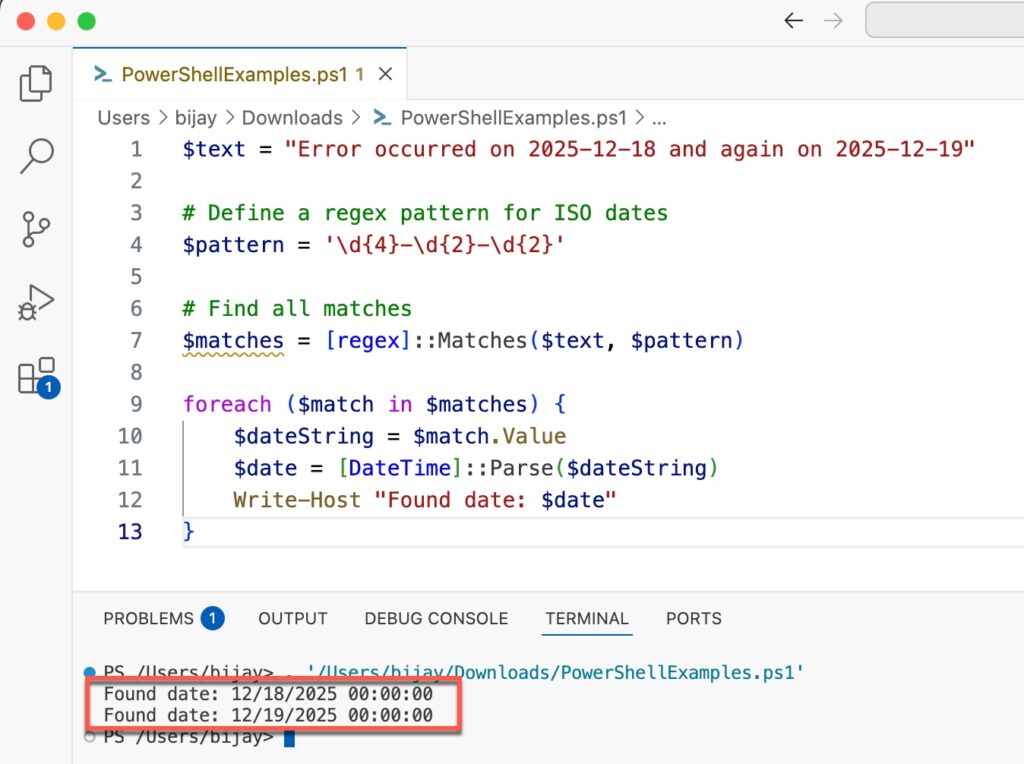
Output:
Found date: 12/18/2025 12:00:00 AM
Found date: 12/19/2025 12:00:00 AM
Here is the exact output in the screenshot below:
Example 2: Finding US Date Format (MM/DD/YYYY)
$text = "Invoice dates: 12/18/2025, 01/05/2025, and 03/22/2025"

$pattern = '\d{1,2}/\d{1,2}/\d{4}'
$matches = [regex]::Matches($text, $pattern)

foreach ($match in $matches) {
    $date = [DateTime]::Parse($match.Value)
    Write-Host "Invoice date: $($date.ToString('yyyy-MM-dd'))"
}
Example 3: Finding Month Name Dates (December 18, 2025)
$text = "The event is scheduled for December 18, 2025"

$pattern = '(January|February|March|April|May|June|July|August|September|October|November|December)\s+\d{1,2},\s+\d{4}'

if ($text -match $pattern) {
    $dateString = $matches[0]
    $date = [DateTime]::Parse($dateString)
    Write-Host "Event date: $date"
}
Pro Tip 💡
Build a library of regex patterns! I keep a file with common date regex patterns that I can copy-paste. Here are some useful ones:
# ISO format: 2025-12-18
$isoPattern = '\d{4}-\d{2}-\d{2}'

# US format: 12/18/2025 or 12-18-2025
$usPattern = '\d{1,2}[-/]\d{1,2}[-/]\d{4}'

# European format: 18.12.2025 or 18/12/2025
$euPattern = '\d{1,2}[./]\d{1,2}[./]\d{4}'

# Month name format: December 18, 2025 or Dec 18, 2025
$monthNamePattern = '(Jan(?:uary)?|Feb(?:ruary)?|Mar(?:ch)?|Apr(?:il)?|May|Jun(?:e)?|Jul(?:y)?|Aug(?:ust)?|Sep(?:tember)?|Oct(?:ober)?|Nov(?:ember)?|Dec(?:ember)?)\s+\d{1,2},?\s+\d{4}'
Check out PowerShell Get-Date Month Name
Method 3: Using -match Operator with Capture Groups
PowerShell’s -match operator is a simpler way to use regex without writing verbose code. It automatically populates the $matches variable with captured groups.
$text = "Last backup: 2025-12-18"

if ($text -match '(\d{4})-(\d{2})-(\d{2})') {
    $year = $matches[1]
    $month = $matches[2]
    $day = $matches[3]

    $date = Get-Date -Year $year -Month $month -Day $day
    Write-Host "Backup date: $date"
}
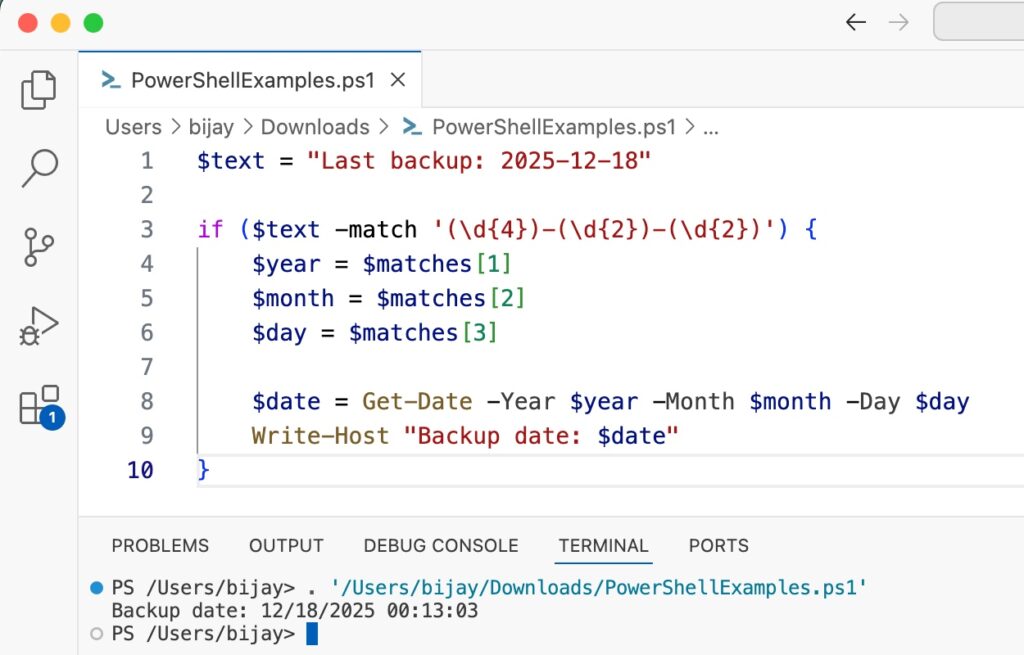
This approach is especially useful when you need to extract date components separately before creating a DateTime object.
Here is the exact output in the screenshot below;
Read PowerShell (Get-Date).AddDays(0) [With Examples]
Method 4: Using Select-String for File Processing
When you’re working with log files or multiple text files, Select-String is incredibly powerful for finding dates across many lines or files.
# Search a log file for lines containing dates
$logFile = "C:\Logs\application.log"
$datePattern = '\d{4}-\d{2}-\d{2}'

$results = Select-String -Path $logFile -Pattern $datePattern

foreach ($result in $results) {
    $line = $result.Line
    if ($line -match $datePattern) {
        $dateString = $matches[0]
        Write-Host "Line $($result.LineNumber): Found date $dateString"
    }
}
Pro Tip 💡
Combine Select-String with Group-Object to count occurrences by date:
$dates = Select-String -Path $logFile -Pattern '\d{4}-\d{2}-\d{2}' |
    ForEach-Object {
        if ($_.Line -match '\d{4}-\d{2}-\d{2}') {
            $matches[0]
        }
    } |
    Group-Object |
    Sort-Object Count -Descending

$dates | Format-Table Name, Count
Check out PowerShell Get Difference Between Two Dates in Minutes
Method 5: Custom Parsing with ParseExact — When You Know the Exact Format
Sometimes you have dates in a very specific format that TryParse() might misinterpret. In those cases, ParseExact() gives you total control.
$text = "Report_20251218_Final.pdf"

# Extract the date portion
if ($text -match '(\d{8})') {
    $dateString = $matches[1]

    # Parse with exact format
    $date = [DateTime]::ParseExact($dateString, 'yyyyMMdd', $null)
    Write-Host "File date: $($date.ToString('yyyy-MM-dd'))"
}
This is particularly useful for:
- Filenames with embedded dates
- Log timestamps in custom formats
- API responses with strict date formatting
Read Find Files Modified Between Dates Using PowerShell
Common Issues & Best Practices
Let me share with you some common issues and some best practices that you should follow.
⚠️ Pitfall 1: Culture-Specific Date Formats
Dates like “01/02/2025” could be January 2nd (US) or February 1st (European). Always be explicit:
# Specify culture for parsing
$culture = [System.Globalization.CultureInfo]::CreateSpecificCulture('en-US')
$date = [DateTime]::Parse('01/02/2025', $culture)
⚠️ Pitfall 2: Regex Doesn’t Validate Date Logic
A regex like \d{2}/\d{2}/\d{4} will match “99/99/9999” — it doesn’t check if it’s a valid date. Always parse the match into a DateTime object:
if ($text -match '\d{2}/\d{2}/\d{4}') {
    $dateString = $matches[0]
    try {
        $date = [DateTime]::Parse($dateString)
        Write-Host "Valid date: $date"
    } catch {
        Write-Host "Invalid date: $dateString"
    }
}
✅ Best Practice 1: Use Try/Catch for Parsing
Always wrap date parsing in try/catch blocks to handle invalid dates gracefully:
$dateString = "2025-13-45"  # Invalid date
try {
    $date = [DateTime]::Parse($dateString)
} catch {
    Write-Host "Could not parse date: $dateString"
}
✅ Best Practice 2: Test Your Patterns
Before running your script on production data, test your regex patterns with various edge cases:
$testCases = @(
    "2025-12-18",
    "12/18/2025",
    "December 18, 2025",
    "2025-13-45",  # Invalid
    "not a date"
)

$pattern = '\d{4}-\d{2}-\d{2}'

foreach ($test in $testCases) {
    if ($test -match $pattern) {
        Write-Host "✓ Matched: $test" -ForegroundColor Green
    } else {
        Write-Host "✗ No match: $test" -ForegroundColor Red
    }
}
Check out Find Files Modified After a Specific Date Using PowerShell
Example: Extract Dates from Email Subjects in PowerShell
Here’s a practical script that combines several methods to find dates in email subjects using PowerShell:
$emailSubjects = @(
    "Invoice for 2025-12-18",
    "Meeting scheduled: December 19, 2025",
    "Report_20251220.pdf attached",
    "Reminder: Payment due 12/21/2025"
)

function Extract-DateFromString {
    param([string]$text)

    # Try multiple patterns
    $patterns = @{
        'ISO' = '\d{4}-\d{2}-\d{2}'
        'US' = '\d{1,2}/\d{1,2}/\d{4}'
        'Compact' = '\d{8}'
        'MonthName' = '(January|February|March|April|May|June|July|August|September|October|November|December)\s+\d{1,2},?\s+\d{4}'
    }

    foreach ($patternName in $patterns.Keys) {
        if ($text -match $patterns[$patternName]) {
            $dateString = $matches[0]

            try {
                if ($patternName -eq 'Compact') {
                    # Special handling for compact format
                    $date = [DateTime]::ParseExact($dateString, 'yyyyMMdd', $null)
                } else {
                    $date = [DateTime]::Parse($dateString)
                }

                return [PSCustomObject]@{
                    OriginalText = $text
                    DateFound = $dateString
                    ParsedDate = $date
                    Format = $patternName
                }
            } catch {
                # If parsing fails, try the next pattern
                continue
            }
        }
    }

    # No date found
    return $null
}

# Process all email subjects
$results = $emailSubjects | ForEach-Object {
    Extract-DateFromString -text $_
} | Where-Object { $_ -ne $null }

# Display results
$results | Format-Table -AutoSize
Output:
OriginalText                           DateFound     ParsedDate           Format
------------                           ---------     ----------           ------
Invoice for 2025-12-18                 2025-12-18    12/18/2025 12:00:00 AM ISO
Meeting scheduled: December 19, 2025   December 19, 2025  12/19/2025 12:00:00 AM MonthName
Report_20251220.pdf attached           20251220      12/20/2025 12:00:00 AM Compact
Reminder: Payment due 12/21/2025       12/21/2025    12/21/2025 12:00:00 AM US
Why This Approach Works Well
In my experience, this function is robust because it:
- Tries multiple patterns — it doesn’t give up after the first mismatch
- Validates dates — catches invalid dates through try/catch
- Returns structured data — gives you both the original string and parsed date
- Handles different formats — works across various date conventions
Pro Tip 💡
You can extend this function to prioritize certain date formats. For example, if you’re processing US-based emails, check the US pattern first:
# Instead of a hashtable, use an ordered array
$patterns = @(
    @{ Name = 'US'; Pattern = '\d{1,2}/\d{1,2}/\d{4}' },
    @{ Name = 'ISO'; Pattern = '\d{4}-\d{2}-\d{2}' },
    @{ Name = 'MonthName'; Pattern = '(Jan|Feb|Mar|Apr|May|Jun|Jul|Aug|Sep|Oct|Nov|Dec)[a-z]*\s+\d{1,2},?\s+\d{4}' },
    @{ Name = 'Compact'; Pattern = '\d{8}' }
)
Quick Reference: Common Date Patterns
Here’s a handy cheat sheet you can bookmark:
| Format | Pattern | Example |
|---|---|---|
| ISO 8601 | \d{4}-\d{2}-\d{2} | 2025-12-18 |
| US Format | \d{1,2}/\d{1,2}/\d{4} | 12/18/2025 |
| European | \d{1,2}\.\d{1,2}\.\d{4} | 18.12.2025 |
| Month Name | `(January | February |
| Compact | \d{8} | 20251218 |
| With Time | \d{4}-\d{2}-\d{2}\s+\d{2}:\d{2}:\d{2} | 2025-12-18 14:30:00 |
Wrapping Up
In this tutorial, I explained how to find a date from a string using PowerShell. Here’s what we covered:
✅ Simple parsing with TryParse() for quick, forgiving date extraction
✅ Regex patterns for precise control over date formats
✅ File processing with Select-String for log analysis
✅ Custom parsing with ParseExact() for exact format matching
✅ Real-world example including email subjects and multiple date extraction
The key takeaway? Start simple with TryParse() for straightforward cases, but don’t hesitate to use regex when you need precision. And always validate your extracted dates with try/catch blocks to avoid surprises.
My advice: Copy the Find-DateInString function into your PowerShell profile today and start experimenting.
You may also like the following tutorials:
- Create a Folder with Today’s Date and Copy Files to it using PowerShell
- Concatenate String and DateTime in PowerShell

Bijay Kumar is an esteemed author and the mind behind PowerShellFAQs.com, where he shares his extensive knowledge and expertise in PowerShell, with a particular focus on SharePoint projects. Recognized for his contributions to the tech community, Bijay has been honored with the prestigious Microsoft MVP award. With over 15 years of experience in the software industry, he has a rich professional background, having worked with industry giants such as HP and TCS. His insights and guidance have made him a respected figure in the world of software development and administration. Read more.