
To check if a port is open using PowerShell, run Test-NetConnection with the host name and port. -InformationLevel Quiet returns just True or False:
Test-NetConnection -ComputerName example.com -Port 443 -InformationLevel QuietOutput:
TrueThat’s perfect for one check, but it can take 20 seconds or more when the port is closed. Below I show a faster check with a timeout, a reusable function, and how to find what’s listening on a local port.
Check a port faster with a timeout
Test-NetConnection waits a long time on closed or filtered ports. A .NET TcpClient lets you set your own timeout, here 1 second:
function Test-Port {
    param([string]$ComputerName, [int]$Port, [int]$TimeoutMs = 1000)
    $client = [System.Net.Sockets.TcpClient]::new()
    try {
        $task = $client.ConnectAsync($ComputerName, $Port)
        $task.Wait($TimeoutMs) -and $client.Connected
    }
    catch { $false }
    finally { $client.Dispose() }
}

$timer = [System.Diagnostics.Stopwatch]::StartNew()
foreach ($port in 443, 8081) {
    $open = Test-Port -ComputerName example.com -Port $port
    '{0}:{1,-5} {2}' -f 'example.com', $port, $(if ($open) { 'open' } else { 'closed or filtered' })
}
"Both checks took under 3 seconds: $($timer.Elapsed.TotalSeconds -lt 3)"
Output:
example.com:443   open
example.com:8081  closed or filtered
Both checks took under 3 seconds: True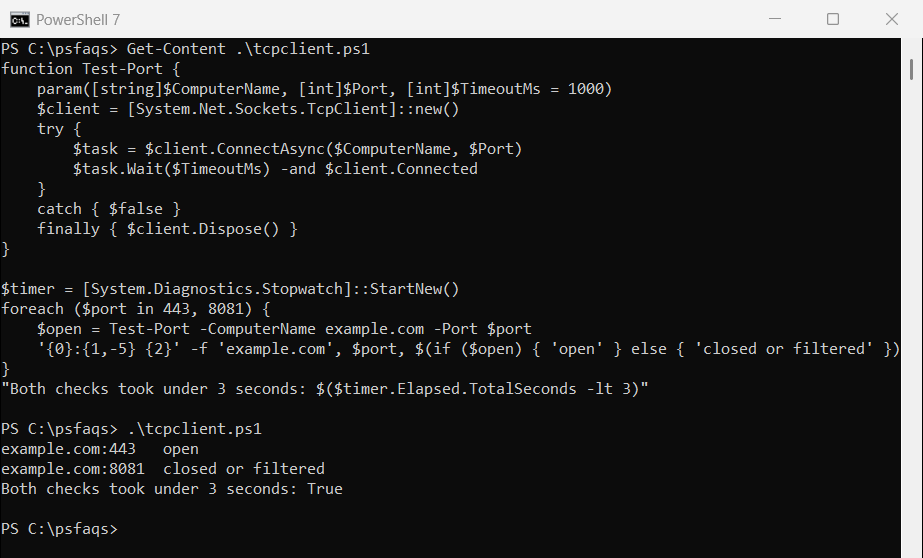
“Closed or filtered” covers both a refused connection and a firewall that silently drops it. Either way, you can’t connect on that port.
How the Test-Port function works
ConnectAsync starts the connection, and Wait() gives up after the timeout. The finally block always closes the connection, so the function doesn’t leak sockets.
Check a local port
To see the difference between open and closed, I start a listener on port 18080 and test it, then stop it and test again:
function Test-Port {
    param([string]$ComputerName, [int]$Port, [int]$TimeoutMs = 1000)
    $client = [System.Net.Sockets.TcpClient]::new()
    try {
        $task = $client.ConnectAsync($ComputerName, $Port)
        $task.Wait($TimeoutMs) -and $client.Connected
    }
    catch { $false }
    finally { $client.Dispose() }
}

$listener = [System.Net.Sockets.TcpListener]::new([System.Net.IPAddress]::Loopback, 18080)
$listener.Start()
"Listener running. Port 18080 open: $(Test-Port -ComputerName 127.0.0.1 -Port 18080)"

$listener.Stop()
"Listener stopped. Port 18080 open: $(Test-Port -ComputerName 127.0.0.1 -Port 18080)"
Output:
Listener running. Port 18080 open: True
Listener stopped. Port 18080 open: False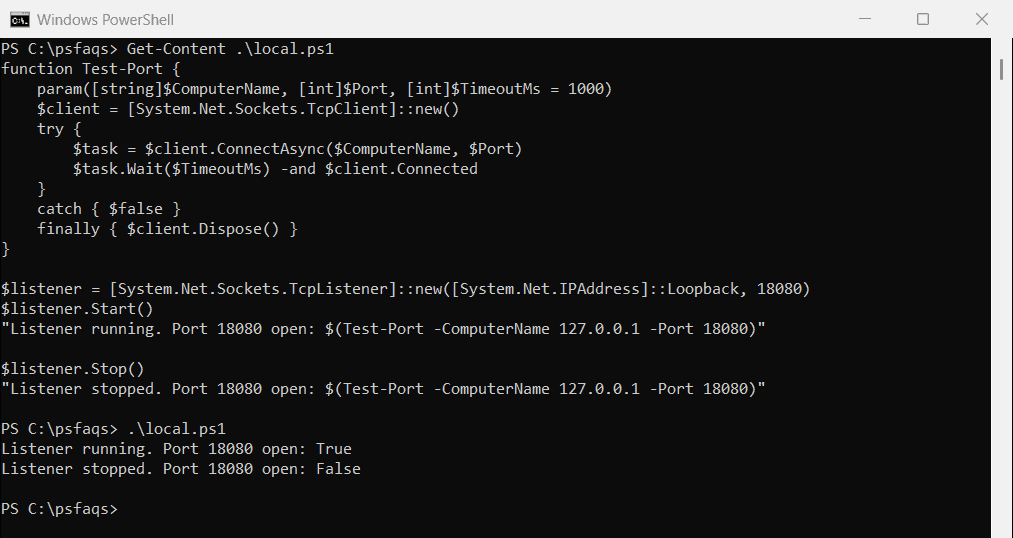
Use 127.0.0.1 or localhost for services on your own PC. A local test passes even when Windows Firewall blocks the port for other computers, so test from another machine too.
To see every port in use, see finding ports in use.
Find which process is using a port
Get-NetTCPConnection shows the listening ports on your PC and the process that owns each one:
$listener = [System.Net.Sockets.TcpListener]::new([System.Net.IPAddress]::Loopback, 18080)
$listener.Start()

Get-NetTCPConnection -LocalPort 18080 -State Listen | ForEach-Object {
    $process = Get-Process -Id $_.OwningProcess
    "Port $($_.LocalPort) on $($_.LocalAddress) is used by $($process.ProcessName)"
}
$listener.Stop()
Output:
Port 18080 on 127.0.0.1 is used by pwsh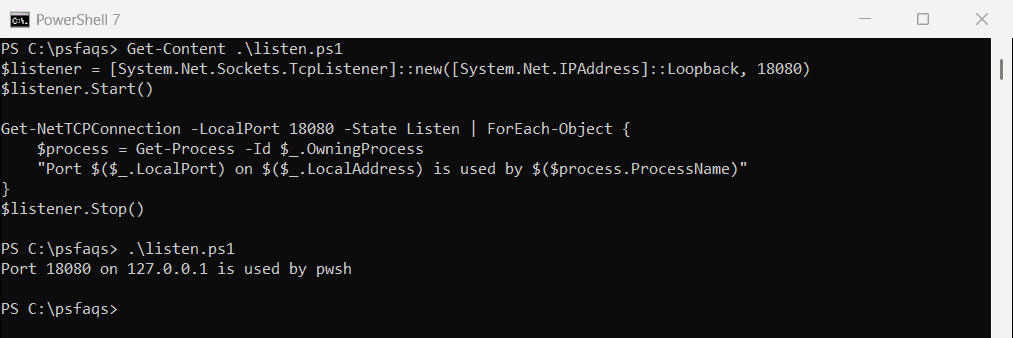
Drop -LocalPort to list every listening port. Microsoft covers the filters in the Get-NetTCPConnection reference.
If you need to free the port, stop the process as shown in killing a process by name.
Check many ports or servers
With the Test-Port function loaded, loop over servers and ports and export the results:
$servers = 'web01.contoso.com', 'sql01.contoso.com'
$ports = 443, 1433, 3389

$results = foreach ($server in $servers) {
    foreach ($port in $ports) {
        [pscustomobject]@{ Server = $server; Port = $port; Open = Test-Port -ComputerName $server -Port $port }
    }
}
$results | Export-Csv -Path C:\Reports\ports.csv -NoTypeInformation
What about UDP ports?
These checks only work for TCP. UDP has no handshake, so a closed UDP port and a silent service look the same.
To test a UDP service, send it a real request, such as a DNS query with Resolve-DnsName -Server 10.0.0.53 contoso.com.
Frequently Asked Questions
How do I check if a port is open in PowerShell?
Run Test-NetConnection -ComputerName server01 -Port 443 -InformationLevel Quiet. It returns True when the port is open.
Why is Test-NetConnection so slow on closed ports?
It waits for the connection attempt to time out. Use a TcpClient with ConnectAsync and a 1-second Wait() for faster results.
How do I check which process is using a port?
Run Get-NetTCPConnection -LocalPort 8080 -State Listen and pass OwningProcess to Get-Process.
Can PowerShell check if a UDP port is open?
Not reliably. UDP has no handshake, so test the service itself with a real request.
Does checking a port need admin rights?
No. Test-NetConnection, TcpClient and Get-NetTCPConnection all work in a normal window. See Microsoft’s TcpClient.ConnectAsync.
More networking checks: