
If you’ve been working with PowerShell for a while, you’ve probably run into situations where you need to combine multiple strings into one. Maybe you’re creating file paths, building commands, or just formatting output for a report.
Today, I’m going to show you exactly how to join arrays of strings in PowerShell. And trust me, once you know these methods, you’ll use them all the time.
Let’s dive in.
What Does “Joining” an Array Mean?
Before we get into the how-to part, let’s quickly understand what we’re talking about.
When you have an array of strings like this:
$fruits = @("Apple", "Banana", "Orange", "Mango")Joining them means combining all these individual strings into one single string. The result might look like:
Apple, Banana, Orange, Mango
Simple, right? But PowerShell gives you several ways to do this, and each method has its own use case.
Method 1: Using the -join Operator (The Most Common Way)
This is my go-to method for joining strings. It’s clean, simple, and does exactly what you’d expect.
Basic Syntax
$array -join "separator"The separator is what goes between each string. It could be a comma, a space, a dash, or anything you want.
Example 1: Join with a Comma
Here is an example of joining with a comma.
$fruits = @("Apple", "Banana", "Orange", "Mango")
$result = $fruits -join ", "
Write-Host $result
Output:
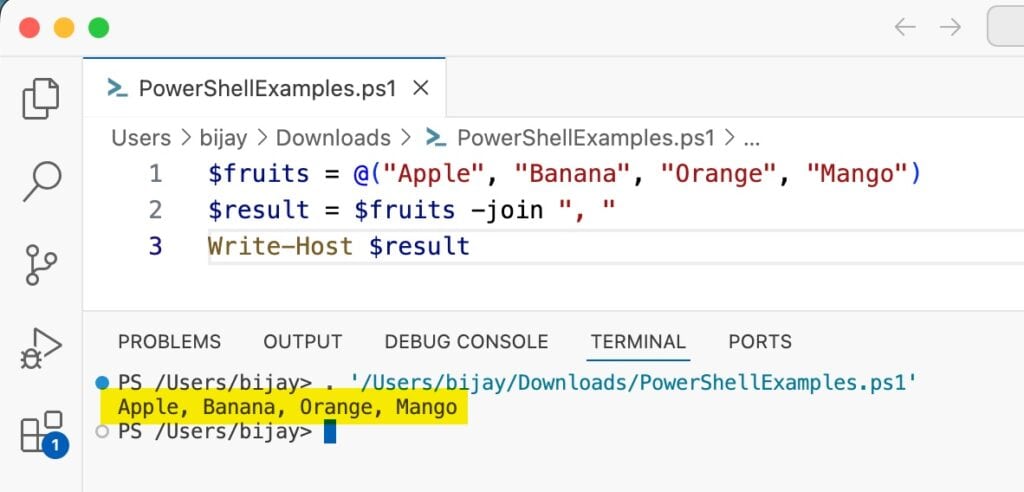
Apple, Banana, Orange, MangoSee how easy that was? The -join operator took all the strings and put a comma and a space between each one.
You can see the exact output in the screenshot below:
Example 2: Join with No Separator
Sometimes you want to smash everything together without any separator:
$letters = @("P", "o", "w", "e", "r")
$word = $letters -join ""
Write-Host $word
Output:
PowerJust use an empty string ("") as your separator.
Example 3: Join with a Pipe or Custom Separator
Here is an example where you can join an array of strings in PowerShell with a pipe or a custom separator.
$servers = @("Server01", "Server02", "Server03")
$result = $servers -join " | "
Write-Host $result
Output:
Server01 | Server02 | Server03You can use any character or string as a separator. Pipe symbols, dashes, forward slashes—whatever makes sense for your use case.
Check out Find First Match in Array and Return Value in PowerShell
Method 2: Using the [string]::Join() Method
This is the .NET way of doing things. It works exactly like the -join operator but follows the .NET Framework syntax.
Basic Syntax
[string]::Join("separator", $array)Notice the order here: separator first, then the array.
Example
Here is an example of using the [string]::Join() method to join array of strings in PowerShell.
$colors = @("Red", "Green", "Blue")
$result = [string]::Join(" - ", $colors)
Write-Host $result
Output:
Red - Green - BlueWhy use this method?
Honestly, for most PowerShell scripts, the -join operator is simpler. But if you’re working with .NET objects or need to maintain consistency with C# code, this method makes sense.
Check out Add an Element to the Beginning of an Array in PowerShell
Method 3: Joining Array Elements with New Lines
Here’s a practical scenario: you want each array element on its own line.
Using `n for New Line
$tasks = @("Backup Database", "Update Servers", "Send Report")
$result = $tasks -join "`n"
Write-Host $result
Output:
Backup Database
Update Servers
Send Report
The backtick followed by ‘n’ (`n) is PowerShell’s way of representing a new line.
For Windows-Style Line Breaks
If you’re creating files on Windows and need proper line breaks, use `r`n:
$lines = @("First Line", "Second Line", "Third Line")
$result = $lines -join "`r`n"
$result | Out-File "C:\temp\output.txt"
This creates a properly formatted text file with Windows-style line endings.
Check out Find the Index of a String in an Array in PowerShell
Method 4: Joining with the += Operator
You might see code where people build strings using +=:
$fruits = @("Apple", "Banana", "Orange")
$result = ""
foreach ($fruit in $fruits) {
    $result += $fruit + ", "
}
$result = $result.TrimEnd(", ")
Write-Host $result
Output:
Apple, Banana, Orange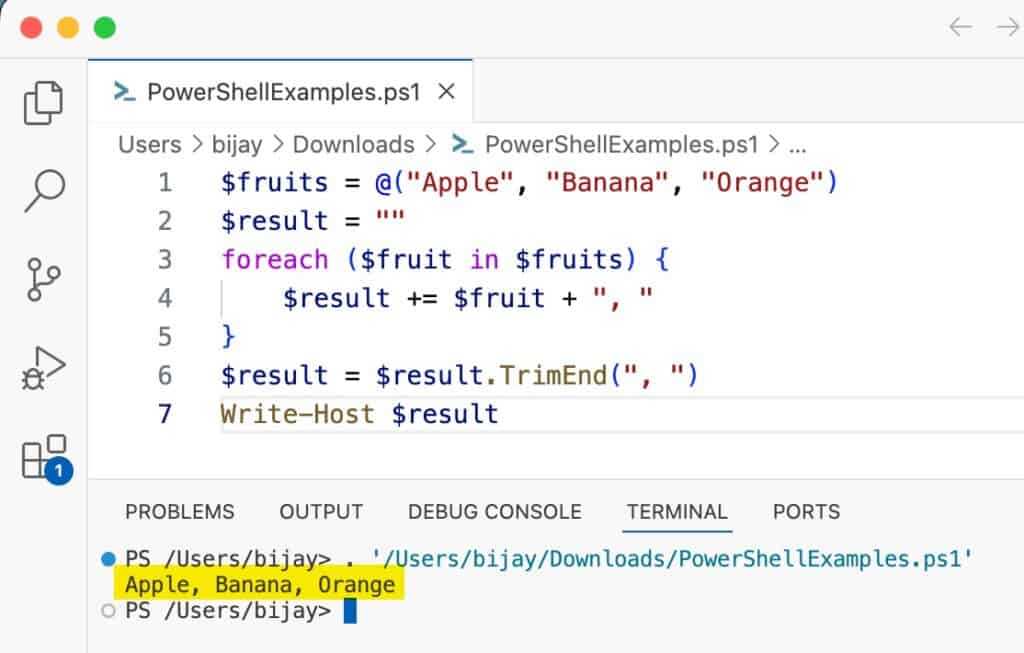
This works, but it’s not efficient. Each time you use +=, PowerShell creates a new string in memory. For small arrays, it’s fine. For large ones, it’s slow.
My advice: Stick with -join instead.
Check out Convert a String to an Array of Characters in PowerShell
Real-World Examples (Where You’d Actually Use This)
Let me show you some practical scenarios where joining arrays comes in handy in PowerShell.
Example 1: Building File Paths
Here is a real example where you are building a file paths combaning array of strings.
$pathParts = @("C:", "Users", "Admin", "Documents", "Reports")
$fullPath = $pathParts -join "\"
Write-Host $fullPath
Output:
C:\Users\Admin\Documents\ReportsExample 2: Creating CSV Output
Here is an example of creating a CSV header by joining an array of strings in PowerShell.
$headers = @("Name", "Age", "Department")
$csvHeader = $headers -join ","
Write-Host $csvHeader
Output:
Name,Age,DepartmentPerfect for creating CSV files manually.
Example 3: Building SQL IN Clauses
Here is another real example; you will love it if you are working with SQL Server. Below is an example of building an SQL IN clause.
$usernames = @("john", "mary", "susan")
$quotedUsers = $usernames | ForEach-Object { "'$_'" }
$inClause = $quotedUsers -join ", "
$query = "SELECT * FROM Users WHERE Username IN ($inClause)"
Write-Host $query
Output:
SELECT * FROM Users WHERE Username IN ('john', 'mary', 'susan')Super useful when building dynamic SQL queries.
Example 4: Creating URL Parameters
Here is an example of creating URL parameters (queryString) by combining an array of strings in PowerShell.
$params = @("name=John", "age=30", "city=NYC")
$queryString = $params -join "&"
$url = "https://api.example.com/search?$queryString"
Write-Host $url
Output:
https://api.example.com/search?name=John&age=30&city=NYCCheck out Replace Multiple Strings in an Array Using PowerShell
Working with Empty Elements
While joining an array of strings, what will happen if your array has empty strings in PowerShell?
Below is the script to handle it better.
$items = @("Apple", "", "Orange", "", "Mango")
$result = $items -join ", "
Write-Host $result
Output:
Apple, , Orange, , MangoThe empty elements are still there, creating double commas. If you want to skip them:
$items = @("Apple", "", "Orange", "", "Mango")
$filtered = $items | Where-Object { $_ -ne "" }
$result = $filtered -join ", "
Write-Host $result
Output:
Apple, Orange, MangoMuch cleaner.
Joining Different Data Types
What if your PowerShell array contains numbers or other data types?
$mixed = @(1, 2, 3, 4, 5)
$result = $mixed -join "-"
Write-Host $result
Output:
1-2-3-4-5PowerShell automatically converts them to strings. No special handling needed.
Read Convert Base64 String to Byte Array in PowerShell
Performance Tip: Join vs String Concatenation
I mentioned this earlier, but it’s worth repeating. When combining many strings, -join is much faster than repeated concatenation:
Slow way:
$result = ""
for ($i = 1; $i -le 1000; $i++) {
    $result += "$i "
}
Fast way:
$numbers = 1..1000
$result = $numbers -join " "
The difference is negligible for small arrays, but for thousands of items, -join wins by a mile.
Common Mistakes to Avoid While Joining an Array of Strings
Let me show you a few mistakes to avoid when joining an array of strings in PowerShell.
Mistake 1: Forgetting the separator
$items = @("A", "B", "C")
$result = $items -join
# This gives an error
Always provide a separator, even if it’s an empty string.
Mistake 2: Mixing up [string]::Join() parameter order
# Wrong
[string]::Join($array, ", ")

# Right
[string]::Join(", ", $array)
The separator comes first in the .NET method.
Mistake 3: Not handling $null values
$items = @("Apple", $null, "Orange")
$result = $items -join ", "
Write-Host $result
This works, but the $null becomes an empty string. Just be aware.
Wrapping Up
In this tutorial, I explained how to join an array of strings in PowerShell using several methods. But I always recommended using the -join operator in PowerShell.
Use [string]::Join() when you need .NET compatibility or prefer that syntax. And avoid building strings with += in loops—it’s just not worth the performance hit.
Remember these key points:
- Use
-joinwith a separator for clean, readable code - Empty strings (
"") work as separators when you want no separation - Use
`nor`r`nfor line breaks - Filter out empty or null values when needed
- The
-joinoperator automatically converts data types to strings
Do let me know if you still have any questions in the comments below.
You may like the following tutorials:
- Convert an Array to a String in PowerShell
- Convert String to Number with Decimal in PowerShell
- Find Dates in Strings with PowerShell

Bijay Kumar is an esteemed author and the mind behind PowerShellFAQs.com, where he shares his extensive knowledge and expertise in PowerShell, with a particular focus on SharePoint projects. Recognized for his contributions to the tech community, Bijay has been honored with the prestigious Microsoft MVP award. With over 15 years of experience in the software industry, he has a rich professional background, having worked with industry giants such as HP and TCS. His insights and guidance have made him a respected figure in the world of software development and administration. Read more.