
When you import data into PowerShell (from CSV files, APIs, or user input), numbers often come in as text. They look like numbers, but PowerShell still treats them as strings, which means you cannot reliably sort, filter, or do any kind of numeric calculation on them.
In this tutorial, you will see simple, practical ways to convert text values such as "123.45" into real numbers with decimals in PowerShell.
You will also learn when to use types like decimal and double, how to handle different decimal separators (for example 123.45 vs 123,45), and how to safely deal with invalid or messy values without breaking your script.
Numeric Types that Support Decimals in PowerShell
Before converting text to numbers, it helps to know which data types can actually store decimal values in PowerShell.
The most common ones you will use are:
- decimal
- High-precision type, great for currency and financial calculations.
- Backed by
System.Decimalin .NET and designed to avoid typical floating-point rounding issues.
- double
- The default floating-point type for most decimal literals such as
1.23. - Implemented as
System.Doubleand good for general-purpose numeric work and measurements.
- The default floating-point type for most decimal literals such as
- float (single)
- Lower precision than
doubleand not used very often in day-to-day PowerShell scripts.
- Lower precision than
In most real-world scripts, decimal is the better choice when precision really matters (for example, totals and money).
For everything else (like temperatures, scores, or measurements), double usually works well and is easier to work with.
Method 1: Cast string to [decimal] or [double]
In PowerShell, the quickest way to convert a string that already looks like a decimal number is to cast it directly to the required type.
Cast string to [decimal]
[string]$priceText = "123.45"
[decimal]$price = [decimal]$priceText

$price
$price.GetType().FullName
Example output:
123.45
System.Decimal
Here:
- The string
"123.45"is converted to a true decimal value. - This works as long as the string uses a dot (
.) as the decimal separator, which is common in US-style data.
You can see the exact output in the screenshot below:

Cast string to [double]
[string]$scoreText = "98.75"
[double]$score = [double]$scoreText

$score
$score.GetType().FullName
This converts the string into a System.Double (a 64-bit floating-point number).
What if the string is not a valid decimal?
If the string contains characters that cannot be interpreted as a number, the cast fails with an error:
[string]$invalid = "abc.12"
[decimal]$value = [decimal]$invalid   # Throws an error
So, simple casting is best when:
- You trust the source of the data.
- You are confident the format is always correct (no extra spaces, no text, correct decimal separator).
Check out Get the Type of an Object in PowerShell
Method 2: Use Decimal.Parse() or Double.Parse()
If you want more control over the conversion (especially culture/format), you can use the .NET Parse() methods.
Decimal.Parse() to get a decimal number
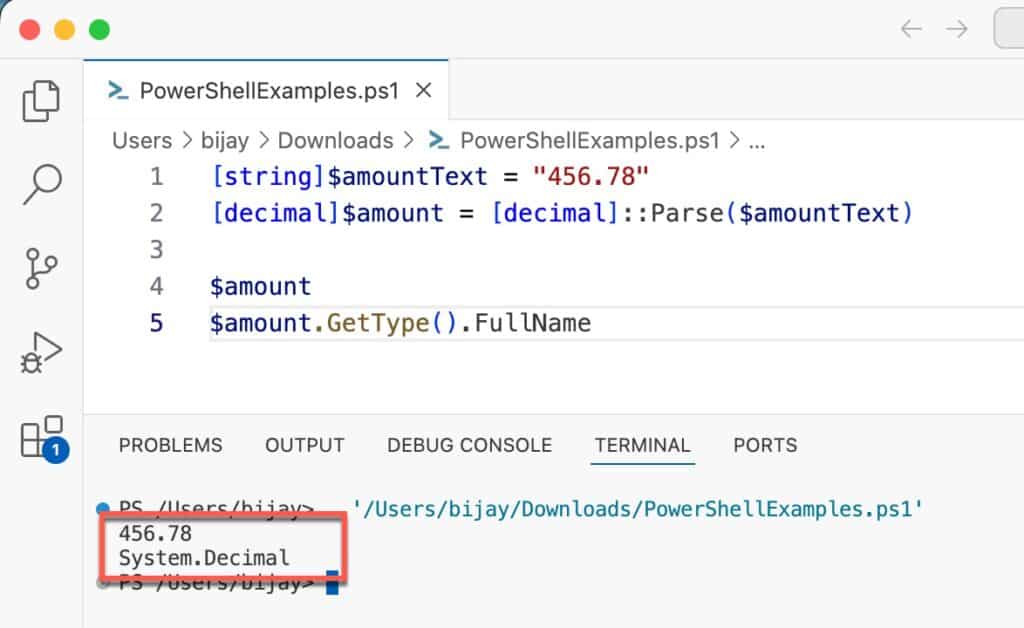
[string]$amountText = "456.78"
[decimal]$amount = [decimal]::Parse($amountText)

$amount
$amount.GetType().FullName
This converts the string into a decimal number and, by default, uses the current culture of the machine. On US locales, this expects a dot (.) as the decimal separator.
Here is the exact output in the screenshot below:
Double.Parse() to get a double with decimals
[string]$temperatureText = "72.55"
[double]$temperature = [double]::Parse($temperatureText)

$temperature
$temperature.GetType().FullName
This is useful when you specifically want a double and like the more explicit syntax.
Using a specific culture (for US-style decimals)
If your system is set to a non-US region (for example, one that uses a comma as decimal), but your data is always in US format, you can force the culture:
Add-Type -AssemblyName System.Globalization

[string]$ratingText = "4.75"
$culture = [System.Globalization.CultureInfo]::GetCultureInfo("en-US")

[decimal]$rating = [decimal]::Parse($ratingText, $culture)
$rating
This ensures "4.75" is consistently understood as four point seventy-five, regardless of the server’s regional settings.
Read Convert String to Decimal in PowerShell
Method 3: Safe conversion with Decimal.TryParse()
When your data comes from users, files, logs, or any “messy” source, you often do not want your script to break if a value is invalid. In such cases, TryParse() is a much safer option.
Decimal.TryParse() with success flag
[string]$input = "89.34"

[decimal]$decimalResult = 0
$success = [decimal]::TryParse($input, [ref]$decimalResult)

if ($success) {
    "Converted value: $decimalResult (Type: $($decimalResult.GetType().Name))"
} else {
    "Invalid decimal number!"
}
Here:
TryParse()returnsTrueif the conversion succeeded.- The converted value is stored in the variable passed by reference (
[ref]$decimalValue).
TryParse with US decimal format
You can also combine TryParse() with CultureInfo if the strings follow a specific decimal format:
Add-Type -AssemblyName System.Globalization

[string]$input = "1234.56"
$culture = [System.Globalization.CultureInfo]::GetCultureInfo("en-US")

[decimal]$result = 0
$ok = [decimal]::TryParse(
    $input,
    [System.Globalization.NumberStyles]::Float,
    $culture,
    [ref]$result
)

if ($ok) {
    "Parsed (US decimal): $result"
} else {
    "Invalid decimal format"
}
Use TryParse() whenever you do not fully control the input and want to handle bad values gracefully (for example, log them or skip them).
Check out PowerShell Measure-Object 2 Decimal Places
Method 4: Use [Convert] to get decimals or doubles
Another option is to use the static methods on the .NET System.Convert class. This is handy if you already use other Convert methods like ToInt32(), ToBoolean(), etc., and want a consistent style.
Convert string to decimal
[string]$stringNumber = "123.45"
[decimal]$decimalNumber = [convert]::ToDecimal($stringNumber)

$decimalNumber
$decimalNumber.GetType().FullName
Convert string to double with decimal part
[string]$stringNumber = "123.45"
[double]$doubleNumber = [convert]::ToDouble($stringNumber)

$doubleNumber
$doubleNumber.GetType().FullName
This pattern is useful if you already use [convert]::ToInt32(), [convert]::ToBoolean(), and similar methods and want consistent syntax in your scripts.
Check out PowerShell Round to 2 Decimal Places
Method 5: Convert multiple decimal strings (arrays and CSV)
In many real cases, you will not be converting a single value, but a list or a column from a file.
Convert an array of decimal strings
[string[]]$values = "10.5", "20.75", "30.00"

[decimal[]]$decimals = [decimal[]]$values

$decimals
$decimals | ForEach-Object { "$_ -> $($_.GetType().Name)" }
PowerShell automatically applies the [decimal] conversion to each element to create an array of decimal values.
Convert a decimal column from CSV
Assume a CSV file sales.csv:
Region,Amount
US-East,123.45
US-West,678.90
US-Central,50.25
You can convert the Amount column to decimal like this:
$sales = Import-Csv -Path ".\sales.csv"

$sales | ForEach-Object {
    [decimal]$amount = [decimal]$_.Amount

    [PSCustomObject]@{
        Region = $_.Region
        Amount = $amount
        Type   = $amount.GetType().Name
    }
}
Once converted, the Amount values are real decimals that you can safely sum, average, or use in other calculations.
Check out Convert Number to String in PowerShell
Handling different decimal separators in PowerShell strings
Not all data uses a dot as the decimal separator. In some regions, 2,55 represents “two point fifty-five” instead of 2.55.
Simple replacement (comma to dot)
If you know:
- The decimal separator is a comma.
- There are no thousands separators in the string.
You can do a simple replacement:
[string]$valueText = "2,55"

# Replace comma with dot, then convert to decimal
[decimal]$value = [decimal]$valueText.Replace(",", ".")

$value
This converts "2,55" to the decimal number 2.55 for further calculations. This is quick and works well for clean, simple input.
Culture-aware parsing for comma decimals
For a more robust solution, let .NET handle the format using CultureInfo, for example fr-FR:
Add-Type -AssemblyName System.Globalization

[string]$valueText = "2,55"
$culture = [System.Globalization.CultureInfo]::GetCultureInfo("fr-FR")

[decimal]$value = [decimal]::Parse($valueText, $culture)

$value
This approach is safer in multi-region environments or when you are not fully sure how the data is formatted.
Read PowerShell Convert Byte Array to Hex String
Decimal vs double when converting strings
Both decimal and double can store numbers with decimal points, but they behave differently.
Here is a quick overview to help you decide which one to use.
| Aspect | decimal | double |
|---|---|---|
| .NET type | System.Decimal | System.Double |
| Precision | High decimal precision | About 15–16 digits, floating point |
| Typical use | Money, financial, totals | Measurements, general calculations |
| Default literal type | No | Yes, most decimals become double |
| String conversion | Cast, Parse, TryParse, Convert.ToDecimal | Cast, Parse, Convert.ToDouble |
In practice:
- Use decimal when working with prices, totals, or anything where small rounding differences are not acceptable.
- Use double when you are fine with minor floating-point rounding and want a more “standard” numeric type used by many APIs and libraries.
Real-world examples after conversion
Once your string values are properly converted, you can safely perform arithmetic without running into string concatenation issues like "10" + "20" giving "1020".
Example 1: Add tax to a price (decimal)
[string]$priceText = "99.99"
[decimal]$price = [decimal]$priceText

[decimal]$taxRate = 0.07    # 7% tax
[decimal]$taxAmount = $price * $taxRate
[decimal]$total = $price + $taxAmount

"Price:  $price"
"Tax:    $taxAmount"
"Total:  $total"
Using decimal here keeps the calculation accurate, which is important when dealing with financial values.
Example 2: Average from decimal strings
[string[]]$scoresText = "89.5", "92.75", "78.25"

[decimal[]]$scores = [decimal[]]$scoresText
[decimal]$sum = ($scores | Measure-Object -Sum).Sum
[decimal]$avg = $sum / $scores.Count

"Average score: $avg"
Here, each string is converted to a decimal number, and all further operations use numeric math instead of string operations.
Which approach to use for decimal strings?
Here is a simple way to decide which method to use when converting strings to numbers with decimals in PowerShell:
- Use casting (
[decimal]$valueor[double]$value)- When the input format is clean, predictable, and fully under your control.
- For quick scripts and small utilities.
- Use Parse()
- When you want explicit conversions and are okay with exceptions if the input is invalid.
- When you need to control culture (for example, always treating
"1.23"as US-style formatting).
- Use TryParse()
- When values come from users or external systems and can be invalid or messy.
- When you prefer to handle errors yourself instead of letting the script stop.
- Use [Convert] methods
- When you like a consistent style such as
Convert.ToDecimal(),Convert.ToDouble(),Convert.ToInt32(), etc. - When you are already using other
Converthelpers in the same script.
- When you like a consistent style such as
If you convert your strings to decimal or double early in the pipeline, the rest of your PowerShell code becomes simpler, safer, and a lot more predictable.
Conclusion
When dealing with decimal numbers in PowerShell, always convert strings to a numeric type like decimal or double before doing any calculations. Use casting or Parse() when you trust the input format, and prefer TryParse() for unsafe or user-provided data so your scripts handle errors gracefully.
You may also like the following tutorials:

Bijay Kumar is an esteemed author and the mind behind PowerShellFAQs.com, where he shares his extensive knowledge and expertise in PowerShell, with a particular focus on SharePoint projects. Recognized for his contributions to the tech community, Bijay has been honored with the prestigious Microsoft MVP award. With over 15 years of experience in the software industry, he has a rich professional background, having worked with industry giants such as HP and TCS. His insights and guidance have made him a respected figure in the world of software development and administration. Read more.