
Measure-Object calculates the count, sum, average, maximum and minimum of numbers or of a property. Pipe the values to it and pick the statistics you want:
$sales = 18250, 12400, 20975, 9800

$sales | Measure-Object -Sum -Average -Maximum -Minimum
Output in Windows PowerShell 5.1:
Count             : 4
Average           : 15356.25
Sum               : 61425
Maximum           : 20975
Minimum           : 9800
StandardDeviation :
Property          :
PowerShell 7 shows the same numbers plus an empty StandardDeviation row. I ran every example in PowerShell 7.6 and Windows PowerShell 5.1 and note the differences.
Sum all numbers in an array and find the highest
Measure-Object returns an object, so read the property you need. That’s how you get the sum of an array or its highest number:
$sales = 18250, 12400, 20975, 9800
$stats = $sales | Measure-Object -Sum -Maximum

"Total:   {0:C0}" -f $stats.Sum
"Highest: {0:C0}" -f $stats.Maximum
"Sum is a $($stats.Sum.GetType().Name)"
Output:
Total:   $61,425
Highest: $20,975
Sum is a Double
The Sum is always a Double, even for whole numbers. Round or format it when you print it, as covered in rounding numbers in PowerShell.
Measure a property of objects
Use -Property to measure one or more properties. You get one result per property:
$stores = @(
    [pscustomobject]@{ City = 'Austin'; Q1 = 18250; Q2 = 21400 }
    [pscustomobject]@{ City = 'Denver'; Q1 = 12400; Q2 = 13900 }
    [pscustomobject]@{ City = 'Miami';  Q1 = 20975; Q2 = 19800 }
)

$stores | Measure-Object -Property Q1, Q2 -Sum -Average |
    ForEach-Object { '{0}: total {1:C0}, average {2:C0}' -f $_.Property, $_.Sum, $_.Average }

$top = $stores | Sort-Object -Property Q2 -Descending | Select-Object -First 1
"Best Q2 store: $($top.City)"
Output:
Q1: total $51,625, average $17,208
Q2: total $55,100, average $18,367
Best Q2 store: Austin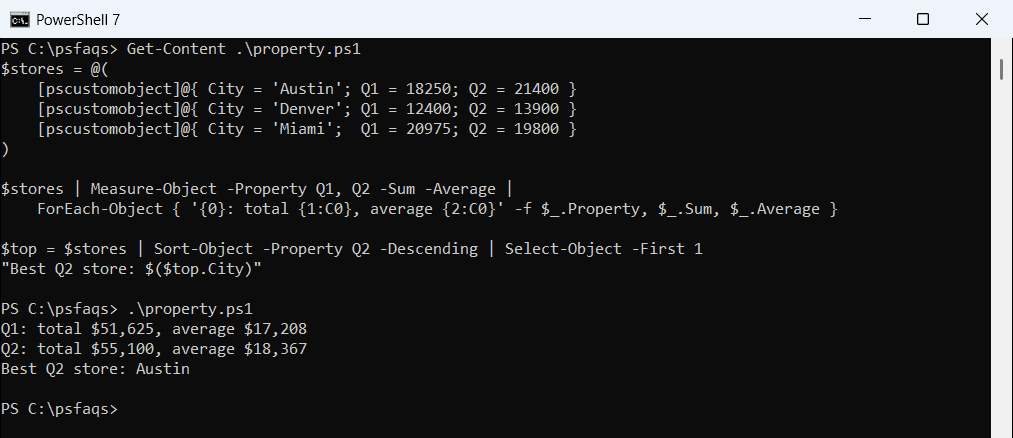
Measure-Object tells you the highest value but not which object has it. Sort and take the first item when you need the whole record.
Total file sizes
Measure the Length property of files to get total and average sizes:
$files = Get-ChildItem -Path C:\psfaqs\Measure -File | Measure-Object -Property Length -Sum -Average

"Files: $($files.Count)"
"Total: {0:N2} MB" -f ($files.Sum / 1MB)
"Average: {0:N0} KB" -f ($files.Average / 1KB)
Output:
Files: 4
Total: 7.48 MB
Average: 1,914 KB
Divide by 1MB or 1GB, which PowerShell understands as numbers, to get readable units. Getting all files in a folder shows how to add -Recurse.
Numbers stored as text
Measure-Object converts text to numbers for its math, so it finds the right maximum where a text sort doesn’t:
$fromCsv = '10', '9', '100'

"Measure-Object -Maximum: $(($fromCsv | Measure-Object -Maximum).Maximum)"
"Sort-Object last item:   $(($fromCsv | Sort-Object)[-1])"
"Strings work too: $(('Austin', 'Denver', 'Miami' | Measure-Object -Maximum).Maximum)"
Output:
Measure-Object -Maximum: 100
Sort-Object last item:   9
Strings work too: Miami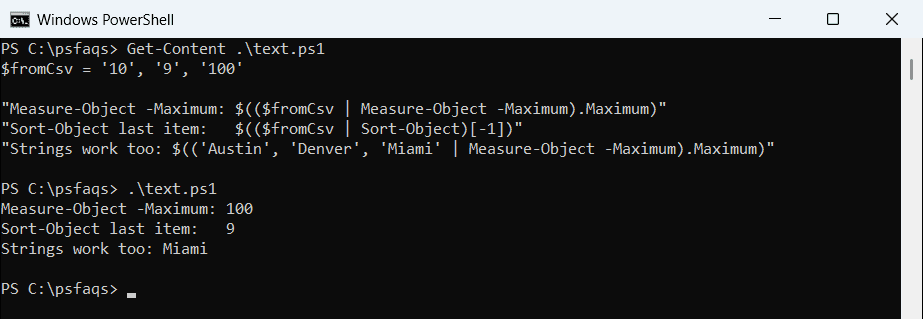
On real text, like city names, -Maximum and -Minimum compare alphabetically. Sorting an array explains the text sort problem.
Nulls and values that aren’t numbers
Measure-Object skips $null values, so they don’t count toward the average. A value that isn’t a number stops the sum with an error:
$readings = 72, $null, 68, 75

$stats = $readings | Measure-Object -Average
"Counted: $($stats.Count) of $($readings.Count) values, average $($stats.Average)"

try { 'N/A', 5 | Measure-Object -Sum -ErrorAction Stop } catch { "'N/A' stopped the sum: it isn't a number" }
Output:
Counted: 3 of 4 values, average 71.6666666666667
'N/A' stopped the sum: it isn't a number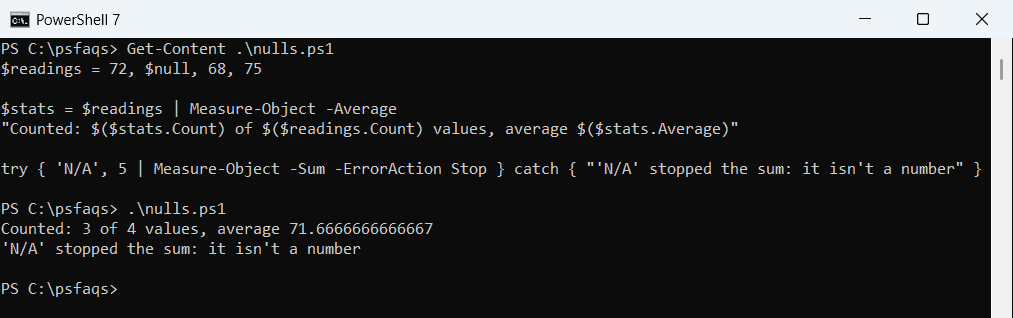
Skipping nulls is usually what you want for missing readings. Filter out placeholders like N/A with Where-Object before measuring.
More statistics in PowerShell 7
PowerShell 7 adds -AllStats and -StandardDeviation. Windows PowerShell 5.1 doesn’t have them:
$times = 120, 135, 128, 410, 131
$times | Measure-Object -AllStats | Select-Object -Property Count, Average, Maximum, StandardDeviation
Output in PowerShell 7:
Count Average Maximum StandardDeviation
----- ------- ------- -----------------
    5 184.800 410.000           126.011
The standard deviation makes the 410 ms outlier easy to spot. In 5.1, you’d calculate it yourself from the average.
Count lines, words and characters
For text, Measure-Object counts lines, words and characters:
$note = @'
Quarterly review is on Friday.
Bring the Austin and Denver numbers.
'@

$note | Measure-Object -Line -Word -Character
Output:
Lines Words Characters Property
----- ----- ---------- --------
    2    11         68
This works on file contents too: Get-Content report.txt | Measure-Object -Line -Word. Counting lines in a file covers the file side.
A faster option for large arrays
For hundreds of thousands of numbers, .NET’s LINQ methods skip the pipeline and run much faster:
$numbers = [int[]](18250, 12400, 20975, 9800)

"Sum: $([Linq.Enumerable]::Sum($numbers))"
"Max: $([Linq.Enumerable]::Max($numbers))"
"Sum type: $([Linq.Enumerable]::Sum($numbers).GetType().Name)"
Output:
Sum: 61425
Max: 20975
Sum type: Int32
Note the Int32 result: LINQ keeps the input type, so a very large total can overflow where Measure-Object’s Double wo