
Select-Object is the PowerShell cmdlet that picks properties from objects, or picks a number of objects from a list. The examples below use this list of employees:
$employees = @(
    [pscustomobject]@{ Name = 'Maria Garcia'; Department = 'Finance'; City = 'Austin'; Salary = 86000 }
    [pscustomobject]@{ Name = 'James Smith'; Department = 'IT'; City = 'Dallas'; Salary = 92000 }
    [pscustomobject]@{ Name = 'Emily Chen'; Department = 'IT'; City = 'Austin'; Salary = 98000 }
    [pscustomobject]@{ Name = 'Robert Brown'; Department = 'Sales'; City = 'Houston'; Salary = 74000 }
)
To keep only some properties, list them after -Property:
$employees | Select-Object -Property Name, CityOutput:
Name         City
----         ----
Maria Garcia Austin
James Smith  Dallas
Emily Chen   Austin
Robert Brown Houston
I ran every example in real PowerShell 7.6 and Windows PowerShell 5.1 consoles. Where a parameter exists in only one version, I say so.
Select-Object creates new objects
Select-Object -Property doesn’t just hide columns. It builds new objects that have only the properties you asked for:
$row = $employees | Select-Object -First 1 -Property Name, City
"Type:       $($row.GetType().Name)"
"Properties: $($row.PSObject.Properties.Name -join ', ')"
Output:
Type:       PSCustomObject
Properties: Name, City
That’s usually what you want before Export-Csv or ConvertTo-Json, because the file then contains only those columns. It’s also why the selected objects no longer have the original object’s methods.
Select the first or last items
-First and -Last pick items from the start or end of the list, and -Skip skips some first:
"First 2:         $(($employees | Select-Object -First 2).Name -join ', ')"
"Last 1:          $(($employees | Select-Object -Last 1).Name)"
"Skip 1, then 2:  $(($employees | Select-Object -Skip 1 -First 2).Name -join ', ')"
Output:
First 2:         Maria Garcia, James Smith
Last 1:          Robert Brown
Skip 1, then 2:  James Smith, Emily Chen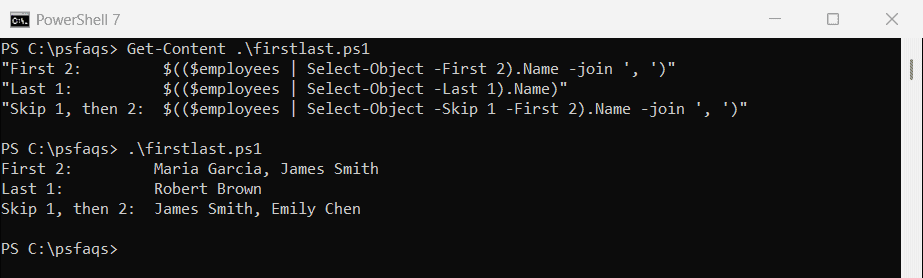
-First stops the pipeline early
With -First, PowerShell stops the command that produces the objects as soon as it has enough. -Last has to read everything:
$first = Measure-Command { 1..1000000 | Select-Object -First 3 }
$last  = Measure-Command { 1..1000000 | Select-Object -Last 3 }

'-First 3: {0,7:N0} ms' -f $first.TotalMilliseconds
'-Last 3:  {0,7:N0} ms' -f $last.TotalMilliseconds
Output in PowerShell 7:
-First 3:       4 ms
-Last 3:      886 ms
Windows PowerShell 5.1 showed the same pattern: 5 ms for -First and 1,353 ms for -Last. So Get-ChildItem -Recurse | Select-Object -First 1 returns quickly even on a huge drive.
Get unique values with -Unique
-Unique removes duplicates, but it’s case-sensitive. Sort-Object -Unique isn’t:
$cities = 'Austin', 'austin', 'Dallas', 'AUSTIN'

"Select-Object -Unique: $(($cities | Select-Object -Unique) -join ', ')"
"Sort-Object -Unique:   $(($cities | Sort-Object -Unique) -join ', ')"
Output in PowerShell 7:
Select-Object -Unique: Austin, austin, Dallas, AUSTIN
Sort-Object -Unique:   Austin, Dallas
Windows PowerShell 5.1 gave the same result, except that Sort-Object kept “AUSTIN”. Which spelling survives isn’t something to rely on.
PowerShell 7.4 added -CaseInsensitive to Select-Object, which keeps the first spelling it sees and the original order:
$cities = 'Austin', 'austin', 'Dallas', 'AUSTIN'
($cities | Select-Object -Unique -CaseInsensitive) -join ', '
Output in PowerShell 7:
Austin, DallasWith objects, -Unique compares the selected properties, so you can list the distinct values of one column:
$employees | Select-Object -Property City -UniqueOutput:
City
----
Austin
Dallas
Houston
How do I select only the value, without the property name?
-Property Name gives you objects that have a Name property. -ExpandProperty Name gives you the values themselves:
$withProperty = $employees | Select-Object -Property Name
$valueOnly    = $employees | Select-Object -ExpandProperty Name

"-Property:       $($withProperty[0])  ($($withProperty[0].GetType().Name))"
"-ExpandProperty: $($valueOnly[0])  ($($valueOnly[0].GetType().Name))"
Output:
-Property:       @{Name=Maria Garcia}  (PSCustomObject)
-ExpandProperty: Maria Garcia  (String)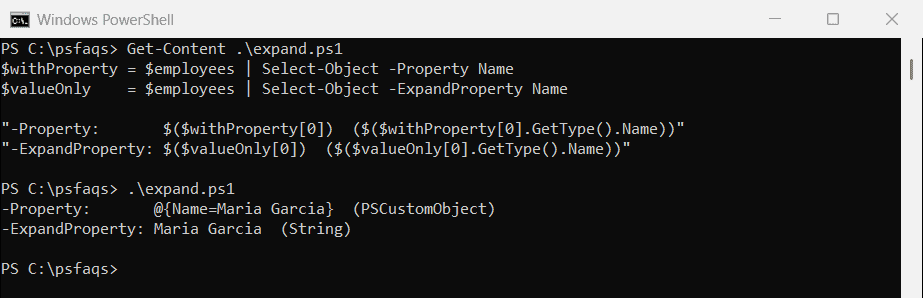
Use -ExpandProperty when you need plain strings, for example to join them or to pass them to a parameter like -ComputerName. If the property doesn’t exist, it tells you:
try {
    $employees | Select-Object -ExpandProperty FullName -ErrorAction Stop
}
catch {
    $_.Exception.Message
}
Output:
Property "FullName" cannot be found.For a quick list, you can also use dot notation on the whole array. PowerShell collects the property from every item:
$employees.Name -join ', 'Output:
Maria Garcia, James Smith, Emily Chen, Robert BrownSelect-Object without the header
Select-Object never adds a header; the header comes from how the objects are displayed. For a single column, use -ExpandProperty as above. For CSV text without the header row, skip the first line:
$employees | Select-Object -Property Name, City | ConvertTo-Csv -NoTypeInformation | Select-Object -Skip 1Output:
"Maria Garcia","Austin"
"James Smith","Dallas"
"Emily Chen","Austin"
"Robert Brown","Houston"
PowerShell 7.4 and later have a switch for this, and it gives the same result:
$employees | Select-Object -Property Name, City | ConvertTo-Csv -NoHeaderOutput in PowerShell 7:
"Maria Garcia","Austin"
"James Smith","Dallas"
"Emily Chen","Austin"
"Robert Brown","Houston"
For a table on screen without headers, see PowerShell Format-Table, which has -HideTableHeaders.