PowerShell Write-Host [Complete Tutorial]

In today’s tutorial, I will discuss one of the most used cmdlets in PowerShell: PowerShell Write-Host. This cmdlet is used to display output directly to the console. You will get to know how to use Write-Host cmdlet in your PowerShell scripts.

The Write-Host cmdlet in PowerShell is used to display messages directly to the console. Unlike other output cmdlets, Write-Host does not send output to the pipeline, making it ideal for messages that do not need to be processed further. For example, Write-Host “Welcome to the PowerShell tutorial!” will print the message directly to the console.

Write-Host cmdlet in PowerShell

The Write-Host cmdlet is used to display messages directly to the console in PowerShell. Unlike other output cmdlets like Write-Output, which sends output to the pipeline, Write-Host writes the output directly to the console, making it ideal for displaying informational messages, debugging details, or script progress.

Why Use Write-Host?

  • Immediate Feedback: Write-Host provides immediate feedback to the user, which is useful for displaying progress or status messages during script execution.
  • Debugging: It helps debug scripts by showing variable values or execution flow.
  • Customization: You can customize the appearance of the output, including text color and background color.

Syntax of Write-Host in PowerShell

The basic syntax of the PowerShell Write-Host cmdlet is:

Write-Host [-Object] <Object> [-NoNewline] [-Separator <Object>] [-ForegroundColor <ConsoleColor>] [-BackgroundColor <ConsoleColor>] [<CommonParameters>]

Here are the parameters:

  • -Object: The object to be displayed. This can be a string, variable, or any other object.
  • -NoNewline: Prevents the cmdlet from adding a newline character at the end of the output.
  • -Separator: Specifies a string to use as a separator between multiple objects.
  • -ForegroundColor: Sets the text color.
  • -BackgroundColor: Sets the background color.

Check out Add Comments in PowerShell

Parameters of Write-Host

Let me show you various useful parameters of Write-Host and understand their usage with examples.

-Object

The -Object parameter specifies the content to be displayed. It can be a string, number, or any other object. This parameter is positional, meaning you don’t have to explicitly specify -Object when using it.

Write-Host "Hello, World!"

-NoNewline

The -NoNewline parameter prevents Write-Host from adding a newline character at the end of the output. This is useful when you want to display output on the same line.

Write-Host "Hello, " -NoNewline
Write-Host "World!"

I executed the above PowerShell script and you can see the output in the screenshot below:

powershell write-host no new line

-Separator

The -Separator parameter specifies a string to use as a separator between multiple objects.

Write-Host "Apple", "Banana", "Cherry" -Separator ", "

-ForegroundColor

The -ForegroundColor parameter sets the text color. PowerShell supports a variety of colors, such as Black, Blue, Cyan, DarkBlue, DarkCyan, DarkGray, DarkGreen, DarkMagenta, DarkRed, DarkYellow, Gray, Green, Magenta, Red, White, and Yellow.

Write-Host "This is a warning message" -ForegroundColor Yellow

-BackgroundColor

The -BackgroundColor parameter of the Write-Host sets the background color for the text.

Write-Host "This is an error message" -ForegroundColor White -BackgroundColor Red

Check out PowerShell Write-Host vs Out-Host

Differences Between Write-Host and Other Output Cmdlets

It’s important to understand the differences between Write-Host and other output cmdlets like Write-Output, Write-Verbose, Write-Debug, and Write-Error in PowerShell.

Write-Host vs. Write-Output

  • Write-Host: Displays output directly to the console. The output is not sent to the pipeline.
  • Write-Output: Sends output to the pipeline, which can be captured or redirected to other cmdlets.
# Write-Host example
Write-Host "This is Write-Host"

# Write-Output example
$output = Write-Output "This is Write-Output"

Write-Host vs. Write-Verbose

  • Write-Host: Displays output directly to the console.
  • Write-Verbose: Displays detailed information about script execution when the -Verbose flag is used.
# Write-Verbose example
Write-Verbose "This is a verbose message" -Verbose

Write-Host vs. Write-Debug

  • Write-Host: Displays output directly to the console.
  • Write-Debug: Displays debugging information when the -Debug flag is used.
# Write-Debug example
Write-Debug "This is a debug message" -Debug

Write-Host vs. Write-Error

  • Write-Host: Displays output directly to the console.
  • Write-Error: Displays error messages and writes them to the error stream.
# Write-Error example
Write-Error "This is an error message"

Check out PowerShell Write-Host vs Write-Verbose

PowerShell Write-Host Examples

Now, let me show you some real examples of PowerShell Write-Host.

Example 1: Display a Welcome Message

Write-Host "Welcome to the PowerShell tutorial!"

This example explains the simplest use of Write-Host to display a static text message. When executed, it will print “Welcome to the PowerShell tutorial!” directly to the console.

Example 2: Display Script Progress

for ($i = 1; $i -le 10; $i++) {
    Write-Host "Processing item $i of 10"
    Start-Sleep -Seconds 1
}

In this example, a for loop is used to simulate the processing of 10 items. The Write-Host cmdlet is used within the loop to display the progress of the script. Start-Sleep -Seconds 1 pauses the script for one second between each iteration, allowing you to see the progress messages in real-time.

This approach is helpful for long-running scripts where you want to inform the user about the current status of the operation.

Example 3: Display Variable Values

$serverName = "Server01"
$status = "Online"

Write-Host "Server Name: $serverName"
Write-Host "Status: $status"

This example shows how to use Write-Host to display the values of variables. Here, $serverName and $status are variables containing the server name and its status, respectively. Write-Host is used to print these values to the console, which is useful for debugging or providing status updates about the variables in your script.

Here is the output in the screenshot below:

powershell write-host variable

Check out PowerShell Write-Host vs Write-Error

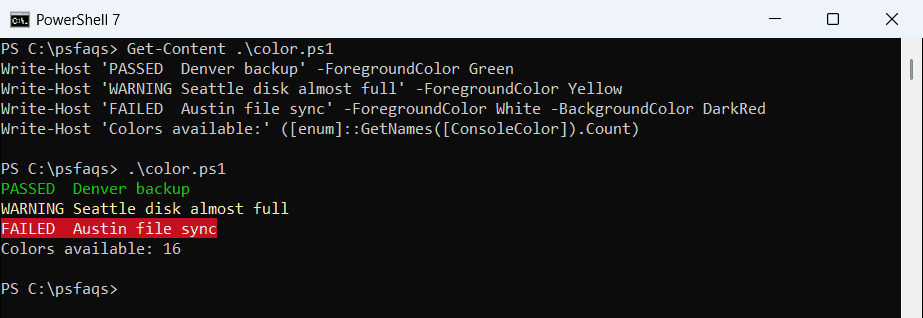
Example 4: Customize Output with Colors

Write-Host "This is an informational message" -ForegroundColor Green
Write-Host "This is a warning message" -ForegroundColor Yellow
Write-Host "This is an error message" -ForegroundColor Red -BackgroundColor White

This example explains how to customize the appearance of the output using the -ForegroundColor and -BackgroundColor parameters. Different messages are displayed with different text colors to indicate their severity or type. For instance, informational messages are in green, warnings in yellow, and errors in red with a white background.

Here is the exact output you can see in the screenshot below:

powershell write-host color

Example 5: Using NoNewline Parameter

Write-Host "Processing" -NoNewline
for ($i = 1; $i -le 3; $i++) {
    Write-Host "." -NoNewline
    Start-Sleep -Seconds 1
}
Write-Host " Done!"

In this example, the -NoNewline parameter is used to prevent Write-Host from adding a newline character after the output. Initially, “Processing” is printed without a newline.

The loop then prints a dot (“.”) on the same line for each iteration, simulating a progress indicator. After the loop completes, ” Done!” is printed on the same line. This technique is useful for creating progress indicators or other continuous output on a single line.

You can see the output in the screenshot below:

powershell write-host new line

Check out PowerShell Write-Host vs Write-Information

Customize Output with Write-Host

One of the feature of Write-Host is its ability to customize the appearance of the output. You can change the text color and background color to make your messages stand out.

1. Change Text Color

You can change the text color using the -ForegroundColor parameter of PowerShell Write-Host cmdlet. PowerShell supports a variety of colors:

Write-Host "This is a blue message" -ForegroundColor Blue
Write-Host "This is a cyan message" -ForegroundColor Cyan
Write-Host "This is a green message" -ForegroundColor Green

2. Change Background Color

You can change the background color using the -BackgroundColor parameter of the Write-Host cmdlet.

Write-Host "This is a message with a red background" -ForegroundColor White -BackgroundColor Red
Write-Host "This is a message with a green background" -ForegroundColor Black -BackgroundColor Green

3. Combine Foreground and Background Colors

You can combine both -ForegroundColor and -BackgroundColor to create visually distinct messages with the Write-Host.

Write-Host "This is a custom message" -ForegroundColor Yellow -BackgroundColor Blue

Best Practices for Using PowerShell Write-Host

Here are some best practices for using the PowerShell Write-Host cmdlet.

  • Use Write-Host for displaying informational messages, such as script progress, status updates, or welcome messages.
  • Avoid using Write-Host excessively, as it can clutter the console and make it difficult to read important output. Use it sparingly and only when necessary.
  • For data output that needs to be processed or piped to other cmdlets, use Write-Output instead of Write-Host.
  • Use the -ForegroundColor and -BackgroundColor parameters to customize the appearance of your messages and make them more readable.
  • Use Write-Host for debugging purposes to display variable values or execution flow. Remove or comment out these statements in the final version of your script.

Conclusion

The Write-Host cmdlet is in PowerShell is used for displaying messages directly to the console. With a few examples, I have explained how to use Write-Host PowerShell cmdlet.

You may also like:

100 PowerShell cmdlets download free

100 POWERSHELL CMDLETS E-BOOK

FREE Download an eBook that contains 100 PowerShell cmdlets with complete script and examples.