
Get-ChildItem is the PowerShell cmdlet that lists what’s inside a location: the files and folders in a directory, the keys in a registry hive or the certificates in a store. Point it at a folder and you get the contents back as objects:
Get-ChildItem -Path C:\psfaqs\t\gci\SharedI reach for it in almost every file script I write. Below I’ll cover the parameters that matter, show real output from PowerShell 7 and Windows PowerShell 5.1, and point out where the two versions disagree.
Build a sample folder to follow along
You don’t want to test filters against your real Documents folder. This script builds a small sandbox under C:\psfaqs\t\gci\Shared with reports, logs, invoices, one hidden settings file and a file name with brackets in it:
$root = 'C:\psfaqs\t\gci\Shared'
Remove-Item $root -Recurse -Force -ErrorAction SilentlyContinue
foreach ($d in 'Reports\2026\Q3', 'Reports\2026\Q4', 'Logs', 'Invoices') {
    New-Item -Path "$root\$d" -ItemType Directory -Force | Out-Null
}
$files = [ordered]@{
    'budget-2026.xls'                       = 2048
    'budget-2026.xlsx'                      = 5120
    'readme.txt'                            = 312
    'notes [draft].txt'                     = 140
    'Reports\q3-summary.docx'               = 18432
    'Reports\2026\Q3\sales-austin-q3.xlsx'  = 24576
    'Reports\2026\Q3\sales-denver-q3.xlsx'  = 22528
    'Reports\2026\Q4\sales-seattle-q4.xlsx' = 26624
    'Logs\app-2026-10-01.log'               = 40960
    'Logs\app-2026-10-14.log'               = 61440
    'Logs\errors.txt'                       = 980
    'Invoices\invoice-1001-tom-baker.pdf'   = 88064
    'Invoices\invoice-1002-maria-lopez.pdf' = 91136
}
$day = 1
foreach ($f in $files.Keys) {
    $path = "$root\$f"
    [IO.File]::WriteAllBytes($path, [byte[]]::new($files[$f]))
    (Get-Item -LiteralPath $path).LastWriteTime = [datetime]::new(2026, 10, $day++, 9, 15, 0)
}
Set-Content "$root\.settings.json" '{ "owner": "Dana Reyes" }'
$hidden = Get-Item "$root\.settings.json" -Force
$hidden.Attributes = 'Hidden'
$hidden.LastWriteTime = [datetime]::new(2026, 10, 14, 16, 40, 0)
Get-ChildItem $root -Recurse -Directory | ForEach-Object {
    $_.LastWriteTime = [datetime]::new(2026, 10, 14, 17, 5, 0)
}
Open PowerShell 7 or Windows PowerShell 5.1, paste the script and press Enter. It sets every LastWriteTime to a fixed October 2026 date, so your output will match mine.
If you’re not sure where your session is pointing, start with checking the current directory in PowerShell. Without -Path, Get-ChildItem lists that folder.
Get-ChildItem syntax and default output
The basic form takes a path and returns one object per child item. Folders come first, then files:
Get-ChildItem -Path C:\psfaqs\t\gci\SharedOutput:
    Directory: C:\psfaqs\t\gci\Shared

Mode                 LastWriteTime         Length Name
----                 -------------         ------ ----
d----          10/14/2026  5:05 PM                Invoices
d----          10/14/2026  5:05 PM                Logs
d----          10/14/2026  5:05 PM                Reports
-a---           10/1/2026  9:15 AM           2048 budget-2026.xls
-a---           10/2/2026  9:15 AM           5120 budget-2026.xlsx
-a---           10/4/2026  9:15 AM            140 notes [draft].txt
-a---           10/3/2026  9:15 AM            312 readme.txt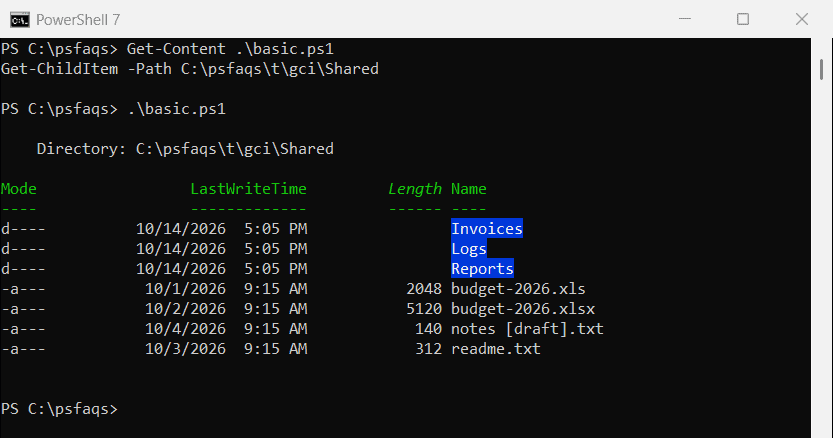
The hidden .settings.json file doesn’t appear, because hidden items are skipped by default. Length is the file size in bytes, and it’s blank for folders.
The Mode column holds the attribute letters: d for directory, a for archive, r for read-only, h for hidden, s for system and l for a link. PowerShell 7 prints five characters, like d—-, while Windows PowerShell 5.1 prints six, like d—–.
For a quick tour of other ways to show folder contents, see