
Test-Path is the PowerShell cmdlet that checks whether a file, folder or other path exists. It returns True or False, so it drops straight into an if statement:
$file = 'C:\psfaqs\Reports\q3-sales.xlsx'

if (Test-Path -Path $file) {
    "Found $file"
}
else {
    "Missing $file"
}

Test-Path -Path 'C:\psfaqs\Reports\q4-sales.xlsx'
Output:
Found C:\psfaqs\Reports\q3-sales.xlsx
False
It never throws an error for a missing path, which makes it the safest check before you read, copy or delete something.
I ran each example in PowerShell 7.6 and Windows PowerShell 5.1. They mostly agree, but blank paths and a couple of parameters behave differently, and I show both results there.
Check if a file or a folder exists
By default, Test-Path returns True for a file or a folder. Add -PathType when it matters which one: Leaf means a file and Container means a folder:
Test-Path -Path C:\psfaqs\Reports -PathType Container
Test-Path -Path C:\psfaqs\Reports -PathType Leaf
Test-Path -Path C:\psfaqs\Reports\q3-sales.xlsx -PathType Leaf
Output:
True
False
True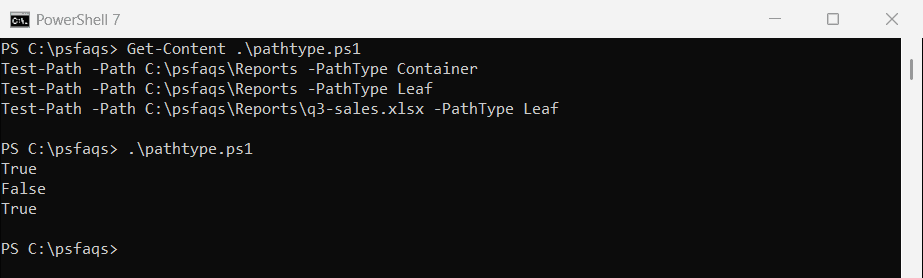
Use -PathType Leaf before reading a file. Otherwise a folder with the same name would pass the check and the read would fail.
A common next step is creating the folder when it’s missing, as shown in creating a folder if it doesn’t exist.
How do I create a folder if it doesn’t exist?
Combine -not and Test-Path. I ran the check twice to show both branches:
$folder = 'C:\psfaqs\Archive'

foreach ($run in 1, 2) {
    if (-not (Test-Path -Path $folder -PathType Container)) {
        New-Item -Path $folder -ItemType Directory | Out-Null
        "Run $($run): created $folder"
    }
    else {
        "Run $($run): $folder already exists"
    }
}
Output:
Run 1: created C:\psfaqs\Archive
Run 2: C:\psfaqs\Archive already exists
If you only need the folder to exist, New-Item -ItemType Directory -Force does it in one step and doesn’t fail when the folder is already there. See how to create a folder if it doesn’t exist.
Check for files with a wildcard
Test-Path accepts wildcards, so you can check whether any file of a type is in a folder:
Test-Path -Path C:\psfaqs\Reports\*.xlsx
Test-Path -Path C:\psfaqs\Reports\*.pdf
Output:
True
False
File names with square brackets
The flip side is that [ and ] are wildcard characters too. A file named budget[final].xlsx isn’t found with -Path:
Test-Path -Path 'C:\psfaqs\Reports\budget[final].xlsx'
Test-Path -LiteralPath 'C:\psfaqs\Reports\budget[final].xlsx'
Output:
False
True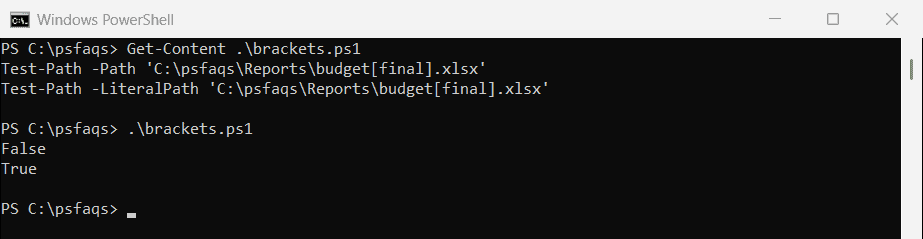
-LiteralPath treats every character as part of the name. Use it whenever the path comes from user input or a file listing.
Hidden files
Unlike Get-ChildItem, Test-Path finds hidden files without -Force:
Test-Path -Path C:\psfaqs\Reports\desktop.ini
(Get-Item -Path C:\psfaqs\Reports\desktop.ini -Force).Attributes
Output:
True
Hidden
Test-Path with an empty or blank path
This is where the two versions differ most. In PowerShell 7, an empty or blank path simply returns False:
Test-Path -Path ''
Test-Path -Path '   '
Output in PowerShell 7:
False
False
Windows PowerShell 5.1 throws an error for the empty string. Worse, it returns True for a path made of spaces:
Test-Path : Cannot bind argument to parameter 'Path' because it is an empty string.
At C:\psfaqs\blank.ps1:1 char:17
+ Test-Path -Path ''
+                 ~~
    + CategoryInfo          : InvalidData: (:) [Test-Path], ParameterBindingValidationException
    + FullyQualifiedErrorId : ParameterArgumentValidationErrorEmptyStringNotAllowed,Microsoft.PowerShell.Commands.Test
   PathCommand

True
A variable that’s empty because a lookup failed can make a 5.1 script think a path exists. Check for a blank value first, and the result is the same in both versions:
foreach ($path in '', '   ', 'C:\psfaqs\Reports') {
    $exists = -not [string]::IsNullOrWhiteSpace($path) -and (Test-Path -Path $path)
    "[$path] exists: $exists"
}
Output:
[] exists: False
[   ] exists: False
[C:\psfaqs\Reports] exists: True
Check that a path is valid without creating it
-IsValid checks only the syntax. It’s handy for validating a path a user typed before you create anything:
Test-Path -Path 'C:\psfaqs\New Reports\summary.txt' -IsValid
Test-Path -Path 'C:\psfaqs\New Reports\summary.txt'
Test-Path -Path 'C:\psfaqs\Reports\Q3|summary.txt' -IsValid
Output:
True
False
False
The first path is valid even though it doesn’t exist yet. The third contains |, which Windows doesn’t allow in file names.
Check if a file is older than a date
On file system paths, -OlderThan and -NewerThan compare the last write time. The budget file was last changed 90 days ago:
$cutoff = (Get-Date).AddDays(-30)

Test-Path -Path C:\psfaqs\Reports\budget.xlsx -OlderThan $cutoff
Test-Path -Path C:\psfaqs\Reports\q3-sales.xlsx -OlderThan $cutoff
Output:
True
False
In Windows PowerShell 5.1, these parameters can’t be combined with -PathType, and you get “A parameter cannot be found that matches parameter name ‘OlderThan'”. PowerShell 7.5 fixed that, so this works in 7.6:
Test-Path -Path C:\psfaqs\Reports\budget.xlsx -PathType Leaf -OlderThan (Get-Date).AddDays(-30)Output in PowerShell 7:
True