If you’ve been using PowerShell for a while, you’ve probably noticed it remembers every command you’ve typed. That’s usually handy—until it’s not.
Maybe you accidentally typed a password in plain text. Or perhaps your history is so cluttered you can’t find anything useful anymore. Whatever the reason, clearing your PowerShell history is simpler than you might think.
Let me walk you through everything you need to know.
Why Would You Want to Clear PowerShell History?
You might need to clear PowerShell history if:
- You accidentally typed sensitive information (like passwords or tokens)
- You’re working on a shared machine
- You want a clean session for demos or training
- You’re troubleshooting and need a fresh start
How PowerShell Stores History?
PowerShell actually keeps history in two different places, and this is important to understand.
Session history is temporary. It only exists while your PowerShell window is open. Close PowerShell, and this history disappears on its own.
Saved history is permanent. PowerShell saves your commands to a file on your hard drive. This file persists between sessions, which is why you can press the up arrow and see commands from yesterday or last week.
The saved history file lives here:
C:\Users\YourUsername\AppData\Roaming\Microsoft\Windows\PowerShell\PSReadLine\ConsoleHost_history.txtTo clear your history completely, you’ll need to handle both types.
Let me show you several methods for clearing PowerShell history.
Check out Get All Properties of an Object in PowerShell
Method 1: Clear Your Current Session History
This is the quickest method, but it only clears the commands from your current PowerShell session.
Open PowerShell and type:
Clear-HistoryPress Enter, and done. All the commands you’ve run in this session are gone from the session history.
Important note: This does NOT delete your saved history file. If you close PowerShell and open it again, you’ll still see your old commands when you press the up arrow.
Think of Clear-History as clearing your short-term memory while leaving your long-term memory intact.
View Current Session History
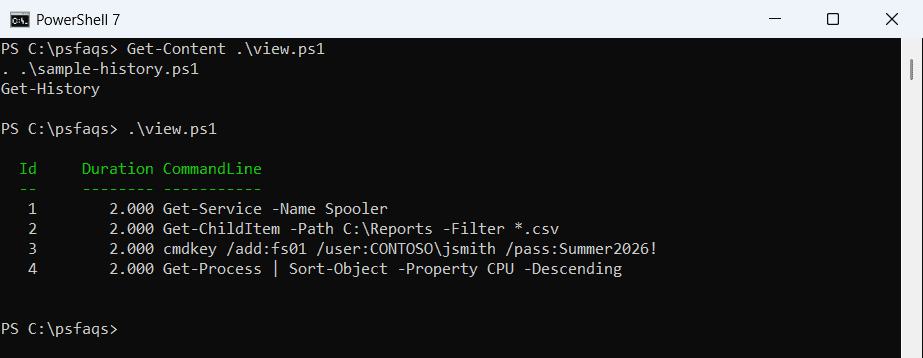
Before clearing, you can check what’s stored:
Get-HistoryThis shows:
- Command ID
- Command Line
- Execution Status
I executed the above cmdlet and you can see the exact output in the screenshot below:

Read How to Check if a Port is Open Using PowerShell?
Method 2: Delete the History File Completely
This is the method most people actually want. It wipes everything.
Here’s the command:
Remove-Item (Get-PSReadlineOption).HistorySavePathWhat’s happening here? Get-PSReadlineOption finds where PowerShell stores your history file, and Remove-Item deletes it.
Run this command, and your entire command history is gone. Forever.
A word of caution: There’s no undo button. Once you delete this file, you can’t get those commands back.
Here is a screenshot for your reference.

Check out Convert Excel Files to CSV Using PowerShell
Method 3: Clear Both Sessions and Saved History at Once
Want to be thorough? Combine both methods:
Clear-History
Remove-Item (Get-PSReadlineOption).HistorySavePathThe first line clears your current session. The second deletes the history file.
This is the nuclear option. Everything gets wiped.
Method 4: View Your History First, Then Decide
Sometimes you want to see what’s in your history before you nuke it. Smart move.
To see all your saved commands:
Get-Content (Get-PSReadlineOption).HistorySavePathThis displays every command PowerShell has saved. You can scroll through and decide if you really want to delete everything or just specific entries.
If you’re using:
- Windows PowerShell 5.1
- PowerShell 7+
Your history is also stored in a file via PSReadLine.
Typical locations:
- Windows PowerShell 5.1
C:\Users\Username\AppData\Roaming\Microsoft\Windows\PowerShell\PSReadLine\ConsoleHost_history.txt - PowerShell 7+
C:\Users\Username\AppData\Roaming\Microsoft\PowerShell\PSReadLine\ConsoleHost_history.txt
If you only want to see your current session history:
Get-HistoryThis shows commands from your current PowerShell session with an ID number next to each one.
Check out How to Convert TXT to CSV with PowerShell?
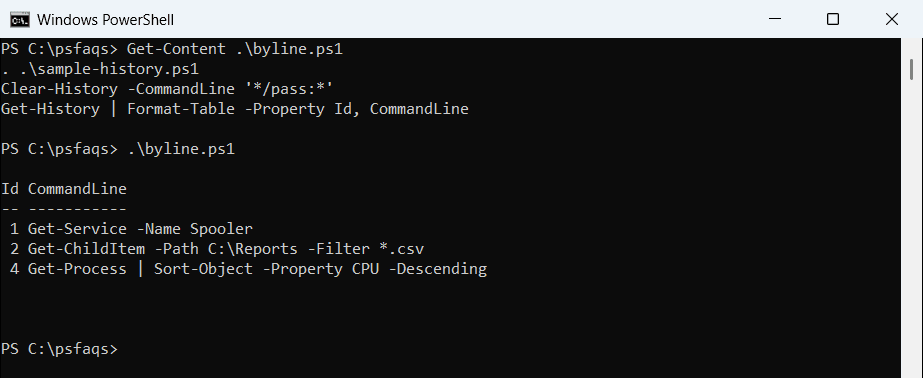
Method 5: Delete Specific Commands from Your History
What if you only need to remove one or two commands? Maybe you typed a password by mistake, but you want to keep the rest of your history.
Here’s how to do it:
Step 1: Find the command you want to delete
Get-HistoryLook for the ID number of the command you want to remove.
Step 2: Delete that specific command
Clear-History -Id 5Replace “5” with whatever ID number you want to delete.
Step 3: Delete multiple specific commands
Clear-History -Id 5, 8, 12This removes commands 5, 8, and 12 from your session history.
But here’s the catch: This only removes commands from your current session. To remove specific commands from your saved history file, you’ll need to edit the file manually.
Open the history file in Notepad:
notepad (Get-PSReadlineOption).HistorySavePathFind the line you want to delete, remove it, and save the file. It’s tedious, but it works.
Check out Find the Most Recent File in a Directory with PowerShell
Method 6: Prevent Commands from Being Saved in the First Place
Sometimes the best defense is a good offense. You can run sensitive commands without them ever hitting your history file.
Option 1: Add a space before your command
If you type a space before a command, PowerShell won’t save it to your history file:
Get-ChildItem C:\SecretFolderSee that space at the beginning? That command won’t be saved.
Important: This only works if you haven’t changed the default PSReadLine settings. Check if this feature is enabled:
(Get-PSReadLineOption).AddToHistoryHandlerIf it returns nothing, you’re good to go.
Option 2: Disable history temporarily
You can turn off history saving for your entire session:
Set-PSReadLineOption -HistorySaveStyle SaveNothingNow nothing you type will be saved to your history file during this session. When you close PowerShell, this setting resets to normal.
Method 7: Automate History Clearing
Want PowerShell to automatically clear your history every time you close it? You can set that up.
Create or edit your PowerShell profile:
notepad $PROFILEIf you get an error that the file doesn’t exist, create it first:
New-Item -Path $PROFILE -Type File -Force
notepad $PROFILEAdd this line to the file:
Remove-Item (Get-PSReadlineOption).HistorySavePath -ErrorAction SilentlyContinueSave and close Notepad. Now every time you open PowerShell, it will delete your history file first. You’ll start each session with a clean slate.
The -ErrorAction SilentlyContinue part prevents error messages if the history file doesn’t exist yet.
Read Find and Remove Stale Computer Objects in Active Directory with PowerShell
Checking If Your History Is Really Gone
Want to verify your PowerShell history was actually deleted?
Try pressing the up arrow key. If nothing happens, your history is cleared.
Or check if the history file exists:
Test-Path (Get-PSReadlineOption).HistorySavePathIf it returns False, the file is gone.
You can also try to view the file:
Get-Content (Get-PSReadlineOption).HistorySavePathIf you get an error saying the file doesn’t exist, mission accomplished.
What About Windows PowerShell vs. PowerShell 7?
Good question. If you have both installed, they keep separate history files.
Windows PowerShell (version 5.1) stores history here:
C:\Users\YourUsername\AppData\Roaming\Microsoft\Windows\PowerShell\PSReadLine\ConsoleHost_history.txtPowerShell 7 stores it here:
C:\Users\YourUsername\AppData\Roaming\Microsoft\PowerShell\PSReadLine\ConsoleHost_history.txtNotice the path difference? One says “Windows\PowerShell” and the other just says “PowerShell.”
The good news: the commands I’ve shown you work in both versions. PowerShell automatically targets the correct history file based on which version you’re running.
Check out How to Find Public Folder Paths in PowerShell?
Common Mistakes to Avoid
Mistake 1: Thinking Clear-History deletes everything
It doesn’t. It only clears your session history, not the saved file.
Mistake 2: Forgetting to close and reopen PowerShell
If you delete your history file but keep your PowerShell window open, you’ll still see commands in that session. Close PowerShell and open a new window to see the change.
Mistake 3: Assuming incognito mode exists in PowerShell
Unlike web browsers, PowerShell doesn’t have a private mode. The space-before-command trick is the closest thing you’ve got.
Here you can see all the useful commands:
- Clear session history:
Clear-History - Delete history file:
Remove-Item (Get-PSReadlineOption).HistorySavePath - View history file location:
Get-PSReadlineOption | Select-Object HistorySavePath - View saved history:
Get-Content (Get-PSReadlineOption).HistorySavePath - View session history:
Get-History - Clear specific command:
Clear-History -Id X - Open history in Notepad:
notepad (Get-PSReadlineOption).HistorySavePath
Final Thoughts
Clearing your PowerShell history isn’t complicated once you understand the difference between session history and saved history. In this tutorial, we learned how to clear PowerShell history using various methods.
For most people, running Remove-Item (Get-PSReadlineOption).HistorySavePath does exactly what you need. It deletes your command history permanently.
If you work with sensitive data regularly, consider adding a space before sensitive commands or setting up automatic history clearing in your profile.
And remember: once you delete your history, it’s gone for good. Make sure that’s what you want before you hit Enter.
You may also like the following tutorials:
- How to Find Unquoted Service Paths with PowerShell?
- Find Passwords in Files with PowerShell
- Why Does Windows PowerShell Keep Popping Up?
Bijay Kumar is an esteemed author and the mind behind PowerShellFAQs.com, where he shares his extensive knowledge and expertise in PowerShell, with a particular focus on SharePoint projects. Recognized for his contributions to the tech community, Bijay has been honored with the prestigious Microsoft MVP award. With over 15 years of experience in the software industry, he has a rich professional background, having worked with industry giants such as HP and TCS. His insights and guidance have made him a respected figure in the world of software development and administration. Read more.