
To find an unquoted service path with PowerShell, read every service’s PathName from Win32_Service and flag the ones that don’t start with a quote but have a space inside the .exe part:
Get-CimInstance Win32_Service | Where-Object { $_.PathName -notmatch '^\s*"' -and $_.PathName -match '^(?<exe>.+?\.exe)(?=\s|$)' -and $Matches.exe -match '\s' }It’s a defensive audit for machines you manage. Below I run it for real in PowerShell 7 and 5.1, test the regex on sample paths, and build the fix with -WhatIf.
What is an unquoted service path?
Each Windows service stores the command line that starts it. When that path has a space and no quotes, Windows can’t tell where the program name ends, so it tries shorter names first.
Microsoft’s CreateProcess docs show the order for c:\program files\sub dir\program name: first c:\program.exe, then c:\program files\sub.exe, then deeper. Anyone who can write C:\Program.exe gets code run by that service, often as LocalSystem.
Quotes around the executable part fix it. First, list the running services so you know what each one does.
Find unquoted service paths with Get-CimInstance
Here’s the full check as a script. The regex captures everything up to the first .exe, and the service is only flagged when that part contains a space:
$services = Get-CimInstance -ClassName Win32_Service
$unquoted = $services | Where-Object {
    $_.PathName -and
    $_.PathName -notmatch '^\s*"' -and
    $_.PathName -match '^(?<exe>.+?\.exe)(?=\s|$)' -and
    $Matches.exe -match '\s'
}
"Services checked: $($services.Count)"
"Unquoted paths:   $(@($unquoted).Count)"
$unquoted | Select-Object Name, StartMode, StartName, PathName | Format-List
Output:
Services checked: 317
Unquoted paths:   0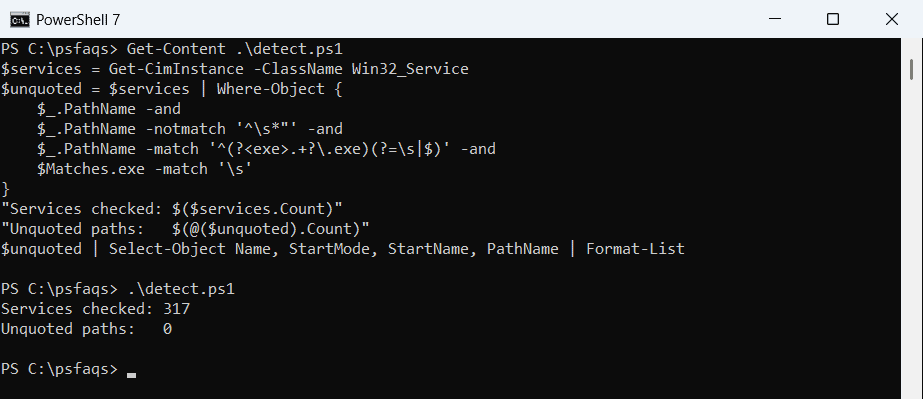
My test PC came back clean: 317 services checked, zero hits, in both PowerShell 7 and 5.1. On a vulnerable machine, Format-List prints the name, StartMode, StartName and PathName of each hit.
Look at Auto services that run as LocalSystem first. Then check the folder permissions, because the attack only works if a normal user can write to C:\ or a parent folder.
Why a simple space filter gives false positives
Many scripts flag any path with no leading quote and a space. Here’s that filter on the same machine:
$services = Get-CimInstance -ClassName Win32_Service
$naive = $services | Where-Object { $_.PathName -notmatch '^"' -and $_.PathName -match ' ' }
$svchost = $naive | Where-Object PathName -match '\\svchost\.exe -k '

"Flagged by 'no quote + has a space': $(@($naive).Count)"
"Of those, svchost.exe -k lines:      $(@($svchost).Count)"
Output:
Flagged by 'no quote + has a space': 230
Of those, svchost.exe -k lines:      227
It flagged 230 services, and 227 are svchost.exe lines whose only spaces sit in the -k arguments. Those are safe, so the real check looks only at the part before .exe.
The PowerShell regex guide explains the (?=\s|$) lookahead that stops the match at the first .exe.
Test the detection logic on sample paths
Since my machine had nothing to find, I tested the same logic on paths shaped like real vendor services:
function Get-UnquotedExe ([string]$PathName) {
    if ($PathName -match '^\s*"') { return }
    if ($PathName -notmatch '^(?<exe>.+?\.exe)(?=\s|$)') { return }
    $exe = $Matches.exe                 # save it: the next -match replaces $Matches
    if ($exe -match '\s') { $exe }
}
$paths = @(
    'C:\Program Files\Contoso Backup\agent.exe'
    '"C:\Program Files\Contoso Backup\agent.exe" -service'
    'C:\WINDOWS\system32\svchost.exe -k netsvcs -p'
    'C:\Tools\Fabrikam Sync\sync.exe --mode service'
    'C:\Apps\monitor.exe'
)
foreach ($p in $paths) {
    $state = if (Get-UnquotedExe $p) { 'VULNERABLE' } else { 'OK' }
    '{0,-11} {1}' -f $state, $p
}
Output:
VULNERABLE  C:\Program Files\Contoso Backup\agent.exe
OK          "C:\Program Files\Contoso Backup\agent.exe" -service
OK          C:\WINDOWS\system32\svchost.exe -k netsvcs -p
VULNERABLE  C:\Tools\Fabrikam Sync\sync.exe --mode service
OK          C:\Apps\monitor.exe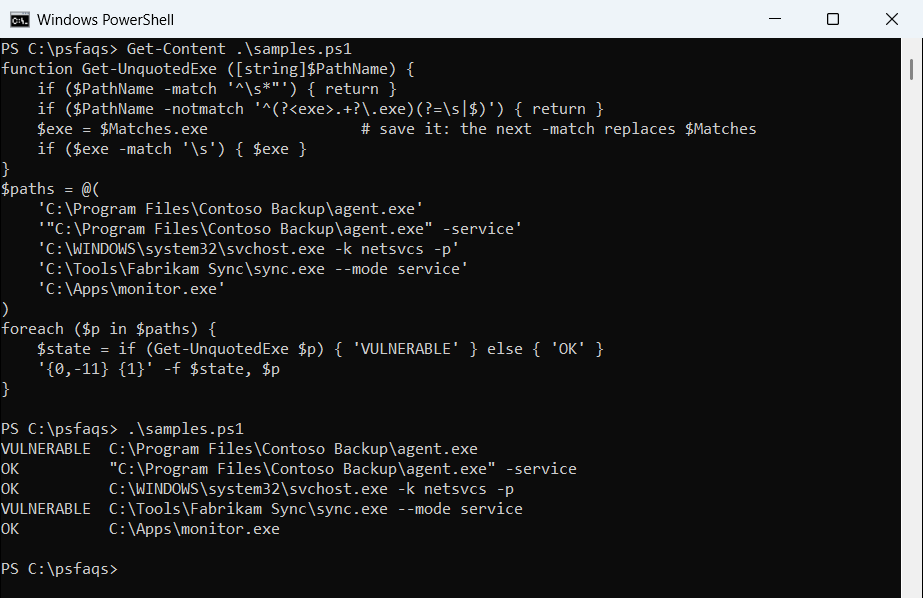
The quoted path and the svchost.exe line pass. The Fabrikam path is caught even though it has arguments, because its folder name has a space. To pull just the folder from a path, see extracting the directory from a file path.
Check the ImagePath values in the registry
Each key under HKLM:\SYSTEM\CurrentControlSet\Services stores the same path in ImagePath, which makes a good cross-check:
$keys = Get-ChildItem -Path HKLM:\SYSTEM\CurrentControlSet\Services
$images = foreach ($k in $keys) {
    $p = Get-ItemProperty -LiteralPath $k.PSPath -ErrorAction SilentlyContinue
    if ($p.ImagePath) { [pscustomobject]@{ Name = $k.PSChildName; ImagePath = $p.ImagePath } }
}
$bad = $images | Where-Object {
    $_.ImagePath -notmatch '^\s*"' -and
    $_.ImagePath -match '^(?<exe>.+?\.exe)(?=\s|$)' -and
    $Matches.exe -match '\s'
}
"Service keys with an ImagePath: $(@($images).Count)"
"Unquoted .exe paths:            $(@($bad).Count)"
Output:
Service keys with an ImagePath: 798
Unquoted .exe paths:            0
The registry has 798 keys with an ImagePath because it also holds drivers, which Win32_Service leaves out. It found the same zero hits. For more on these keys, see working with registry keys in PowerShell.
How do I fix an unquoted service path?
Wrap the executable part in quotes and keep the arguments after it. This builds the corrected value from the sample paths:
$paths = 'C:\Program Files\Contoso Backup\agent.exe',
         'C:\Tools\Fabrikam Sync\sync.exe --mode service'
foreach ($p in $paths) {
    $null  = $p -match '^(?<exe>.+?\.exe)(?=\s|$)'
    $fixed = '"{0}"{1}' -f $Matches.exe, $p.Substring($Matches.exe.Length)
    "Before: $p"
    "After:  $fixed"
}
Output:
Before: C:\Program Files\Contoso Backup\agent.exe
After:  "C:\Program Files\Contoso Backup\agent.exe"
Before: C:\Tools\Fabrikam Sync\sync.exe --mode service
After:  "C:\Tools\Fabrikam Sync\sync.exe" --mode service
Set-Service has no parameter for the binary path in either version. The Change method of Win32_Service takes a PathName, so I apply the new value with Invoke-CimMethod. Start with -WhatIf:
$svc = Get-CimInstance -ClassName Win32_Service -Filter "Name = 'ContosoBac