
Windows PowerShell keeps popping up because something on your PC is starting it: usually a scheduled task, a startup entry, or an app or management script running in the background. Occasionally it’s malware.
The fix is to find what launches it. Below I show three read-only checks that do exactly that, then how to stop the culprit safely. I ran them in PowerShell 7.6 and 5.1 on Windows 11.
Check scheduled tasks that run PowerShell
Scheduled tasks are the most common cause of a window that flashes at the same time every day or every hour. This finds every task whose action runs PowerShell:
$tasks = Get-ScheduledTask | Where-Object { $_.Actions.Execute -match 'powershell|pwsh' }

"Scheduled tasks checked: $(@(Get-ScheduledTask).Count)"
"Tasks that run PowerShell: $(@($tasks).Count)"
$tasks | ForEach-Object { "  $($_.TaskPath)$($_.TaskName)  ($($_.State))" }
Output:
Scheduled tasks checked: 215
Tasks that run PowerShell: 0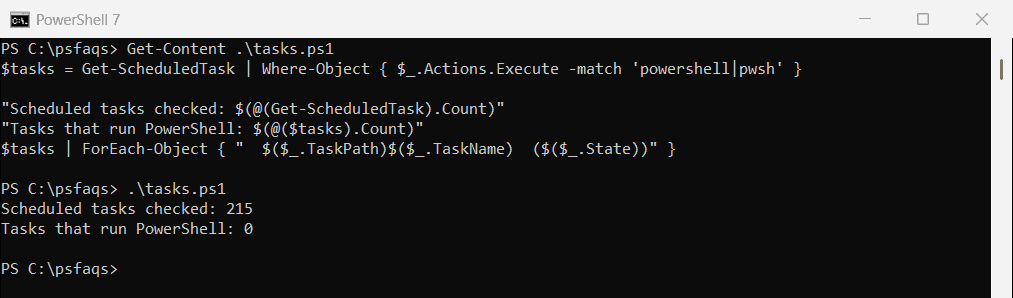
If a task shows up, note its path and name, then open it in Task Scheduler to see the full command and trigger.
For more ways to list and filter tasks, see listing scheduled tasks.
Check startup programs and Run keys
If the window appears right after you sign in, check the Run registry keys and startup commands:
$runKeys = 'HKCU:\Software\Microsoft\Windows\CurrentVersion\Run',
           'HKLM:\SOFTWARE\Microsoft\Windows\CurrentVersion\Run'
$runValues = foreach ($key in $runKeys) {
    (Get-ItemProperty -Path $key -ErrorAction SilentlyContinue).PSObject.Properties |
        Where-Object Name -notlike 'PS*'
}
$startup = Get-CimInstance -ClassName Win32_StartupCommand

"Run key entries:          $(@($runValues).Count)"
"Run entries with PowerShell: $(@($runValues | Where-Object Value -match 'powershell|pwsh').Count)"
"Startup commands:         $(@($startup).Count)"
"Startup with PowerShell:  $(@($startup | Where-Object Command -match 'powershell|pwsh').Count)"
Output:
Run key entries:          10
Run entries with PowerShell: 0
Startup commands:         11
Startup with PowerShell:  0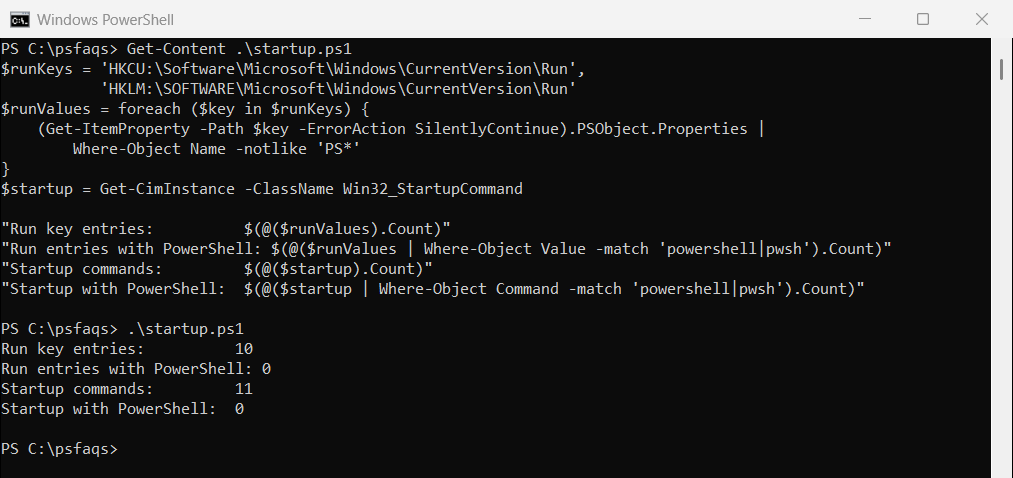
A match here, especially one with -WindowStyle Hidden or -EncodedCommand, deserves a close look. Task Manager’s Startup apps tab shows most of the same entries.
See when PowerShell started
Windows logs event 400 each time Windows PowerShell (powershell.exe) starts, which is what most pop-ups use. Match these times with the moments you saw the window:
$starts = Get-WinEvent -FilterHashtable @{
    LogName = 'Windows PowerShell'; Id = 400; StartTime = (Get-Date).AddHours(-1)
} -ErrorAction SilentlyContinue

"PowerShell starts in the last hour: $(@($starts).Count)"
$starts | Select-Object -First 3 | ForEach-Object {
    $hostApp = if ($_.Message -match 'HostApplication=(\S+)') { Split-Path -Path $Matches[1] -Leaf }
    '  {0:yyyy-MM-dd HH:mm}  {1}' -f $_.TimeCreated, $hostApp
}
Output:
PowerShell starts in the last hour: 259
  2026-09-29 06:33  powershell.exe
  2026-09-29 06:32  powershell.exe
  2026-09-29 06:32  powershell.exe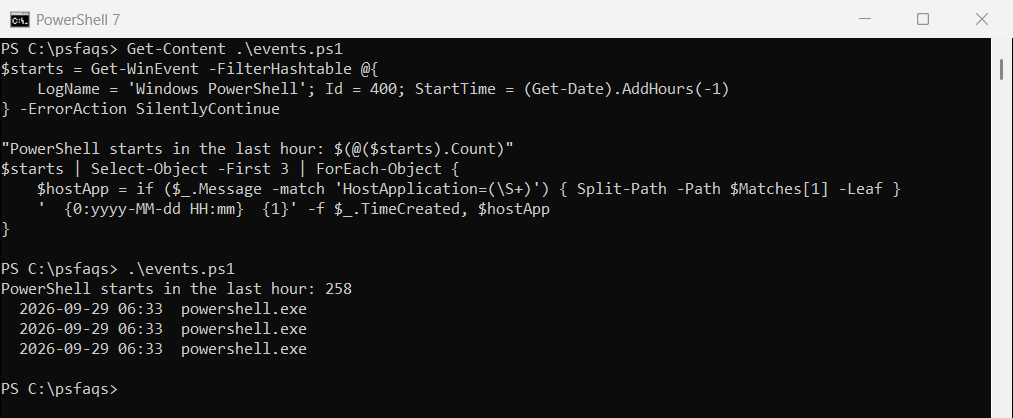
My count is high because I was running test scripts. On a normal PC, a start at a time you weren’t using PowerShell points straight to the cause.
The same events can be filtered in more ways, as shown in reading Windows event logs.
Common causes you can safely ignore
Some pop-ups are legitimate. On work PCs, Microsoft Intune and other management tools run PowerShell scripts to configure your device, and a window can occasionally flash.
Developer tools, printer software and update helpers also use PowerShell. If the source is a program you trust, check its settings or update it before disabling anything.
Stop the task or startup entry
Once you’ve found the task, disable it rather than deleting it, so you can undo the change. Run this as administrator with the real path and name:
Disable-ScheduledTask -TaskPath '\Contoso\' -TaskName 'Contoso Update Check'For a startup entry, turn it off in Task Manager under Startup apps. Microsoft’s free Autoruns tool shows every autostart location in one place.
Scan for malware
If you can’t explain the pop-ups, or the command is hidden or encoded, run a full Microsoft Defender scan from an elevated window:
Start-MpScan -ScanType FullScanA full scan can take an hour or more. The Start-MpScan reference lists the other scan types. Checking Defender with PowerShell shows how to confirm protection is on.
Frequently Asked Questions
Why does Windows PowerShell keep popping up?
A scheduled task, a startup program or a background script is starting it. Occasionally it’s malware.
How do I find what is opening PowerShell?
List scheduled tasks that run PowerShell, check the Run keys, and match the times of event 400 in the Windows PowerShell log.
Is PowerShell popping up a virus?
Usually not, but hidden or encoded commands are a warning sign. Run a full Microsoft Defender scan to be sure.
Should I uninstall or disable PowerShell to stop the pop-ups?
No. Windows and many apps depend on it. Disable the task or startup entry that starts it instead.
Why does PowerShell flash briefly on my work laptop?
Device management tools like Microsoft Intune run PowerShell scripts in the background. That’s normal on managed PCs. See Microsoft’s Get-ScheduledTask reference.
</