
To find stale computer objects in Active Directory with PowerShell, filter Get-ADComputer on lastLogonTimestamp. This finds computers that haven’t signed in for 90 days:
$cutoff = (Get-Date).AddDays(-90).ToFileTimeUtc()
Get-ADComputer -Filter "lastLogonTimestamp -lt $cutoff" -Properties lastLogonTimestamp, OperatingSystem
Then disable them, wait, and only delete what nobody misses.
My test PC isn’t in a domain, so the AD cmdlets are shown as code. The date math and the cleanup plan ran in PowerShell 7 and 5.1 on sample data shaped like the real output.
Find inactive computers with Get-ADComputer
You need the ActiveDirectory module from RSAT and read access to the domain. lastLogonTimestamp isn’t in the default properties, so request it:
$cutoff = (Get-Date).AddDays(-90).ToFileTimeUtc()

Get-ADComputer -Filter "lastLogonTimestamp -lt $cutoff -or lastLogonTimestamp -notlike '*'" `
    -Properties lastLogonTimestamp, OperatingSystem, Enabled |
    Select-Object Name, Enabled, OperatingSystem, lastLogonTimestamp
The second condition also catches computers that never signed in. If Get-ADComputer isn’t recognized, install RSAT on Windows 11 first.
Or use Search-ADAccount
Search-ADAccount has a ready-made switch for this. -ComputersOnly skips user accounts:
Search-ADAccount -AccountInactive -TimeSpan 90.00:00:00 -ComputersOnly |
    Select-Object Name, LastLogonDate, Enabled
For a 30-day report with the same idea, see finding computers not logged in for 30 days.
Turn lastLogonTimestamp into days inactive
lastLogonTimestamp is a Windows file time number. FromFileTimeUtc turns it into a date, and subtracting from today gives the days. I fixed “today” at October 7, 2026 so the sample is repeatable:
# Sample objects shaped like Get-ADComputer -Properties lastLogonTimestamp, OperatingSystem
$ft = { param($d) ([datetime]$d).ToFileTimeUtc() }
$computers = @(
    [pscustomobject]@{ Name = 'PC-AUSTIN-14'; Enabled = $true;  OperatingSystem = 'Windows 11 Enterprise'; lastLogonTimestamp = & $ft '2026-10-02' }
    [pscustomobject]@{ Name = 'PC-DENVER-07'; Enabled = $true;  OperatingSystem = 'Windows 10 Enterprise'; lastLogonTimestamp = & $ft '2026-05-11' }
    [pscustomobject]@{ Name = 'LAB-SEA-03';   Enabled = $false; OperatingSystem = 'Windows 10 Pro';        lastLogonTimestamp = & $ft '2025-11-20' }
    [pscustomobject]@{ Name = 'SRV-PRINT-02'; Enabled = $true;  OperatingSystem = 'Windows Server 2022';   lastLogonTimestamp = & $ft '2026-09-28' }
    [pscustomobject]@{ Name = 'KIOSK-NYC-01'; Enabled = $true;  OperatingSystem = 'Windows 11 Pro';        lastLogonTimestamp = $null }
)
$today = [datetime]'2026-10-07'

$computers | ForEach-Object {
    $last = if ($_.lastLogonTimestamp) { [datetime]::FromFileTimeUtc($_.lastLogonTimestamp) }
    [pscustomobject]@{
        Name         = $_.Name
        Enabled      = $_.Enabled
        LastLogon    = $(if ($last) { $last.ToString('yyyy-MM-dd') } else { 'never' })
        DaysInactive = $(if ($last) { ($today - $last.Date).Days } else { $null })
    }
} | Format-Table -AutoSize
Output:
Name         Enabled LastLogon  DaysInactive
----         ------- ---------  ------------
PC-AUSTIN-14    True 2026-10-02            5
PC-DENVER-07    True 2026-05-11          149
LAB-SEA-03     False 2025-11-20          321
SRV-PRINT-02    True 2026-09-28            9
KIOSK-NYC-01    True never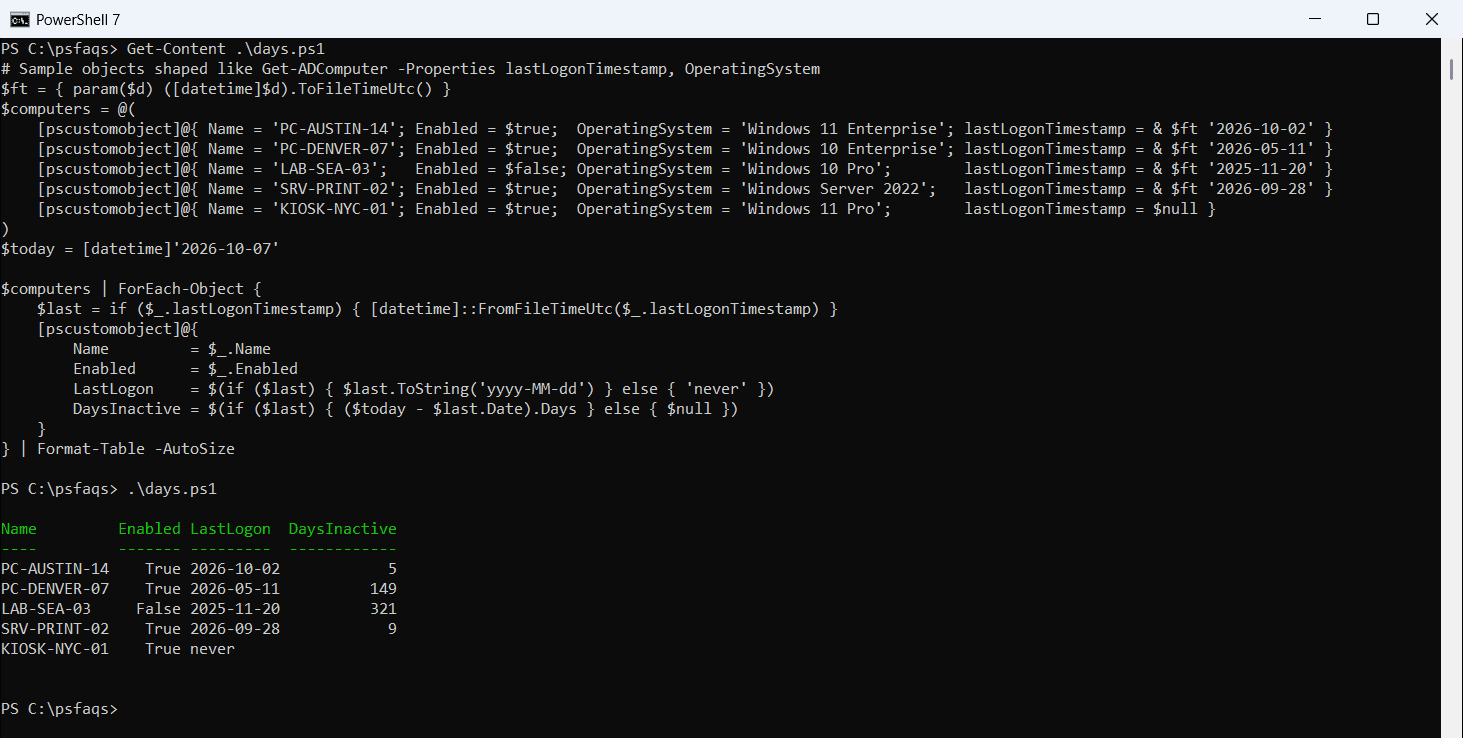
KIOSK-NYC-01 has no value at all, which means it never signed in. Getting the difference between two dates covers the date math in more detail.
Why is lastLogonTimestamp not exact?
Domain controllers only update it when the stored value is older than the msDS-LogonTimeSyncInterval setting. Microsoft documents the first update as 14 days minus a random part of 5 days.
So the value can be up to about two weeks behind. Use thresholds of 60 or 90 days, never 7 or 14, or you’ll flag computers people used last week.
How do I decide what to disable and what to delete?
I sort computers into three buckets. Disabled computers idle for more than 180 days can go, anything idle for over 90 days gets disabled, and the rest stay:
# Sample objects shaped like Get-ADComputer -Properties lastLogonTimestamp, OperatingSystem
$ft = { param($d) ([datetime]$d).ToFileTimeUtc() }
$computers = @(
    [pscustomobject]@{ Name = 'PC-AUSTIN-14'; Enabled = $true;  OperatingSystem = 'Windows 11 Enterprise'; lastLogonTimestamp = & $ft '2026-10-02' }
    [pscustomobject]@{ Name = 'PC-DENVER-07'; Enabled = $true;  OperatingSystem = 'Windows 10 Enterprise'; lastLogonTimestamp = & $ft '2026-05-11' }
    [pscustomobject]@{ Name = 'LAB-SEA-03';   Enabled = $false; OperatingSystem = 'Windows 10 Pro';        lastLogonTimestamp = & $ft '2025-11-20' }
    [pscustomobject]@{ Name = 'SRV-PRINT-02'; Enabled = $true;  OperatingSystem = 'Windows Server 2022';   lastLogonTimestamp = & $ft '2026-09-28' }
    [pscustomobject]@{ Name = 'KIOSK-NYC-01'; Enabled = $true;  OperatingSystem = 'Windows 11 Pro';        lastLogonTimestamp = $null }
)
$today = [datetime]'2026-10-07'

$plan = foreach ($c in $computers) {
    $days = if ($c.lastLogonTimestamp) { ($today - [datetime]::FromFileTimeUtc($c.lastLogonTimestamp).Date).Days } else { [int]::MaxValue }
    $action = if (-not $c.Enabled -and $days -gt 180) { 'Delete' }
              elseif ($days -gt 90) { 'Disable' }
              else { 'Keep' }
    [pscustomobject]@{ Name = $c.Name; OS = $c.OperatingSystem; Action = $action }
}
$plan | Group-Object Action | Sort-Object Name | ForEach-Object { '{0,-8} {1}' -f $_.Name, $_.Count }
$plan | Sort-Object Action, Name | Format-Table -AutoSize
Output:
Delete   1
Disable  2
Keep     2

Name         OS                    Action
----         --                    ------
LAB-SEA-03   Windows 10 Pro        Delete
KIOSK-NYC-01 Windows 11 Pro        Disable
PC-DENVER-07 Windows 10 Enterprise Disable
PC-AUSTIN-14 Windows 11 Enterprise Keep
SRV-PRINT-02 Windows Server 2022   Keep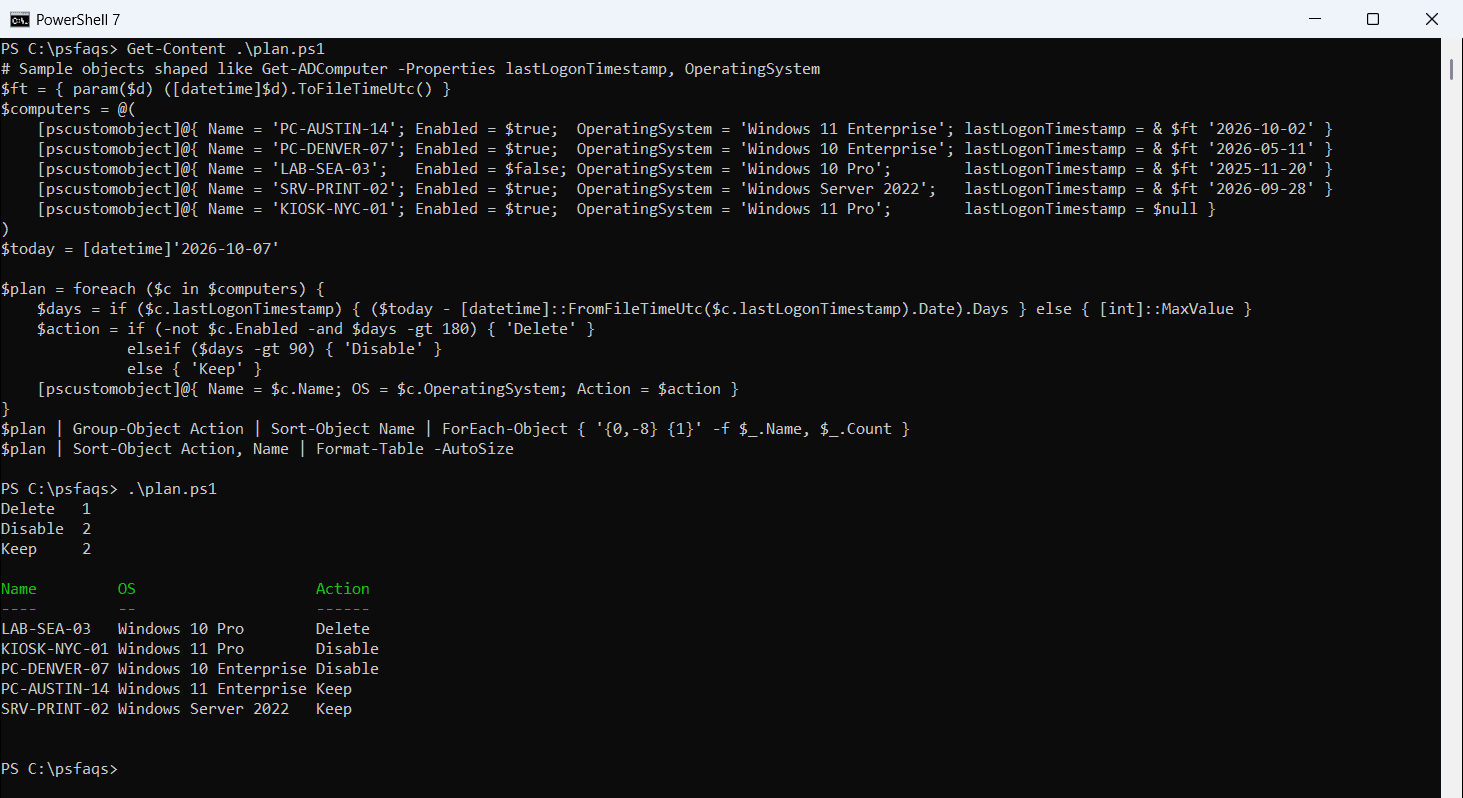
Never-logged-on computers count as idle, so the kiosk gets disabled for review. If and else in PowerShell explains the elseif chain.
Export the list for review
Send the list to the help desk before you touch anything. Watch the first line in Windows PowerShell 5.1:
# Sample objects shaped like Get-ADComputer -Properties lastLogonTimestamp, OperatingSystem
$ft = { param($d) ([datetime]$d).ToFileTimeUtc() }
$computers = @(
    [pscustomobject]@{ Name = 'PC-AUSTIN-14'; Enabled = $true;  OperatingSystem = 'Windows 11 Enterprise'; lastLogonTimestamp = & $ft '2026-10-02' }
    [pscustomobject]@{ Name = 'PC-DENVER-07'; Enabled = $true;  OperatingSystem = 'Windows 10 Enterprise'; lastLogonTimestamp = & $ft '2026-05-11' }
    [pscustomobject]@{ Name = 'LAB-SEA-03';   Enabled = $false; OperatingSystem = 'Windows 10 Pro';        lastLogonTimestamp = &