
To get all properties of an object in PowerShell, pipe it to Format-List with an asterisk. You get every property name with its value:
Get-Service -Name Spooler | Format-List -Property *To see just the names and types, use Get-Member -MemberType Property instead. Below I compare both, loop through properties in a script, find hidden members and dig into nested objects.
I used objects with fixed values, such as a date and a sample order, so the output is the same on any PC.
List property names with Get-Member
Get-Member shows the type and definition of every property. -MemberType Property hides the methods:
$date = Get-Date -Date '2026-10-04 09:30'
$date | Get-Member -MemberType Property | Select-Object -Property Name, Definition
Output:
Name        Definition
----        ----------
Date        datetime Date {get;}
Day         int Day {get;}
DayOfWeek   System.DayOfWeek DayOfWeek {get;}
DayOfYear   int DayOfYear {get;}
Hour        int Hour {get;}
Kind        System.DateTimeKind Kind {get;}
Microsecond int Microsecond {get;}
Millisecond int Millisecond {get;}
Minute      int Minute {get;}
Month       int Month {get;}
Nanosecond  int Nanosecond {get;}
Second      int Second {get;}
Ticks       long Ticks {get;}
TimeOfDay   timespan TimeOfDay {get;}
Year        int Year {get;}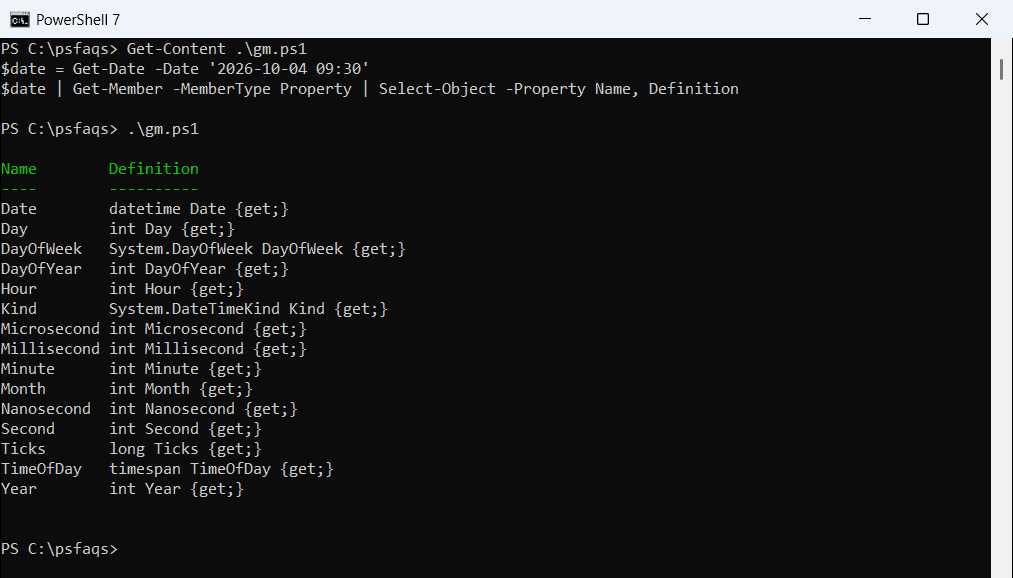
Windows PowerShell 5.1 shows two fewer: Microsecond and Nanosecond were added in .NET 7, which PowerShell 7 runs on. Add -MemberType Method to see what an object can do.
See every property and value with Format-List *
Most commands only show a few columns by default. Format-List -Property * shows everything:
$date = Get-Date -Date '2026-10-04 09:30'
$date | Format-List -Property *
Output:
DisplayHint : DateTime
DateTime    : Sunday, October 4, 2026 9:30:00 AM
Date        : 10/4/2026 12:00:00 AM
Day         : 4
DayOfWeek   : Sunday
DayOfYear   : 277
Hour        : 9
Kind        : Unspecified
Millisecond : 0
Microsecond : 0
Nanosecond  : 0
Minute      : 30
Month       : 10
Second      : 0
Ticks       : 639267030000000000
TimeOfDay   : 09:30:00
Year        : 2026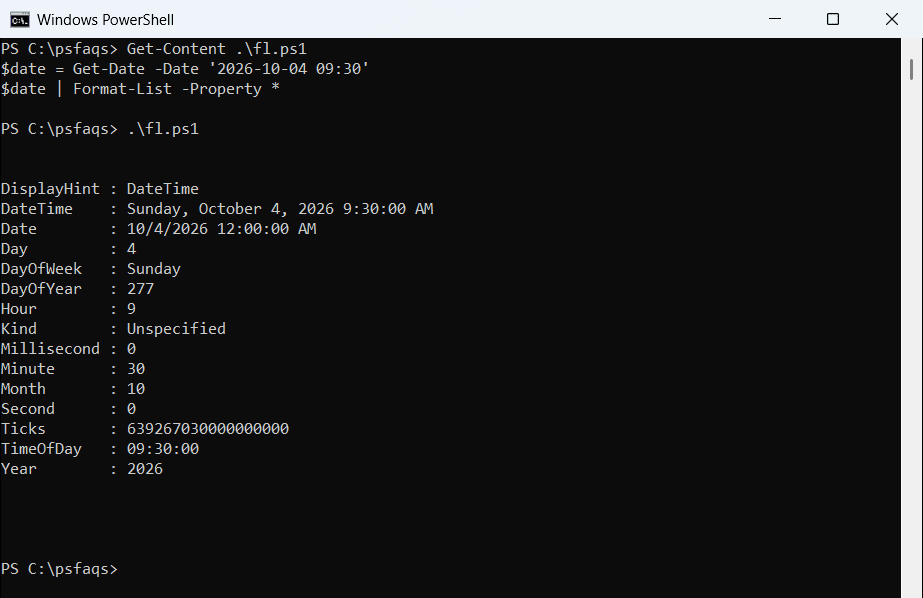
DisplayHint and DateTime come from PowerShell’s extended type system, so they appear even though DateTime itself doesn’t define them. Format-List is for reading only, so don’t pipe its output to other cmdlets.
Select-Object * for data you keep using
Select-Object -Property * also returns every property, but as an object you can sort, filter or export. Use it when the next step is Export-Csv rather than your eyes.
Loop through properties in a script
Every object has a hidden PSObject member. Its Properties collection gives you each name and value, in order:
$order = @'
Order,City,Items,Shipped
ORD-4001,Austin,3,2026-10-02
'@ | ConvertFrom-Csv

foreach ($property in $order.PSObject.Properties) {
    '{0,-8} = {1}' -f $property.Name, $property.Value
}
Output:
Order    = ORD-4001
City     = Austin
Items    = 3
Shipped  = 2026-10-02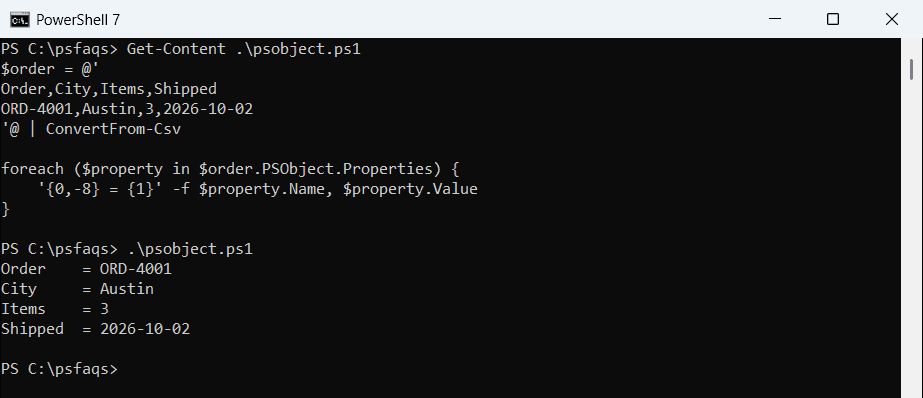
This is handy for generic code, such as writing every column of a row to a log.
Show hidden members with -Force
Get-Member hides some built-in members unless you add -Force:
$order = [pscustomobject]@{ Order = 'ORD-4001'; City = 'Austin' }
"Visible members: $(@($order | Get-Member).Count)"
"With -Force:     $(@($order | Get-Member -Force).Count)"
($order | Get-Member -Force -Name ps* | Select-Object -ExpandProperty Name) -join ', '
Output:
Visible members: 6
With -Force:     11
pstypenames, psadapted, psbase, psextended, psobject
The extra ones, such as psobject and psbase, are the intrinsic members PowerShell adds to every object. You rarely need them, but they explain where PSObject came from.
Get properties of nested objects
When a property holds another object, the default view squeezes it into one line. Read the property directly to see its own properties:
$server = [pscustomobject]@{
    Name    = 'NYC-SQL-01'
    Owner   = [pscustomobject]@{ Team = 'Finance'; Email = 'finance@contoso.com' }
    Disks   = 'C:', 'D:'
}
$server
''
$server.Owner | Format-List -Property *
$server | Select-Object -ExpandProperty Disks
Output:
Name       Owner                                      Disks
----       -----                                      -----
NYC-SQL-01 @{Team=Finance; Email=finance@contoso.com} {C:, D:}


Team  : Finance
Email : finance@contoso.com

C:
D:
Select-Object -ExpandProperty unwraps an array property into separate values. To see the whole tree at once, try $server | ConvertTo-Json -Depth 3. For type details, see getting the type of an object.
Frequently Asked Questions
How do I see all properties of an object in PowerShell?
Pipe it to Format-List -Property * to see every property and its value.
How do I list only the property names?
Run $object | Get-Member -MemberType Property, or $object.PSObject.Properties.Name.
What is the difference between Format-List * and Select-Object *?
Format-List * is for display only. Select-Object * returns objects you can still sort, filter or export.
How do I loop through all properties of an object?
Use foreach ($p in $object.PSObject.Properties) { $p.Name; $p.Value }.