How to Convert Excel Files to CSV Using PowerShell (The Easy Way)

You know that moment when you need to convert dozens of Excel files to CSV format, and you’re thinking, “Great, I’ll be clicking ‘Save As’ for the next hour”? Yeah, I’ve been there too.

Maybe you’re a data analyst who needs to feed CSV files into a database. Or perhaps you’re working with legacy systems that only accept CSV format. Whatever your reason, manually converting Excel files to CSV is boring, time-consuming, and honestly, a waste of your valuable time.

That’s where PowerShell comes in. In this tutorial, I will explain how to convert XLSX file to CSV file in PowerShell.

Why Convert XLSX to CSV Anyway?

Before we dive into the how, let’s quickly talk about the why. CSV (Comma-Separated Values) files are simpler than Excel files. They’re just plain text with commas separating the values. This makes them:

  • Universal: Almost every system can read CSV files
  • Lightweight: They’re much smaller than Excel files
  • Easy to process: Programming languages and databases love them
  • Version-control friendly: Perfect for Git and other version control systems

Excel files, on the other hand, contain formatting, formulas, multiple sheets, and other fancy stuff that many systems simply don’t need or can’t handle.

Check out Convert TXT to CSV with PowerShell

Method 1: Convert a Single Excel File to CSV

Let’s start simple. We’ll convert one Excel file to CSV first.

Open PowerShell (just search for “PowerShell” in your Start menu) and try this script:

# Define your file paths
$excelFile = "C:\Bijay\MyData\data.xlsx"
$csvFile = "C:\Bijay\MyData\data.csv"

# Create Excel object
$excel = New-Object -ComObject Excel.Application
$excel.Visible = $false
$excel.DisplayAlerts = $false

# Open the workbook
$workbook = $excel.Workbooks.Open($excelFile)

# Save as CSV
$workbook.SaveAs($csvFile, 6)

# Close and cleanup
$workbook.Close($false)
$excel.Quit()

# Release COM objects
[System.Runtime.Interopservices.Marshal]::ReleaseComObject($workbook) | Out-Null
[System.Runtime.Interopservices.Marshal]::ReleaseComObject($excel) | Out-Null
[System.GC]::Collect()
[System.GC]::WaitForPendingFinalizers()

Write-Host "Conversion complete!" -ForegroundColor Green

Here:

  • $excelFile and $csvFile are variables storing your file paths. Change these to match your actual file locations.
  • New-Object -ComObject Excel.Application creates an instance of Excel. Think of it as opening Excel without actually seeing the window.
  • $excel.Visible = $false keeps Excel hidden in the background. Set this to $true if you want to see what’s happening (helpful for debugging).
  • $excel.DisplayAlerts = $false turns off those annoying Excel popup messages.
  • $workbook.SaveAs($csvFile, 6) is where the magic happens. The number 6 tells Excel to save in CSV format. That’s the file format code for CSV.

The cleanup section at the end is important. It properly closes Excel and releases it from memory. Skip this, and you might end up with ghost Excel processes running in the background.

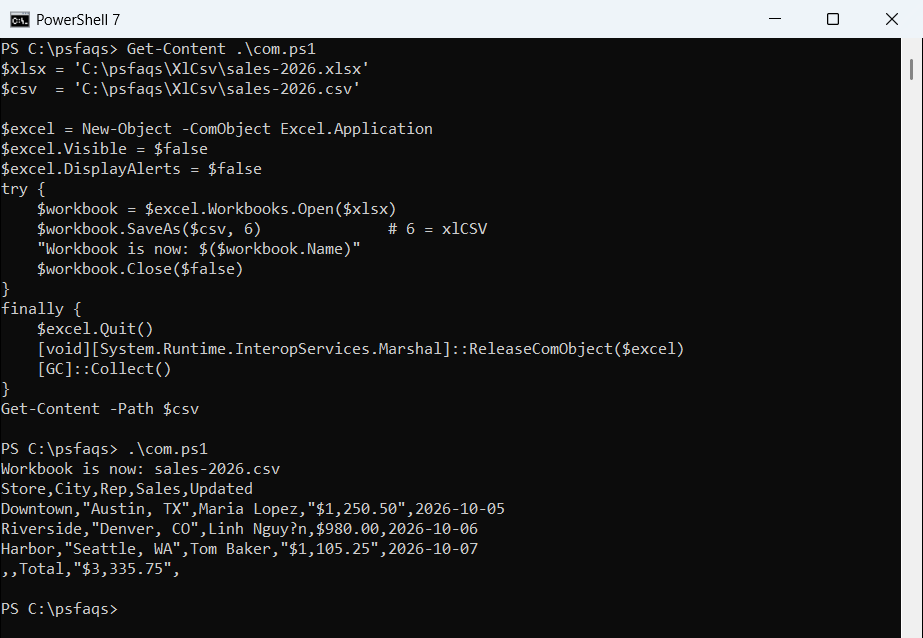
You can see the screenshot below, it showed me the successful message after I executed the above PowerShell script.

Convert Excel Files to CSV Using PowerShell

And I can also see the CSV file in the mentioned directory.

Check out Convert XML to CSV in PowerShell

Method 2: Convert Multiple Files at Once

Now here’s where PowerShell really shines. Let’s convert all Excel files in a folder to CSV file using the below script.

# Define your folder path
$sourceFolder = "C:\Bijay\MyData\ExcelFiles"
$destinationFolder = "C:\Bijay\MyData\CSVFiles"

# Create destination folder if it doesn't exist
if (!(Test-Path $destinationFolder)) {
    New-Item -ItemType Directory -Path $destinationFolder
}

# Get all Excel files
$excelFiles = Get-ChildItem -Path $sourceFolder -Filter *.xlsx

# Create Excel object
$excel = New-Object -ComObject Excel.Application
$excel.Visible = $false
$excel.DisplayAlerts = $false

# Loop through each file
foreach ($file in $excelFiles) {
    $workbook = $excel.Workbooks.Open($file.FullName)

    # Create CSV filename
    $csvFileName = $file.BaseName + ".csv"
    $csvPath = Join-Path $destinationFolder $csvFileName

    # Save as CSV
    $workbook.SaveAs($csvPath, 6)
    $workbook.Close($false)

    Write-Host "Converted: $($file.Name)" -ForegroundColor Cyan
}

# Cleanup
$excel.Quit()
[System.Runtime.Interopservices.Marshal]::ReleaseComObject($excel) | Out-Null
[System.GC]::Collect()
[System.GC]::WaitForPendingFinalizers()

Write-Host "All files converted successfully!" -ForegroundColor Green

This script grabs every .xlsx file in your source folder and converts them all. Imagine having 50 files to convert – this would save you at least 30 minutes of mindless clicking.

For large batches, you can also add a counter like below:

$count = 0
foreach ($file in $excelFiles) {
$count++
Write-Host "Processing file $count of $($excelFiles.Count)..."
# Conversion code
}

Read Create Folder Structure from CSV using PowerShell

Method 3: Convert a Specific Sheet

Excel files often have multiple sheets. By default, PowerShell converts only the first sheet. What if you need a different one?

This is one of the requirement I worked recently.

$excelFile = "C:\Bijay\MyData\data.xlsx"
$csvFile = "C:\Bijay\MyData\data.csv"
$sheetName = "Sales Data"  # Specify your sheet name

$excel = New-Object -ComObject Excel.Application
$excel.Visible = $false
$excel.DisplayAlerts = $false

$workbook = $excel.Workbooks.Open($excelFile)

# Select specific worksheet
$worksheet = $workbook.Worksheets.Item($sheetName)
$worksheet.SaveAs($csvFile, 6)

$workbook.Close($false)
$excel.Quit()

[System.Runtime.Interopservices.Marshal]::ReleaseComObject($worksheet) | Out-Null
[System.Runtime.Interopservices.Marshal]::ReleaseComObject($workbook) | Out-Null
[System.Runtime.Interopservices.Marshal]::ReleaseComObject($excel) | Out-Null
[System.GC]::Collect()
[System.GC]::WaitForPendingFinalizers()

For all the above PowerShell scripts, you can add try-catch blocks to handle errors gracefully:

try {
    # Your conversion code here
} catch {
    Write-Host "Error: $_" -ForegroundColor Red
}

I hope now you got an idea of converting Excel files to CSV with PowerShell. We saw here how to convert a single file as well as converting bulk files.

Do let me know if this helps you.

You may also like the following tutorials:

100 PowerShell cmdlets download free

100 POWERSHELL CMDLETS E-BOOK

FREE Download an eBook that contains 100 PowerShell cmdlets with complete script and examples.