
Have you ever been handed a text file full of data—maybe a log file, an export from some legacy system, or just a simple list—and thought, “I wish this was in Excel or a proper spreadsheet format”? PowerShell provides powerful built‑in cmdlets for parsing, transforming, and exporting data efficiently.
In this tutorial, you will learn multiple methods to convert TXT to CSV using PowerShell, from basic examples to advanced real‑world scenarios.
By the end of this tutorial, you’ll be able to:
- Convert simple line-by-line text files into proper CSV format
- Handle delimited text files (space-separated, tab-separated, pipe-separated, etc.) and convert them to CSV
- Add custom headers to your CSV files
- Clean up messy data during the conversion process
- Use PowerShell to automate these conversions so you never have to do manual copy-paste gymnastics again
Method 1: Converting a Simple List (One Item Per Line) to CSV
The Scenario: You have a text file with one item per line—maybe a list of computer names, email addresses, or product IDs—and you want to turn it into a proper CSV with a header.
Example input file (servers.txt):
SERVER01
SERVER02
SERVER03
SERVER04
Here are the steps to do this:
Step 1: Read the text file into PowerShell
$servers = Get-Content -Path "C:\Bijay\MyFolder\servers.txt"Step 2: Convert each line into a custom object with a property name
$csvData = $servers | ForEach-Object {
    [PSCustomObject]@{
        ServerName = $_
    }
}
Step 3: Export to CSV
$csvData | Export-Csv -Path "C:\Bijay\MyFolder\servers.csv" -NoTypeInformationThe result (servers.csv):
"ServerName"
"SERVER01"
"SERVER02"
"SERVER03"
"SERVER04"
Here is the exact output in the screenshot below:

Pro Tip: The -NoTypeInformation parameter (or -NoTypeInfo in PowerShell 6+) prevents PowerShell from adding that annoying #TYPE line at the top of your CSV. Always use it unless you specifically need type information.
Check out PowerShell Find File by Name Wildcard Examples
Method 2: Converting Delimited Text Files to CSV
The Scenario: Your text file already has structured data, but it’s separated by spaces, tabs, pipes (|), or some other delimiter instead of commas.
Example input file (users.txt) – space-delimited:
JohnDoe john.doe@example.com IT
JaneSmith jane.smith@example.com HR
BobJones bob.jones@example.com Sales
Here are the steps to do this:
Step 1: Import the text file and specify the delimiter
$data = Import-Csv -Path "C:\Bijay\MyFolder\users.txt" -Delimiter " " -Header "Username", "Email", "Department"Step 2: Export as CSV
$data | Export-Csv -Path "C:\Bijay\MyFolder\users.csv" -NoTypeInformationThe result (users.csv):
"Username","Email","Department"
"JohnDoe","john.doe@example.com","IT"
"JaneSmith","jane.smith@example.com","HR"
"BobJones","bob.jones@example.com","Sales"
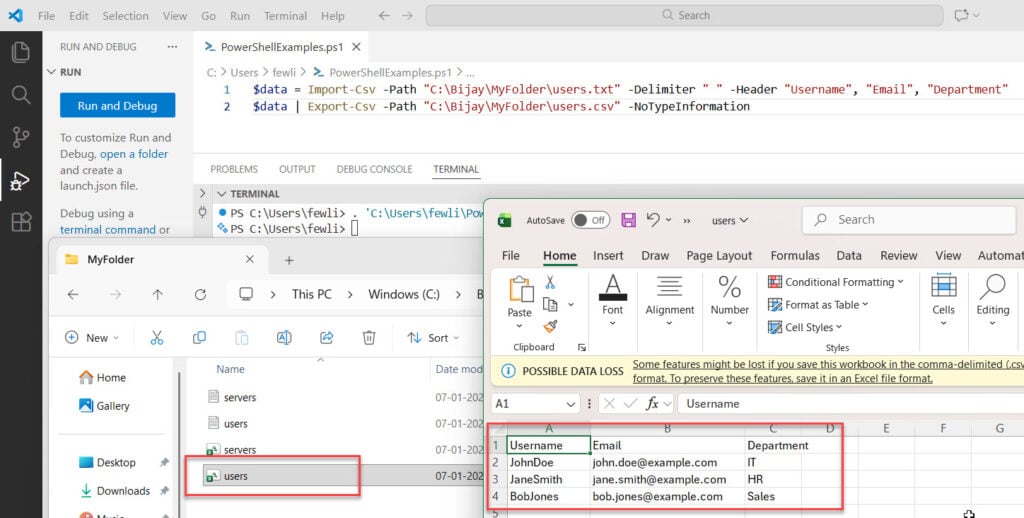
You can see the exact output in the screenshot below:
For Tab-Delimited Files:
If your file uses tabs as separators, use `t (that’s a backtick followed by ‘t’):
$data = Import-Csv -Path "C:\Bijay\MyFolder\file.txt" -Delimiter "`t" -Header "Column1", "Column2", "Column3"For Pipe-Delimited Files:
$data = Import-Csv -Path "C:\Bijay\MyFolder\file.txt" -Delimiter "|" -Header "Name", "Value", "Status"For Space‑Delimited Files:
Many log files and system outputs use spaces instead of commas.
Example TXT File
John 30 NewYork
Sarah 25 Chicago
Here is the PowerShell Script:
Get-Content data.txt |
ForEach-Object {
    $parts = $_ -split "\s+"
    [PSCustomObject]@{
        Name = $parts[0]
        Age  = $parts[1]
        City = $parts[2]
    }
} | Export-Csv data.csv -NoTypeInformation
This approach manually maps each value into structured columns.
For Comma-Delimited Files:
This is the most common situation where a TXT file already contains structured data separated by commas.
Example TXT File (data.txt)
Here is an example of a comma-delimited text file.
Name,Age,City
John,30,New York
Sarah,25,Chicago
PowerShell Command
Below is the PowerShell cmdlet.
Import-Csv data.txt | Export-Csv data.csv -NoTypeInformationThis method works because the TXT file already follows a CSV‑compatible structure.
If your text file already has a header row, don’t use the -Header parameter—PowerShell will use the first line as headers automatically. If you do specify headers when the file already has them, you’ll end up with the original header row treated as data!
Read How to Find the Most Recent File in a Directory with PowerShell?
Method 3: Handling Fixed-Width Text Files
The Scenario: Some older systems export data in fixed-width format, where each column takes up a specific number of characters (often padded with spaces).
Example input file (report.txt):
Name      Age City
John      25  NewYork
Jane      30  LosAngeles
Bob       45  Chicago
This one’s trickier because there’s no delimiter—just spacing.
Here are the steps to achieve this:
Step 1: Read the file and parse it manually
$lines = Get-Content -Path "C:\Bijay\MyFolder\report.txt"Step 2: Skip the header line and extract data using substrings
$csvData = $lines | Select-Object -Skip 1 | ForEach-Object {
    [PSCustomObject]@{
        Name = $_.Substring(0, 10).Trim()
        Age  = $_.Substring(10, 4).Trim()
        City = $_.Substring(14).Trim()
    }
}
Step 3: Export to CSV
$csvData | Export-Csv -Path "C:\Bijay\MyFolder\report.csv" -NoTypeInformationPro Tip: The .Trim() method removes leading and trailing spaces, which is essential when working with fixed-width data. Those padding spaces will make your data look messy otherwise!
Common Issues: Getting the substring positions wrong. I like to open the file in a text editor that shows column numbers (like Notepad++ or VS Code) to count exactly where each field starts and ends.
Check out How to Find Passwords in Files with PowerShell?
Method 4: Cleaning and Transforming Data During Conversion
Sometimes your text file has extra junk—empty lines, special characters, or inconsistent formatting. You can clean it up as part of the conversion process.
Example: Removing empty lines and trimming whitespace
$data = Get-Content -Path "C:\Bijay\MyFolder\messy.txt" |
    Where-Object { $_.Trim() -ne "" } |  # Remove empty lines
    ForEach-Object {
        [PSCustomObject]@{
            Item = $_.Trim()  # Remove leading/trailing spaces
        }
    }

$data | Export-Csv -Path "C:\Bijay\MyFolder\clean.csv" -NoTypeInformation
Example: Converting to uppercase for consistency
$data = Get-Content -Path "C:\Bijay\MyFolder\items.txt" | ForEach-Object {
    [PSCustomObject]@{
        Item = $_.ToUpper()
    }
}

$data | Export-Csv -Path "C:\Bijay\MyFolder\items.csv" -NoTypeInformation
Pro Tip: The pipeline (|) is your friend! You can chain together multiple operations—filtering, transforming, sorting—before exporting to CSV. It’s like an assembly line for your data.
Converting Unstructured TXT Files to CSV
Here is another example of converting unstructured TXT Files to CSV using PowerShell.
Sometimes TXT files have no clear delimiter and require parsing.
Example TXT File
Here is an example.
Name: John | Age: 30 | City: New YorkPowerShell Script
Here is the PowerShell script.
Get-Content data.txt |
ForEach-Object {
    if ($_ -match 'Name:\s(.+?)\s\|\sAge:\s(\d+)\s\|\sCity:\s(.+)') {
        [PSCustomObject]@{
            Name = $matches[1]
            Age  = $matches[2]
            City = $matches[3]
        }
    }
} | Export-Csv data.csv -NoTypeInformation
Regular expressions allow PowerShell to extract structured data from messy text.
Check out How to Test If a File Exists in PowerShell?
Common Mistakes to Avoid
Now, let me share some common mistakes to avoid while working with this.
- Forgetting
-NoTypeInformation: You’ll get that weird#TYPEline at the top of your CSV. - Using the wrong delimiter: Double-check whether your file uses spaces, tabs, commas, pipes, or something else.
- Not handling quotes in data: If your text file contains commas or quotes in the data itself, you might need extra parsing logic or use
-Delimitercarefully. - Overwriting files by accident: PowerShell will happily overwrite existing files. Use
-NoClobberto prevent this:
Export-Csv -Path "C:\path\to\output.csv" -NoTypeInformation -NoClobber- Assuming all text files are UTF-8: Older files might use ANSI, ASCII, or other encodings. If you see weird characters, try specifying
-Encoding.
Conclusion
In this article, you learned several practical ways to convert TXT to CSV with PowerShell, from simple line-based lists to fixed-width and unstructured text. With these techniques, you can clean, transform, and export almost any text file into a structured CSV format that is ready for Excel, reporting, or automation.
You may also like:

Bijay Kumar is an esteemed author and the mind behind PowerShellFAQs.com, where he shares his extensive knowledge and expertise in PowerShell, with a particular focus on SharePoint projects. Recognized for his contributions to the tech community, Bijay has been honored with the prestigious Microsoft MVP award. With over 15 years of experience in the software industry, he has a rich professional background, having worked with industry giants such as HP and TCS. His insights and guidance have made him a respected figure in the world of software development and administration. Read more.
