
To find the most recent file in a directory with PowerShell, list the files with Get-ChildItem, sort them by LastWriteTime from newest to oldest, and keep the first one:
Get-ChildItem -Path C:\psfaqs\Backups -File |
    Sort-Object -Property LastWriteTime -Descending |
    Select-Object -First 1 -Property Name, LastWriteTime
Output:
Name       LastWriteTime
----       -------------
backup.log 9/28/2026 2:15:00 AM
LastWriteTime is the date Windows shows as Date modified. I ran every example in PowerShell 7.6 and Windows PowerShell 5.1 against the same sample folder, with the same results.
Get the newest file of one type
Add -Filter to look at one extension only, and save the result in a variable so you can use its name and path:
$newest = Get-ChildItem -Path C:\psfaqs\Backups -Filter *.bak -File |
    Sort-Object -Property LastWriteTime -Descending |
    Select-Object -First 1

"Newest backup: $($newest.Name)"
"Full path:     $($newest.FullName)"
"Modified:      $($newest.LastWriteTime.ToString('yyyy-MM-dd HH:mm'))"
Output:
Newest backup: db-2026-09-28.bak
Full path:     C:\psfaqs\Backups\db-2026-09-28.bak
Modified:      2026-09-28 02:00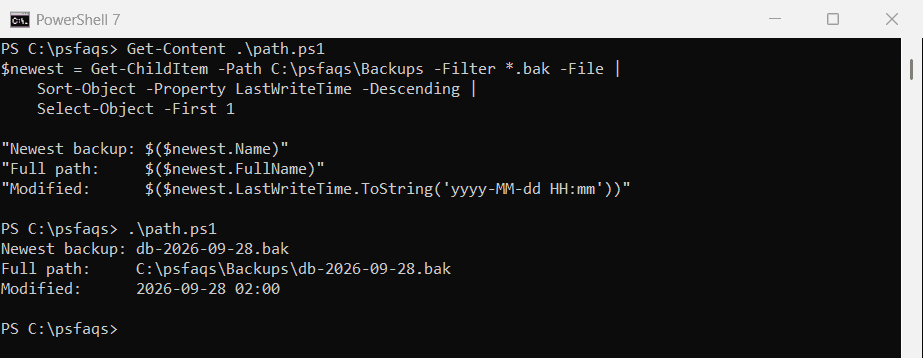
-File leaves out folders, which otherwise sort in with the files. Pass $newest.FullName to Copy-Item or Import-Csv to work with the file.
Include subfolders
-Recurse searches every subfolder too, so the newest file can come from anywhere in the tree:
$newest = Get-ChildItem -Path C:\psfaqs\Backups -File -Recurse |
    Sort-Object -Property LastWriteTime -Descending |
    Select-Object -First 1

"Newest anywhere: $($newest.FullName.Replace('C:\psfaqs\Backups\', ''))"
Output:
Newest anywhere: Finance\ledger-2026-09.xlsxFor big folder trees, see the faster method near the end. Listing all files in a folder covers the other Get-ChildItem options.
LastWriteTime or CreationTime?
They can point to different files. Copying a file gives the copy a new CreationTime but keeps the original LastWriteTime:
$files = Get-ChildItem -Path C:\psfaqs\Backups -Filter *.bak -File

"Newest by LastWriteTime: $(($files | Sort-Object -Property LastWriteTime -Descending | Select-Object -First 1).Name)"
"Newest by CreationTime:  $(($files | Sort-Object -Property CreationTime -Descending | Select-Object -First 1).Name)"
Output:
Newest by LastWriteTime: db-2026-09-28.bak
Newest by CreationTime:  db-2026-09-26.bak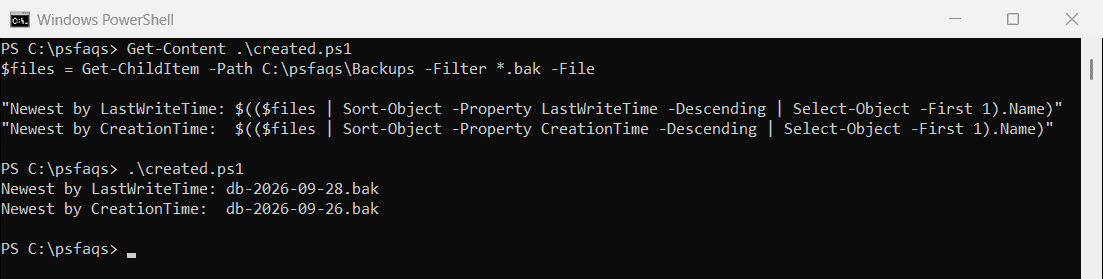
Use LastWriteTime for “latest version” questions, like the newest backup or log. Use CreationTime for “what arrived last” in a drop folder.
Get the newest few files
Change -First to the number you need. Formatting the date yourself keeps the output the same on every PC:
Get-ChildItem -Path C:\psfaqs\Backups -File -Recurse |
    Sort-Object -Property LastWriteTime -Descending |
    Select-Object -First 3 |
    ForEach-Object { '{0}  {1}' -f $_.LastWriteTime.ToString('yyyy-MM-dd HH:mm'), $_.Name }
Output:
2026-09-29 09:40  ledger-2026-09.xlsx
2026-09-28 02:15  backup.log
2026-09-28 02:00  db-2026-09-28.bak
Get the oldest file
Drop -Descending and the oldest file comes first instead:
$oldest = Get-ChildItem -Path C:\psfaqs\Backups -Filter *.bak -File |
    Sort-Object -Property LastWriteTime |
    Select-Object -First 1
"Oldest backup: $($oldest.Name)"
Output:
Oldest backup: db-2026-09-26.bakDeleting files older than 30 days uses the same date filtering to clean up old backups.
Newest file in each subfolder
Group the files by folder with Group-Object, then pick the newest from each group:
Get-ChildItem -Path C:\psfaqs\Backups -File -Recurse |
    Group-Object -Property DirectoryName |
    ForEach-Object {
        $latest = $_.Group | Sort-Object -Property LastWriteTime -Descending | Select-Object -First 1
        '{0,-8} {1}' -f (Split-Path -Path $_.Name -Leaf), $latest.Name
    }
Output:
Backups  backup.log
Finance  ledger-2026-09.xlsx
Sales    forecast.csv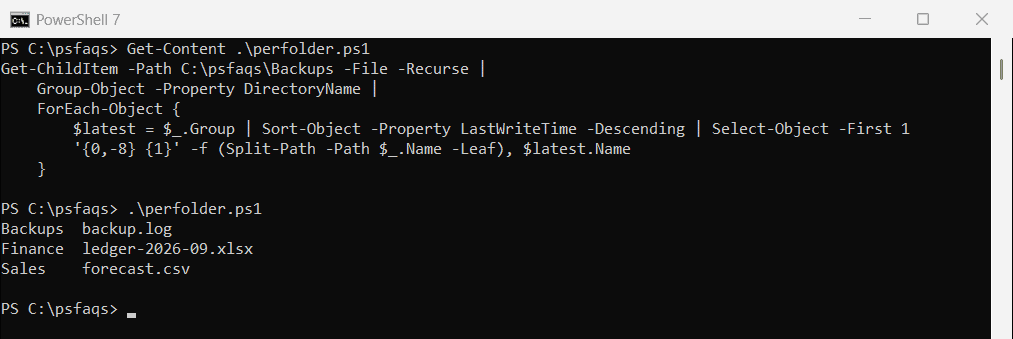
When the folder is empty
If there are no files, the result is $null, and code like $newest.FullName quietly returns nothing. Check the result before using it:
$newest = Get-ChildItem -Path C:\psfaqs\Backups\Empty -File |
    Sort-Object -Property LastWriteTime -Descending |
    Select-Object -First 1

if ($newest) { "Newest: $($newest.Name)" }
else { 'No files found in C:\psfaqs\Backups\Empty' }
Output:
No files found in C:\psfaqs\Backups\EmptyA faster way for large folders
Sort-Object has to collect every file before it can sort. For folders with tens of thousands of files, a single loop that remembers the newest one so far is quicker and uses less memory:
$newest = $null
foreach ($file in [System.IO.Directory]::EnumerateFiles('C:\psfaqs\Backups', '*', 'AllDirectories')) {
    $time = [System.IO.File]::GetLastWriteTime($file)
    if ($null -eq $newest -or $time -gt $newest.Time) {
        $newest = [pscustomobject]@{ Path = $file; Time = $time }
    }
}
"Newest: $(Split-Path -Path $newest.Path -Leaf) at $($newest.Time.ToString('yyyy-MM-dd HH:mm'))"
Output:
Newest: ledger-2026-09.xlsx at 2026-09-29 09:40EnumerateFiles reads one file at a time instead of building the whole list first. Microsoft c