How to Get the Last Reboot Time Using PowerShell
Get the last reboot time with PowerShell

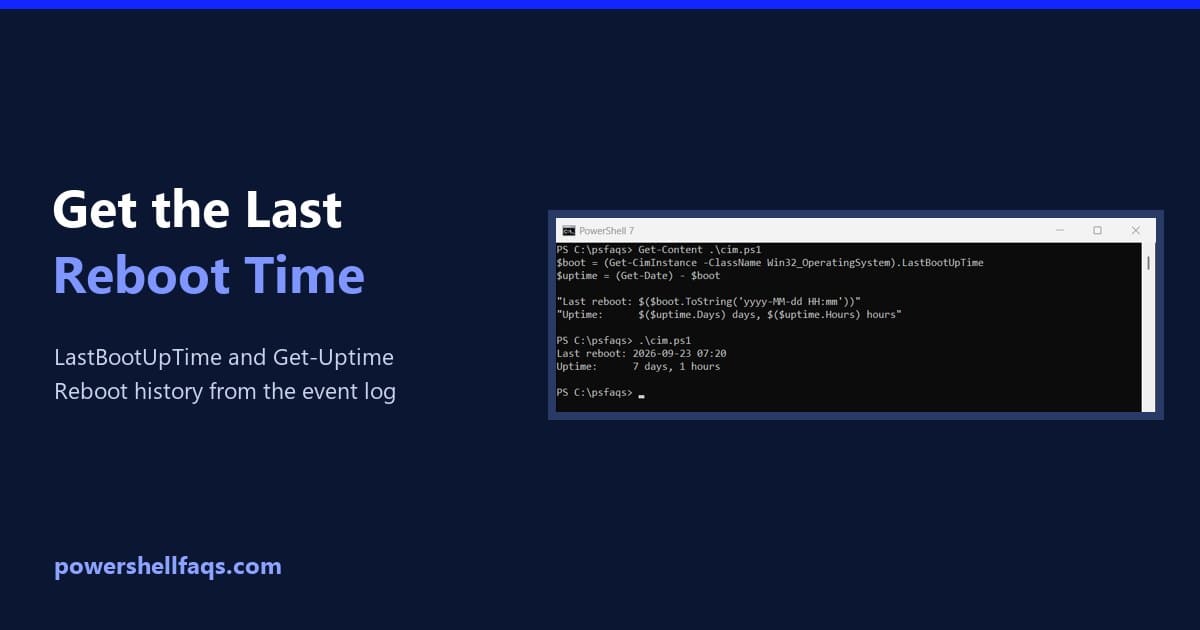
To get the last reboot time with PowerShell, read LastBootUpTime from Win32_OperatingSystem. Subtract it from the current time to get the uptime: Output: Get-CimInstance returns a normal DateTime, so no conversion is needed. Below I show the shorter PowerShell 7 cmdlet, the reboot history from the event log, remote PCs and one Fast Startup catch. … Read more
PowerShell Get-WindowsAutopilotInfo: Collect and Upload the Hardware Hash

PowerShell Get-WindowsAutopilotInfo

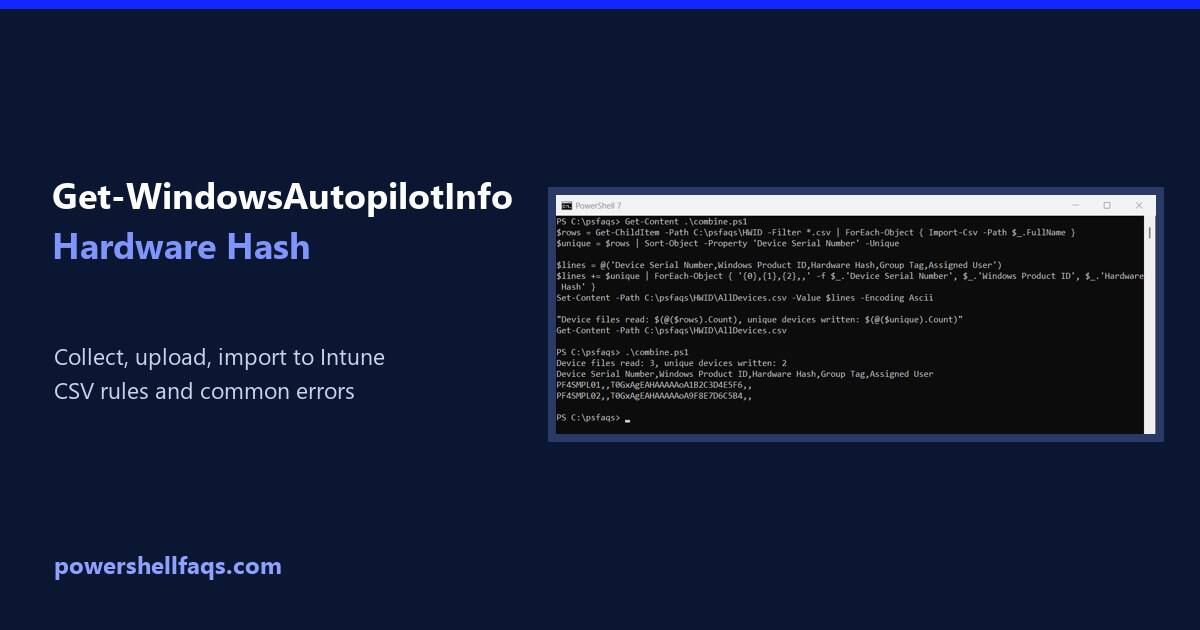
Get-WindowsAutopilotInfo is a PowerShell script that collects a device’s hardware hash and serial number for Windows Autopilot. Install it from the PowerShell Gallery, then save the hash to a CSV or upload it to Intune. Microsoft documents these commands for an elevated window: The file lands in C:\HWID\AutopilotHWID.csv, ready to import into Intune. Below I … Read more

How to Get the .NET Version Using PowerShell (Framework and .NET)

Get the .NET version using PowerShell

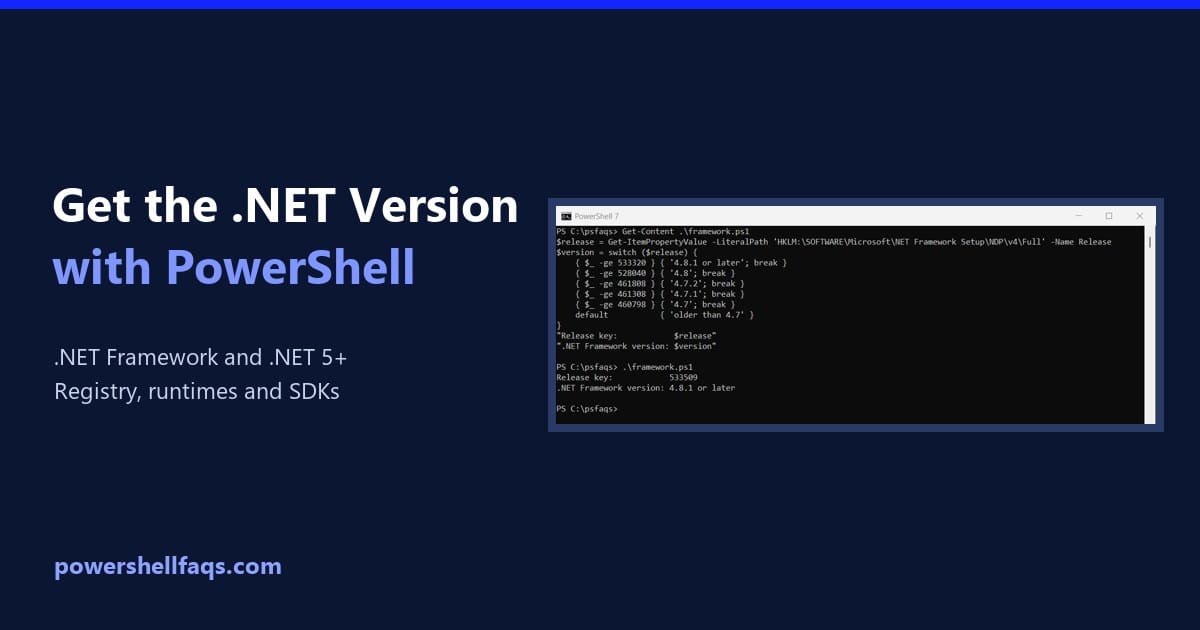
To get the .NET version using PowerShell, check two things: the .NET Framework version in the registry, and the modern .NET runtimes with dotnet –list-runtimes. Windows can have both installed side by side. Below I show both checks, plus how to see which .NET your PowerShell session runs on. I ran them on Windows 11 … Read more

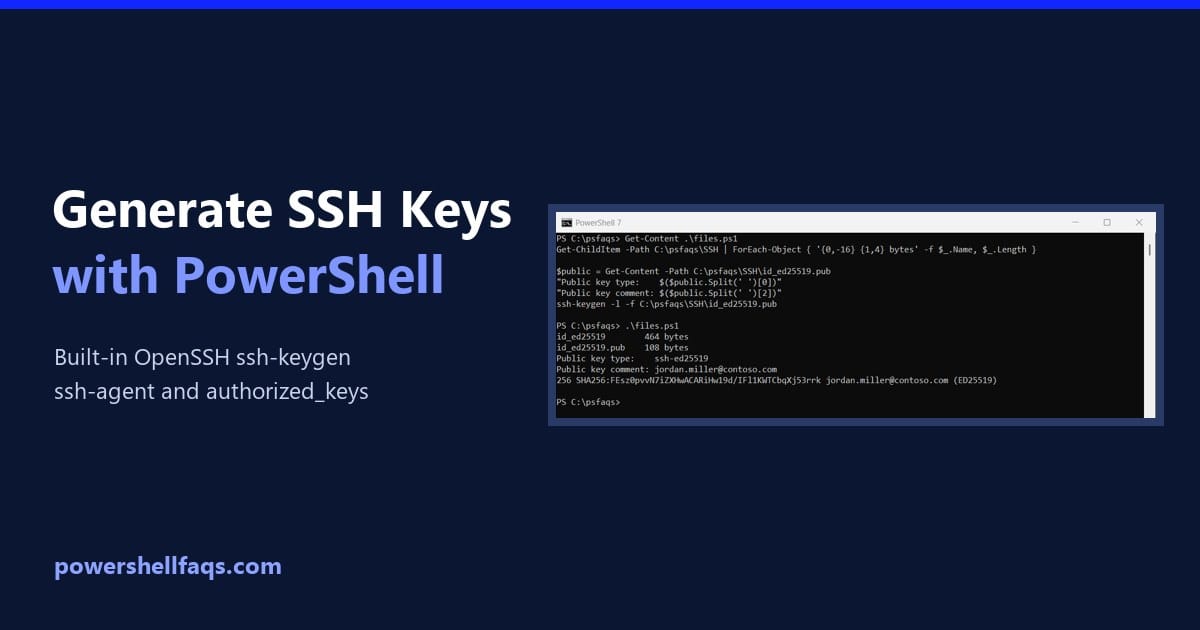
How to Generate SSH Keys with PowerShell (ssh-keygen on Windows)

Generate SSH keys with PowerShell

To generate SSH keys with PowerShell, run ssh-keygen, which ships with Windows 10 and 11 as part of the built-in OpenSSH client. Ed25519 is the recommended key type: It asks where to save the key and for a passphrase, then creates a private key and a .pub public key. Below I check OpenSSH is installed, … Read more

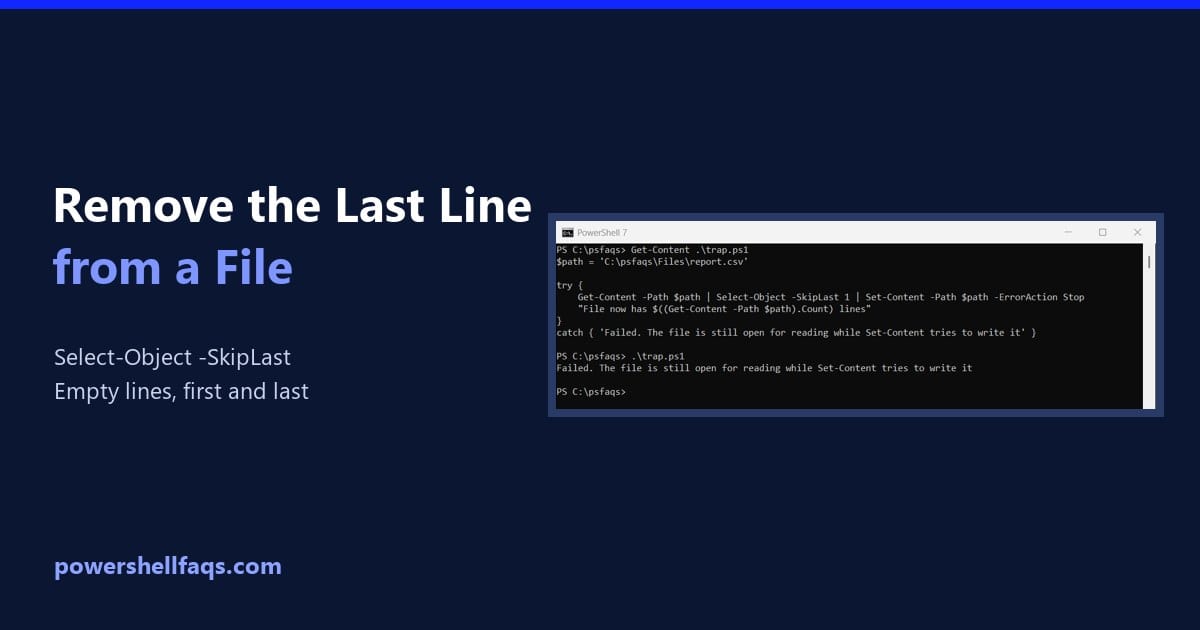
How to Remove the Last Line from a File Using PowerShell

Remove the last line from a file with PowerShell

To remove the last line from a file with PowerShell, read the lines with Get-Content, drop the last one with Select-Object -SkipLast 1, and write the rest back with Set-Content: Output: Reading into a variable first matters, as the next section shows. I ran every example in PowerShell 7.6 and Windows PowerShell 5.1, with the … Read more

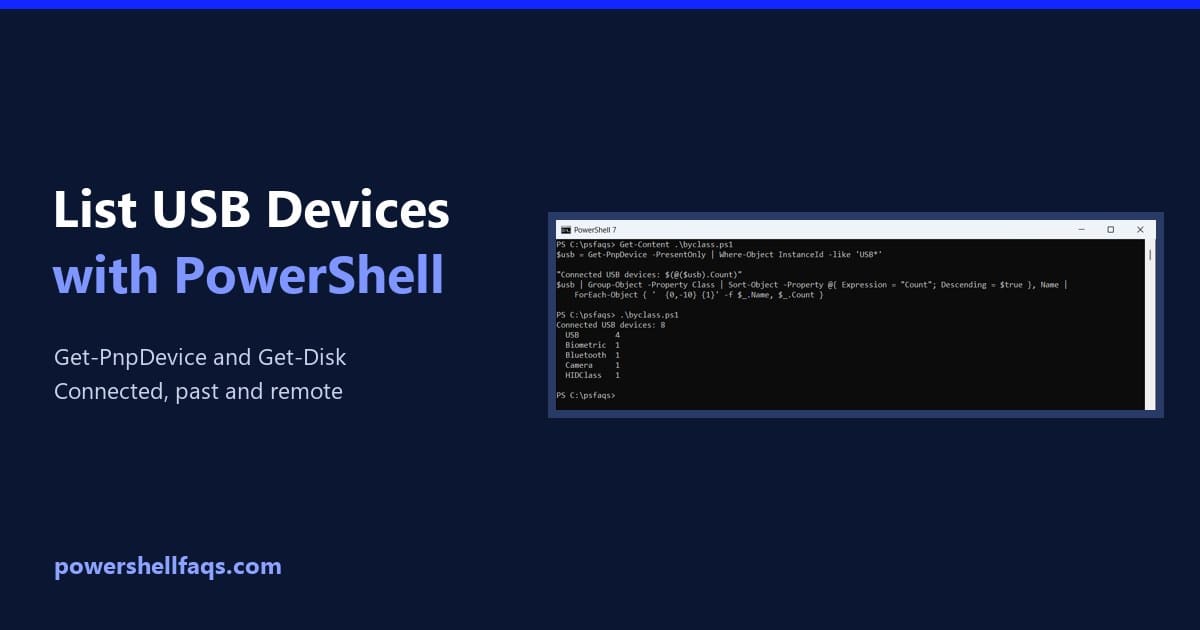
How to List USB Devices Using PowerShell

List USB devices using PowerShell

To list USB devices using PowerShell, run Get-PnpDevice and keep the devices whose InstanceId starts with USB. -PresentOnly limits the list to what’s plugged in right now: Below I group devices by type, list USB hubs, find USB drives, and show where Windows keeps a history of devices. I only show device classes and generic … Read more

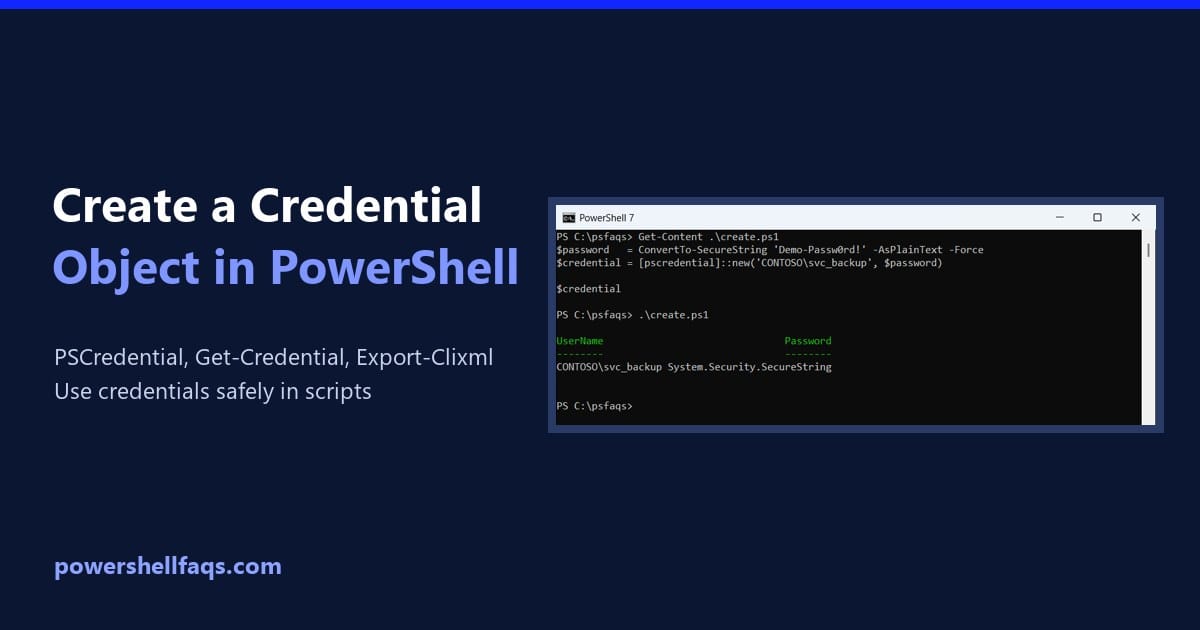
How to Create a Credential Object in PowerShell

Create a PSCredential object in PowerShell

To create a credential object in PowerShell, turn the password into a SecureString and pass it with the user name to [pscredential]::new(). Any cmdlet with a -Credential parameter accepts the result: Output: The password above is a throwaway demo value. In a real script, you’d ask for it with Get-Credential or load it from a … Read more

How to Create Objects in PowerShell (Custom Objects and Classes)

Create objects in PowerShell

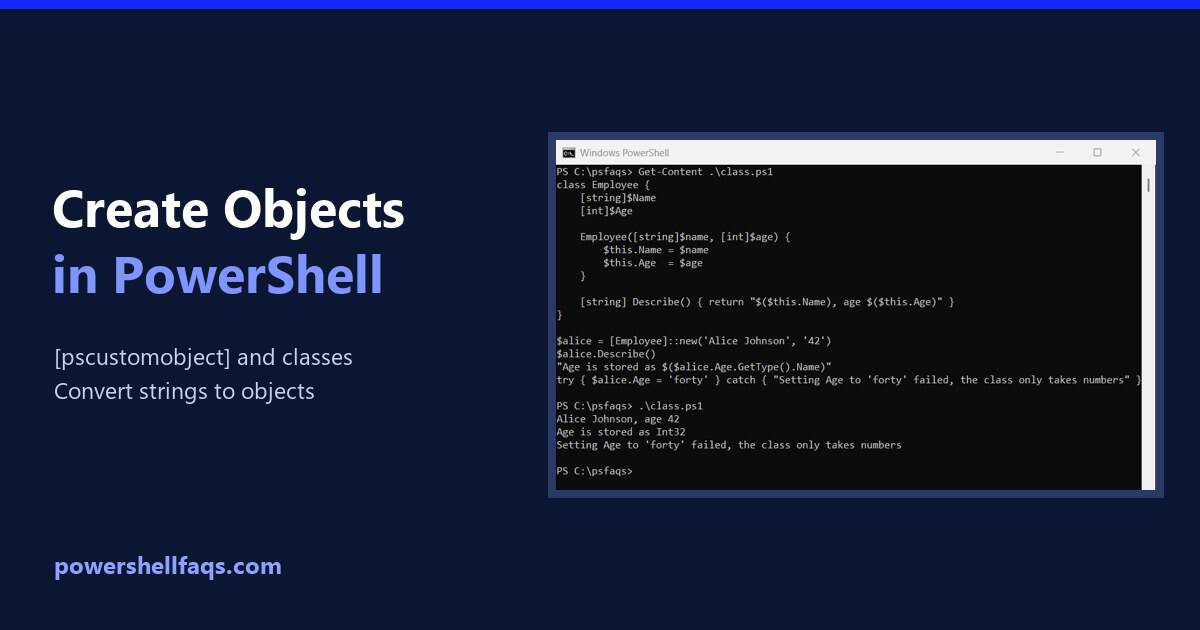
To create an object in PowerShell, cast a hashtable to [pscustomobject]. The keys become properties, in the order you wrote them: Output: That covers most scripts. Below I add methods and computed properties, use classes for typed objects, and turn strings into objects. I ran every example in PowerShell 7.6 and Windows PowerShell 5.1. Add … Read more

How to Keep Your Screen Active with a PowerShell Script

Keep your screen active with a PowerShell script

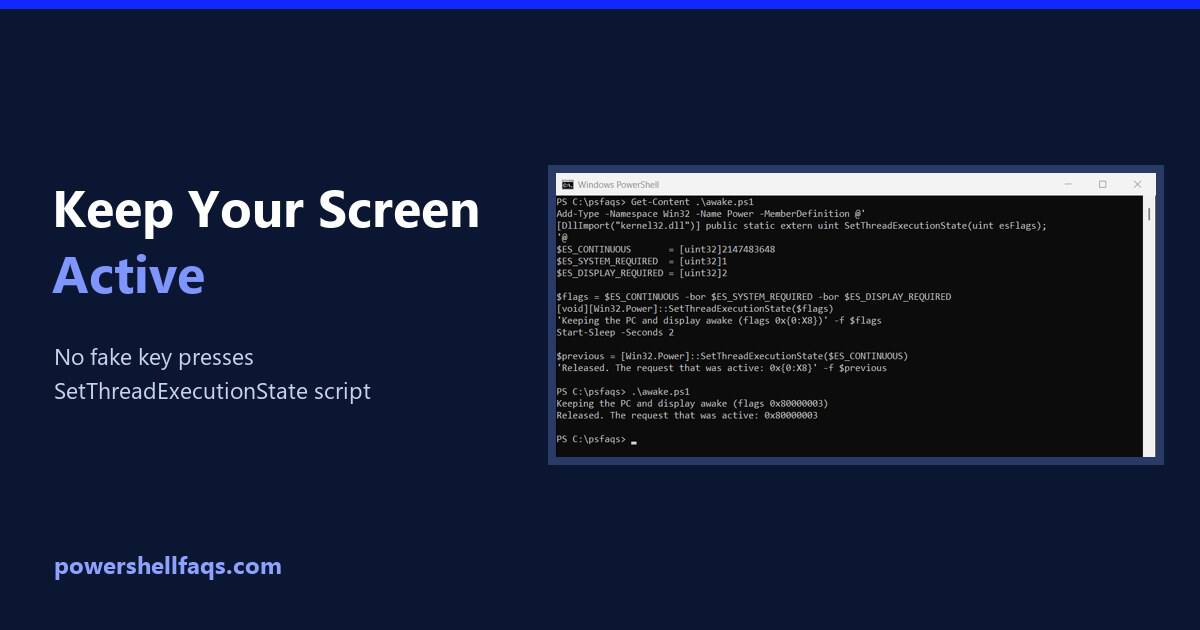
To keep your screen active with a PowerShell script, ask Windows directly with the SetThreadExecutionState API. It keeps the display and PC awake while the script runs, and everything goes back to normal when it stops: That’s better than the common trick of pressing a fake key every minute. Below I check your current timeouts, … Read more

How to Change the Wallpaper with PowerShell

Change the wallpaper with PowerShell

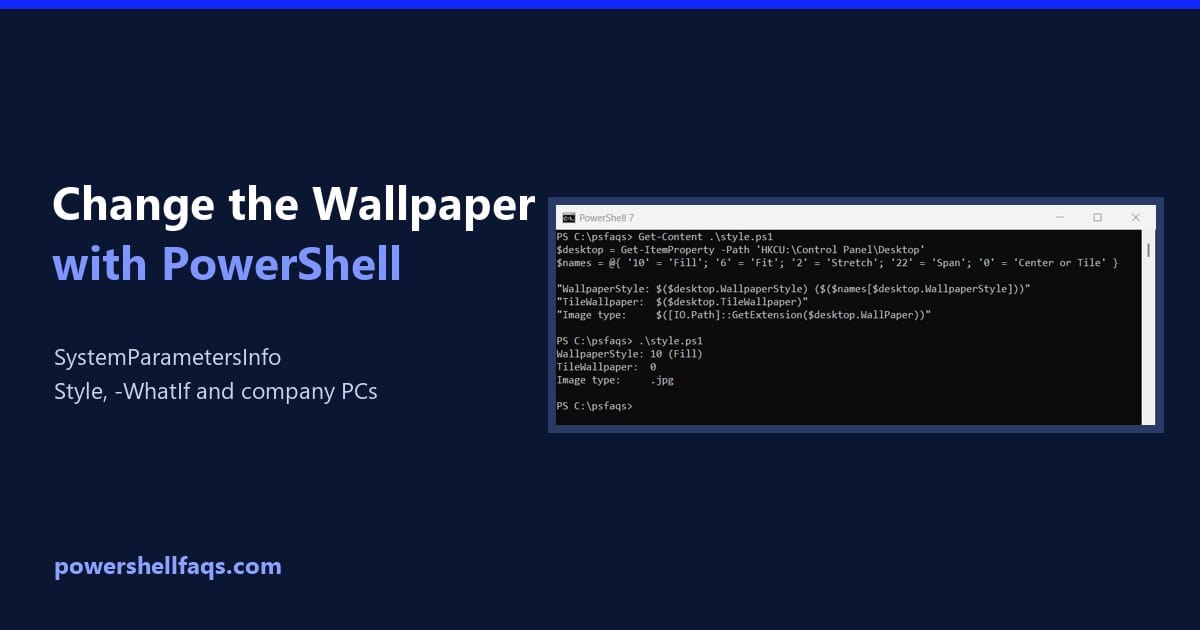
To change the wallpaper with PowerShell, call the Windows SystemParametersInfo function with the image path. Add-Type makes it available, and the change shows right away without signing out: It returns True when Windows accepts the image, affects only the signed-in user and needs no admin rights. Below I set the fit style, wrap it in … Read more