
To list printers using PowerShell, run Get-Printer. It returns every printer and printer connection installed on the computer, and you don’t need admin rights. Pipe it to Format-Table to pick the columns:
Get-Printer | Format-Table Name, Type, DriverName, PortName, Shared -AutoSizeIn this post I’ll show you how to list printers using PowerShell with Get-Printer and Win32_Printer, read their status, find network printers, and export the list to CSV.
To keep my own printer list private, the real runs below stick to the built-in Microsoft Print to PDF printer.
How to list all printers with Get-Printer
Get-Printer comes from the PrintManagement module, which ships with Windows and loads in both Windows PowerShell 5.1 and PowerShell 7. On your PC, plain Get-Printer shows everything. I’ve narrowed it with a wildcard name:
Get-Printer -Name 'Microsoft*' |
    Format-Table Name, Type, DriverName, PortName, Shared -AutoSize
Output:
Name                    Type DriverName             PortName    Shared
----                    ---- ----------             --------    ------
Microsoft Print to PDF Local Microsoft Print To PDF PORTPROMPT:  False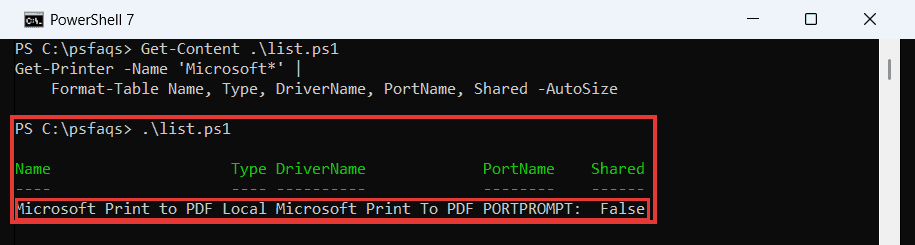
Type is Local for printers installed on this PC and Connection for printers shared from a print server. To keep only some columns everywhere, the Format-Table guide covers -AutoSize and custom widths.
Get the details of one printer
Pass the exact name to -Name and use Format-List to see the properties one per line:
Get-Printer -Name 'Microsoft Print to PDF' |
    Format-List Name, Type, DriverName, PortName, PrinterStatus, Shared, Published
Output:
Name          : Microsoft Print to PDF
Type          : Local
DriverName    : Microsoft Print To PDF
PortName      : PORTPROMPT:
PrinterStatus : Normal
Shared        : False
Published     : False
Here PrinterStatus Normal means the spooler reports no problem. The Format-List examples show how to list every property with Format-List *.
Add -Full when you also need RenderingMode and the PermissionSDDL security string, which Get-Printer skips by default.
Microsoft Learn’s parameter table says -Name doesn’t support wildcards, yet its description says it does. In my runs, ‘Microsoft*’ worked in both shells. An exact name that doesn’t exist throws a “No MSFT_Printer objects found” error, so wrap lookups in a try/catch block.
List printers with Get-CimInstance and Win32_Printer
The Win32_Printer WMI class gives you a few properties Get-Printer doesn’t, like Default and Network. The -Filter uses WQL, where % is the wildcard:
Get-CimInstance -ClassName Win32_Printer -Filter "Name LIKE 'Microsoft%'" |
    Select-Object Name, Default, Local, Network, PrinterStatus
Output:
Name          : Microsoft Print to PDF
Default       : True
Local         : True
Network       : False
PrinterStatus : 3
Default True tells you this is the default printer. To change it, see how to set the default printer with PowerShell.
PrinterStatus is a number. The old version of this post called 3 “online”, but the Win32_Printer docs say 3 means Idle. A hash table turns the codes into words:
$status = @{ 1 = 'Other'; 2 = 'Unknown'; 3 = 'Idle'; 4 = 'Printing'
             5 = 'Warmup'; 6 = 'Stopped printing'; 7 = 'Offline' }

Get-CimInstance -ClassName Win32_Printer -Filter "Name LIKE 'Microsoft%'" |
    Select-Object Name, @{ Name = 'Status'; Expression = { $status[[int]$_.PrinterStatus] } }
Output:
Name                   Status
----                   ------
Microsoft Print to PDF Idle
The calculated property in that Select-Object call works like the ones in the Select-Object tutorial.
Does Get-WmiObject work in PowerShell 7?
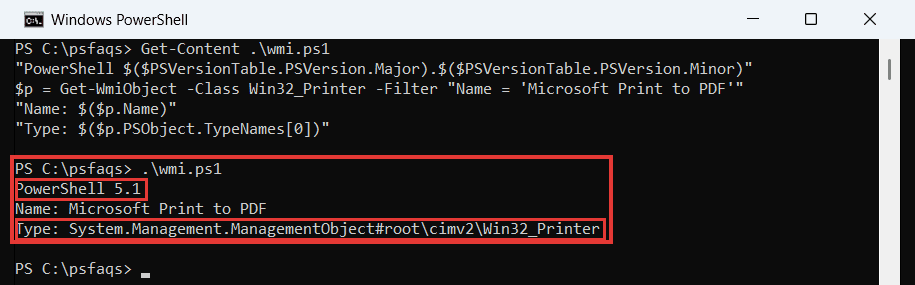
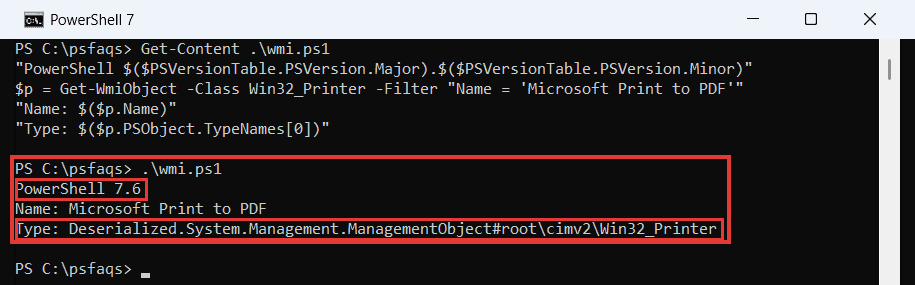
Microsoft removed the WMI v1 cmdlets, Get-WmiObject included, from PowerShell 7. Yet older scripts that use it still ran on my PC:
"PowerShell $($PSVersionTable.PSVersion.Major).$($PSVersionTable.PSVersion.Minor)"
$p = Get-WmiObject -Class Win32_Printer -Filter "Name = 'Microsoft Print to PDF'"
"Name: $($p.Name)"
"Type: $($p.PSObject.TypeNames[0])"
Output (PowerShell 7):
PowerShell 7.6
Name: Microsoft Print to PDF
Type: Deserialized.System.Management.ManagementObject#root\cimv2\Win32_Printer
PowerShell 5.1
Name: Microsoft Print to PDF
Type: System.Management.ManagementObject#root\cimv2\Win32_PrinterThat second block is from Windows PowerShell 5.1, which returns a live WMI object.
PowerShell 7 quietly loaded the Windows PowerShell version of the module in a compatibility session, so the object comes back Deserialized, a copy without methods:
Use Get-CimInstance in new scripts. It works natively in both versions.
How do I list network printers in PowerShell?
Printers you’ve connected from a print server have Type Connection, and printers you share have Shared True. On a real PC you’d run Get-Printer | Where-Object Type -eq 'Connection'. This sample CSV has the same columns as Get-Printer output:
$printers = Import-Csv .\pr\printers-sample.csv

"Shared from this PC: " + ($printers | Where-Object Shared -eq 'True').Name
$printers | Where-Object Type -eq 'Connection' |
    Format-Table Name, DriverName -AutoSize
<