
PowerShell has two main error variables. $Error is an automatic list of every recent error in the session, newest first, and -ErrorVariable saves one command’s errors into a variable you name:
$Error[0]
Get-Item .\report.csv -ErrorVariable myErr -ErrorAction SilentlyContinue
In this tutorial, I’ll walk through the PowerShell error variables you’ll actually use: $Error, -ErrorVariable, $? and $LASTEXITCODE. You’ll also see where PowerShell 7 and Windows PowerShell 5.1 behave differently, because a few of those differences can quietly break a script.
What is the $Error variable in PowerShell?
$Error is an automatic variable that PowerShell fills on its own. Every error goes in at position 0, so $Error[0] is always the newest one and $Error[-1] is the oldest still kept:
$Error.Clear()
Get-Item .\reports\sales-2026-10.csv -ErrorAction SilentlyContinue
Get-Service -Name ContosoSync -ErrorAction SilentlyContinue

"Errors stored: $($Error.Count)"
"Newest -> $($Error[0].Exception.Message)"
"Oldest -> $($Error[-1].Exception.Message)"
Output:
Errors stored: 2
Newest -> Cannot find any service with service name 'ContosoSync'.
Oldest -> Cannot find path 'C:\psfaqs\reports\sales-2026-10.csv' because it does not exist.
Both failures landed in $Error even though -ErrorAction SilentlyContinue hid them from the screen. That’s the key point: hiding an error doesn’t stop PowerShell from recording it.
Under the hood, $Error is a System.Collections.ArrayList in both shells. The difference between arrays and ArrayLists explains why that type matters when you add or remove items.
Read the details of an error record
Each entry is an ErrorRecord object, and it carries much more than the red message. These are the properties I check most when a script fails:
$Error.Clear()
Get-Item .\reports\sales-2026-10.csv -ErrorAction SilentlyContinue
$err = $Error[0]

[pscustomobject]@{
    Exception = $err.Exception.GetType().Name
    Category  = $err.CategoryInfo.Category
    ErrorId   = $err.FullyQualifiedErrorId
    Target    = $err.TargetObject
    Line      = $err.InvocationInfo.ScriptLineNumber
} | Format-List
Output:
Exception : ItemNotFoundException
Category  : ObjectNotFound
ErrorId   : PathNotFound,Microsoft.PowerShell.Commands.GetItemCommand
Target    : C:\psfaqs\reports\sales-2026-10.csv
Line      : 2
CategoryInfo and FullyQualifiedErrorId are stable, so they’re safer to test in code than the message text. InvocationInfo.ScriptLineNumber points to the script line that failed, which is line 2 here.
To dump any of these values quickly, the tips on how to print a variable in PowerShell apply here too.
PowerShell 7 also has Get-Error, which prints the whole record, inner exceptions included. Windows PowerShell 5.1 doesn’t have it, and its default error display is different too:
"ErrorView: $ErrorView"
"Get-Error available: $([bool](Get-Command Get-Error -ErrorAction SilentlyContinue))"
Output (PowerShell 7):
ErrorView: ConciseView
Get-Error available: True
Windows PowerShell 5.1 printed ErrorView: NormalView and Get-Error available: False. ConciseView, the shorter one-line display, arrived with PowerShell 7.
How do I clear the $Error variable?
Call the Clear() method on it. Don’t assign $Error = $null or use Clear-Variable, because later code that calls $Error.Count or $Error[0] expects a list:
$Error.Clear()
Get-Item .\reports\q4.csv -ErrorAction SilentlyContinue
"Before Clear(): $($Error.Count) error"
$Error.Clear()
"After Clear():  $($Error.Count) errors"
Output:
Before Clear(): 1 error
After Clear():  0 errors
Clearing $Error inside a shared script is a judgment call, since the person who ran it might want to read those errors later. When you only care about one command, -ErrorVariable (next section) is the cleaner choice.
Your own variables are a different story, and clearing variables in PowerShell covers Clear-Variable and Remove-Variable for those.
$Error doesn’t grow forever. I triggered 300 errors in each shell to see where it stops:
$Error.Clear()
"MaximumErrorCount: [$MaximumErrorCount]"
1..300 | ForEach-Object { Get-Item ".\nope-$_.txt" -ErrorAction SilentlyContinue }
"Errors stored after 300 failures: $($Error.Count)"
Output (PowerShell 7):
MaximumErrorCount: []
Errors stored after 300 failures: 256
Windows PowerShell 5.1 printed MaximumErrorCount: [256] with the same 256 stored errors. The $MaximumErrorCount preference variable, which allows 256 to 32768 in 5.1, no longer exists in PowerShell 7, yet the 256 limit is still there.
Capture one command’s errors with -ErrorVariable
-ErrorVariable is a common parameter, so it works on every cmdlet. Type the variable name without the $ sign, then read it with the $ afterward. Its alias is -ev:
Get-Item .\reports\sales-2026-10.csv -ErrorVariable fileErr -ErrorAction SilentlyContinue
if ($fileErr) {
    "Failed. $($fileErr[0].Exception.Message)"
}
"Type: $($fileErr.GetType().Name), count: $($fileErr.Count)"

Get-Item C:\psfaqs -ErrorVariable okErr | Out-Null
"No error -> count $($okErr.Count), as a Boolean: $([bool]$okErr)"
Output:
Failed. Cannot find path 'C:\psfaqs\reports\sales-2026-10.csv' because it does not exist.
Type: ArrayList, count: 1
No error -> count 0, as a Boolean: False
When nothing fails, the variable is still created as an empty ArrayList, and an empty list counts as false. That makes if ($fileErr) a reliable success test, just like the patterns in PowerShell if-else statements.
The error also goes into $Error as usual. -ErrorVariable gives you a private copy, not a replacement.
Does -ErrorAction Ignore fill -ErrorVariable?
No, and that one surprised me. Microsoft documents that Ignore keeps an error out of $Error, but in my tests it also left -ErrorVariable empty in both shells:
foreach ($action in 'SilentlyContinue', 'Ignore') {
    $Error.Clear()
    Get-Item .\reports\q4.csv -ErrorAction $action -ErrorVariable ev
    '{0,-16} $Error: {1}  -ErrorVariable: {2}' -f $action, $Error.Count, $ev.Count
}
Output:
SilentlyContinue $Error: 1  -ErrorVariable: 1
Ignore           $Error: 0  -ErrorVariable: 0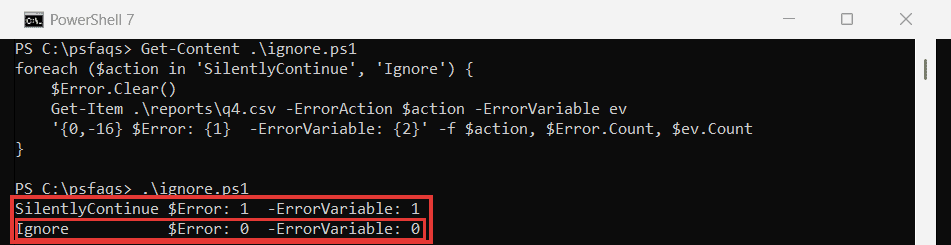
So if you want to inspect an error later, use SilentlyContinue. Use Ignore only when you truly don’t care whether the command failed.
Append errors with -ErrorVariable +name
By default, each command overwrites th