To find all files with a specific extension using PowerShell, run Get-ChildItem with -Filter, -Recurse and -File:
Get-ChildItem -Path C:\Data -Filter *.pdf -Recurse -FileThat walks C:\Data and every subfolder and returns only .pdf files. Below, I test each variation on a small sample folder in PowerShell 7 and Windows PowerShell 5.1, including one 5.1 quirk that quietly adds the wrong files.
Create a sample folder to practice on
Open PowerShell 7 or Windows PowerShell from the Start menu. If you want the window to start in a specific place, see how to open PowerShell in a folder first.
Then paste this script. It builds a Contoso folder with Excel, PDF, Word, log, image and text files, a hidden draft.pdf, and a folder named scans.pdf:
$root = 'C:\psfaqs\t\fileext\Contoso'
$files = [ordered]@{
    'Reports\Q1-sales.xlsx'          = 4200,  '2026-04-02 09:15'
    'Reports\Q2-sales.xlsx'          = 5100,  '2026-07-01 10:30'
    'Reports\2026\budget.xlsx'       = 8800,  '2026-09-14 16:05'
    'Reports\2026\old-budget.xls'    = 3100,  '2026-01-20 11:40'
    'Docs\handbook.pdf'              = 15300, '2026-03-11 08:00'
    'Docs\policy.docx'               = 6400,  '2026-05-06 13:20'
    'Docs\draft.pdf'                 = 2200,  '2026-10-12 17:10'
    'Docs\Archive\2025-handbook.pdf' = 14900, '2026-01-05 07:45'
    'Logs\app.log'                   = 1800,  '2026-10-14 06:00'
    'Logs\web.log'                   = 2600,  '2026-10-14 06:05'
    'Logs\Archive\app-2026-09.log'   = 9700,  '2026-09-30 23:55'
    'Images\logo.png'                = 5400,  '2026-02-18 12:00'
    'Images\banner.jpg'              = 7300,  '2026-02-18 12:05'
    'Images\team.JPG'                = 6100,  '2026-06-22 15:30'
    'readme.txt'                     = 900,   '2026-08-03 09:00'
    'Notes.TXT'                      = 1200,  '2026-08-04 09:30'
}
if (-not (Test-Path $root)) {
    foreach ($f in $files.GetEnumerator()) {
        $path = Join-Path $root $f.Key
        New-Item -ItemType Directory -Path (Split-Path $path) -Force | Out-Null
        [IO.File]::WriteAllBytes($path, [byte[]]::new($f.Value[0]))
        (Get-Item $path).LastWriteTime = $f.Value[1]
    }
    $scans = New-Item -ItemType Directory -Path "$root\Docs\scans.pdf"
    $scans.LastWriteTime = '2026-10-01 08:30'
    (Get-Item "$root\Docs\draft.pdf").Attributes = 'Hidden'
}
"Files created: " + (Get-ChildItem $root -Recurse -File -Force).Count
Output:
Files created: 16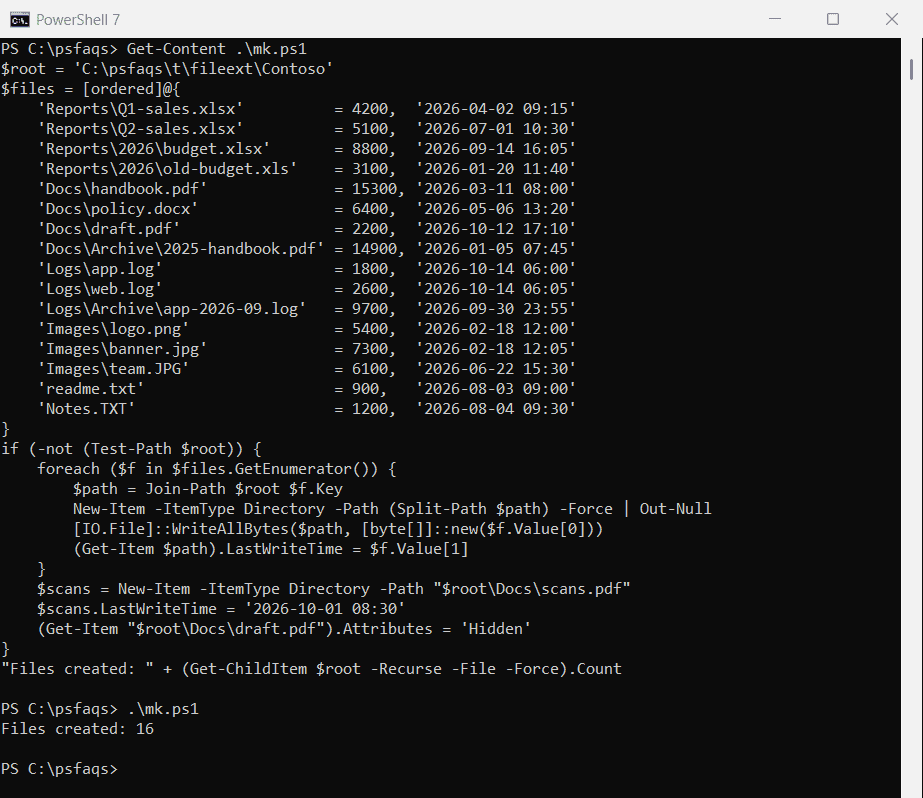
Change the path in $root if you like. Every later example starts with Set-Location so the paths stay short.
Find files with a specific extension in one folder
Point -Path at the folder and give -Filter a wildcard pattern. Here I look for .pdf in the Docs folder only:
Set-Location C:\psfaqs\t\fileext\Contoso

Get-ChildItem -Path .\Docs -Filter *.pdf |
    Select-Object Name, Attributes, Length
Output:
Name         Attributes Length
----         ---------- ------
scans.pdf     Directory
handbook.pdf    Archive 15300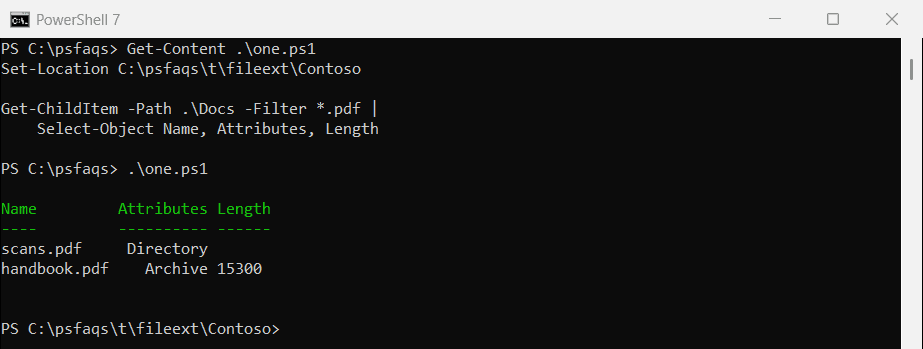
Two surprises show up. scans.pdf is a folder, not a file, and the hidden draft.pdf is missing. The next two sections fix both.
Return only files with the -File switch
-File drops folders from the results, so a folder whose name happens to end in .pdf no longer sneaks in:
Set-Location C:\psfaqs\t\fileext\Contoso

Get-ChildItem -Path .\Docs -Filter *.pdf -File |
    Select-Object Name, Length, LastWriteTime
Output:
Name         Length LastWriteTime
----         ------ -------------
handbook.pdf  15300 3/11/2026 8:00:00 AM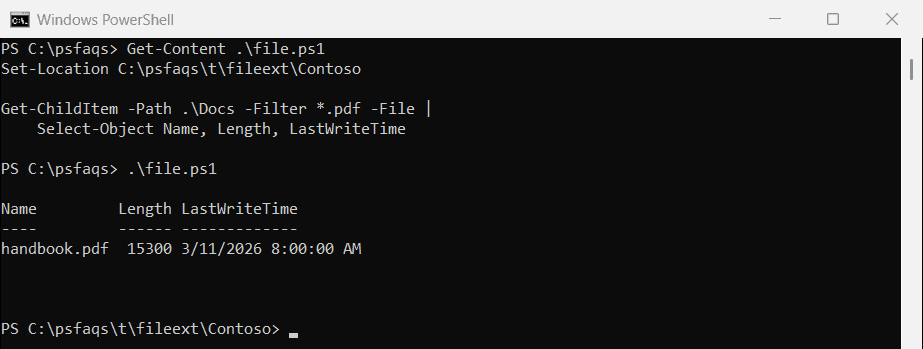
I’d add -File to every extension search. If you need folders instead, the guide to listing directories and files covers -Directory.
Search all subfolders with -Recurse
-Recurse makes Get-ChildItem walk the folder and everything under it. Run it from the top of the sample folder:
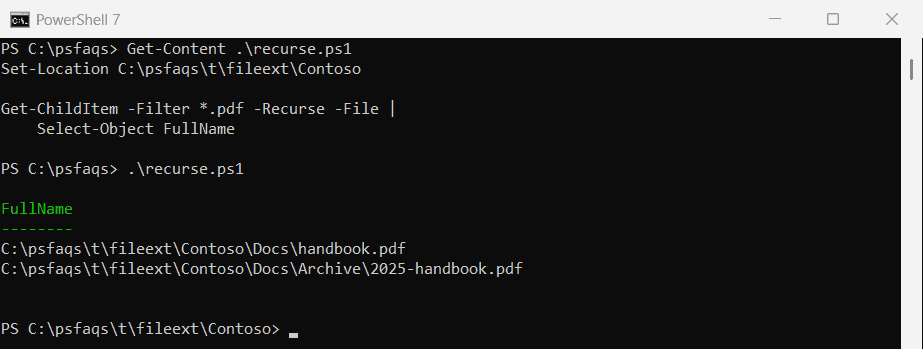
Set-Location C:\psfaqs\t\fileext\Contoso

Get-ChildItem -Filter *.pdf -Recurse -File |
    Select-Object FullName
Output:
FullName
--------
C:\psfaqs\t\fileext\Contoso\Docs\handbook.pdf
C:\psfaqs\t\fileext\Contoso\Docs\Archive\2025-handbook.pdf