
To read log files with PowerShell, use Get-Content for the lines and Select-String to find the ones that matter:
Get-Content -Path C:\Logs\app.log -Tail 20
Select-String -Path C:\Logs\*.log -Pattern 'ERROR'
The first line shows the newest 20 entries, and the second lists every error with its file name and line number. I tested each step below on sample Contoso logs in PowerShell 7 and Windows PowerShell 5.1.
Create sample log files to practice on
Open PowerShell 7 or Windows PowerShell from the Start menu and paste this script. It builds an app log with INFO, WARN and ERROR entries plus a smaller log from the previous day:
$root = 'C:\psfaqs\t\readlog\Logs'
Remove-Item $root -Recurse -Force -ErrorAction SilentlyContinue
New-Item -ItemType Directory -Path $root | Out-Null
Set-Content -Path "$root\app.log" -Value @(
'2026-10-14 08:00:01 INFO  [Orders] Service started on CONTOSO-WEB01'
'2026-10-14 08:02:17 INFO  [Auth] User maria.lopez signed in'
'2026-10-14 08:05:42 WARN  [Orders] Slow query: 2310 ms (GetOpenOrders)'
'2026-10-14 08:11:09 INFO  [Auth] User tom.baker signed in'
'2026-10-14 08:15:33 ERROR [Payments] Card gateway timeout after 30 s'
'2026-10-14 08:15:34 INFO  [Payments] Retry 1 of 3 scheduled'
'2026-10-14 08:16:04 ERROR [Payments] Card gateway timeout after 30 s'
'2026-10-14 08:20:51 INFO  [Orders] Order 10482 created for dana.reyes'
'2026-10-14 08:31:12 WARN  [Disk] Free space on D: below 15 percent'
'2026-10-14 08:45:27 INFO  [Auth] User dana.reyes signed in'
'2026-10-14 09:02:03 ERROR [Orders] Order 10483 failed: inventory returned 503'
'2026-10-14 09:02:04 INFO  [Orders] Order 10483 queued for retry'
'2026-10-14 09:14:40 INFO  [Reports] Daily sales report sent to finance'
'2026-10-14 09:30:00 WARN  [Auth] 3 failed sign-ins for tom.baker'
'2026-10-14 09:30:05 ERROR [Auth] Account tom.baker locked out'
'2026-10-14 09:48:19 INFO  [Orders] Order 10484 created for maria.lopez'
'2026-10-14 10:05:55 INFO  [Payments] Gateway connection restored'
'2026-10-14 10:12:31 INFO  [Orders] Service health check OK'
)
Set-Content -Path "$root\app-2026-10-13.log" -Value @(
'2026-10-13 17:40:10 INFO  [Orders] Service health check OK'
'2026-10-13 17:52:48 ERROR [Reports] Report job failed: SQL timeout'
'2026-10-13 18:00:00 INFO  [Orders] Service stopped for maintenance'
)
Get-ChildItem $root | Select-Object Name, @{n = 'Lines'; e = { (Get-Content $_.FullName).Count }}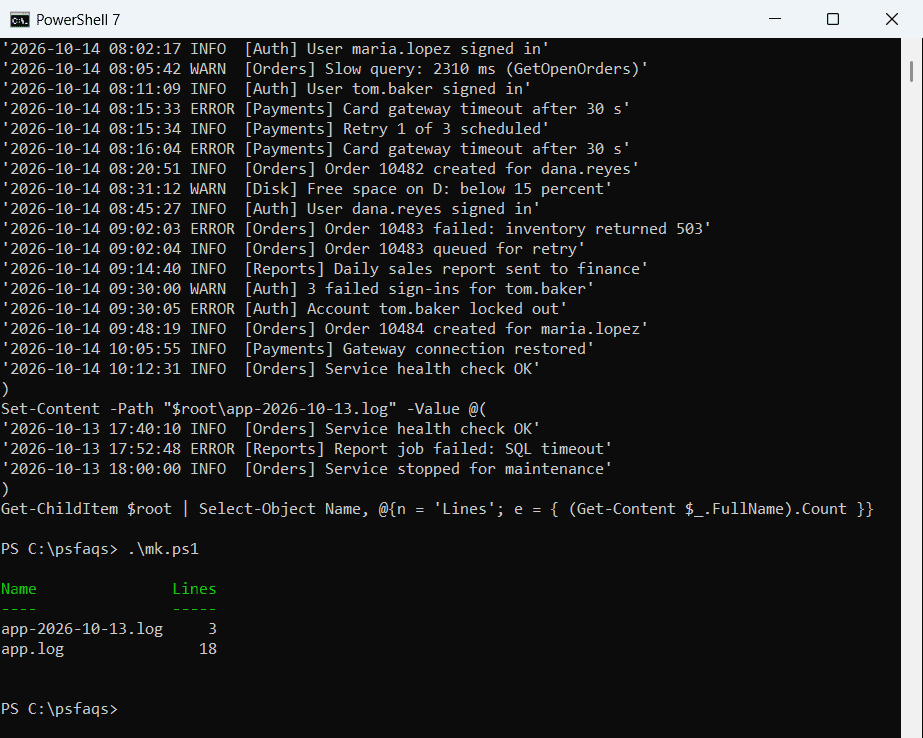
Each line follows a common layout: timestamp, level, source in brackets, then the message. If you produce logs like this yourself, see how to write to a log file in PowerShell.
Read a log file with Get-Content
Get-Content reads a text file one line at a time and prints each line:
Set-Location C:\psfaqs\t\readlog

Get-Content -Path .\Logs\app.log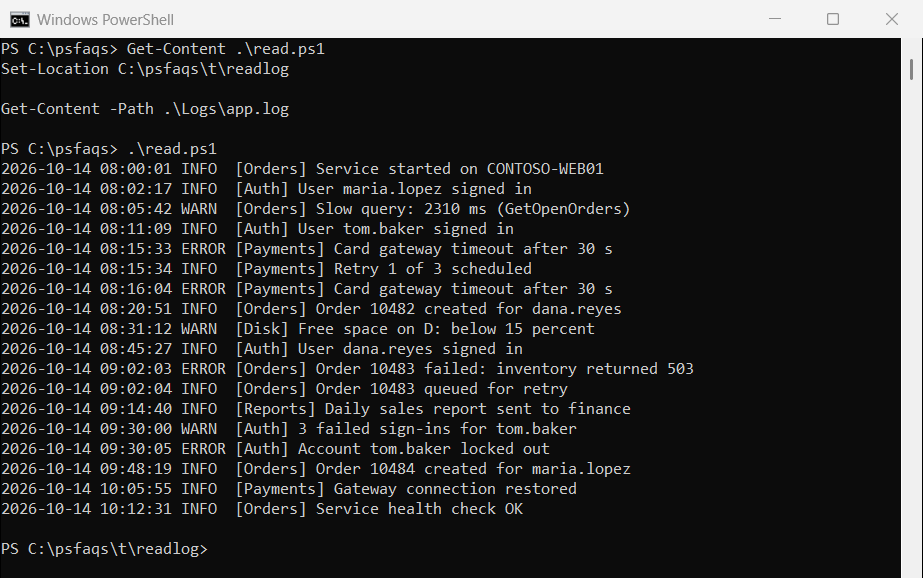
gc, type and cat are aliases for the same cmdlet. To process each line in a loop instead, the guide on reading a file line by line shows ForEach-Object and switch -File.
How do I read the last lines of a log file?
-Tail returns lines from the end of the file, just like tail on Linux. Its alias is -Last:
Set-Location C:\psfaqs\t\readlog

Get-Content -Path .\Logs\app.log -Tail 3
Output:
2026-10-14 09:48:19 INFO  [Orders] Order 10484 created for maria.lopez
2026-10-14 10:05:55 INFO  [Payments] Gateway connection restored
2026-10-14 10:12:31 INFO  [Orders] Service health check OK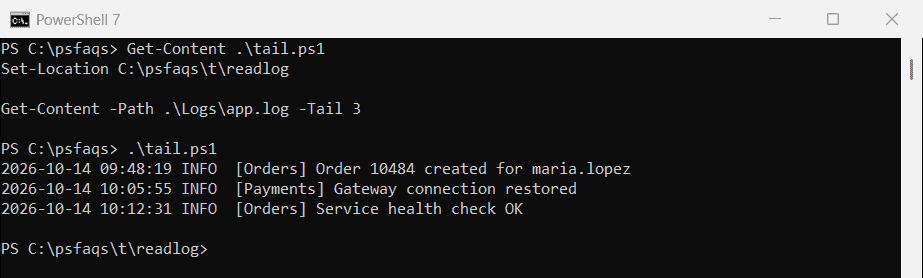
Microsoft notes that -Tail is faster than reading every line and taking the last one, which matters on big logs.
Read the first lines or one specific line
-TotalCount (aliases -First and -Head) stops after N lines. Because Get-Content returns an array, an index picks a single line:
Set-Location C:\psfaqs\t\readlog

"First 2 lines:"
Get-Content -Path .\Logs\app.log -TotalCount 2
"Line 5 only:"
(Get-Content -Path .\Logs\app.log)[4]
Output:
First 2 lines:
2026-10-14 08:00:01 INFO  [Orders] Service started on CONTOSO-WEB01
2026-10-14 08:02:17 INFO  [Auth] User maria.lopez signed in
Line 5 only:
2026-10-14 08:15:33 ERROR [Payments] Card gateway timeout after 30 s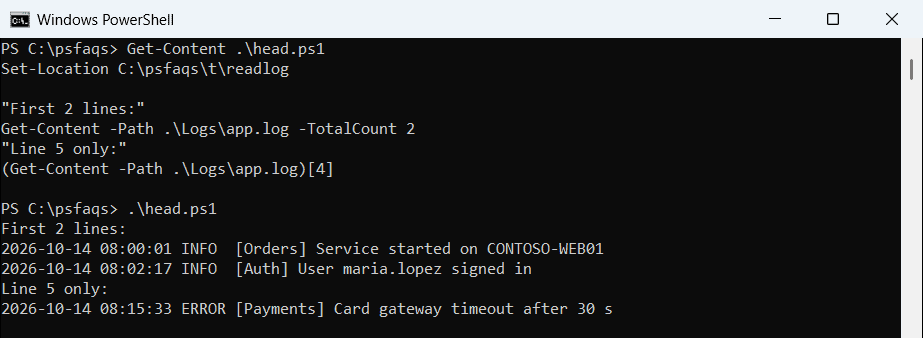
The same idea works on text you already hold in memory, as in getting the first and last line of a string.