How to Write to a Log File in PowerShell
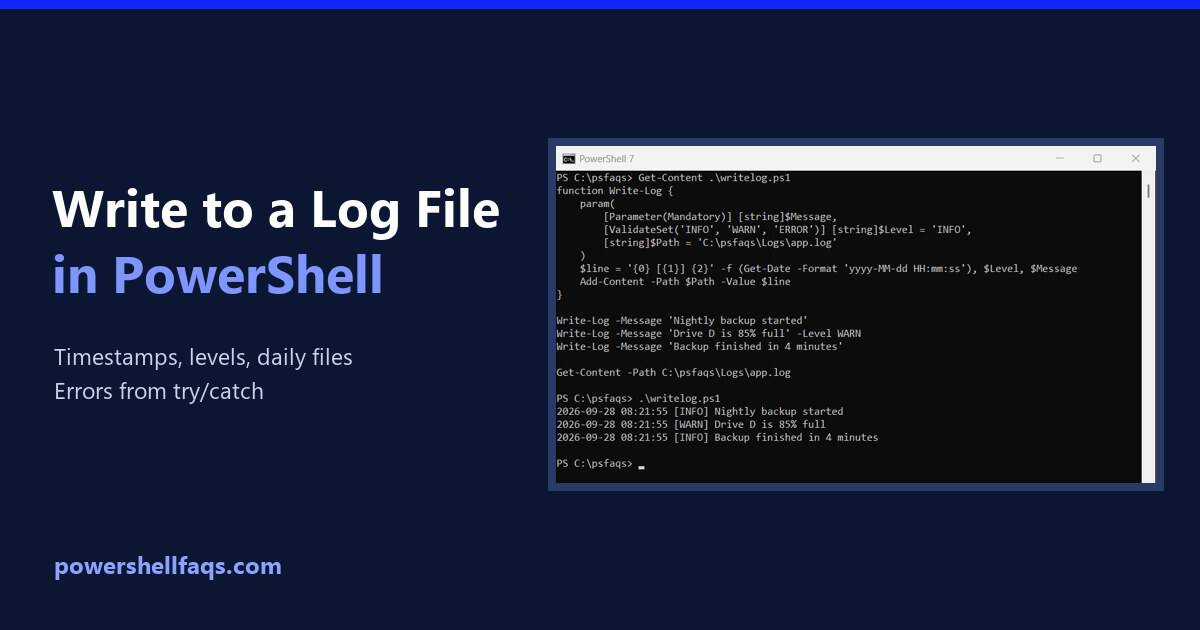
PowerShell write to log file

To write to a log file in PowerShell, use Add-Content with a timestamp from Get-Date. Add-Content creates the file the first time and appends a new line on every call after that: Output: Below I turn this into a reusable Write-Log function, add daily log files and error logging, and show one file-name mistake that … Read more
How to Get a Substring in PowerShell (Start, End, Before and After)

Substring in PowerShell examples

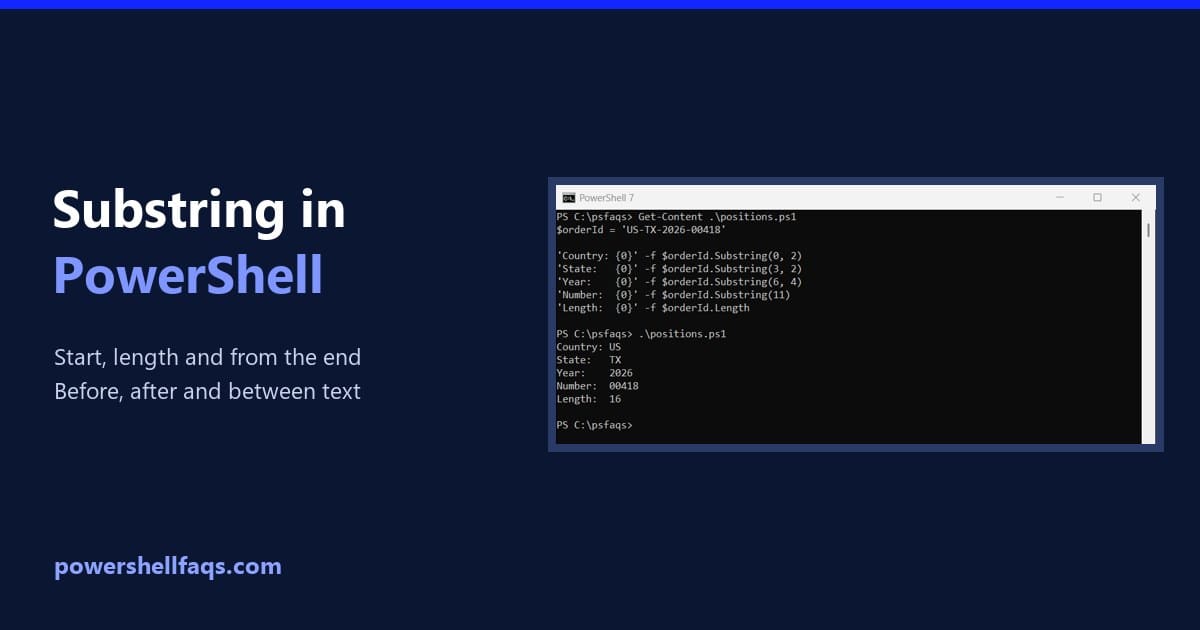
To get a substring in PowerShell, call the Substring method on a string. Substring(start, length) returns length characters from the start position, and Substring(start) returns everything from there to the end: Output: Positions start at 0, so position 3 is the fourth character. I ran every example here in PowerShell 7.6 and Windows PowerShell 5.1, … Read more

How to Check if a String Starts with a Number in PowerShell

Check if a string starts with a number in PowerShell

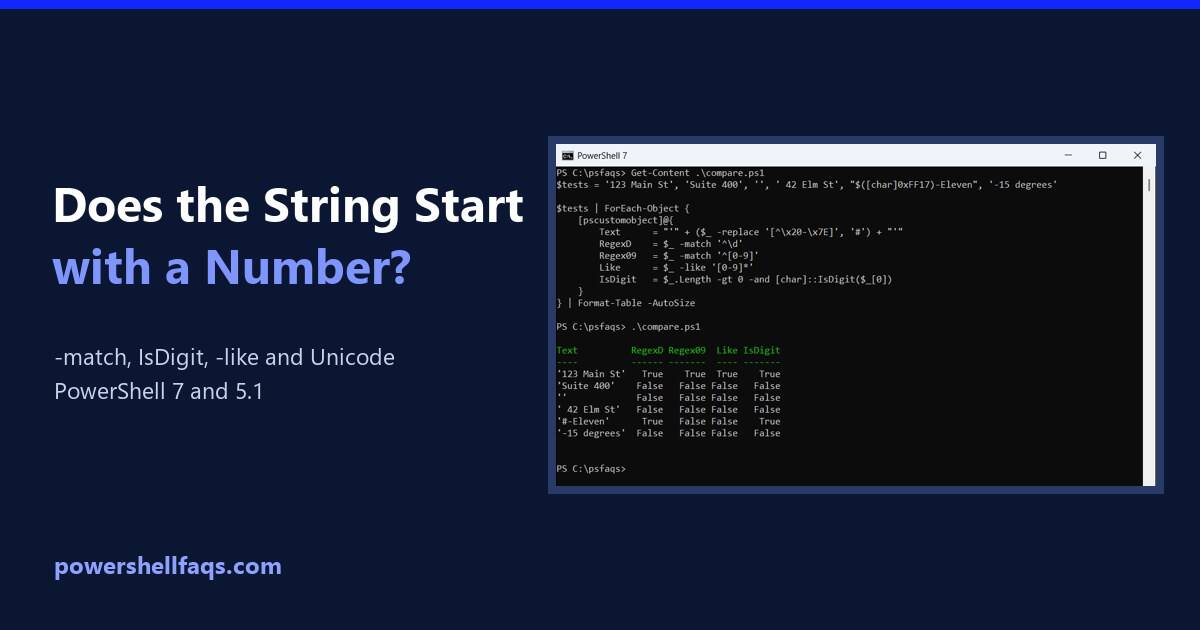
To check if a string starts with a number in PowerShell, use -match with the pattern ^\d. The caret anchors the match to the start, and \d is any digit: For strict 0 to 9 only, use ^[0-9] instead, because \d accepts digits from other alphabets too. I tested every example in PowerShell 7 and … Read more

How to Run a PowerShell Script in Visual Studio Code

Run a PowerShell script in Visual Studio Code

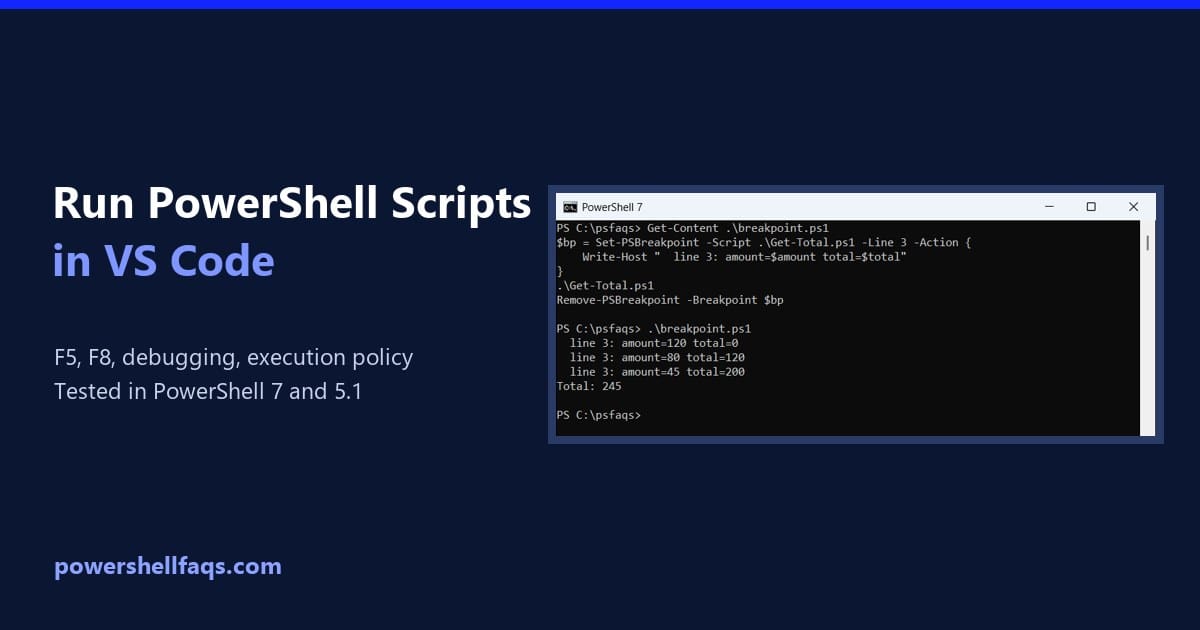
To run a PowerShell script in Visual Studio Code, install Microsoft’s PowerShell extension, open your .ps1 file and press F5. To run only a few lines, select them and press F8. You can also type the script path in the terminal: Below I set up the extension, run a script with and without parameters, debug … Read more

How to Run a PowerShell Script in PowerShell ISE

How to run a PowerShell script in PowerShell ISE

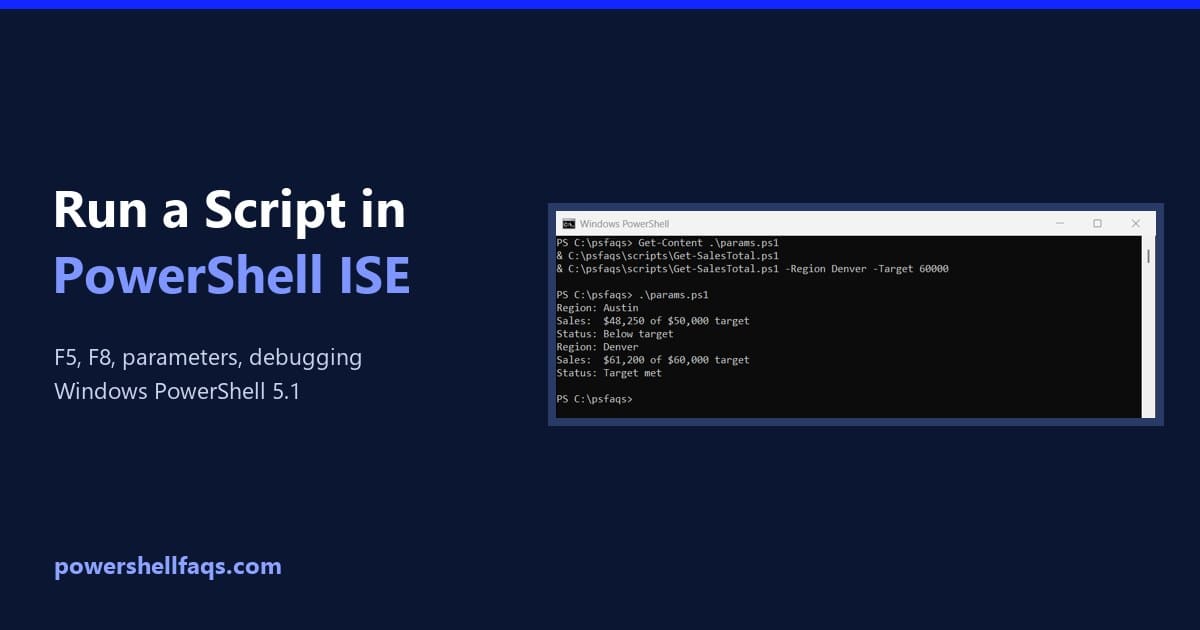
To run a PowerShell script in PowerShell ISE, open the .ps1 file with File > Open (Ctrl+O) and press F5, or click the green Run Script button. To run only part of the script, select those lines and press F8. The output shows in the console pane under the script. The ISE runs Windows PowerShell … Read more

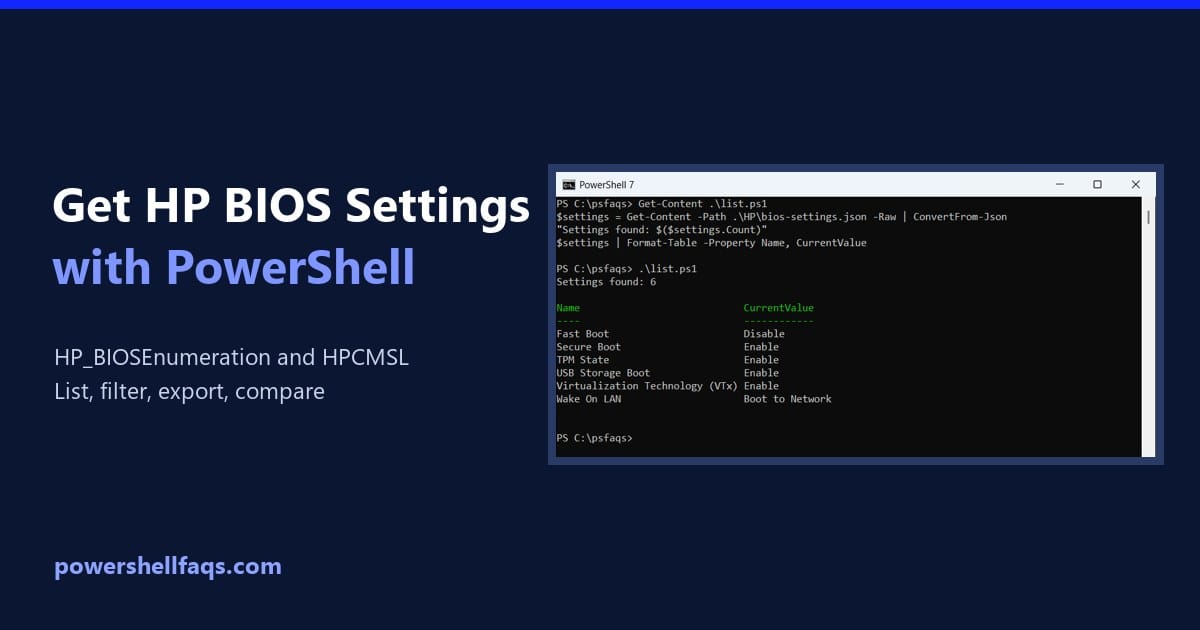
How to Get HP BIOS Settings Using PowerShell

Get HP BIOS settings using PowerShell

Rebooting into F10 setup to check one BIOS option gets old fast. HP business PCs expose those options to Windows, so we can read them from a PowerShell window instead. Quick answer: to get HP BIOS settings using PowerShell, run Get-CimInstance against the HP_BIOSEnumeration class in the root\HP\InstrumentedBIOS namespace from an elevated session. Each setting … Read more

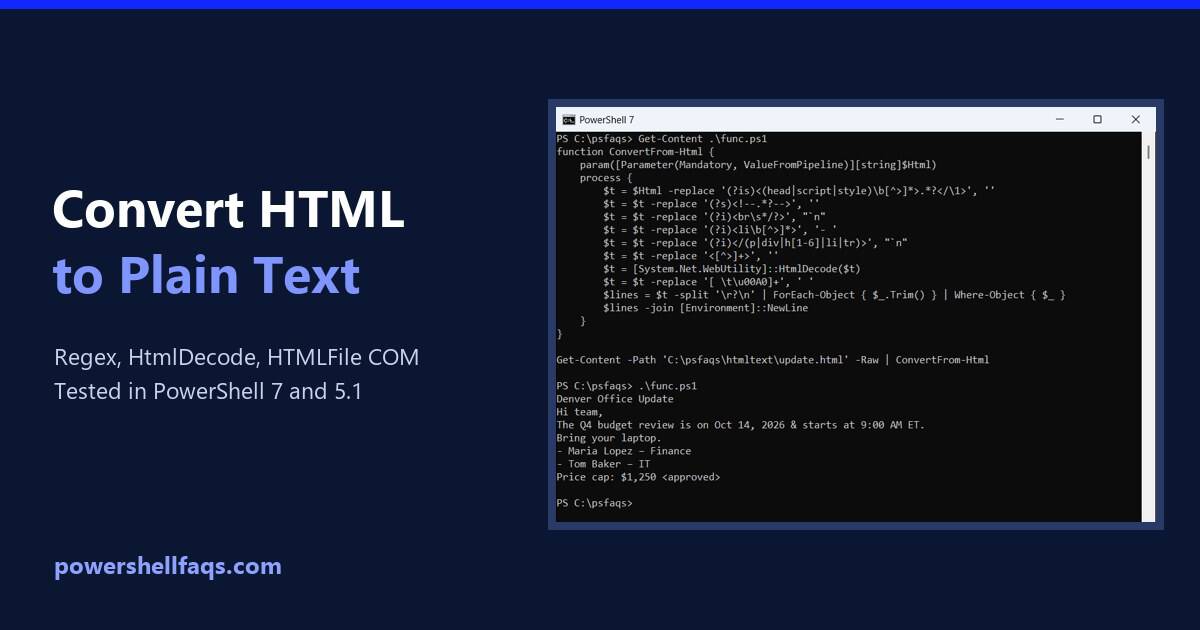
PowerShell: Convert HTML to Plain Text (Tested in 7 and 5.1)

PowerShell convert HTML to plain text

To convert HTML to plain text in PowerShell, strip the tags with -replace and then decode entities like & with WebUtility.HtmlDecode. For a short snippet, this one line does both: Full pages and email bodies need a bit more care, though. Scripts, styles and line breaks get in the way, and Windows PowerShell 5.1 and … Read more

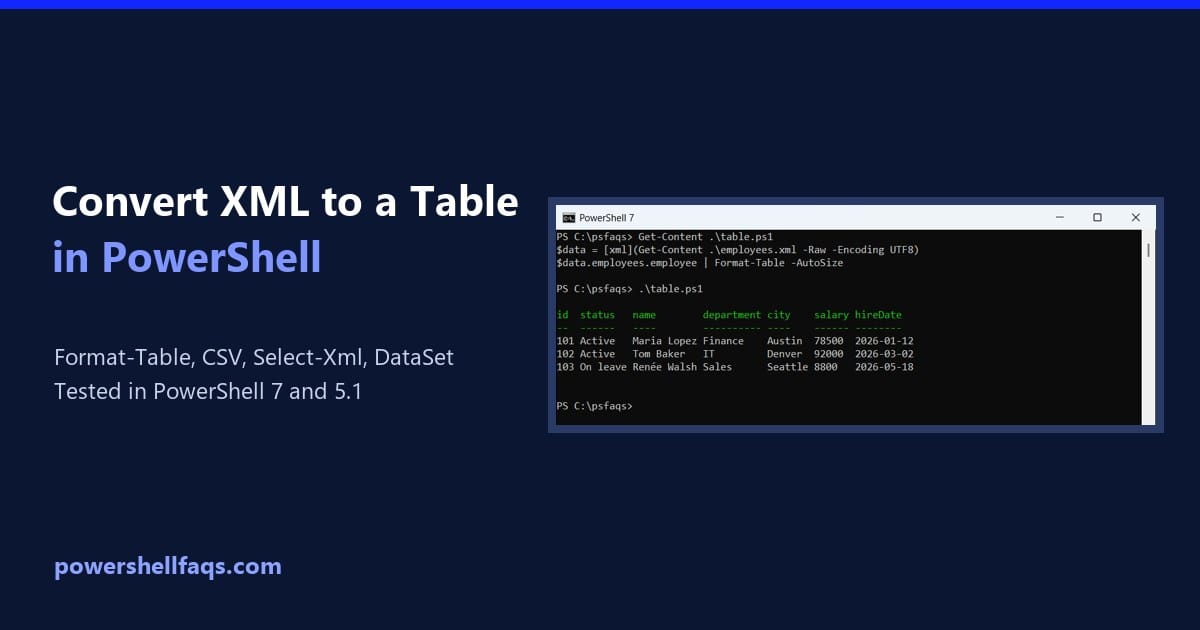
How to Convert XML to a Table in PowerShell (With Examples)

Convert XML to a table in PowerShell

To convert XML to a table in PowerShell, cast the file to [xml], walk down to the repeating element with dot notation, and pipe those nodes to Format-Table. Each child element and attribute becomes a column: That covers flat files. Real XML has attributes, nested nodes and namespaces, so I’ll also show how to pick … Read more