PowerShell Find and Replace in File (Without Breaking It)

PowerShell find and replace in file

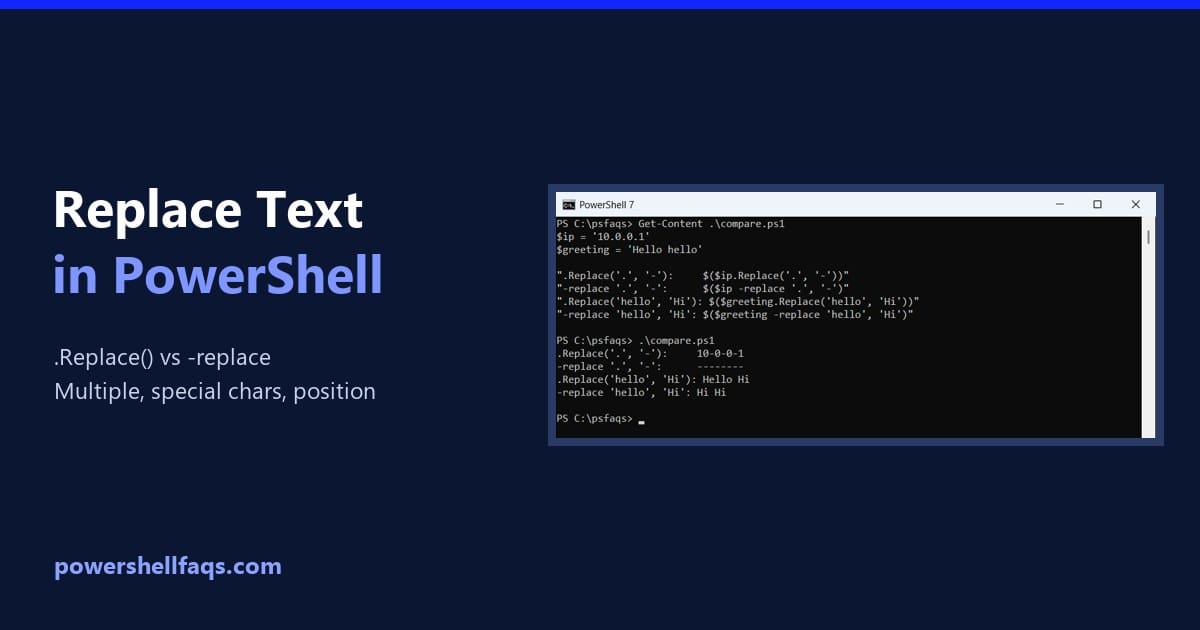
To find and replace text in a file with PowerShell, read the file with Get-Content in parentheses, use -replace, and write it back with Set-Content: Output (the new file content): The parentheses matter, and so do a few other details that quietly damage files. I ran every example in PowerShell 7.6 and Windows PowerShell 5.1 … Read more

How to Get the File Name from a Path in PowerShell

Get file name from path in PowerShell

To get the file name from a path in PowerShell, use Split-Path -Leaf. -Parent gives you the folder part instead: Output: Split-Path only works on the text, so the file doesn’t need to exist. I ran every example in PowerShell 7.6 and Windows PowerShell 5.1 and note the 7-only options. Get the name without the … Read more

How to Count Lines in a File in PowerShell

Count lines in a file in PowerShell

To count the lines in a file with PowerShell, read it with Get-Content and check .Count. Get-Content returns one item per line, so the count is the number of lines: Output: That’s the right answer for most files. But the popular Measure-Object -Line method gives a different number, and neither is the fastest for big … Read more

How to Extract Directory from File Path in PowerShell? [3 Methods]

Extract Directory from File Path in PowerShell

Sometimes, you might need to extract the directory from the file path. In this PowerShell tutorial, I will explain how to extract a directory from a file path in PowerShell using various methods. To get the directory from a file path in PowerShell, you can use the Split-Path cmdlet with the -Parent parameter. For example, … Read more

How to Get the Size of a File in PowerShell?

How to Get the Size of a File in PowerShell

Recently, one of my clients asked to get the size of files in a folder. So, I wrote a PowerShell script to get the file size. In this PowerShell tutorial, I will explain how to get the size of a file in PowerShell. To get the size of a file in PowerShell, you can use … Read more

How to Convert Files to Base64 in PowerShell?

Convert Files to Base64 in PowerShell

Recently, while working on an automation project, I got a requirement to encode files to Base64, a process that converts binary data into ASCII string format. I will show you here different methods to convert files to Base64 using PowerShell with examples and complete scripts. To convert a file to Base64 in PowerShell, you can … Read more

How to Rename Files with Date in PowerShell?

Rename Files with Date in PowerShell

Recently, I got a requirement to rename a file by appending the current date in PowerShell. I tried different methods, and in this PowerShell tutorial, I will explain to you how to rename files with date in PowerShell using various methods. To rename a file in PowerShell and append the current date, you can use … Read more

How to Count Files in a Folder Using PowerShell?

Count Files in a Folder Using PowerShell

You might encounter situations where you need to count the number of files present in a folder using PowerShell. In this tutorial, I will explain how to count files in a folder using PowerShell. To count files in a folder using PowerShell, you can use the Get-ChildItem cmdlet combined with the Measure-Object cmdlet. For example, … Read more

How to Get File Name Without Extension in PowerShell?

Get File Name Without Extension in PowerShell

Recently, one of my clients asked me to write a PowerShell script to find file names without extensions in a folder. I tried different methods. In this PowerShell tutorial, I will explain how to get file name without extension in PowerShell using several methods. To get the filename without the extension in PowerShell, you can … Read more

PowerShell Where-Object for Null or Empty Values

PowerShell Where-Object for null or empty values

To find null or empty values with Where-Object, test the property with [string]::IsNullOrWhiteSpace(). It catches $null, empty strings and values that are only spaces. Here it finds employees with no department in a CSV file: Output: Dan’s department is two spaces, so it looks filled in but isn’t. To keep only the rows that have … Read more