
To convert a UTF-8 file to ANSI in PowerShell 7.4 or later, read it as UTF-8 and write it back with -Encoding ansi:
Get-Content -Path .\menu.txt -Encoding utf8 | Set-Content -Path .\menu-ansi.txt -Encoding ansiWindows PowerShell 5.1 has no ansi value and uses -Encoding Default instead, which means something completely different in PowerShell 7. Below I check the real bytes in both versions and show a method that gives the same file everywhere.
What ANSI means on Windows
ANSI isn’t one encoding. It’s the Windows code page set by the system locale, which is Windows-1252 on US English systems. Older apps, accounting imports and some CSV readers still expect it:
"ANSI code page:      $([System.Text.Encoding]::GetEncoding(0).CodePage)"
"Default encoding is: $([System.Text.Encoding]::Default.WebName)"
Output:
ANSI code page:      1252
Default encoding is: utf-8
Both versions use code page 1252 here, but PowerShell 7’s default is UTF-8 while 5.1’s is ANSI. That’s the root of most encoding mix-ups, as covered in PowerShell Out-File.
Convert UTF-8 to ANSI in PowerShell 7
My sample menu.txt is UTF-8 with accented letters and a euro sign. This helper prints the size and first bytes of a file, so you can see the change:
function Show-Bytes ($Path) {
    $b = [System.IO.File]::ReadAllBytes((Resolve-Path -Path $Path).Path)
    '{0,-14} {1,3} bytes  {2}' -f (Split-Path -Path $Path -Leaf), $b.Length, (($b[0..7] | ForEach-Object { '{0:X2}' -f $_ }) -join ' ')
}
I saved it as Show-Bytes.ps1 and dot-source it in the examples:
. .\Show-Bytes.ps1
Get-Content -Path .\Export\menu.txt -Encoding utf8 |
    Set-Content -Path .\Export\menu-ansi.txt -Encoding ansi

Show-Bytes .\Export\menu.txt
Show-Bytes .\Export\menu-ansi.txt
Output:
menu.txt        36 bytes  43 61 66 C3 A9 20 69 6E
menu-ansi.txt   32 bytes  43 61 66 E9 20 69 6E 20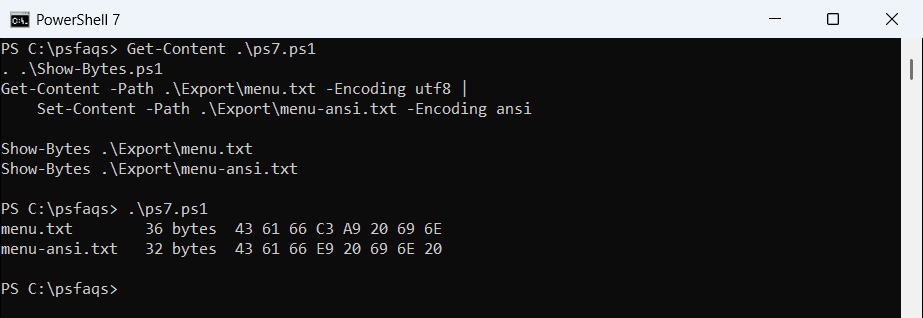
In UTF-8, é takes two bytes (C3 A9). In Windows-1252, it’s one byte (E9). -Encoding 1252 also works in PowerShell 7 if you need a specific code page. More on writing files is in writing a string to a file.
Don’t use -Encoding Default in PowerShell 7
Many older scripts use -Encoding Default to get ANSI. In PowerShell 7, Default means UTF-8 without a BOM, so nothing gets converted:
. .\Show-Bytes.ps1
Get-Content -Path .\Export\menu.txt -Encoding utf8 |
    Set-Content -Path .\Export\menu-default.txt -Encoding Default

Show-Bytes .\Export\menu-default.txt
Output:
menu-default.txt 36 bytes 43 61 66 C3 A9 20 69 6E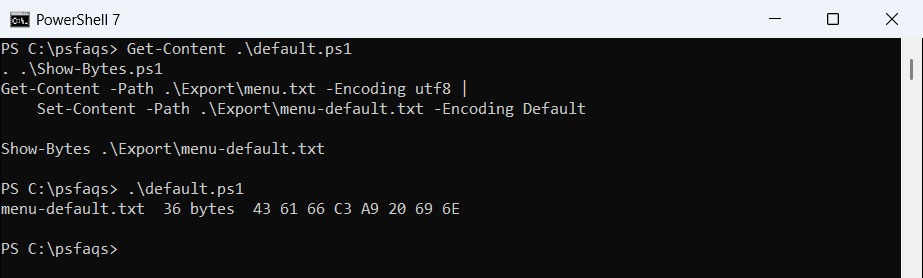
Run the same script in Windows PowerShell 5.1 and you get the 32-byte ANSI file instead. Check every -Encoding Default when you move scripts to PowerShell 7. To see which version runs a script, see checking the PowerShell version.
Convert UTF-8 to ANSI in Windows PowerShell 5.1
In 5.1, -Encoding Default is the way to write ANSI, and it produced the 32-byte file with E9. The ansi value doesn’t exist there:
try {
    Get-Content -Path .\Export\menu.txt -Encoding utf8 |
        Set-Content -Path .\Export\menu-ansi.txt -Encoding ansi -ErrorAction Stop
}
catch { "Failed. $($_.Exception.Message.Split('.')[0])." }
Output:
Failed. Cannot bind parameter 'Encoding'.Read the source with -Encoding utf8 in 5.1, too. Without a BOM, 5.1 assumes the file is already ANSI and garbles the accents before you even convert. Reading files line by line has more on Get-Content.
A method that works in both versions
For a script that must behave the same everywhere, use .NET and name the code page. It writes exactly the same bytes in PowerShell 7 and 5.1:
. .\Show-Bytes.ps1
$source = (Resolve-Path -Path .\Export\menu.txt).Path
$target = Join-Path -Path (Split-Path -Path $source) -ChildPath 'menu-1252.txt'

$text = [System.IO.File]::ReadAllText($source, [System.Text.Encoding]::UTF8)
[System.IO.File]::WriteAllText($target, $text, [System.Text.Encoding]::GetEncoding(1252))

Show-Bytes $target
Output:
menu-1252.txt 32 bytes 43 61 66 E9 20 69 6E 20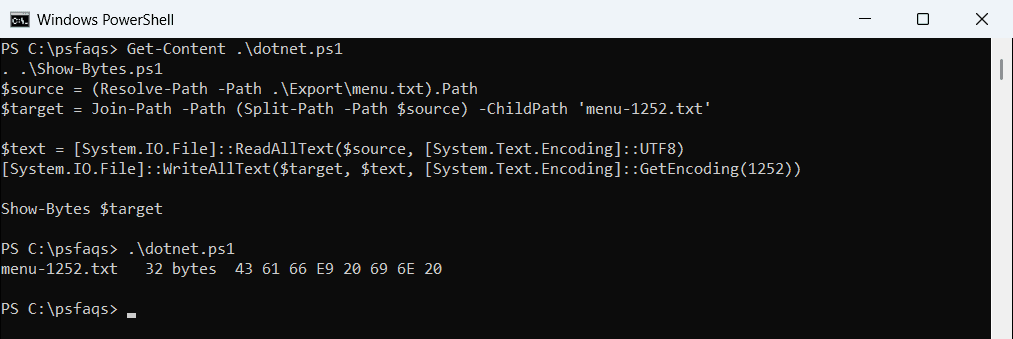
It’s 32 bytes, the same as the Set-Content result, because ReadAllText keeps the line break. Use full paths with .NET, because it doesn’t follow PowerShell’s current folder. See getting the full path of a file.
Characters ANSI can’t store
Windows-1252 has only 256 characters. Anything outside it, like check marks, stars or emoji, turns into a question mark, and the original is gone for good. Test before you convert:
$ansi = [System.Text.Encoding]::GetEncoding(1252)
$text = 'Order ' + [char]0x2713 + ' shipped to Zoë, cost ' + [char]0x20AC + '12, rating ' + [char]0x2605 + [char]0x2605

$back = $ansi.GetString($ansi.GetBytes($text))
"After ANSI: $back"
$lost = $text.ToCharArray() | Where-Object { $ansi.GetString($ansi.GetBytes([string]$_)) -ne [string]$_ }
"Lost:       " + (($lost | ForEach-Object { 'U+{0:X4}' -f [int]$_ }) -join ', ')
Output:
After ANSI: Order ? shipped to Zoë, cost €12, rating ??
Lost:       U+2713, U+2605, U+2605
ë and € survive because they’re in Windows-1252. If the Lost line isn’t empty, keep the file as UTF-8 or replace those characters first, for example with -replace.
Convert a folder of CSV files
Legacy imports often need a whole folder in ANSI. This loop converts each CSV in place with the .NET method:
$ansi = [System.Text.Encoding]::GetEncoding(1252)
Get-ChildItem -Path .\Export\Legacy -Filter *.csv | ForEach-Object {
    $text = [System.IO.File]::ReadAllText($_.FullName, [System.Text.Encoding]::UTF8)
    [System.IO.File]::WriteAllText($_.FullName, $text, $ansi)
    '{0,-11} {1} bytes' -f $_.Name, (Get-Item -Path $_.FullName).Length
}
Output: