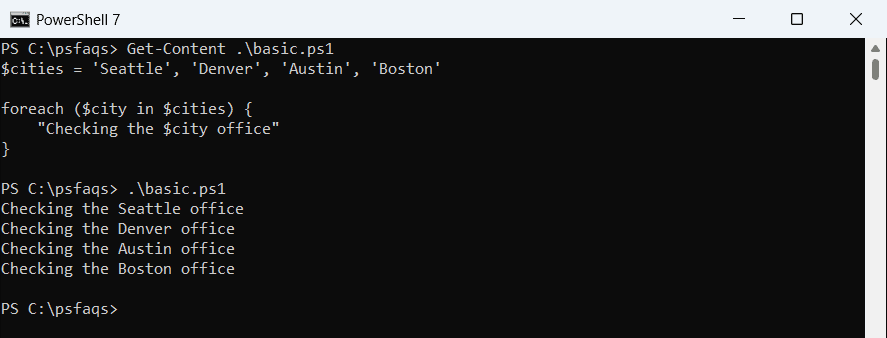
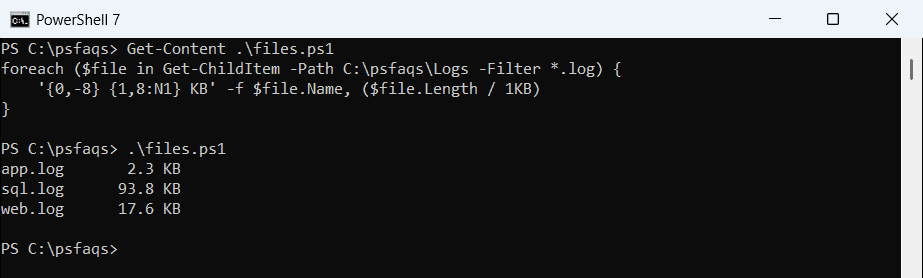
To become an expert in PowerShell, you should know how to work with the foreach loop. I will explain the nested foreach loop and error handling in a PowerShell foreach loop in detail.
The PowerShell Foreach loop iterates through arrays, cmdlets, or script files. It simplifies repetitive tasks by processing each item in a collection.
Now, let us understand it’s syntax and a few examples of foreach loop.
What is a ForeEch Loop in PowerShell
The ForEach loop in PowerShell is used to iterate over a collection of items, such as an array or a list, and perform actions on each item. This loop will help developers automate repetitive tasks.
For example, if you have a list of file names, a PowerShell Foreach loop can process each file, performing the same actions on every file.
Syntax of ForEach Loop
Here is the syntax of the PowerShell foreach loop.
foreach ($item in $collection) {
# Perform actions with $item
}Here, $collection is the array or list being processed, and $item represents the current element in each iteration. The script block inside the curly braces defines actions performed on each element.
PowerShell foreach loop examples
Now, let us check a few examples of using a foreach loop in PowerShell.
Example-1: Loop Through Array Elements
Now, assume you have a PowerShell array like the one below:
$numbers = @(1, 2, 3, 4, 5)
or
$numbers = 1..5Now, you can use the below PowerShell script to loop through the above array.
foreach ($number in $numbers) {
Write-Output $number
}Here is the full script.
$numbers = 1..5
foreach ($number in $numbers) {
Write-Output $number
}In this script, the ForEach loop iterates over the array $numbers, which contains the numbers 1 through 5. For each number, it outputs the number to the console.
I executed the above PowerShell script, and you can see the output in the screenshot below:

Read Concatenate Strings Inside Loops in PowerShell
Example-2: Loop Through Files in Folder using ForEach Loop
Now, let me show you an example where we can loop through all the files in a folder using the PowerShell ForEach loop.
$items = Get-ChildItem -Path "C:\MyFolder"
ForEach ($item in $items) {
Write-Output $item.Name
}Here the Get-ChildItem cmdlet retrieves all items in the C:\MyFolder directory and stores them in the $items variable. The ForEach loop then iterates over each item in the $items collection and outputs the name of each item.
The screenshot below shows it displaying all the file names from the folder after I executed the script using VS code.

Example-3: Manipulate Objects Inside the ForEach Loop
Inside a foreach loop, objects can be manipulated using various techniques. For example, adding properties to objects or modifying existing ones.
Here is an example.
$processes = Get-Process
foreach ($process in $processes) {
$process | Add-Member -NotePropertyName "IsA" -NotePropertyValue ($process.Name -like "A*")
}Control Flow in Foreach Loops in PowerShell
Let me show you a few advanced things in the foreach loop. For example, I will show you how to use flow control statements in foreach loops in PowerShell, such as conditional statements, Break and Continue statements, etc.
1. Implement Conditions with If Statements
Using If statements inside a foreach loop allows you to run specific code only when certain conditions are met. By checking the condition within the loop, you can decide what actions are performed on each item. For example:
foreach ($item in $items) {
if ($item -eq "target") {
Write-Output "Found the target!"
}
}This loop checks if $item is equal to “target” and then outputs a message. If statements provide the flexibility to include multiple conditions using elseif and else.
2. Use Break in a ForEach Loop
The break statement is used to exit the ForEach loop prematurely. This can be useful when a certain condition is met, and you no longer need to continue iterating over the remaining items.
Here is an example and the complete PowerShell script.
$numbers = 1..10
ForEach ($number in $numbers) {
if ($number -eq 5) {
break
}
Write-Output "Number: $number"
}This script will output:
Number: 1
Number: 2
Number: 3
Number: 4The loop exits when $number equals 5.
Here is the screenshot showing the output, you will also get the same output if you will execute the above script.

3. Use Continue in ForEach Loop
The continue statement is used to skip the current iteration and move to the next item in the collection. This can be useful when you want to skip certain items based on a condition.
Here is a complete PowerShell script.
$numbers = 1..5
ForEach ($number in $numbers) {
if ($number -eq 3) {
continue
}
Write-Output "Number: $number"
}This script will output:
Number: 1
Number: 2
Number: 4
Number: 5The number 3 is skipped.
Below is the screenshot for your reference:

Read PowerShell For Loop
Nested ForEach Loop in PowerShell
Here is another advanced concept; let me show you how to use a nested foreach loop in PowerShell with an example.
Nested loops mean adding one loop inside another loop.
Nested ForEach loops are used to iterate over multiple collections. Here is an example of how to use nested loops to combine elements from two arrays.
$outerArray = 1..3
$innerArray = 'A','B','C'
ForEach ($outer in $outerArray) {
ForEach ($inner in $innerArray) {
Write-Output "$outer $inner"
}
}In this script, the outer loop iterates over the numbers 1 to 3, and the inner loop iterates over the letters A to C. For each combination, it outputs the number and letter.
Output:
1 A
1 B
1 C
2 A
2 B
2 C
3 A
3 B
3 CHandle Errors in PowerShell Foreach Loops
It is always recommended to handle errors in a PowerShell script. So, let me show you how to handle errors in a foreach loop in PowerShell.
To handle these errors, use Try-Catch blocks within the foreach loop. This approach allows scripts to continue running even when errors occur.
For example:
foreach ($item in $collection) {
try {
# Your code here
} catch {
Write-Error "An error occurred: $_"
}
}Let’s show you a simple numeric array and handle errors within a Foreach loop. For example, we can try to divide a number by each element in an array and handle any division by zero errors.
$numbers = @(10, 5, 0, 2)
# Number to be divided
$dividend = 100
# Loop through each number in the array
foreach ($number in $numbers) {
try {
# Attempt to divide the dividend by the current number
$result = $dividend / $number
Write-Output "100 divided by $number is $result"
} catch {
# Handle the error using ${} to delimit the variable name
Write-Error "Error dividing 100 by ${number}: $($_.Exception.Message)"
}
}- Initialization: A numeric array
$numbersand a dividend$dividendare defined. - Foreach Loop: The
foreachloop iterates over each number in the array. - Try Block: Within the
tryblock, the script attempts to divide the dividend by the current number. If the number is zero, this will throw a division by zero error. - Catch Block: If an error occurs (e.g., division by zero), the
catchblock is executed. The error is logged usingWrite-Error.
When you use the try-catch block, even if a division by zero error occurs, the script continues to process the remaining numbers in the array.
Output:
# 100 divided by 10 is 10
# 100 divided by 5 is 20
# Error dividing 100 by 0: Attempted to divide by zero.
# 100 divided by 2 is 50This method helps handle errors in the script while processing numeric arrays in PowerShell.
The exact output after executed the code you can see in the screenshot below:

Conclusion
The PowerShell ForEach loop is useful for iterating through collections like arrays, lists, etc.
I hope you now have a complete idea of using the PowerShell foreach loop with the above examples. I have also explained:
- How to use break and continue statements in the foreach loop.
- Nested foreach loop in PowerShell
- How to use try-catch in a foreach loop
You may also like:
- PowerShell Do While Loop
- PowerShell Do-Until Loop Examples
- PowerShell Switch Statement
- How to Use Multiple Conditions in Do-While Loop in PowerShell?
Bijay Kumar is an esteemed author and the mind behind PowerShellFAQs.com, where he shares his extensive knowledge and expertise in PowerShell, with a particular focus on SharePoint projects. Recognized for his contributions to the tech community, Bijay has been honored with the prestigious Microsoft MVP award. With over 15 years of experience in the software industry, he has a rich professional background, having worked with industry giants such as HP and TCS. His insights and guidance have made him a respected figure in the world of software development and administration. Read more.