
To delete a file in PowerShell, use Remove-Item with the path. The file is gone right away:
Remove-Item -Path C:\psfaqs\Temp\old-report.txt

"Still there: $(Test-Path -Path C:\psfaqs\Temp\old-report.txt)"
Output:
Still there: False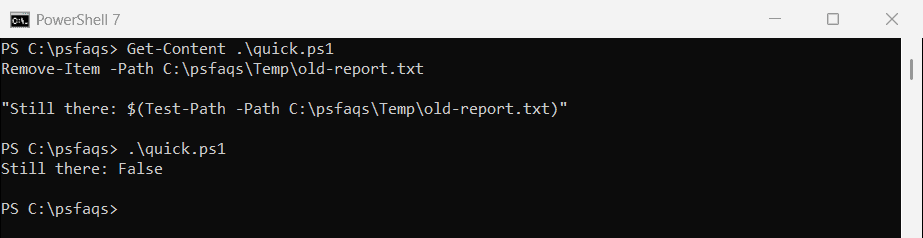
Remove-Item doesn’t use the Recycle Bin, so there’s no undo. Everything below runs in a test folder, C:\psfaqs\Temp, and I suggest you try it the same way first.
I ran every example in PowerShell 7.6 and Windows PowerShell 5.1, and they behaved the same.
Preview a delete with -WhatIf
Add -WhatIf to see exactly what would be deleted, without deleting anything:
Remove-Item -Path C:\psfaqs\Temp\*.log -WhatIfOutput:
What if: Performing the operation "Remove File" on target "C:\psfaqs\Temp\app.log".
What if: Performing the operation "Remove File" on target "C:\psfaqs\Temp\error.log".
I run every wildcard or recursive delete with -WhatIf first. When the list looks right, I remove the switch and run it again.
To delete only files older than a certain age, see deleting files older than 30 days.
Delete multiple files with a wildcard
Remove-Item -Path C:\psfaqs\Temp\*.log

(Get-ChildItem -Path C:\psfaqs\Temp -File).Name -join ', '
Output:
config.ini, notes.txt, old-report.txtBoth .log files are gone. The other files didn’t match the pattern, so they stayed.
Why doesn’t Remove-Item delete hidden or read-only files?
A wildcard skips hidden files, and read-only files fail with an access error. -Force handles both:
Remove-Item -Path C:\psfaqs\Temp\* -Exclude Archive, Cache -ErrorAction SilentlyContinue
"Without -Force, left: $((Get-ChildItem -Path C:\psfaqs\Temp -File -Force).Name -join ', ')"

Remove-Item -Path C:\psfaqs\Temp\* -Exclude Archive, Cache -Force
"With -Force, files left: $(@(Get-ChildItem -Path C:\psfaqs\Temp -File -Force).Count)"
Output:
Without -Force, left: cache.dat, config.ini
With -Force, files left: 0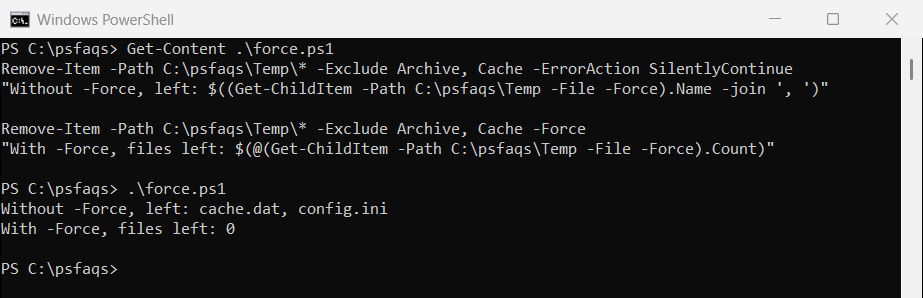
Without -Force, cache.dat (hidden) and config.ini (read-only) were left behind. With -ErrorAction SilentlyContinue, the read-only failure didn’t even show an error, so check what’s left.
Delete a folder and everything in it
Remove-Item -Path C:\psfaqs\Temp\Archive -Recurse -Force

"Archive still there: $(Test-Path -Path C:\psfaqs\Temp\Archive)"
Output:
Archive still there: FalseWithout -Recurse, PowerShell asks you to confirm before it deletes a folder that isn’t empty. In a scheduled task, there’s no one to answer, so the delete fails.
Delete the contents of a folder but keep the folder
Put \* after the folder path. Remove-Item then deletes everything inside, and the folder itself stays:
Remove-Item -Path C:\psfaqs\Temp\* -Recurse -Force

"Folder still there: $(Test-Path -Path C:\psfaqs\Temp)"
"Items left inside:  $(@(Get-ChildItem -Path C:\psfaqs\Temp -Force).Count)"
Output:
Folder still there: True
Items left inside:  0
-Recurse empties the subfolders too, and -Force catches the hidden and read-only files. That’s the usual way to clear a temp, cache or export folder before a job runs.
Delete only the files, not the subfolders
Let Get-ChildItem pick the files with -File. Its own -Force makes it list hidden files too:
Get-ChildItem -Path C:\psfaqs\Temp -File -Force | Remove-Item -Force

"Files left:   $(@(Get-ChildItem -Path C:\psfaqs\Temp -File -Force).Count)"
"Folders kept: $((Get-ChildItem -Path C:\psfaqs\Temp -Directory).Name -join ', ')"
Output:
Files left:   0
Folders kept: Archive, Cache
Keep some files and folders
This is where -Exclude catches people out. Excluding a folder protects the folder, but with -Recurse its contents are still deleted:
Remove-Item -Path C:\psfaqs\Temp\* -Exclude config.ini, Archive -Recurse -Force
"Left: $((Get-ChildItem -Path C:\psfaqs\Temp -Recurse -Force).Name -join ', ')"
Output:
Left: Archive, config.iniArchive survived, but it’s empty now. To keep a folder with everything in it, exclude it in Get-ChildItem instead, which only looks at the top level, and pipe the rest to Remove-Item:
Get-ChildItem -Path C:\psfaqs\Temp -Force -Exclude config.ini, Archive |
    Remove-Item -Recurse -Force
"Left: $((Get-ChildItem -Path C:\psfaqs\Temp -Recurse -Force).Name -join ', ')"
Output:
Left: Archive, config.ini, 2026-07, summary.txt, sales-july.csv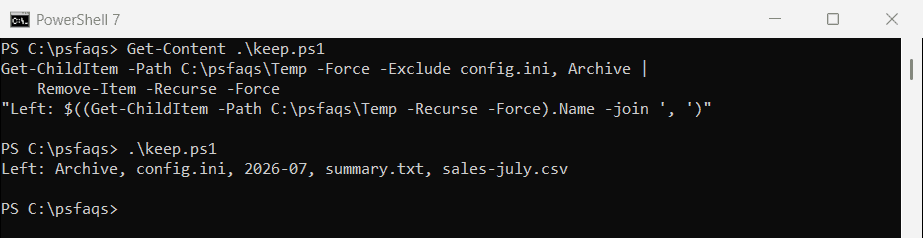
-Include needs a wildcard path
Another common surprise: -Include matches nothing unless the path ends in \* or you add -Recurse:
"Without \*:  $(@(Get-ChildItem -Path C:\psfaqs\Temp -Include *.log).Count) files"
"With \*:     $(@(Get-ChildItem -Path C:\psfaqs\Temp\* -Include *.log).Count) files"