
To find the OU of a computer using PowerShell, get its DistinguishedName with Get-ADComputer and drop the first CN= part. What’s left is the OU path:
$dn = (Get-ADComputer -Identity PC-SALES-07).DistinguishedName
$dn -replace '^CN=(?:\\,|[^,])+,', ''
Get-ADComputer needs the ActiveDirectory module from RSAT. Below I check the prerequisites, show the parsing step on sample Contoso names, and cover bulk lookups and a method that doesn’t need RSAT.
Check the prerequisites
You need a domain-joined PC, or at least network access to a domain controller, plus the ActiveDirectory module. My test PC has neither, which shows what you’ll see when something is missing:
$cs = Get-CimInstance -ClassName Win32_ComputerSystem
"Joined to a domain:         $($cs.PartOfDomain)"
"ActiveDirectory module:     $([bool](Get-Module -ListAvailable -Name ActiveDirectory))"

try { [System.DirectoryServices.ActiveDirectory.Domain]::GetComputerDomain() | Out-Null }
catch { "Domain lookup: Failed. $($_.Exception.InnerException.Message)" }
Output:
Joined to a domain:         False
ActiveDirectory module:     False
Domain lookup: Failed. The local computer is not joined to a domain or the domain cannot be contacted.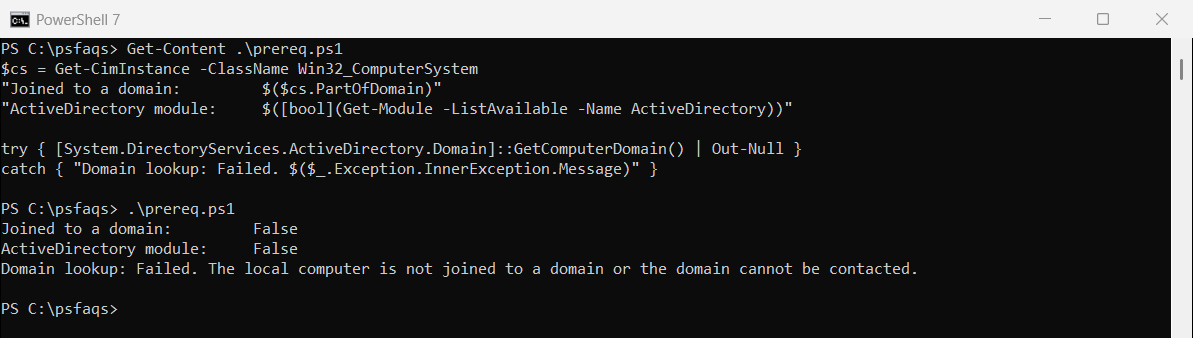
On Windows 11, install the module with RSAT Active Directory tools. Everything else on this page works the same in PowerShell 7 and 5.1.
Get the OU from a distinguishedName
A computer’s distinguishedName starts with its own name, followed by its OUs from nearest to top, then the domain. Removing the first part leaves the OU:
$dn = 'CN=PC-SALES-07,OU=Workstations,OU=Austin,DC=contoso,DC=com'

$ou = $dn -replace '^CN=(?:\\,|[^,])+,', ''
"OU path:     $ou"
"Nearest OU:  $(($ou -split ',')[0] -replace '^OU=', '')"
Output:
OU path:     OU=Workstations,OU=Austin,DC=contoso,DC=com
Nearest OU:  Workstations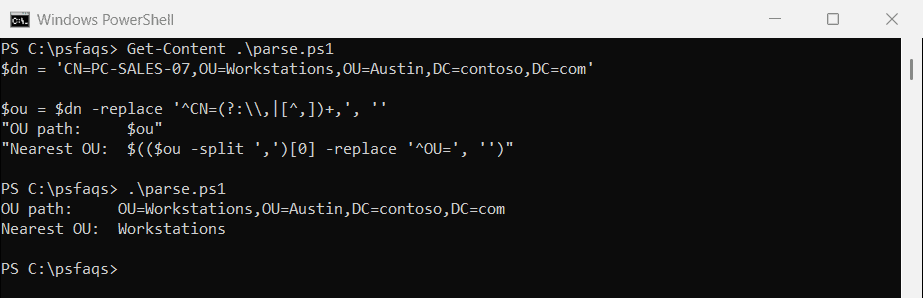
The pattern (?:\\,|[^,])+ also handles names with an escaped comma, such as CN=Smith\, John, which a plain split on commas would break.
The OU parts come from splitting the name, covered in splitting a string.
Show the OU as a readable path
This function keeps only the OU parts, reverses them and joins them with slashes, the way Active Directory Users and Computers shows them:
function Get-OUPath([string]$DistinguishedName) {
    $parts = $DistinguishedName -split '(?<!\\),' | Where-Object { $_ -like 'OU=*' } | ForEach-Object { $_.Substring(3) }
    [array]::Reverse($parts)
    $parts -join '/'
}

$computers = @(
    'CN=PC-SALES-07,OU=Workstations,OU=Austin,DC=contoso,DC=com'
    'CN=LAPTOP-HR-02,OU=Laptops,OU=Dallas,DC=contoso,DC=com'
    'CN=SQL01,OU=Servers,DC=contoso,DC=com'
)
$computers | ForEach-Object {
    '{0,-13} {1}' -f ($_ -replace '^CN=([^,]+),.*$', '$1'), (Get-OUPath $_)
}
Output:
PC-SALES-07   Austin/Workstations
LAPTOP-HR-02  Dallas/Laptops
SQL01         Servers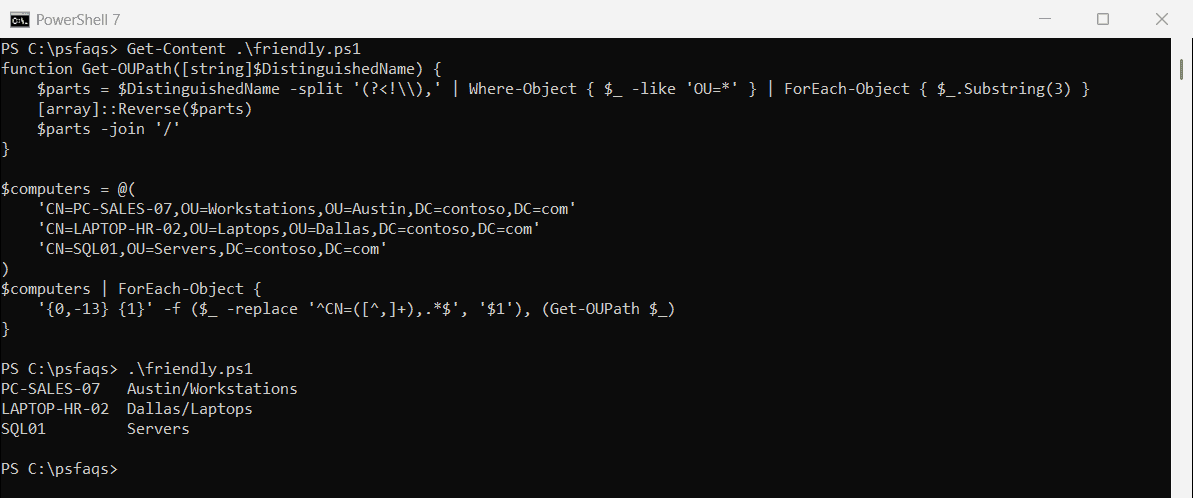
Get-ADComputer can also return CanonicalName, which is already in this format: (Get-ADComputer PC-SALES-07 -Properties CanonicalName).CanonicalName.
To convert between the two formats, see converting a canonical name to a distinguished name.
Find the OU for many computers
Pipe a list of names to Get-ADComputer and add the OU as a calculated property:
'PC-SALES-07', 'LAPTOP-HR-02', 'SQL01' | ForEach-Object { Get-ADComputer -Identity $_ } |
    Select-Object -Property Name,
        @{ Name = 'OU'; Expression = { $_.DistinguishedName -replace '^CN=(?:\\,|[^,])+,', '' } }
For every computer in the domain, use Get-ADComputer -Filter * -Properties CanonicalName | Select-Object Name, CanonicalName | Export-Csv -Path C:\Reports\computer-ous.csv -NoTypeInformation. Microsoft covers the filters in the Get-ADComputer reference.
To narrow that list down to inactive machines, see how to find computers not logged in for 30 days.
Find the OU without RSAT
On a domain-joined PC, the built-in [adsisearcher] type accelerator can query Active Directory with no extra modules:
$searcher = [adsisearcher]"(&(objectCategory=computer)(name=$env:COMPUTERNAME))"
$searcher.FindOne().Properties.distinguishedname
Group Policy also records the local PC’s DN in the registry under HKLM:\SOFTWARE\Microsoft\Windows\CurrentVersion\Group Policy\State\Machine, in the Distinguished-Name value.
Frequently Asked Questions
How do I find the OU of a computer in PowerShell?
Run (Get-ADComputer -Identity PC01).DistinguishedName and remove the leading CN= part. The rest is the OU path.
How do I find a computer’s OU without the ActiveDirectory module?
On a domain-joined PC, use [adsisearcher] to search for the computer and read its distinguishedname property.
How do I get the OU as a readable path?
Request CanonicalName with Get-ADComputer PC01 -Properties CanonicalName. It shows the path with slashes.
Why does Get-ADComputer say it isn’t recognized?
The ActiveDirectory module isn’t installed. Install the RSAT Active Directory tools first.