
To update PowerShell on Windows 11, run winget upgrade for the PowerShell package. It installs the newest PowerShell 7 release over your current one:
winget upgrade --id Microsoft.PowerShellBefore you run it, check which version you have and how it was installed, because Microsoft recommends upgrading with the same method. I walk through both checks below, plus the MSI, Store and Microsoft Update options.
Check your current PowerShell version
$PSVersionTable shows the edition and version of the window you’re in:
"Edition: $($PSVersionTable.PSEdition)"
"Version: $($PSVersionTable.PSVersion)"
Output:
Edition: Core
Version: 7.6.6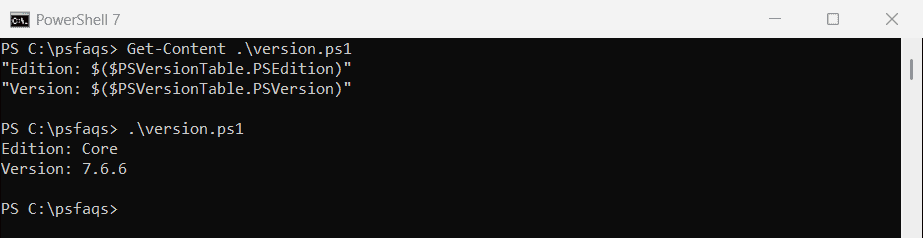
In Windows PowerShell, the same command shows Desktop and 5.1 instead. Checking your PowerShell version covers more ways.
Windows PowerShell 5.1 doesn’t update to 7
Windows PowerShell 5.1 is part of Windows and only gets fixes through Windows Update. PowerShell 7 is a separate app that installs side by side with it, so you keep both.
Find out how PowerShell 7 was installed
$PSHOME points to the install folder, and the folder tells you the install method. This check follows Microsoft’s rules for reading it:
$method = switch -Wildcard ($PSHOME) {
    "$env:ProgramFiles\WindowsApps\*" { 'MSIX (winget or Microsoft Store)' }
    "$env:ProgramFiles\PowerShell\7"  { 'MSI package' }
    "$HOME\.dotnet\tools"             { '.NET global tool' }
    default                           { 'ZIP package or custom folder' }
}
"PSHOME:         $PSHOME"
"Install method: $method"
Output:
PSHOME:         C:\Program Files\WindowsApps\Microsoft.PowerShell_7.6.6.0_x64__8wekyb3d8bbwe
Install method: MSIX (winget or Microsoft Store)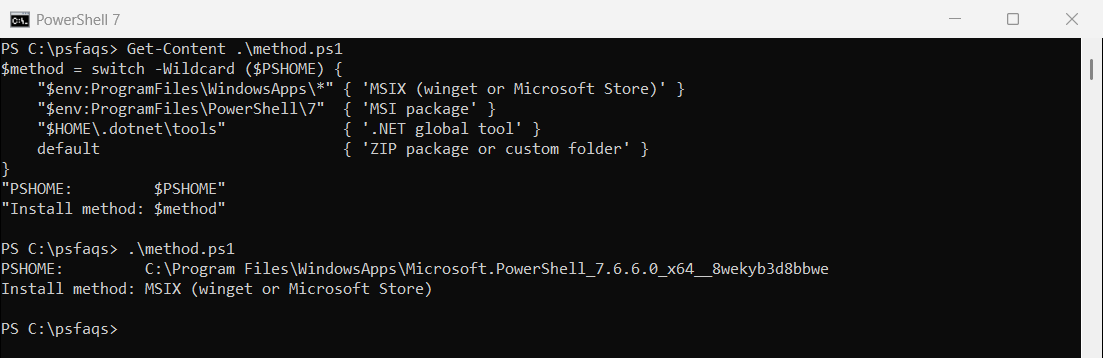
Since version 7.6.0, winget installs the MSIX package by default. Older installs are often the MSI package in Program Files.
Check if an update is available
Compare your version with the latest release on GitHub. This works no matter how you installed PowerShell:
$release = Invoke-RestMethod -Uri 'https://api.github.com/repos/PowerShell/PowerShell/releases/latest'
$latest = [version]($release.tag_name.TrimStart('v'))
$installed = [version]$PSVersionTable.PSVersion.ToString()

"Installed: $installed"
"Latest:    $latest"
"Up to date: $($installed -ge $latest)"
Output:
Installed: 7.6.6
Latest:    7.6.6
Up to date: True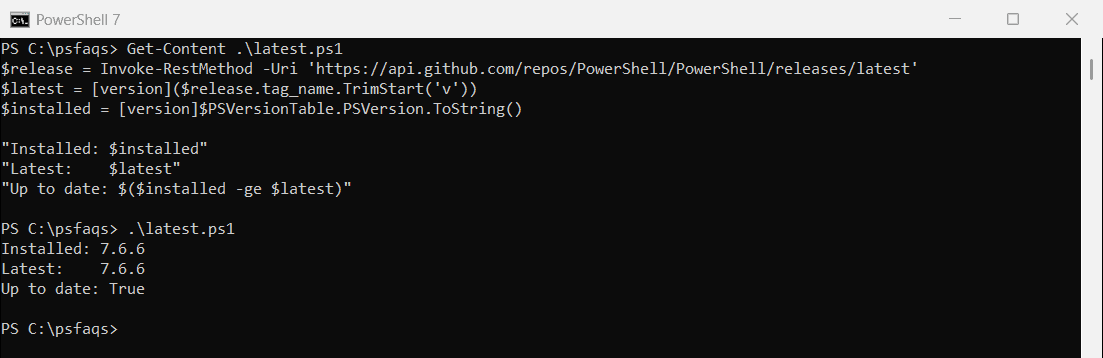
winget can check too. When you’re current, it finds nothing to upgrade:
winget list --id Microsoft.PowerShell --upgrade-available --disable-interactivityOutput:
No installed package found matching input criteria.Update PowerShell with winget
Close other PowerShell windows, then run the upgrade from Windows Terminal or Command Prompt. winget keeps the same package type, MSI or MSIX, that you already have:
winget upgrade --id Microsoft.PowerShell --source wingetTo switch to the MSI package, uninstall the MSIX first, then run winget install --id Microsoft.PowerShell --source winget --installer-type wix. Microsoft notes that PowerShell 7.7 and later ship only as MSIX. Installing winget helps if winget is missing.
Update PowerShell with the MSI package
On servers and managed PCs, the MSI is the usual choice. Download it from the PowerShell GitHub releases page and install it silently as administrator:
msiexec.exe /package PowerShell-7.6.6-win-x64.msi /quiet ADD_PATH=1 USE_MU=1 ENABLE_MU=1USE_MU=1 and ENABLE_MU=1 let Microsoft Update deliver future PowerShell 7 updates. Group Policy can still override them.
Let Microsoft Update keep it current
With Microsoft Update turned on, PowerShell 7 updates arrive with your normal Windows updates, including through WSUS and Configuration Manager. The Microsoft Store version updates itself automatically.
Microsoft explains both in the Install PowerShell 7 on Windows guide and the PowerShell Microsoft Update FAQ.
Frequently Asked Questions
How do I update PowerShell on Windows 11?
Run winget upgrade --id Microsoft.PowerShell. Use the same install method you used the first time.
How do I check if a PowerShell update is available?
Run winget list --id Microsoft.PowerShell --upgrade-available. If nothing is listed, you’re up to date.
Can I update Windows PowerShell 5.1 to PowerShell 7?
No. 5.1 stays part of Windows. PowerShell 7 installs side by side, so you can use both.
How do I know if PowerShell 7 was installed as MSI or MSIX?
Check $PSHOME. A path under Program Files\WindowsApps means MSIX, and Program Files\PowerShell\7 means MSI.
Does PowerShell 7 update automatically?
Yes, if you enabled Microsoft Update during the MSI install or installed it from the Microsoft Store.
While you’re updating things:

Bijay Kumar is an esteemed author and the mind behind PowerShellFAQs.com, where he shares his extensive knowledge and expertise in PowerShell, with a particular focus on SharePoint projects. Recognized for his contributions to the tech community, Bijay has been honored with the prestigious Microsoft MVP award. With over 15 years of experience in the software industry, he has a rich professional background, having worked with industry giants such as HP and TCS. His insights and guidance have made him a respected figure in the world of software development and administration. Read more.