
Want to check free memory in PowerShell? Query the Win32_OperatingSystem class and read FreePhysicalMemory, which Windows reports in kilobytes:
(Get-CimInstance Win32_OperatingSystem).FreePhysicalMemory / 1MB # free RAM in GBIn this tutorial, I’ll show you how to check free memory in PowerShell with Get-CimInstance and Get-Counter, compare installed and usable RAM, see what processes use, and wrap it all in a function.
My test machine is a 16 GB Windows 11 PC running PowerShell 7 and Windows PowerShell 5.1.
How to check free memory with Get-CimInstance
This script reads free and total physical memory once, converts both to GB, and works out the percentage in use:
$os = Get-CimInstance -ClassName Win32_OperatingSystem
$freeGB  = [math]::Round($os.FreePhysicalMemory / 1MB, 2)
$totalGB = [math]::Round($os.TotalVisibleMemorySize / 1MB, 2)
$usedPct = [math]::Round(100 - $os.FreePhysicalMemory / $os.TotalVisibleMemorySize * 100, 1)
"Free memory:  $freeGB GB"
"Total memory: $totalGB GB"
"Memory used:  $usedPct %"
Output (PowerShell 7):
Free memory:  0.66 GB
Total memory: 15.68 GB
Memory used:  95.8 %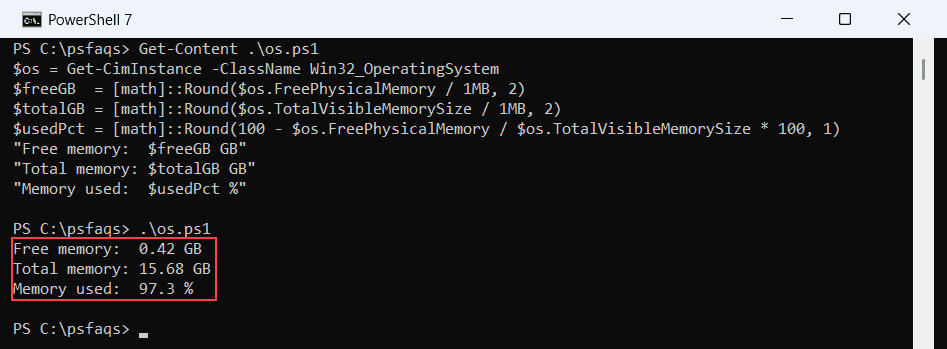
Your numbers will differ and change on every run. Windows PowerShell 5.1 runs the script unchanged:
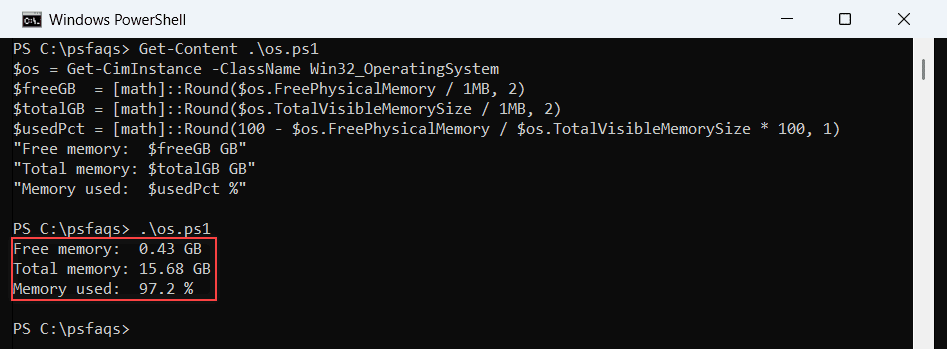
Dividing by 1MB turns kilobytes into gigabytes, because 1MB in PowerShell is 1,048,576. For more ways to trim decimals, see rounding numbers to 2 decimal places.
Here are the raw values, so you can see the units for yourself:
Get-CimInstance -ClassName Win32_OperatingSystem |
    Format-List FreePhysicalMemory, TotalVisibleMemorySize, FreeVirtualMemory
Output (PowerShell 7):
FreePhysicalMemory     : 562468
TotalVisibleMemorySize : 16437444
FreeVirtualMemory      : 17043920
All three are kilobytes. FreeVirtualMemory includes the page file, so it’s larger than free RAM. The same class answers many other questions in getting computer information with PowerShell.
Check available memory with Get-Counter
Performance counters give you the same figures Task Manager and Performance Monitor use. Get-Counter reads them in both shells:
$avail  = (Get-Counter -Counter '\Memory\Available MBytes').CounterSamples.CookedValue
$commit = (Get-Counter -Counter '\Memory\% Committed Bytes In Use').CounterSamples.CookedValue
"Available memory: $avail MB"
"Committed:        {0:N1} %" -f $commit
Output (PowerShell 7):
Available memory: 506 MB
Committed:        69.8 %
Available MBytes is RAM that programs can use right now. Committed Bytes In Use is memory promised to processes as a share of the commit limit (RAM plus page file), so it’s not the same as RAM used.
Counter names are localized. On a German or French Windows install, run Get-Counter -ListSet * to find the translated names. The same counter approach works for processors in monitoring CPU usage with PowerShell.
To watch memory over a few seconds, add -SampleInterval and -MaxSamples. This takes three samples, two seconds apart:
$samples = Get-Counter -Counter '\Memory\Available MBytes' -SampleInterval 2 -MaxSamples 3
$n = 0
foreach ($s in $samples) {
    $n++
    'Sample {0}: {1:N0} MB free' -f $n, $s.CounterSamples.CookedValue
}
Output (PowerShell 7):
Sample 1: 405 MB free
Sample 2: 415 MB free
Sample 3: 459 MB free
Is FreePhysicalMemory the same as available memory?
Yes, in practice. I read both sources back to back to check:
$cim = (Get-CimInstance -ClassName Win32_OperatingSystem).FreePhysicalMemory / 1KB
$ctr = (Get-Counter -Counter '\Memory\Available MBytes').CounterSamples.CookedValue
"CIM FreePhysicalMemory:   {0:N0} MB" -f $cim
"Counter Available MBytes: {0:N0} MB" -f $ctr
Output (PowerShell 7):
CIM FreePhysicalMemory:   402 MB
Counter Available MBytes: 371 MB
They landed within a few MB of each other in both shells. Both count free pages plus the standby cache that Windows can hand out instantly, so a low number doesn’t always mean trouble.
Check installed RAM vs usable RAM
TotalVisibleMemorySize is what Windows can use, not what’s in the PC. Win32_PhysicalMemory returns one object per memory module, with Capacity in bytes, and Measure-Object in PowerShell adds them up:
$installed = (Get-CimInstance -ClassName Win32_PhysicalMemory |
    Measure-Object -Property Capacity -Sum).Sum
$usable = (Get-CimInstance -ClassName Win32_OperatingSystem).TotalVisibleMemorySize * 1KB
"Installed RAM: {0:N0} GB" -f ($installed / 1GB)
"Usable RAM:    {0:N2} GB" -f ($usable / 1GB)
"Reserved:      {0:N0} MB" -f (($installed - $usable) / 1MB)
Output:
Installed RAM: 16 GB
Usable RAM:    15.68 GB
Reserved:      332 MB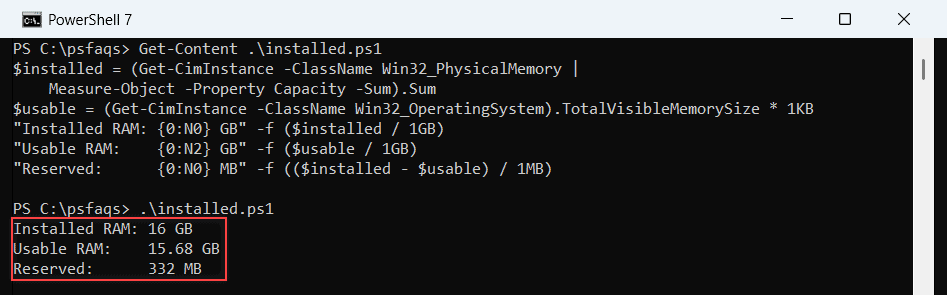
My PC has 16 GB installed, but 332 MB is reserved for hardware and firmware, which leaves 15.68 GB. Both shells printed identical numbers here.
See how much memory processes use
Free memory tells you how much is left. To see where the rest went, sum the working set of every process with Get-Process:
$procs = Get-Process
$total = ($procs | Measure-Object -Property WorkingSet64 -Sum).Sum
$me = Get-Process -Id $PID
"Processes running: $($procs.Count)"
"Total working set: {0:N1} GB" -f ($total / 1GB)
"This shell ($($me.Name)): {0:N0} MB" -f ($me.WorkingSet64 / 1MB)
Output (PowerShell 7):
Processes running: 497
Total working set: 13.2 GB
This shell (pwsh): 104 MB
The last line shows a real difference: PowerShell 7 started with a different footprint than Windows PowerShell 5.1 on my P