
To set the time zone in Windows with PowerShell, run Set-TimeZone with the zone’s Id. This switches the PC to Pacific Time:
Set-TimeZone -Id 'Pacific Standard Time'The trick is knowing the exact Id. Below I show how to check the current zone, find the right Id, preview the change, convert times between zones and set the zone on remote PCs.
Check the current time zone
Get-TimeZone with no parameters returns the zone your PC uses right now:
Get-TimeZoneI’d rather not publish my own PC’s zone, so here’s what the same object looks like for a named zone. Your output has the same properties:
Get-TimeZone -Id 'Eastern Standard Time' |
    Format-List -Property Id, DisplayName, BaseUtcOffset, SupportsDaylightSavingTime
Output:
Id                         : Eastern Standard Time
DisplayName                : (UTC-05:00) Eastern Time (US & Canada)
BaseUtcOffset              : -05:00:00
SupportsDaylightSavingTime : True
BaseUtcOffset is the standard offset. During daylight saving time, Eastern Time is actually UTC-4. For the current UTC time itself, see getting the date in UTC with PowerShell.
Find the right time zone Id
Windows knows about 140 zones. -ListAvailable returns all of them, so filter the list down to the ones you care about. These are the main US zones:
$usZones = 'Eastern Standard Time', 'Central Standard Time', 'Mountain Standard Time',
           'US Mountain Standard Time', 'Pacific Standard Time', 'Alaskan Standard Time',
           'Hawaiian Standard Time'
Get-TimeZone -ListAvailable |
    Where-Object -Property Id -In $usZones |
    Select-Object -Property Id, BaseUtcOffset
Output:
Id                        BaseUtcOffset
--                        -------------
Hawaiian Standard Time    -10:00:00
Alaskan Standard Time     -09:00:00
Pacific Standard Time     -08:00:00
US Mountain Standard Time -07:00:00
Mountain Standard Time    -07:00:00
Central Standard Time     -06:00:00
Eastern Standard Time     -05:00:00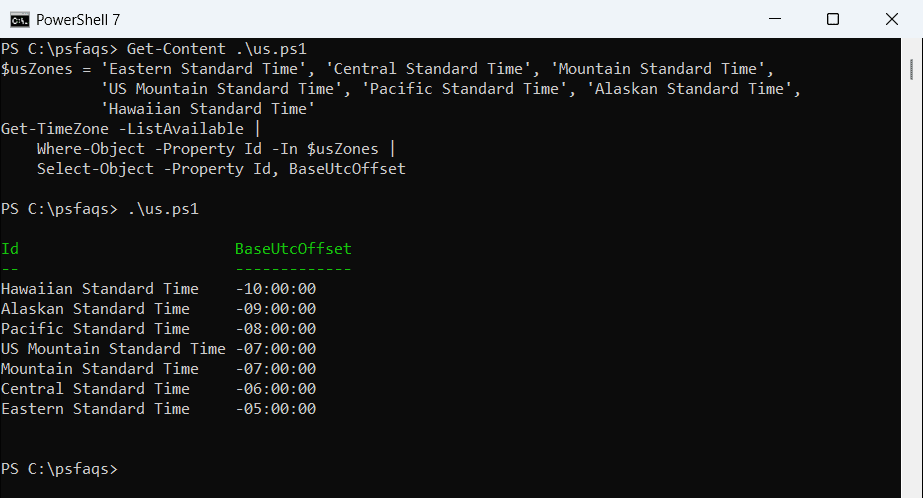
Pick US Mountain Standard Time for Arizona, which doesn’t use daylight saving time. Mountain Standard Time is for Denver and the rest of the Mountain zone.
Search by name
-Name accepts wildcards and matches the zone’s standard name. That’s quicker when you only remember part of it:
Get-TimeZone -Name '*Pacific*' | Select-Object -Property IdOutput:
Id
--
Pacific Standard Time (Mexico)
Pacific Standard Time
SA Pacific Standard Time
Pacific SA Standard Time
West Pacific Standard Time
Central Pacific Standard Time
The names are similar, so always copy the exact Id into Set-TimeZone. Pacific Standard Time (Mexico) is a different zone.
Set the time zone
Preview the change with -WhatIf first. It doesn’t touch anything:
Set-TimeZone -Id 'Pacific Standard Time' -WhatIfOutput:
What if: Performing the operation "Set-TimeZone" on target "Local System".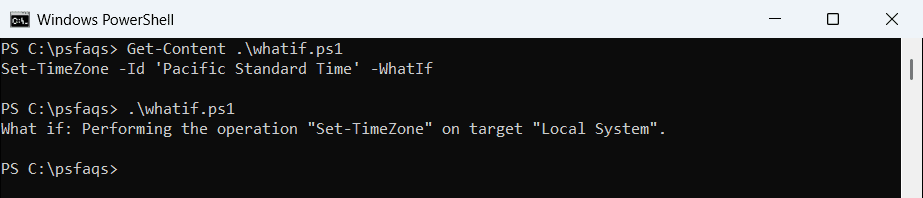
Remove -WhatIf to apply it, and add -PassThru to see the new zone right away:
Set-TimeZone -Id 'Central Standard Time' -PassThruStandard users can usually change the time zone in Windows 11, but company PCs often block it with Group Policy. If you get access denied, run PowerShell as administrator.
Turn off automatic time zone first
If Set time zone automatically is on in Settings > Time & language > Date & time, Windows may switch the zone back based on your location. Turn it off on PCs that must stay in one zone, such as servers.
To show times in the new zone, see formatting dates in PowerShell.
Convert a time between zones
You don’t have to change the PC’s zone to work with other zones. TimeZoneInfo converts a time from one zone to another. Here’s a 9:00 AM Eastern meeting in the other US zones:
$meeting = Get-Date -Date '2026-10-04 09:00'
foreach ($zone in 'Central Standard Time', 'Mountain Standard Time', 'Pacific Standard Time') {
    $local = [System.TimeZoneInfo]::ConvertTimeBySystemTimeZoneId($meeting, 'Eastern Standard Time', $zone)
    '{0,-24} {1:h:mm tt}' -f $zone, $local
}
Output:
Central Standard Time    8:00 AM
Mountain Standard Time   7:00 AM
Pacific Standard Time    6:00 AM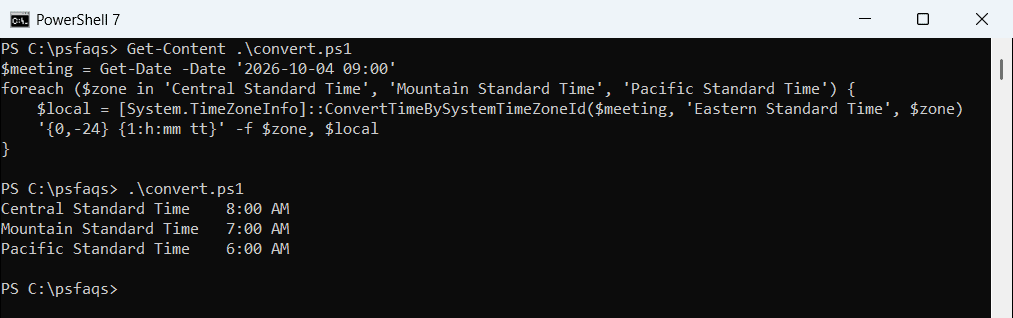
Daylight saving time is handled for you, because October 4, 2026 falls inside it everywhere in this list. For more date math, read adding days to a date in PowerShell.
Set the time zone on remote computers
Run Set-TimeZone through Invoke-Command, and pass the Id in with $using:
$zone = 'Eastern Standard Time'
Invoke-Command -ComputerName 'NYC-SRV01', 'NYC-SRV02' -ScriptBlock {
    Set-TimeZone -Id $using:zone
    (Get-TimeZone).Id
}
The second line in the script block confirms the result on each server. PowerShell remoting must be enabled on the remote PCs.
Use tzutil instead
tzutil.exe does the same job from cmd or older scripts. /g shows the current zone, /l lists all of them and /s sets one:
tzutil /s "Pacific Standard Time"It uses the same Ids as PowerShell. The switches are in the tzutil reference.
Frequently Asked Questions
How do I change the time zone with PowerShell?
Run Set-TimeZone -Id 'Pacific Standard Time'. Use the exact Id from Get-TimeZone -ListAvailable.
How do I see the current time zone in PowerShell?
Run Get-TimeZone. It shows the Id, display name and base UTC offset of your PC’s zone.