
To get the BIOS version with PowerShell, run (Get-CimInstance -ClassName Win32_BIOS).SMBIOSBIOSVersion. It works in PowerShell 7 and Windows PowerShell 5.1 and doesn’t need admin rights:
(Get-CimInstance -ClassName Win32_BIOS).SMBIOSBIOSVersionOutput:
1.24.0I replaced this PC’s real BIOS details with placeholders like Contoso, 1.24.0 and ABC1234XYZ, and blacked them out in the screenshots. Your output will show your own values.
Get the manufacturer, serial number and release date
Win32_BIOS has more than the version. These are the properties most people need for an inventory:
Get-CimInstance -ClassName Win32_BIOS |
    Select-Object -Property Manufacturer, SMBIOSBIOSVersion, SerialNumber,
        @{ Name = 'ReleaseDate'; Expression = { $_.ReleaseDate.ToString('yyyy-MM-dd') } } |
    Format-List
Output:
Manufacturer      : Contoso
SMBIOSBIOSVersion : 1.24.0
SerialNumber      : ABC1234XYZ
ReleaseDate       : 2024-06-12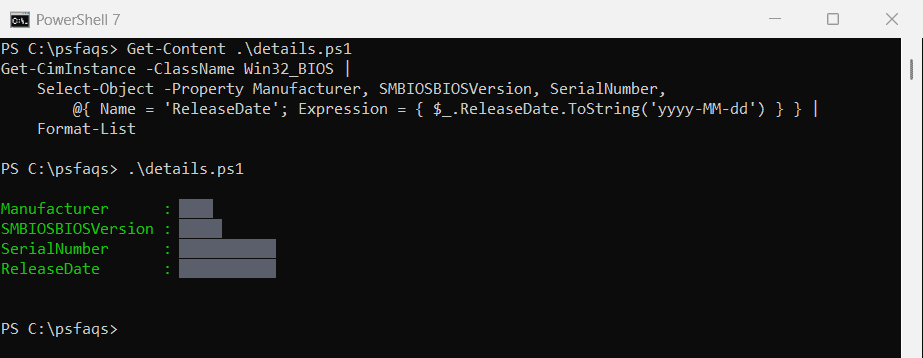
SMBIOSBIOSVersion is the version you’ll see in the BIOS setup screen and on the manufacturer’s download page. SerialNumber is usually the service tag or serial on the sticker.
ReleaseDate comes back as a DateTime, so I formatted it.
For serial numbers on other parts of the PC, see getting the BIOS serial number.
Get-WmiObject vs Get-CimInstance
Older scripts use Get-WmiObject. It still works in Windows PowerShell 5.1, and on Windows it even ran in PowerShell 7, with one catch:
try {
    $bios = Get-WmiObject -Class Win32_BIOS -ErrorAction Stop
    "Get-WmiObject works here. Version: $($bios.SMBIOSBIOSVersion)"
    "ReleaseDate comes back as a $($bios.ReleaseDate.GetType().Name)"
    "Get-WmiObject is a $((Get-Command -Name Get-WmiObject).CommandType) in this session"
}
catch { 'Get-WmiObject is not available in this version of PowerShell' }

"Get-CimInstance ReleaseDate is a $((Get-CimInstance -ClassName Win32_BIOS).ReleaseDate.GetType().Name)"
Output in PowerShell 7:
Get-WmiObject works here. Version: 1.24.0
ReleaseDate comes back as a String
Get-WmiObject is a Function in this session
Get-CimInstance ReleaseDate is a DateTime
Output in Windows PowerShell 5.1:
Get-WmiObject works here. Version: 1.24.0
ReleaseDate comes back as a String
Get-WmiObject is a Cmdlet in this session
Get-CimInstance ReleaseDate is a DateTime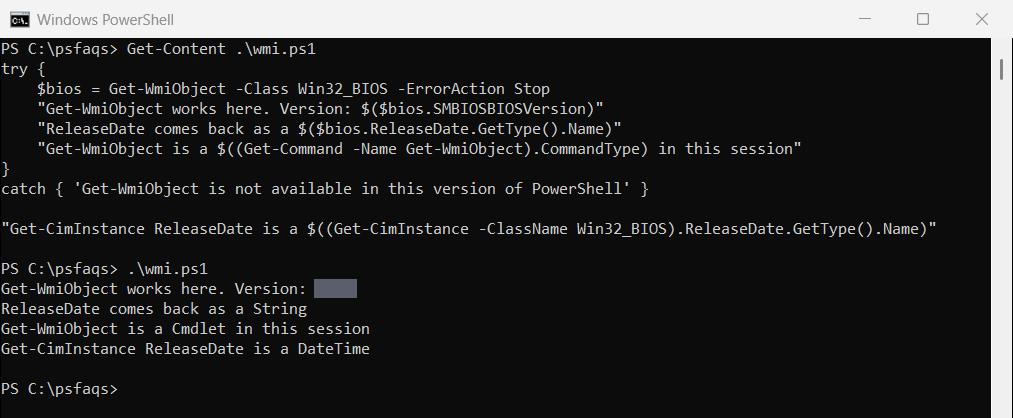
In PowerShell 7, Get-WmiObject is a proxy function. PowerShell quietly starts a hidden Windows PowerShell 5.1 process to run it, as Microsoft explains in about_Windows_PowerShell_Compatibility.
That’s slower and Windows-only. Get-WmiObject also returns ReleaseDate as a text string like 20240612000000.000000+000. Use Get-CimInstance in new scripts.
What about wmic bios get smbiosbiosversion?
Don’t rely on it. Microsoft deprecated WMIC, and as of August 2026 Windows 11 versions 24H2 and 25H2 no longer include it, according to Microsoft’s WMIC page. The PowerShell commands here replace it.
Read the BIOS version from the registry
Windows also stores the BIOS details in the registry. This is handy in restricted environments where WMI is slow or blocked:
Get-ItemProperty -Path 'HKLM:\HARDWARE\DESCRIPTION\System\BIOS' |
    Select-Object -Property BIOSVendor, BIOSVersion, BIOSReleaseDate
Output:
BIOSVendor BIOSVersion BIOSReleaseDate
---------- ----------- ---------------
Contoso        1.24.0        06/12/2024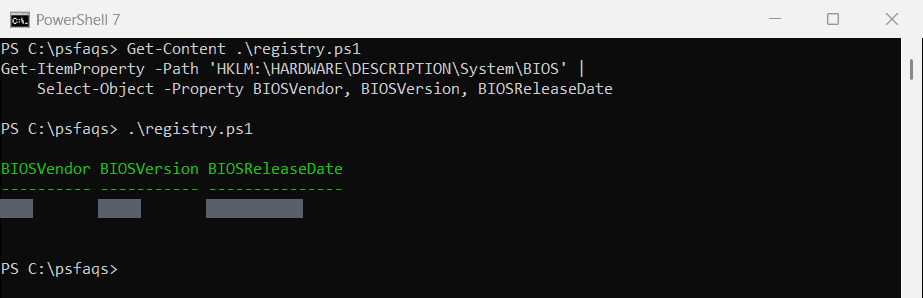
BIOSReleaseDate is plain text in month/day/year format here, so convert it with [datetime] before you compare dates.
Check if the BIOS is old
Because ReleaseDate is a real date with Get-CimInstance, you can check its age directly:
$bios = Get-CimInstance -ClassName Win32_BIOS
$days = (New-TimeSpan -Start $bios.ReleaseDate -End (Get-Date)).Days

if ($days -gt 365) { 'The BIOS is more than a year old. Check the manufacturer for updates.' }
else { 'The BIOS was released within the last year.' }
Output:
The BIOS is more than a year old. Check the manufacturer for updates.Getting the difference between two dates covers New-TimeSpan in more detail.
Get the BIOS version on remote computers
Get-CimInstance takes a list of computer names and uses WinRM, the same service as PowerShell remoting. This exports a report for several PCs:
$computers = 'WEB01', 'WEB02', 'SQL01'

Get-CimInstance -ClassName Win32_BIOS -ComputerName $computers |
    Select-Object -Property PSComputerName, Manufacturer, SMBIOSBIOSVersion, SerialNumber, ReleaseDate |
    Export-Csv -Path C:\Reports\bios-inventory-2026.csv -NoTypeInformation
To read the names from a file, use $computers = Get-Content -Path C:\Reports\computers.txt. Computers that can’t be reached show an error and the rest still run. The Get-CimInstance documentation covers -CimSession for many PCs.
Get the BIOS version on HP computers
Win32_BIOS works on HP, Dell and Lenovo computers alike, so every command above works on HP. HP also publishes the HP Client Management Script Library (HPCMSL) on the PowerShell Gallery:
Install-Module -Name HPCMSL -Scope CurrentUser
Get-HPBIOSVersion
Get-HPBIOSUpdates
Get-HPBIOSVersion returns the installed version, and Get-HPBIOSUpdates looks up HP’s available BIOS releases for that model. Check HP’s documentation before you run its update commands on a fleet.
Frequently Asked Questions
How do I check the BIOS version with PowerShell?
Run (Get-CimInstance -ClassName Win32_BIOS).SMBIOSBIOSVersion. It works without admin rights in PowerShell 7 and 5.1.