
To set a password for a local user in Windows 11 with PowerShell, open PowerShell as administrator, read the new password as a secure string and pass it to Set-LocalUser:
$password = Read-Host -Prompt 'New password' -AsSecureString
Set-LocalUser -Name 'jsmith' -Password $password
The password never appears on screen or in your history. Below I show how to check the account first, what the prompt looks like, the password rules Windows enforces and how to do it on remote PCs.
I didn’t change any real password on my PC. The examples read accounts and use -WhatIf, and the commands that change things are shown as code.
Check the account first
Get-LocalUser shows whether the account exists, is enabled and can have its password changed. It works without admin rights:
Get-LocalUser -Name 'Administrator', 'Guest' |
    Select-Object -Property Name, Enabled, PasswordRequired, UserMayChangePassword
Output:
Name          Enabled PasswordRequired UserMayChangePassword
----          ------- ---------------- ---------------------
Administrator   False            False                  True
Guest           False            False                 False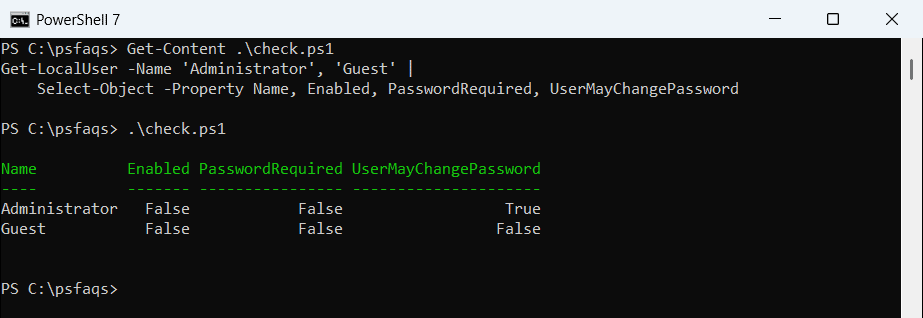
Set-LocalUser fails if the name doesn’t exist, so this is a good check in scripts. Listing local users with PowerShell shows every account and its properties.
Set the password with Set-LocalUser
Read-Host -AsSecureString masks what you type and returns a SecureString. Here I typed a sample password and previewed the change with -WhatIf:
$password = Read-Host -Prompt 'New password' -AsSecureString
Set-LocalUser -Name 'Guest' -Password $password -WhatIf
What the console shows:
New password: *****************
What if: Performing the operation "Modify local user" on target "Guest".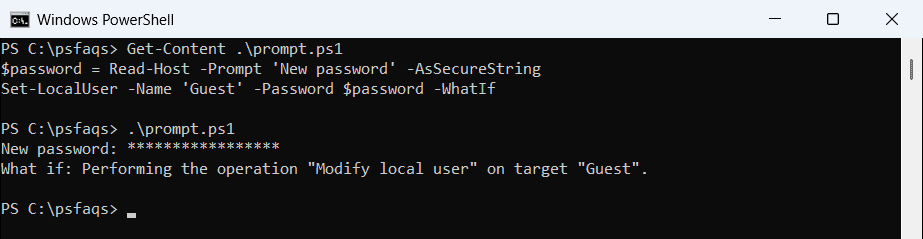
Remove -WhatIf in an elevated window to set it for real. Set-LocalUser works in both Windows PowerShell 5.1 and PowerShell 7 on Windows 11.
Don’t put the password in the command
You’ll see examples that use ConvertTo-SecureString 'P@ssw0rd' -AsPlainText -Force. It works, but the password ends up in plain text in your PowerShell history file. If you’ve already done that, clear your PowerShell history.
Know the password rules
Windows rejects a password that breaks the local policy with an error that the password doesn’t meet the requirements. net accounts shows the policy, and reading it doesn’t need admin rights:
net accounts | Where-Object { $_ -match 'password' }Output:
Minimum password age (days):                          0
Maximum password age (days):                          42
Minimum password length:                              0
Length of password history maintained:                None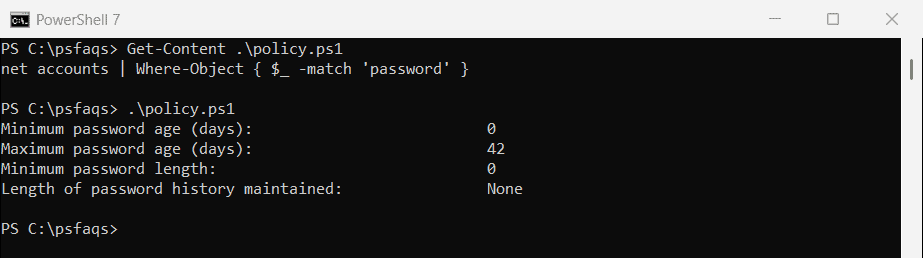
My PC has no minimum length, but company PCs usually set one through Group Policy. To create a strong password, see the PowerShell random password generator.
Set other password options
Set-LocalUser also controls expiry and whether the user can change the password:
Set-LocalUser -Name 'jsmith' -PasswordNeverExpires $false
Set-LocalUser -Name 'jsmith' -UserMayChangePassword $true
To make a password permanent, read setting a local user’s password to never expire. To check when it expires, see checking the password expiration date.
Force a password change at next sign-in
Set-LocalUser has no option for this, so use net user. It makes the user pick a new password the next time they sign in:
net user jsmith /logonpasswordchg:yesRun net help user to see this switch and the rest of the net user options.
Use net user without typing the password
net user can also set a password. Use an asterisk so it prompts instead of taking the password on the command line:
net user jsmith *It asks for the password twice and hides what you type. Avoid net user jsmith NewPassword, because the password lands in your history. The switches are in the net user reference.
Set a local user password on remote computers
Run Set-LocalUser through Invoke-Command. The SecureString travels encrypted inside the remoting session:
$password = Read-Host -Prompt 'New password' -AsSecureString
Invoke-Command -ComputerName 'PC-SALES-07', 'PC-SALES-08' -ScriptBlock {
    Set-LocalUser -Name 'Support' -Password $using:password
}
Setting the same local admin password on many PCs is risky. For admin accounts, Windows LAPS rotates a unique password on each PC automatically.
Microsoft accounts are different
If you sign in to Windows 11 with an email address, that’s a Microsoft account, and Set-LocalUser can’t change its password. Change it online at account.microsoft.com, or in Settings > Accounts > Sign-in options.