To list Windows features using PowerShell on Windows 11 or 10, run Get-WindowsOptionalFeature in an admin window. It shows every optional feature and whether it’s enabled:
Get-WindowsOptionalFeature -Online | Sort-Object FeatureName | Format-Table FeatureName, StateWithout admin rights, the Win32_OptionalFeature class gives the same list to any user, so most examples below use it.
On Windows Server, Get-WindowsFeature lists roles and features instead. I tested everything in PowerShell 7 and Windows PowerShell 5.1.
List all Windows features without admin rights
Get-CimInstance reads Win32_OptionalFeature from WMI. Its InstallState is a number, so I map it to a name and count the features in each state:
$state = @{ 1 = 'Enabled'; 2 = 'Disabled'; 3 = 'Absent'; 4 = 'Unknown' }
$features = Get-CimInstance -ClassName Win32_OptionalFeature

"Windows features found: $($features.Count)"
$features | Group-Object InstallState | Sort-Object { [int]$_.Name } | ForEach-Object {
    '{0,-9} {1,4}' -f $state[[int]$_.Name], $_.Count
}
Output:
Windows features found: 135
Enabled     14
Disabled   120
Absent       1
My Windows 11 PC has 135 features and 14 are turned on. Microsoft defines four states: 1 Enabled, 2 Disabled, 3 Absent and 4 Unknown. For more on grouping results like this, see sorting objects with Sort-Object.
Show only the enabled Windows features
A WMI filter returns just the features that are turned on. It runs before PowerShell gets the data, so it’s faster than filtering afterwards:
Get-CimInstance -ClassName Win32_OptionalFeature -Filter 'InstallState = 1' |
    Sort-Object Name |
    Format-Table Name, Caption -AutoSize
Output:
Name                                        Caption
----                                        -------
MediaPlayback                               Media Features
MSRDC-Infrastructure                        Remote Differential Compression API Support
NetFx4-AdvSrvs                              .NET Framework 4.8 Advanced Services
NetFx4Extended-ASPNET45                     ASP.NET 4.8
Printing-Foundation-Features                Print and Document Services
Printing-Foundation-InternetPrinting-Client Internet Printing Client
Printing-PrintToPDFServices-Features        Microsoft Print to PDF
SearchEngine-Client-Package                 Windows Search
SmbDirect                                   SMB Direct
VirtualMachinePlatform                      Virtual Machine Platform
WCF-Services45                              WCF Services
WCF-TCP-PortSharing45                       TCP Port Sharing
WindowsMediaPlayer                          Windows Media Player Legacy (App)
WorkFolders-Client                          Work Folders Client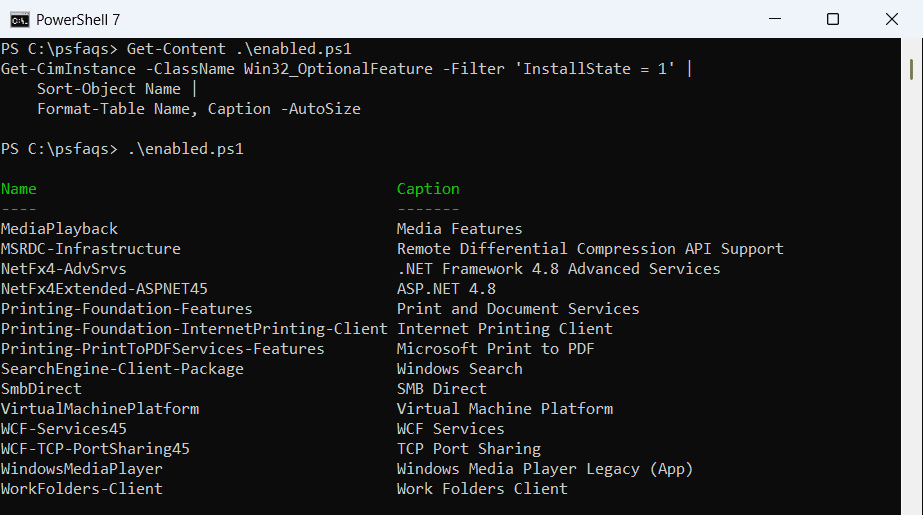
Name is the ID you pass to install commands, and Caption is the name you see in the Windows Features dialog. Change the filter to InstallState = 2 for the disabled ones. Format-Table controls which columns you see.
Check the state of specific features
Usually you care about a handful of features, like Hyper-V, WSL or the old SMB1 protocol. Pass their names to Where-Object -in:
$state = @{ 1 = 'Enabled'; 2 = 'Disabled'; 3 = 'Absent'; 4 = 'Unknown' }
$names = 'Microsoft-Hyper-V-All', 'Microsoft-Windows-Subsystem-Linux', 'VirtualMachinePlatform',
         'Containers-DisposableClientVM', 'NetFx3', 'TelnetClient', 'SMB1Protocol'

Get-CimInstance -ClassName Win32_OptionalFeature |
    Where-Object Name -in $names |
    Sort-Object Name |
    Select-Object Name, @{ n = 'State'; e = { $state[[int]$_.InstallState] } } |
    Format-Table -AutoSize
Output:
Name                              State
----                              -----
Containers-DisposableClientVM     Disabled
Microsoft-Hyper-V-All             Disabled
Microsoft-Windows-Subsystem-Linux Disabled
NetFx3                            Disabled
SMB1Protocol                      Disabled
TelnetClient                      Disabled
VirtualMachinePlatform            Enabled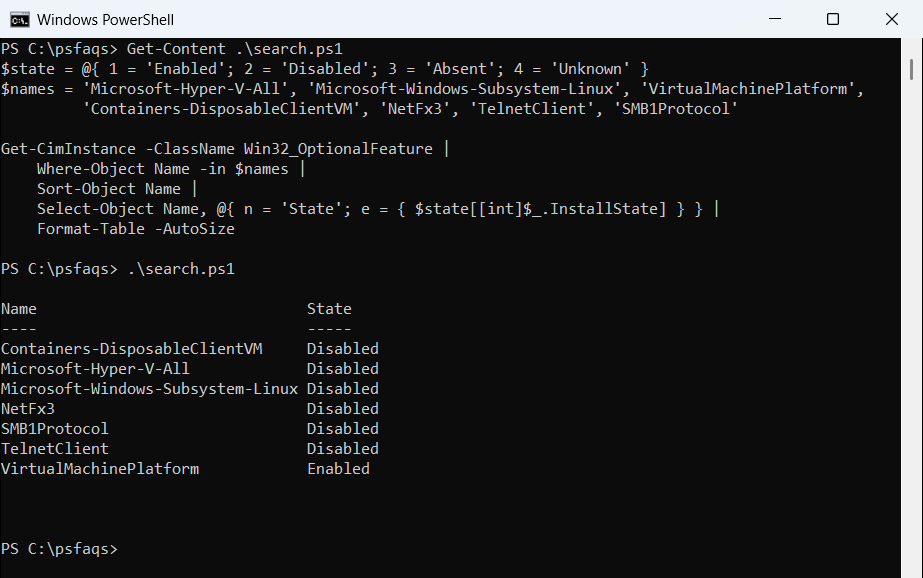
Windows Sandbox shows up as Containers-DisposableClientVM, so the Name column isn’t always obvious. If you only know part of the display name, search the Caption with -like:
Get-CimInstance -ClassName Win32_OptionalFeature |
    Where-Object Caption -like '*Hyper-V*' |
    Sort-Object Name |
    Select-Object -First 5 -ExpandProperty Name
Output:
Microsoft-Hyper-V
Microsoft-Hyper-V-All
Microsoft-Hyper-V-Hypervisor
Microsoft-Hyper-V-Management-Clients
Microsoft-Hyper-V-Management-PowerShell
Where-Object supports the same -like and -match operators on any property.
How do I check if a Windows feature is enabled?
In scripts, a True or False answer is easier to work with. This function returns False for a disabled feature and “Not found” for a wrong name:
function Test-WindowsFeature ([string]$Name) {
    $f = Get-CimInstance -ClassName Win32_OptionalFeature -Filter "Name = '$Name'"
    if (-not $f) { return 'Not found' }
    $f.InstallState -eq 1
}

foreach ($name in 'Microsoft-Windows-Subsystem-Linux', 'VirtualMachinePlatform', 'Hyper-V') {
    '{0,-34} {1}' -f $name, (Test-WindowsFeature $name)
}
Output:
Microsoft-Windows-Subsystem-Linux  False
VirtualMachinePlatform             True
Hyper-V                            Not found
Hyper-V isn’t a feature name, which is why it’s not found. The real name is Microsoft-Hyper-V-All. To check whether a feature folder or file exists on disk instead, use Test-Path.
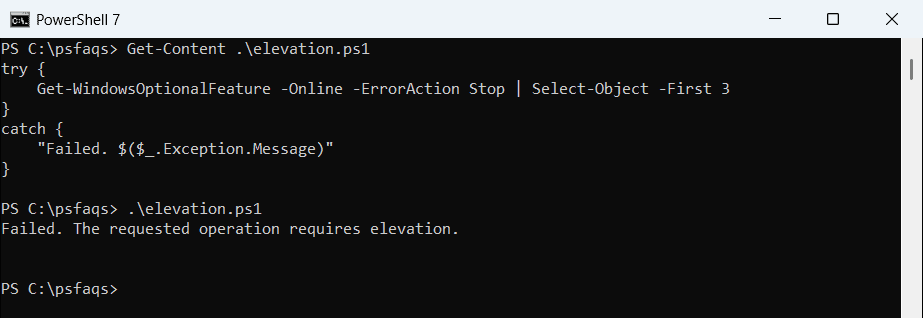
Get-WindowsOptionalFeature needs an elevated window
The DISM cmdlet gives more detail, but it refuses to run without admin rights. Here’s what happens in a normal window:
try {
    Get-WindowsOptionalFeature -Online -ErrorAction Stop | Select-Object -First 3
}
catch {
    "Failed. $($_.Exception.Message)"
}
Output:
Failed. The requested operation requires elevation.