
To check a password expiration date in Active Directory with PowerShell, read the computed msDS-UserPasswordExpiryTimeComputed attribute and convert it to a date:
Get-ADUser -Identity jsmith -Properties 'msDS-UserPasswordExpiryTimeComputed' |
    Select-Object -Property Name,
        @{ Name = 'PasswordExpires'; Expression = { [datetime]::FromFileTime($_.'msDS-UserPasswordExpiryTimeComputed') } }
Below I cover the attribute and the math behind it, an expiring-soon report, Microsoft 365 users, and local accounts.
My test PC isn’t on a domain, so I ran the date math and conversions on sample accounts. The AD and Microsoft Graph commands are shown as code.
How password expiration is calculated
AD stores when the password was last set, not when it expires. The expiry date is PasswordLastSet plus the maximum password age from the domain policy. Here’s that math for three sample accounts:
$today  = Get-Date -Date '2026-10-04'
$maxAge = New-TimeSpan -Days 42          # from Get-ADDefaultDomainPasswordPolicy
$users = @(
    [pscustomobject]@{ Name = 'jsmith';  PasswordLastSet = [datetime]'2026-08-28'; PasswordNeverExpires = $false }
    [pscustomobject]@{ Name = 'amiller'; PasswordLastSet = [datetime]'2026-09-30'; PasswordNeverExpires = $false }
    [pscustomobject]@{ Name = 'svc-sql'; PasswordLastSet = [datetime]'2026-01-12'; PasswordNeverExpires = $true }
)

foreach ($u in $users) {
    if ($u.PasswordNeverExpires) { $expires = 'Never'; $daysLeft = '-' }
    else {
        $expires  = ($u.PasswordLastSet + $maxAge).ToString('yyyy-MM-dd')
        $daysLeft = (($u.PasswordLastSet + $maxAge) - $today).Days
    }
    [pscustomobject]@{ Name = $u.Name; Expires = $expires; DaysLeft = $daysLeft }
}
Output:
Name    Expires    DaysLeft
----    -------    --------
jsmith  2026-10-09        5
amiller 2026-11-11       38
svc-sql Never             -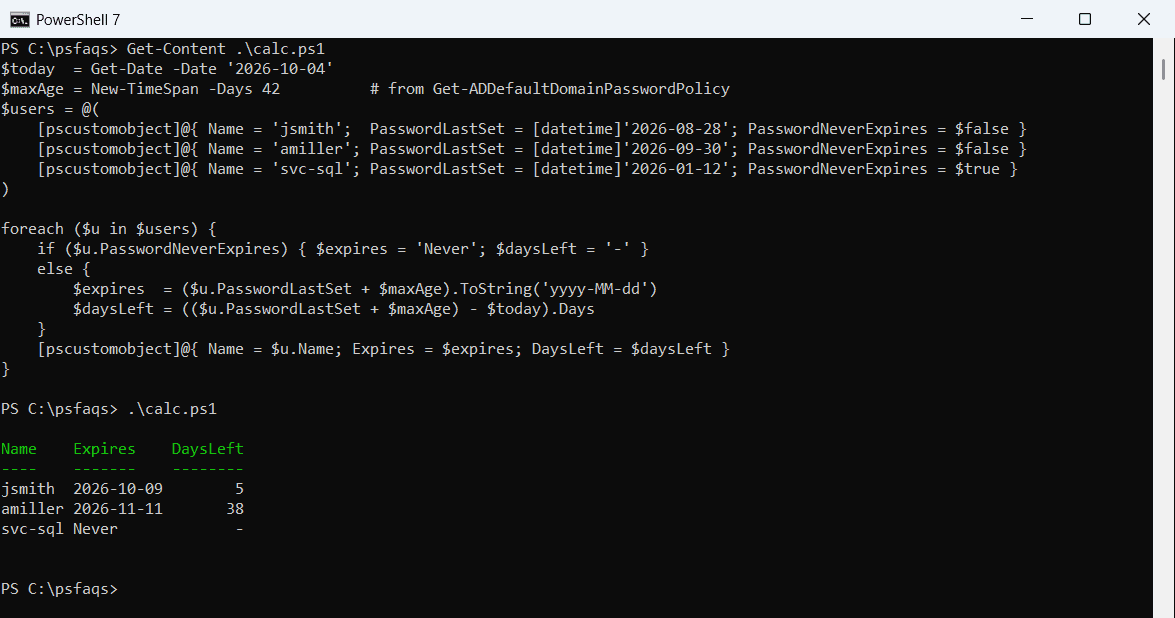
In your domain, read the real values with Get-ADUser -Properties PasswordLastSet, PasswordNeverExpires and (Get-ADDefaultDomainPasswordPolicy).MaxPasswordAge.
Why msDS-UserPasswordExpiryTimeComputed is better
The math above ignores fine-grained password policies, which can give some groups a different maximum age. The computed attribute already accounts for them, so I use it for real reports.
Convert msDS-UserPasswordExpiryTimeComputed to a date
The attribute is a Windows FILETIME number, in UTC. Two special values mean there’s no date: 0 (the password must be changed now) and the largest 64-bit number (it never expires). This helper handles both:
function ConvertFrom-ExpiryTime ([long]$Value) {
    if ($Value -eq 0 -or $Value -eq [long]::MaxValue) { return 'Never or must change now' }
    [datetime]::FromFileTimeUtc($Value).ToString('yyyy-MM-dd HH:mm') + ' UTC'
}

ConvertFrom-ExpiryTime 134392266000000000
ConvertFrom-ExpiryTime 9223372036854775807
Output:
2026-11-15 14:30 UTC
Never or must change now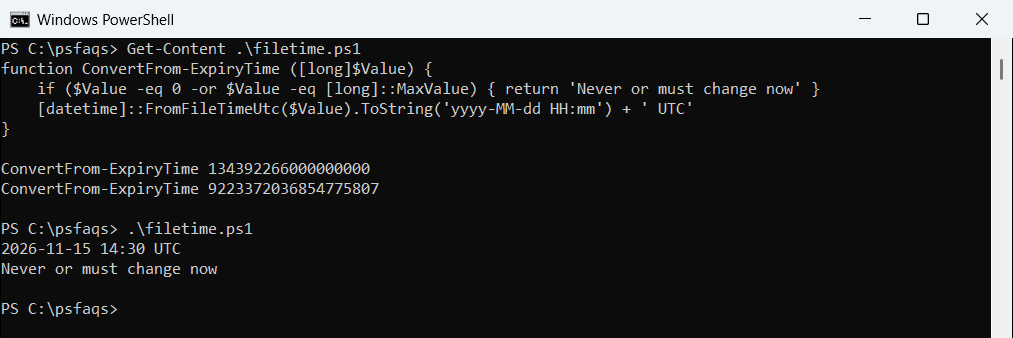
[datetime]::FromFileTime() converts to your local time instead of UTC. Calling it on the never-expires value throws an error, which is why the check comes first.
Find users whose passwords expire soon
This report lists enabled users whose passwords expire in the next 14 days. It needs the ActiveDirectory module from RSAT:
$limit = (Get-Date).AddDays(14)
Get-ADUser -Filter 'Enabled -eq $true -and PasswordNeverExpires -eq $false' `
    -Properties 'msDS-UserPasswordExpiryTimeComputed', EmailAddress |
    Select-Object -Property Name, EmailAddress,
        @{ Name = 'Expires'; Expression = { [datetime]::FromFileTime($_.'msDS-UserPasswordExpiryTimeComputed') } } |
    Where-Object { $_.Expires -le $limit } |
    Sort-Object -Property Expires
Export the result to CSV or use it to send reminders.
Accounts with expired passwords often get locked, too, so see checking if an account is locked.
To go the other way and list accounts whose passwords haven’t changed in months, see how to find users with pwdLastSet older than 90 days.
Check password expiration in Microsoft 365
For cloud users, use the Microsoft Graph PowerShell SDK. The MSOnline and AzureAD modules are retired. Microsoft 365 passwords never expire by default, so check the domain policy first:
Connect-MgGraph -Scopes 'User.Read.All', 'Domain.Read.All'
Get-MgDomain -DomainId 'contoso.com' | Select-Object -Property Id, PasswordValidityPeriodInDays
Then read when each user last changed their password and whether expiration is turned off for them:
Get-MgUser -UserId 'jsmith@contoso.com' -Property DisplayName, LastPasswordChangeDateTime, PasswordPolicies |
    Select-Object -Property DisplayName, LastPasswordChangeDateTime, PasswordPolicies
PasswordPolicies shows DisablePasswordExpiration for users whose password never expires.
Check local account password expiration
On a standalone PC, the maximum password age comes from the local policy. net accounts shows it without admin rights:
net accounts | Where-Object { $_ -match 'password age' }Output:
Minimum password age (days):                          0
Maximum password age (days):                          42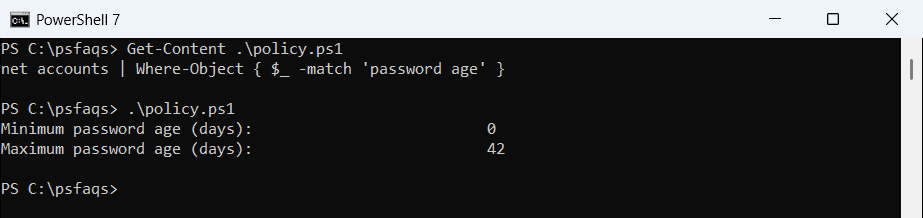
Then Get-LocalUser -Name jsmith | Select-Object Name, PasswordLastSet, PasswordExpires shows the expiry date for one account. To turn expiry off, see setting a local password to never expire.
Frequently Asked Questions
How do I check when a password expires in Active Directory?
Run Get-ADUser -Identity jsmith -Properties 'msDS-UserPasswordEx