To check if a user account is locked in PowerShell, read the LockedOut property. For an Active Directory user, it’s one line with the ActiveDirectory module:
Get-ADUser -Identity maria.lopez -Properties LockedOut | Select-Object Name, LockedOutFor a local account on a Windows PC, the Lockout property of Win32_UserAccount tells you the same thing. Below I cover both, plus finding where a lockout came from, in PowerShell 7 and Windows PowerShell 5.1.
Check if a local user account is locked
On a standalone PC or server, Win32_UserAccount covers local accounts. Here I check the built-in accounts and my own:
$names = 'Administrator', 'Guest', $env:USERNAME

Get-CimInstance -ClassName Win32_UserAccount -Filter 'LocalAccount = True' |
    Where-Object Name -in $names |
    Format-Table Name, Lockout, Disabled -AutoSize
Output:
Name          Lockout Disabled
----          ------- --------
Administrator   False     True
alice           False    False
Guest           False     True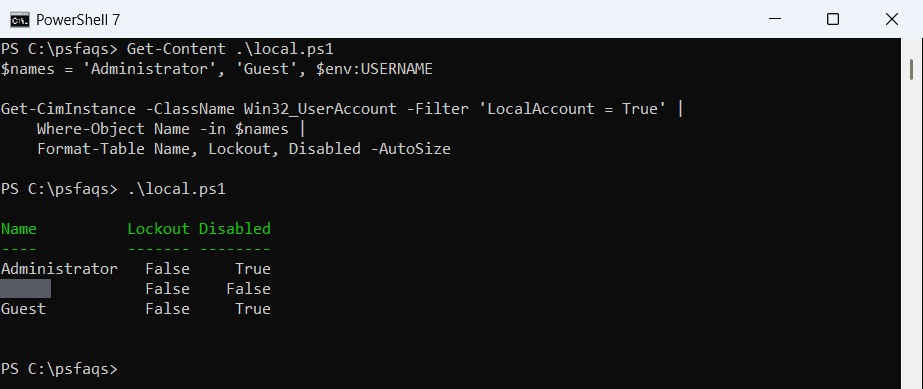
I replaced my own account name with alice (and a gray bar in the screenshot). Lockout is True only while the account is locked; Disabled is a separate switch an admin sets. Listing local users shows the other ways to read these accounts.
When does Windows lock an account?
Windows locks an account after too many bad passwords, based on the lockout policy. net accounts shows the policy on any PC:
$policy = net accounts | Select-String -Pattern 'Lockout'
foreach ($line in $policy) {
    $name, $value = $line.Line -split ':\s+', 2
    '{0,-40} {1}' -f $name.Trim(), $value.Trim()
}
Output:
Lockout threshold                        10
Lockout duration (minutes)               10
Lockout observation window (minutes)     10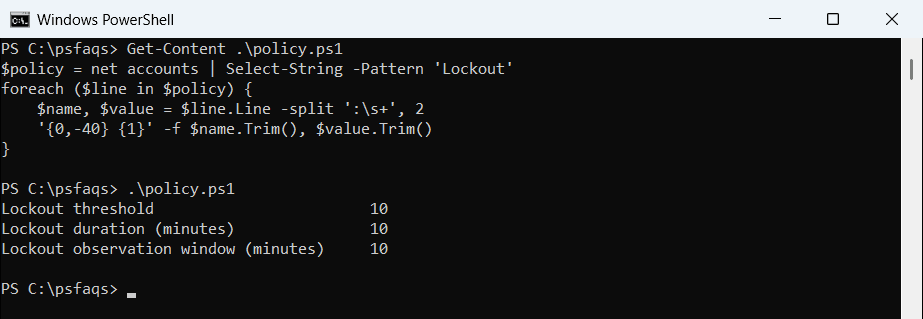
These are the values on my Windows 11 PC. The lock clears by itself after the duration, so a locked local account often fixes itself if you wait. On a domain, Group Policy sets these values instead.
Check if an Active Directory account is locked
For domain accounts, you need the ActiveDirectory module from RSAT. LockedOut isn’t in the default properties, so ask for it with -Properties:
Get-ADUser -Identity maria.lopez -Properties LockedOut, lockoutTime, badPwdCount |
    Select-Object SamAccountName, LockedOut, badPwdCount, lockoutTime
My test PC isn’t joined to a domain, so I’ve shown this as code. If Get-ADUser isn’t recognized, install RSAT on Windows 11 first.
Convert lockoutTime to a readable date
lockoutTime comes back as a large Windows file time number, and 0 means the account isn’t locked. I ran the conversion on sample values in the same shape:
# Sample values shaped like Get-ADUser -Properties LockedOut, lockoutTime, badPwdCount
$users = @(
    [pscustomobject]@{ SamAccountName = 'maria.lopez'; LockedOut = $true;  badPwdCount = 10; lockoutTime = 134358523600000000 }
    [pscustomobject]@{ SamAccountName = 'tom.baker';   LockedOut = $false; badPwdCount = 2;  lockoutTime = 0 }
)
$eastern = [System.TimeZoneInfo]::FindSystemTimeZoneById('Eastern Standard Time')

foreach ($u in $users) {
    if ($u.lockoutTime -gt 0) {
        $utc = [datetime]::FromFileTimeUtc($u.lockoutTime)
        $et = [System.TimeZoneInfo]::ConvertTimeFromUtc($utc, $eastern)
        '{0,-12} locked at {1:yyyy-MM-dd HH:mm} ET after {2} bad passwords' -f $u.SamAccountName, $et, $u.badPwdCount
    }
    else {
        '{0,-12} not locked ({1} bad passwords)' -f $u.SamAccountName, $u.badPwdCount
    }
}
Output:
maria.lopez  locked at 2026-10-07 09:12 ET after 10 bad passwords
tom.baker    not locked (2 bad passwords)
FromFileTimeUtc gives UTC, and the time zone conversion shows Eastern time no matter which PC runs the script. Converting strings to dates has more date tricks.
Find all locked accounts in the domain
Search-ADAccount returns only the accounts that are locked right now. -UsersOnly skips computer accounts:
Search-ADAccount -LockedOut -UsersOnly |
    Select-Object Name, SamAccountName
Run it on a schedule and email the result to the help desk. To save the list, pipe it to Export-Csv.
Find where the lockout came from (event 4740)
Windows logs event 4740 every time an account is locked. On a domain, the domain controllers record it, and Caller Computer Name shows which PC sent the bad passwords:
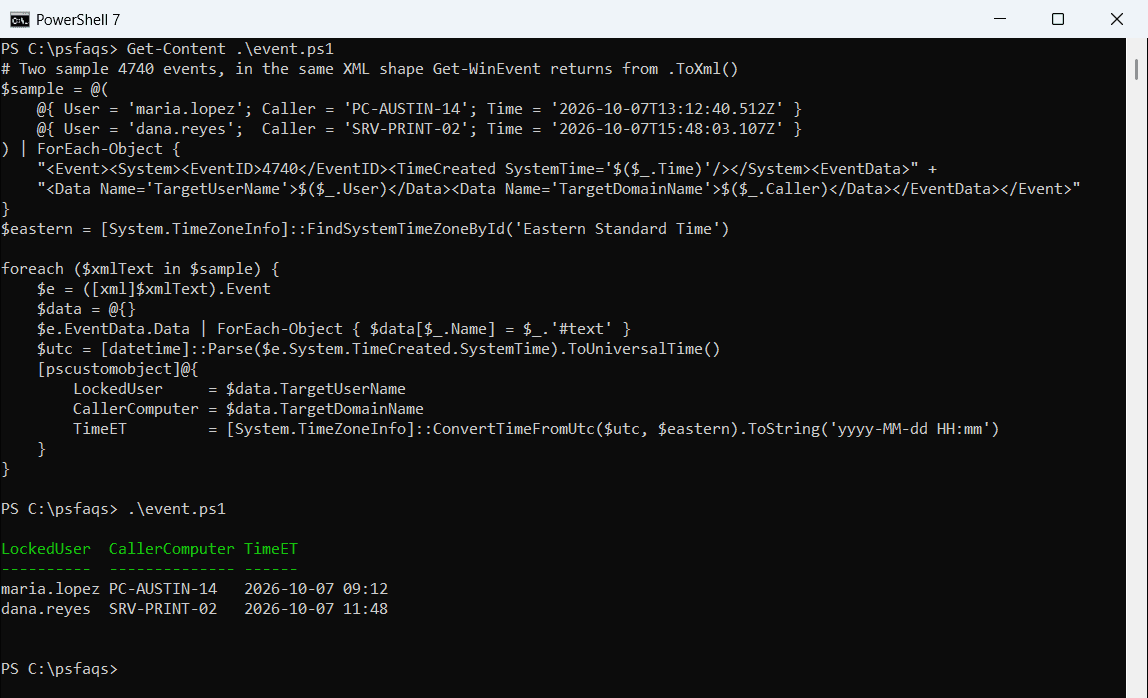
Get-WinEvent -ComputerName DC01 -FilterHashtable @{ LogName = 'Security'; Id = 4740 } -MaxEvents 20In the event XML, the caller computer is stored in the TargetDomainName field, which trips up a lot of scripts. This parses two sample events in that same shape:
# Two sample 4740 events, in the same XML shape Get-WinEvent returns from .ToXml()
$sample = @(
    @{ User = 'maria.lopez'; Caller = 'PC-AUSTIN-14'; Time = '2026-10-07T13:12:40.512Z' }
    @{ User = 'dana.reyes';  Caller = 'SRV-PRINT-02'; Time = '2026-10-07T15:48:03.107Z' }
) | ForEach-Object {
    "<Event><System><EventID>4740</EventID><TimeCreated SystemTime='$($_.Time)'/></System><EventData>" +
    "<Data Name='TargetUserName'>$($_.User)</Data><Data Name='TargetDomainName'>$($_.Caller)</Data></EventData></Event>"
}
$eastern = [System.TimeZoneInfo]::FindSystemTimeZoneById('Eastern Standard Time')

foreach ($xmlText in $sample) {
    $e = ([xml]$xmlText).Event
    $data = @{}
    $e.EventData.Data | ForEach-Object { $data[$_.Name] = $_.'#text' }
    $utc = [datetime]::Parse($e.System.TimeCreated.SystemTime).ToUniversalTime()
    [pscustomobject]@{
        LockedUser     = $data.TargetUserName
        CallerComputer = $data.TargetDomainName
        TimeET         = [System.TimeZoneInfo]::ConvertTimeFromUtc($utc, $eastern).ToString('yyyy-MM-dd HH:mm')
    }
}
Output:
LockedUser  CallerComputer TimeET
----------  -------------- ------
maria.lopez PC-AUSTIN-14   2026-10-07 09:12
dana.reyes  SRV-PRINT-02   2026-10-07 11:48