
To find the location of an executable in PowerShell, run Get-Command and read its Source property. It searches the folders in your PATH, just like running the program does:
(Get-Command -Name notepad).SourceOutput:
C:\WINDOWS\system32\notepad.exeBelow I look up several programs at once, list every copy with -All and where.exe, and find where a running program lives. I used only the tools that ship with Windows.
Find the path of several programs
Pipe a list of names to Get-Command. -CommandType Application skips aliases and functions with the same name:
'notepad', 'ping', 'robocopy', 'powershell', 'winget' | ForEach-Object {
    '{0,-11} {1}' -f $_, (Get-Command -Name $_ -CommandType Application | Select-Object -First 1).Source
}
Output:
notepad     C:\WINDOWS\system32\notepad.exe
ping        C:\WINDOWS\system32\PING.EXE
robocopy    C:\WINDOWS\system32\Robocopy.exe
powershell  C:\WINDOWS\System32\WindowsPowerShell\v1.0\powershell.exe
winget      C:\Users\alice\AppData\Local\Microsoft\WindowsApps\winget.exe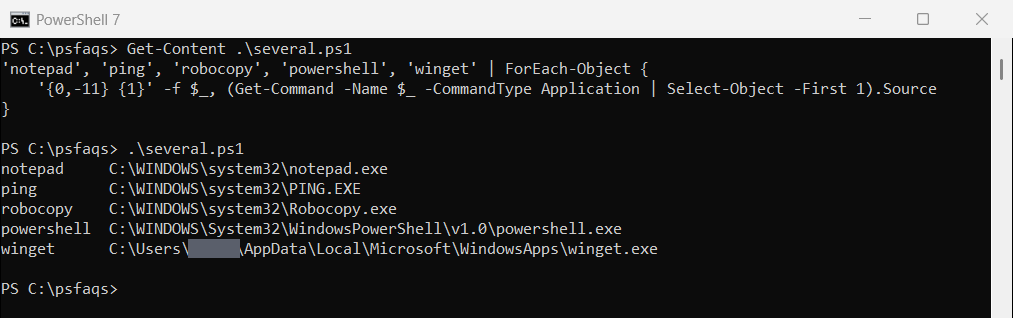
Programs from the Microsoft Store, like winget, run through small launchers in your WindowsApps folder. The real files sit in a protected folder under C:\Program Files\WindowsApps.
Use gcm for short
gcm is the built-in alias, so (gcm notepad).Source gives the same result. The Path property works too for applications.
Find every copy with -All or where.exe
Get-Command returns the first match, which is the one that runs. Add -All to see the rest, or use where.exe:
"Get-Command -All:"
(Get-Command -Name notepad -All).Source
""
"where.exe:"
where.exe notepad
Output:
Get-Command -All:
C:\WINDOWS\system32\notepad.exe
C:\WINDOWS\notepad.exe
C:\Users\alice\AppData\Local\Microsoft\WindowsApps\notepad.exe

where.exe:
C:\Windows\System32\notepad.exe
C:\Windows\notepad.exe
C:\Users\alice\AppData\Local\Microsoft\WindowsApps\notepad.exe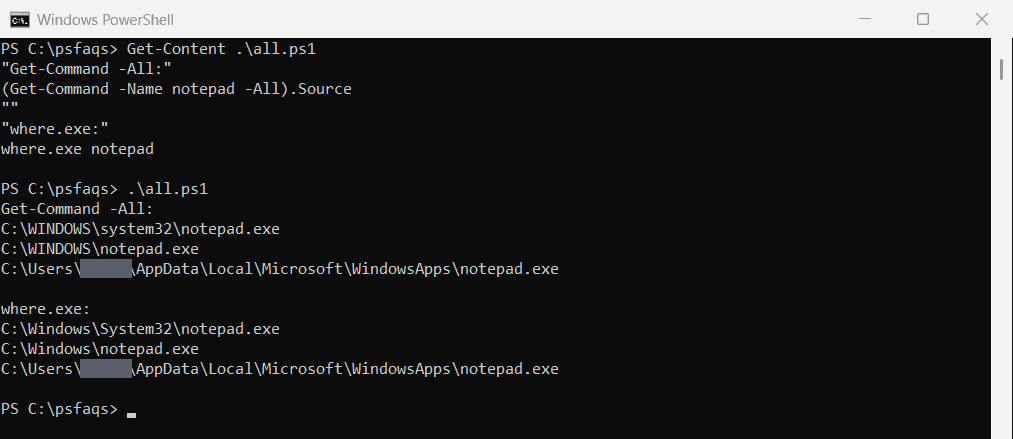
Type where.exe in full, because plain where is an alias for Where-Object in PowerShell. The where command reference lists its options.
Find where a running program lives
For a program that’s already open, Get-Process has the path, even if it isn’t in PATH:
Get-Process -Name explorer | Select-Object -First 1 -ExpandProperty PathOutput:
C:\WINDOWS\Explorer.EXE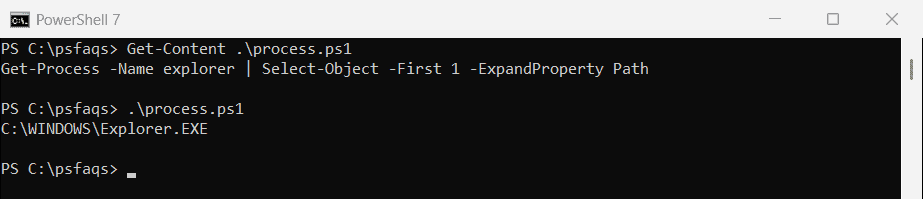
Path can be empty for system processes unless you run PowerShell as administrator. Get-Process examples covers the cmdlet in more depth.
Find a program that isn’t in PATH
If Get-Command can’t find it, search the usual install folders. This can take a minute on a full drive:
Get-ChildItem -Path 'C:\Program Files', 'C:\Program Files (x86)' -Filter 'excel.exe' `
    -Recurse -ErrorAction SilentlyContinue | Select-Object -ExpandProperty FullName
-ErrorAction SilentlyContinue hides access errors from protected folders. Finding a file by name has faster search tips.
Frequently Asked Questions
How do I find the path of an executable in PowerShell?
Run (Get-Command -Name notepad).Source. It returns the full path of the copy that runs.
What is the PowerShell equivalent of which?
Get-Command, or its alias gcm. where.exe also works.
Why does where not work in PowerShell?
where is an alias for Where-Object. Type where.exe instead.
How do I see all copies of a program in PATH?
Run Get-Command -Name notepad -All or where.exe notepad.
How do I find where a running program is installed?
Run (Get-Process -Name explorer).Path, using the process name without .exe. See Microsoft’s Get-Command reference.
You might also need these:

Bijay Kumar is the author behind PowerShellFAQs.com, where he writes practical PowerShell tutorials for Windows administrators, developers and IT pros, from everyday file and string tasks to full automation scripts. Every example is tested in both PowerShell 7 and Windows PowerShell 5.1 before it is published. Bijay is a 13-times Microsoft MVP with more than 15 years in the software industry, including work with HP and TCS. Read more.