
Get-WindowsAutopilotInfo is a PowerShell script that collects a device’s hardware hash and serial number for Windows Autopilot. Install it from the PowerShell Gallery, then save the hash to a CSV or upload it to Intune. Microsoft documents these commands for an elevated window:
[Net.ServicePointManager]::SecurityProtocol = [Net.SecurityProtocolType]::Tls12
New-Item -Type Directory -Path "C:\HWID"
Set-Location -Path "C:\HWID"
$env:Path += ";C:\Program Files\WindowsPowerShell\Scripts"
Set-ExecutionPolicy -Scope Process -ExecutionPolicy RemoteSigned
Install-Script -Name Get-WindowsAutopilotInfo
Get-WindowsAutopilotInfo -OutputFile AutopilotHWID.csv
The file lands in C:\HWID\AutopilotHWID.csv, ready to import into Intune. Below I explain each line, the upload option, the CSV rules and the errors you’ll run into.
What each line does
- SecurityProtocol makes Windows PowerShell use TLS 1.2, which the PowerShell Gallery requires.
- New-Item and Set-Location create C:\HWID and work from it, so the CSV is easy to find.
- $env:Path adds the folder where Install-Script puts scripts, so you can run it by name.
- Set-ExecutionPolicy -Scope Process allows the downloaded script for this window only. It doesn’t change the PC’s policy.
- Install-Script downloads the script from the Gallery. Say yes if it asks to install NuGet.
- Get-WindowsAutopilotInfo -OutputFile reads the hardware hash and writes the CSV.
Before you run anything, these checks show whether the script and its folder are already set up. On a fresh PC, both are False:
$scriptsPath = 'C:\Program Files\WindowsPowerShell\Scripts'

"Script installed:        $([bool](Get-InstalledScript -Name Get-WindowsAutopilotInfo -ErrorAction SilentlyContinue))"
"Scripts folder on PATH:  $(($env:Path -split ';') -contains $scriptsPath)"
Output:
Script installed:        False
Scripts folder on PATH:  False
Setting the execution policy explains the scopes in more detail.
Run it as administrator
The hardware hash comes from a WMI class that only administrators can read. This is what you get in a normal window, which is the same reason the script fails without elevation:
try {
    Get-CimInstance -Namespace root/cimv2/mdm/dmmap -ClassName MDM_DevDetail_Ext01 `
        -Filter "InstanceID='Ext' AND ParentID='./DevDetail'" -ErrorAction Stop
}
catch { "Failed. $($_.Exception.Message.Trim())" }
Output in Windows PowerShell 5.1:
Failed. Access to a CIM resource was not available to the client.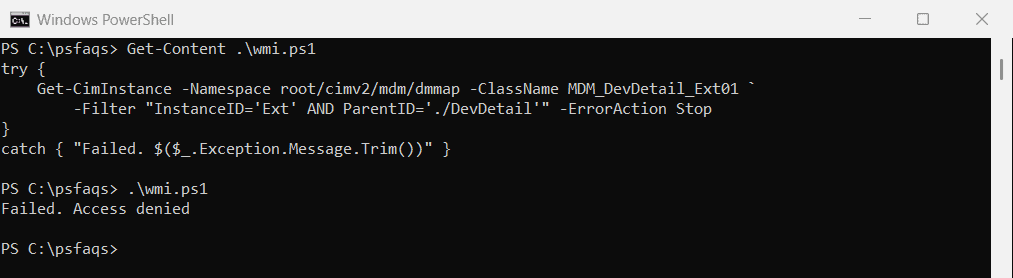
PowerShell 7 reports the same problem as “Access to a CIM resource was not available to the client.” Right-click Windows PowerShell and choose Run as administrator, then try again.
Upload the hash directly to Intune
Instead of a CSV, the -Online switch uploads the hash to your Intune tenant. This is the usual method during Windows setup, where you press Shift+F10 at the sign-in screen to open a command prompt and type powershell:
[Net.ServicePointManager]::SecurityProtocol = [Net.SecurityProtocolType]::Tls12
Set-ExecutionPolicy -Scope Process -ExecutionPolicy RemoteSigned
Install-Script -Name Get-WindowsAutopilotInfo -Force
Get-WindowsAutopilotInfo -Online
A Microsoft sign-in window opens. Use an account with at least the Intune Administrator role. On first use, you’re also asked to approve the app permissions the script needs.
Then open the Intune admin center, go to Devices, Windows, Enrollment and Windows Autopilot devices, and select Sync. The device appears once the sync finishes, which can take a few minutes.
The serial number in the hash matches the one in getting the BIOS serial number.
Combine hashes from several devices
If you saved one CSV per device, merge them before importing. Microsoft allows up to 500 devices per file. This example uses made-up sample values in place of real hashes:
$rows = Get-ChildItem -Path C:\psfaqs\HWID -Filter *.csv | ForEach-Object { Import-Csv -Path $_.FullName }
$unique = $rows | Sort-Object -Property 'Device Serial Number' -Unique

$lines = @('Device Serial Number,Windows Product ID,Hardware Hash,Group Tag,Assigned User')
$lines += $unique | ForEach-Object { '{0},{1},{2},,' -f $_.'Device Serial Number', $_.'Windows Product ID', $_.'Hardware Hash' }
Set-Content -Path C:\psfaqs\HWID\AllDevices.csv -Value $lines -Encoding Ascii

"Device files read: $(@($rows).Count), unique devices written: $(@($unique).Count)"
Get-Content -Path C:\psfaqs\HWID\AllDevices.csv
Output:
Device files read: 3, unique devices written: 2
Device Serial Number,Windows Product ID,Hardware Hash,Group Tag,Assigned User
PF4SMPL01,,T0GxAgEAHAAAAAoA1B2C3D4E5F6,,
PF4SMPL02,,T0GxAgEAHAAAAAoA9F8E7D6C5B4,,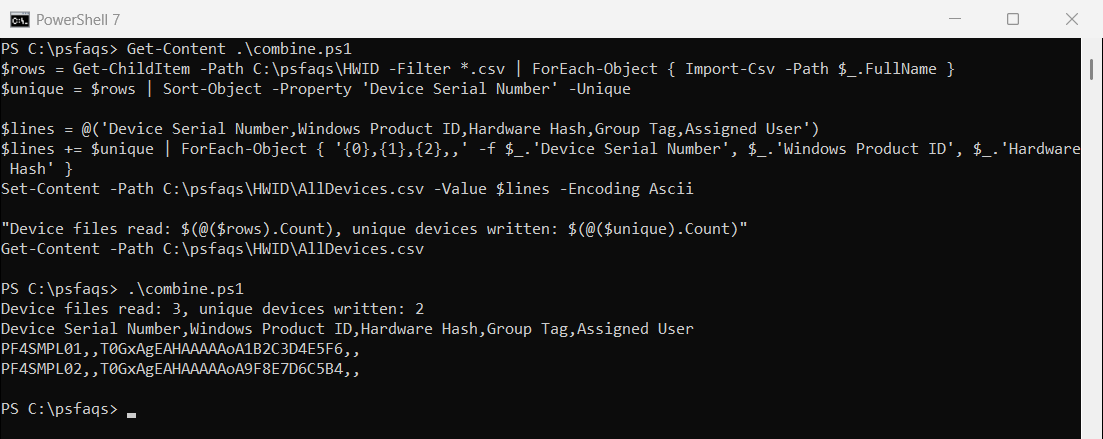
Sorting with -Unique drops a device that was captured twice. Duplicates in one file cause the ZtdDeviceDuplicated error during import.
Check the file before you import it
Intune is strict about this file. The header must match exactly, including case, and the file can’t contain quotation marks or extra columns. It also has to be ANSI text, not Unicode:
$lines = Get-Content -Path C:\psfaqs\HWID\AllDevices.csv
$header = 'Device Serial Number,Windows Product ID,Hardware Hash,Group Tag,Assigned User'

"Header exactly right:  $($lines[0] -ceq $header)"
"No quotation marks:    $(-not ($lines -match '"'))"
"Device rows (max 500): $($lines.Count - 1)"
Output:
Header exactly right:  True
No quotation marks:    True
Device rows (max 500): 2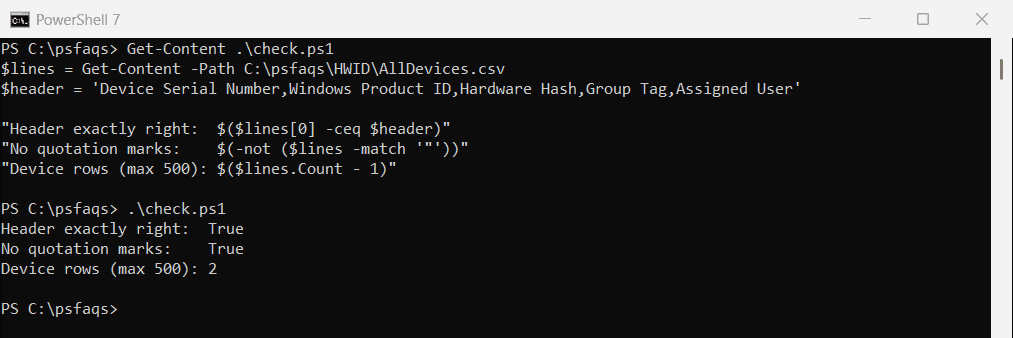
That’s why I wrote the file with Set-Content -Encoding Ascii rather than Export-Csv, which adds quotation marks. Don’t open and save it in Excel either, since that changes the format.
Common import errors
- ZtdDeviceAlreadyAssigned: the device is already registered in your tenant. Search for its serial number before importing again.
- ZtdDeviceAssignedToAnotherTenant: another organization has registered the device and must remove it first.
- ZtdDeviceDuplicated: the same hash appears mo