
“The RPC server is unavailable” (0x800706BA) in PowerShell means your PC couldn’t open an RPC connection to the remote computer.
The usual causes are a wrong name, a PC that’s off, or a firewall blocking WMI. The quickest fix on the target is enabling the WMI firewall rules:
Enable-NetFirewallRule -DisplayGroup 'Windows Management Instrumentation (WMI)'Run that on the remote PC as administrator. Before you change anything, though, find out which cause you have. I reproduced the error in PowerShell 7 and Windows PowerShell 5.1 and walk through each check below.
What the RPC server is unavailable error looks like
Commands that talk to WMI over DCOM, like Get-WmiObject, use RPC. Point one at a computer name that doesn’t exist and you’ll get the error after a few seconds:
try {
    Get-WmiObject -Class Win32_OperatingSystem -ComputerName PC-DENVER-99 -ErrorAction Stop
}
catch {
    "Failed. $($_.Exception.Message.Trim())"
    'Exception: {0}' -f $_.Exception.GetType().Name
    'HResult:   0x{0:X8}' -f $_.Exception.HResult
}
Output:
Failed. The RPC server is unavailable.
Exception: RemoteException
HResult:   0x80131501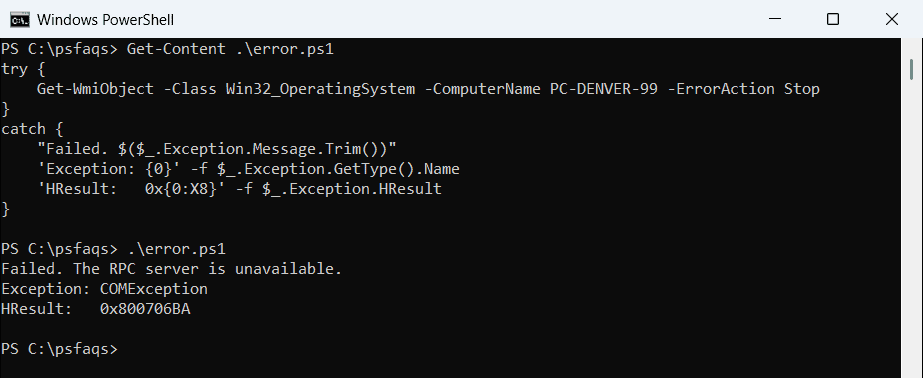
That’s the PowerShell 7 output. Windows PowerShell 5.1 shows the classic COMException with 0x800706BA, which is the code you’ll find in most forum posts.
PowerShell 7 doesn’t include Get-WmiObject itself. It loads it from Windows PowerShell through a background compatibility session, so the error comes back wrapped as a RemoteException. Catching errors like this is covered in try and catch in PowerShell.
CIM sessions over DCOM fail the same way
Get-CimInstance uses WinRM by default, but a CIM session set to DCOM goes through RPC too. I used 192.0.2.10, an address reserved for documentation, so nothing answers:
$option = New-CimSessionOption -Protocol Dcom
try {
    $session = New-CimSession -ComputerName 192.0.2.10 -SessionOption $option -ErrorAction Stop
}
catch {
    "Failed. $($_.Exception.Message.Trim())"
}
Output:
Failed. The RPC server is unavailable.The message is identical in both versions. It took about 25 seconds to time out, because the PC waited for an answer from an address that never replies.
Step 1: Check that the computer name resolves
A typo or a stale DNS record gives the same RPC error as a firewall, so rule it out first. This resolves each name to an IPv4 address:
foreach ($name in 'localhost', 'PC-DENVER-99') {
    try {
        $ip = [System.Net.Dns]::GetHostAddresses($name) | Where-Object AddressFamily -eq 'InterNetwork'
        '{0,-13} resolves to {1}' -f $name, ($ip -join ', ')
    }
    catch {
        '{0,-13} Failed. {1}' -f $name, $_.Exception.InnerException.Message
    }
}
Output:
localhost     resolves to 127.0.0.1
PC-DENVER-99  Failed. No such host is known.
If the name fails, fix DNS or use the IP address. One tiny difference: PowerShell 7 ends the .NET message with a period and 5.1 doesn’t. Getting an IP address with PowerShell shows other ways to look up addresses.
Step 2: Test if port 135 is open
RPC starts on TCP port 135, the endpoint mapper. If you can’t reach it, nothing else will work. This function tries to connect and gives up after two seconds:
function Test-RpcPort ([string]$ComputerName, [int]$Port = 135) {
    $client = New-Object System.Net.Sockets.TcpClient
    try { $client.ConnectAsync($ComputerName, $Port).Wait(2000) }
    catch { $false }
    finally { $client.Dispose() }
}

foreach ($target in 'localhost', '192.0.2.10') {
    '{0,-11} port 135 open: {1}' -f $target, (Test-RpcPort $target)
}
Output:
localhost   port 135 open: True
192.0.2.10  port 135 open: False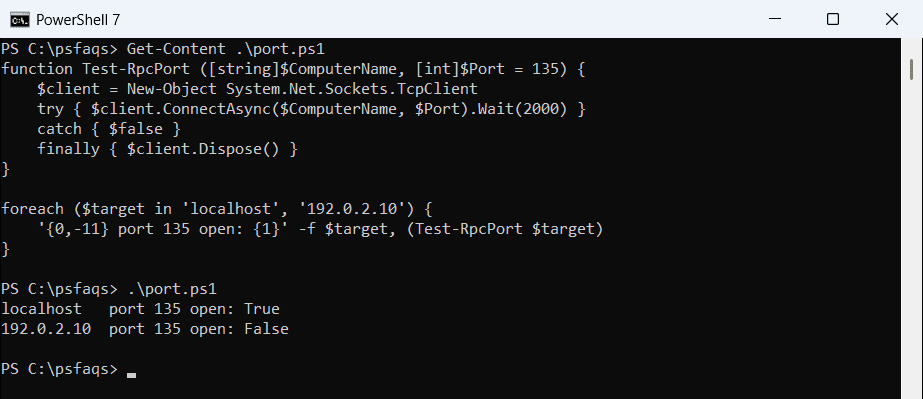
False means the PC is off, offline, or a firewall drops the traffic. Checking if a port is open covers Test-NetConnection too, which is slower to time out.
Step 3: Make sure the RPC services are running
On the remote computer, these four services must be running. Here’s how they look on a healthy PC:
Get-Service -Name RpcSs, RpcEptMapper, DcomLaunch, Winmgmt |
    Format-Table Name, Status, StartType, DisplayName -AutoSize
Output:
Name          Status StartType DisplayName
----          ------ --------- -----------
DcomLaunch   Running Automatic DCOM Server Process Launcher
RpcEptMapper Running Automatic RPC Endpoint Mapper
RpcSs        Running Automatic Remote Procedure Call (RPC)
Winmgmt      Running Automatic Windows Management Instrumentation
All four start automatically, and you can’t stop RPC itself. If Winmgmt is stopped, WMI queries fail even though port 135 answers. See listing running services for more filters.
Step 4: Allow WMI through the firewall
Microsoft says the WMI firewall exception has to be set on the remote target. Check the inbound rules there first. On my PC they’re all off, which is the Windows default:
Get-NetFirewallRule -DisplayGroup 'Windows Management Instrumentation (WMI)' |
    Where-Object Direction -eq 'Inbound' |
    Sort-Object DisplayName, Profile |
    Format-Table DisplayName, Enabled, Profile -AutoSize
Output:
DisplayName                                   Enabled         Profile
-----------                                   -------         -------
Windows Management Instrumentation (ASync-In)   False          Domain
Windows Management Instrumentation (ASync-In)   False Private, Public
Windows Management Instrumentation (DCOM-In)    False          Domain
Windows Management Instrumentation (DCOM-In)    False Private, Public
Windows Management Instrumentation (WMI-In)     False          Domain
Windows Management Instrumentation (WMI-In)     False Private, Public